
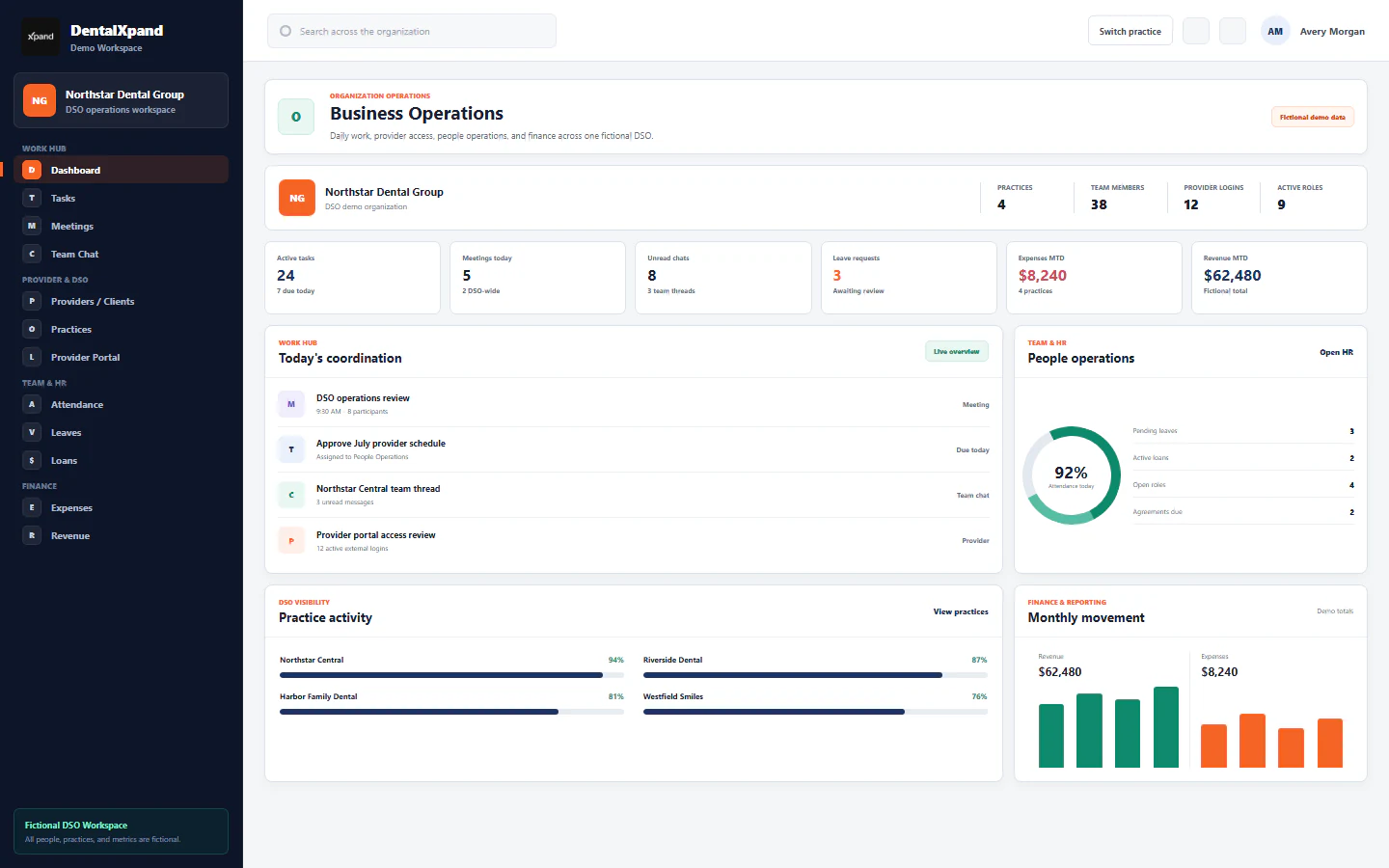
Operate a DSO or multi-practice workspace
Operate one DSO organization across multiple canonical practices, understand organization-wide and practice-scoped views, route records safely, coordinate shared teams, compare like-for-like results, and archive locations without crossing tenant boundaries.
A DentalXpand DSO is one organization tenant containing multiple canonical practice or location records. Internal organization-scoped teams can coordinate approved work across that tenant, while external practice-scoped users receive only their assigned locations. Every practice-aware operational record also carries a practice context. This lesson explains how to operate that model without confusing an organization-wide total, a default practice, a provider relationship, or an external user’s assignment.
1 / Operating model
Keep organization, practice, user, relationship, and record scope separate
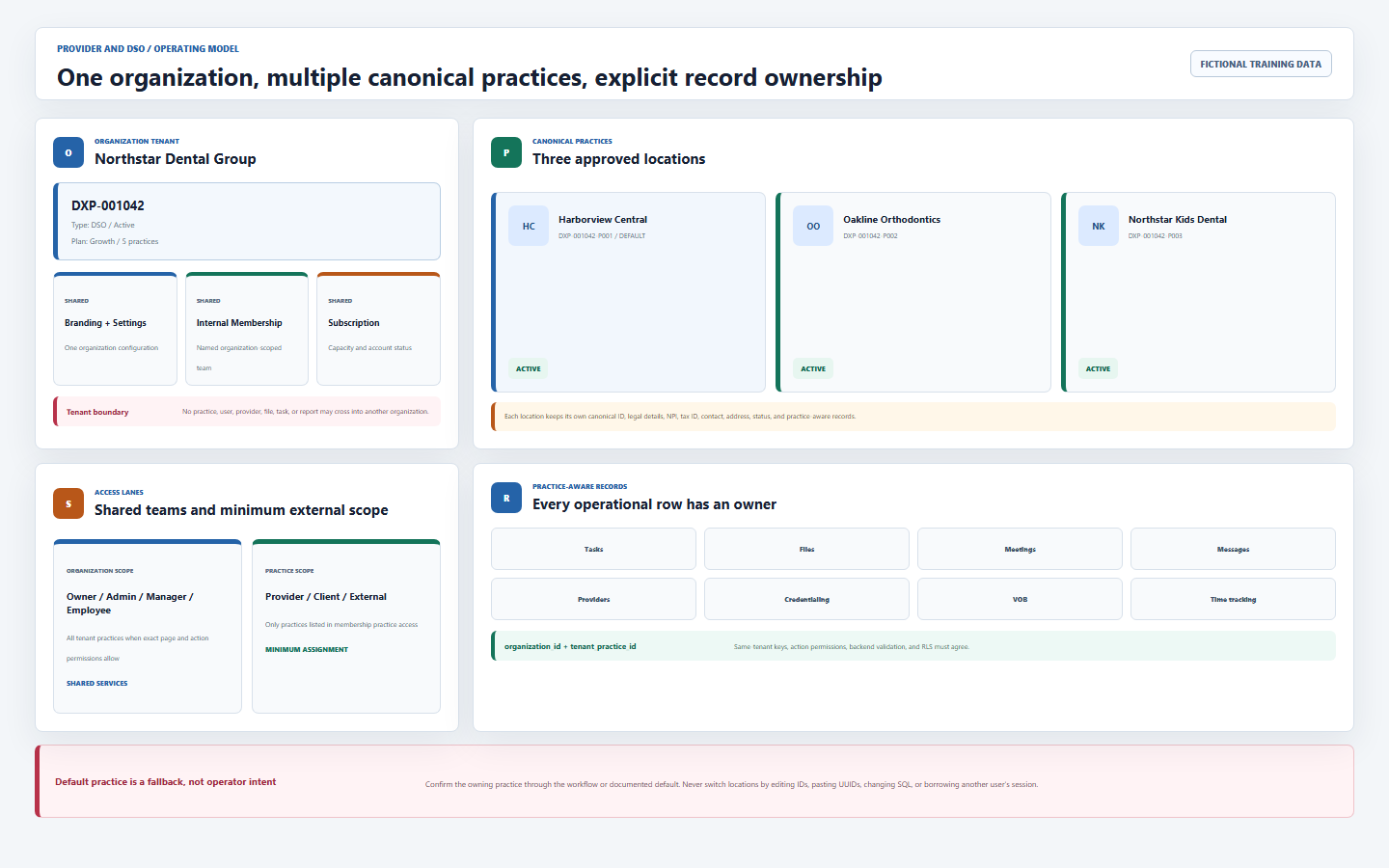
The tenant boundary for the DSO, subscription, shared branding, settings, internal membership, and organization-wide authorization.
A canonical same-organization record with its own ID, code, legal details, NPI, tax ID, contact, address, status, and default marker.
Internal roles can reach tenant practices when their page and action permissions allow. It is broader than a selected location.
Provider, Client, and External memberships receive only approved practices through membership access records.
Tasks, files, meetings, messages, VOB, credentialing, providers, and other protected tables carry tenant_practice_id.
Canonical provider-to-practice links remain separate from the external login’s practice assignments.
Complete Manage practices, locations, and assignments and Control provider and practice access before operating production DSO data.
2 / Readiness
Define the approved operating map before creating location work
| Confirm | Approved source | Stop when |
|---|---|---|
| DSO organization | Exact active organization name, code, type, subscription, owner, and operating purpose. | The request combines unrelated companies, products, or Guardian Connect data. |
| Location roster | Executed onboarding list or authorized corporate directory with legal name, NPI, tax ID, contact, and address. | A location is duplicated, informal, closed, or cannot be matched to an approved entity. |
| Default practice | The intentional catchment location used when a practice-aware workflow supplies no explicit location. | The default is still an unexplained Unassigned placeholder or an inactive location. |
| Shared team model | Named internal owners, managers, centralized teams, exact permissions, and required external assignments. | A shared account or broad Admin role is proposed instead of named access. |
| Record ownership | Which location owns each workflow, provider, case, file, task, message, VOB, or report row. | The owning practice cannot be stated before Save. |
| Comparison rules | Metric definition, date range, status set, source, timezone, currency, and excluded records. | Organization totals and filtered practice results are being compared as if equivalent. |
3 / Organization overview
Read Dashboard totals as the authorized tenant view, not a location leaderboard
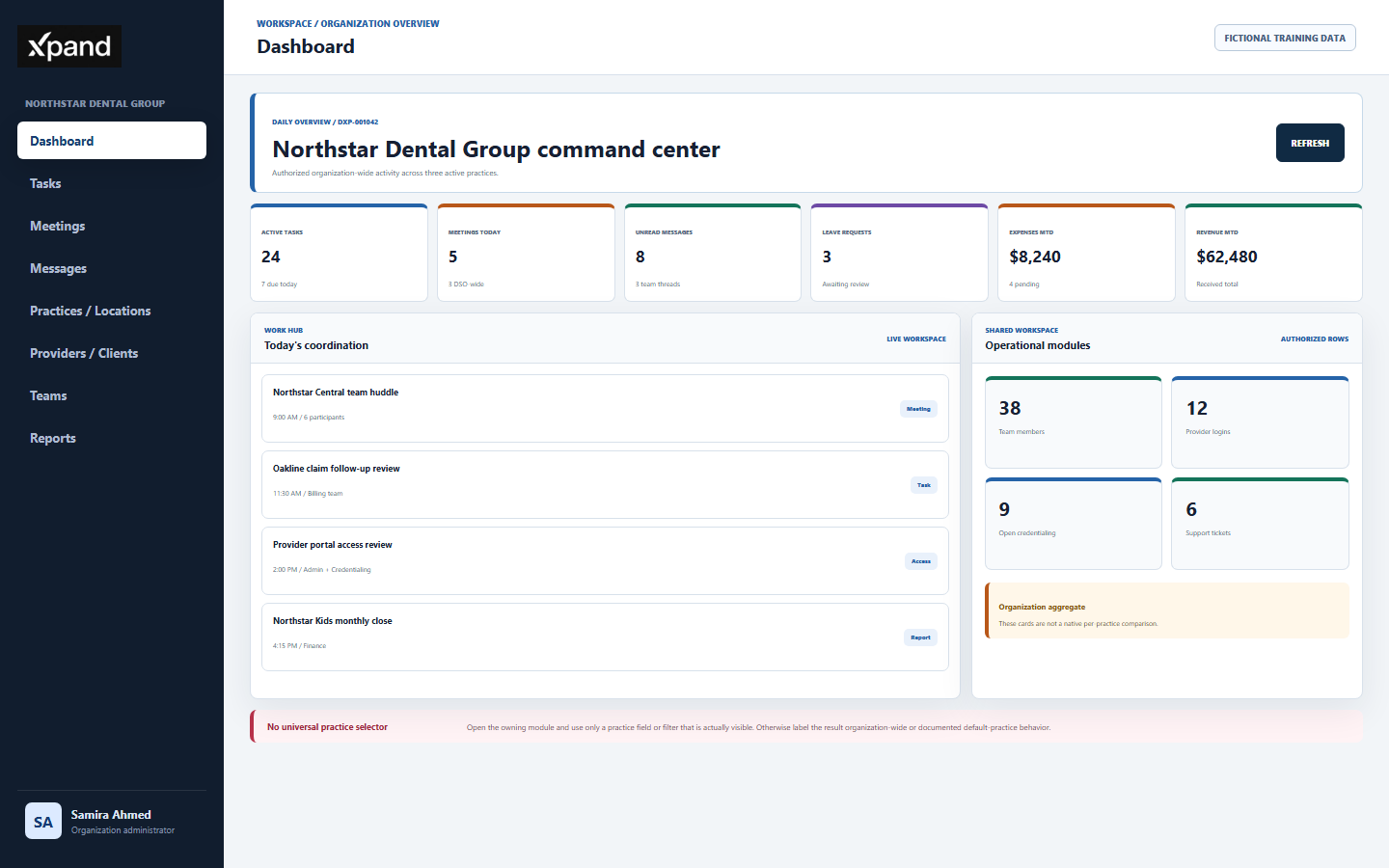
- Open Dashboard and confirm the organization identity.Use the expected DSO name and your named account. Do not continue from a stale platform support or another tenant session.
- Read cards as current authorized totals.Tasks, HR, finance, providers, credentialing, documents, support, users, and recent activity are calculated from rows returned to the current account.
- Separate role behavior.Administrators receive the broad business overview, external provider-like roles receive the focused client dashboard, and employees receive personal work views.
- Refresh before an operational decision.Use the Refresh action and record the time, date range, and status definition. Realtime subscriptions and periodic refresh do not replace reconciliation.
- Do not label organization totals as one practice.An internal organization-scoped result can include all accessible tenant locations. A default practice does not automatically turn the Dashboard into a default-location report.
- Move to the owning module for detail.Open Tasks, Reports, Providers, Credentialing, Finance, or another module and use only the practice context and filters that page actually exposes.
4 / Practice roster
Maintain one canonical active record for every approved location
| Roster field | Current behavior | Operating rule |
|---|---|---|
| Name and legal name | Display and legal identity remain separate fields. | Use approved legal records; avoid abbreviations that create a duplicate. |
| Practice code | New records receive an organization-prefixed sequential code. | Use the generated code for reconciliation; do not invent another ID. |
| NPI and tax ID | Stored on the canonical location record. | Verify through an approved source and restrict unnecessary display or export. |
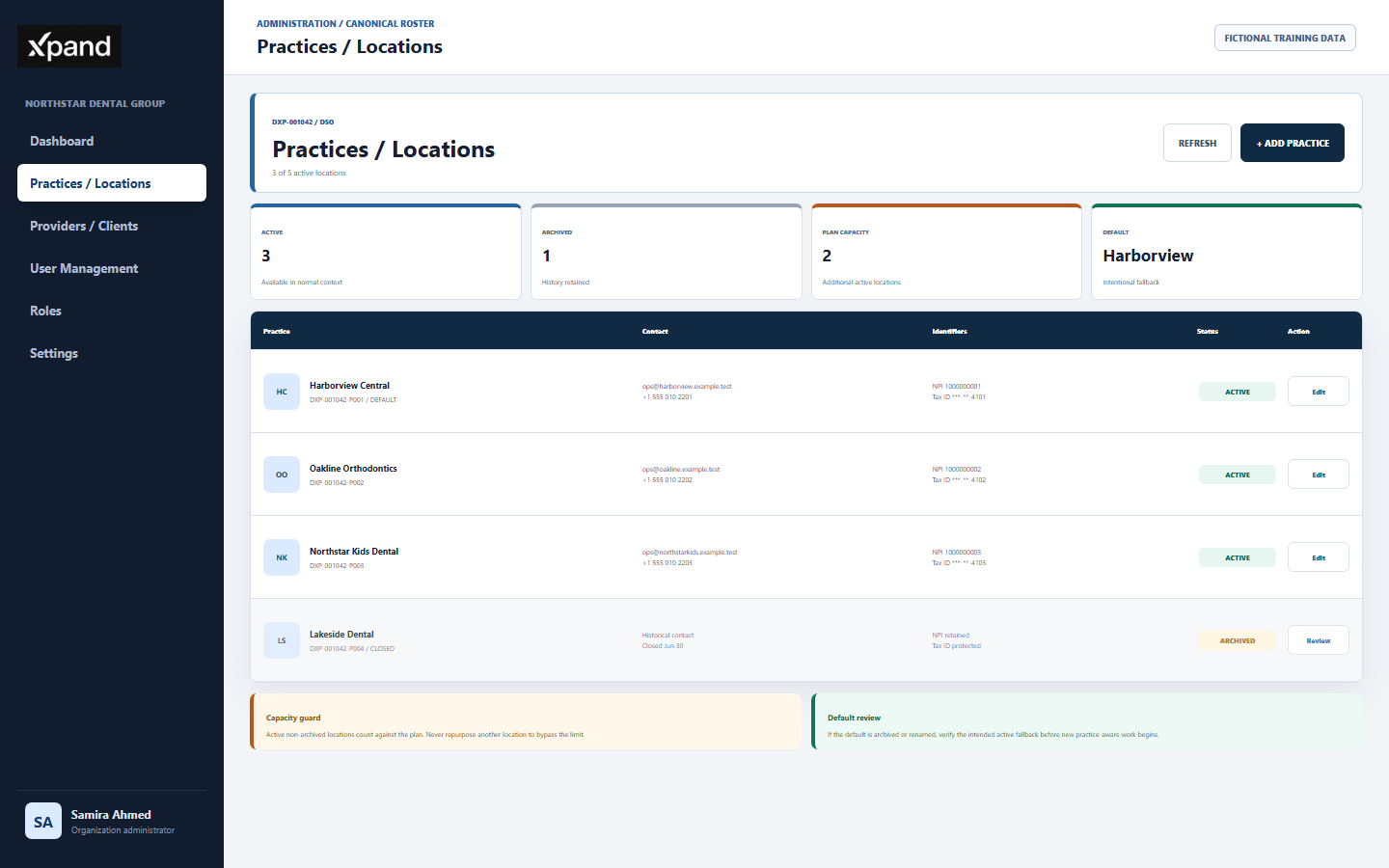
| Status | Active and archived states control normal availability; archive is not historical deletion. | Complete handoff before archive and never recreate the same location to make it visible. |
| Default marker | Database default selection prefers the active default practice for organization-scoped work. | Keep exactly one intentional operational default and review it after roster changes. |
| Plan capacity | Active, non-archived practices count against the subscription or override limit. | Resolve capacity through the approved plan process; do not reuse an unrelated practice row. |
Use Practices / Locations as the canonical roster. Provider free text, a report label, a folder name, or a task title is not a practice record.
5 / Practice context
Determine whether the page is organization-wide, explicitly scoped, or using the default
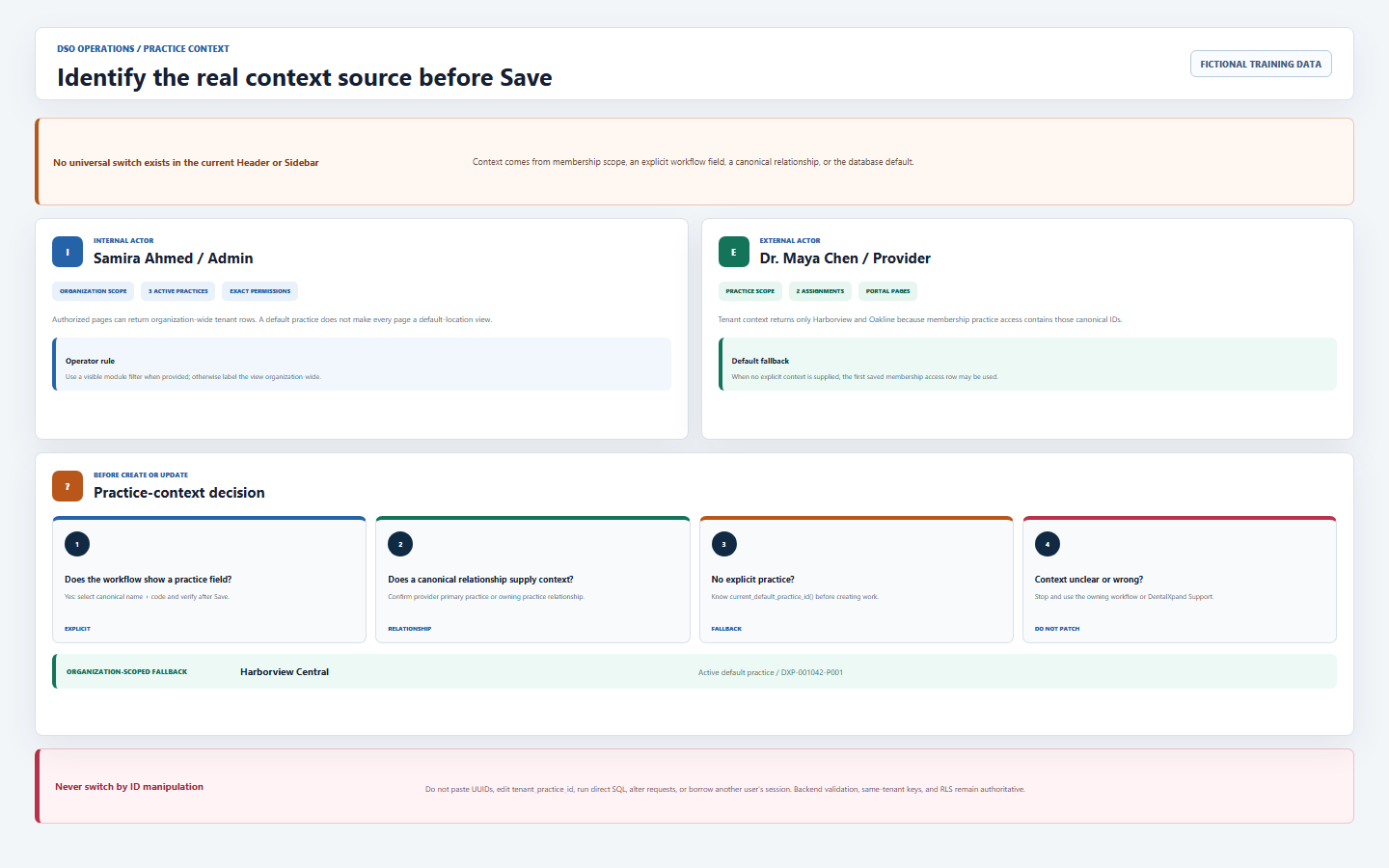
| Situation | Context source | Required action |
|---|---|---|
| Internal owner, admin, manager, or employee | Organization membership can reach tenant practices when exact permissions allow. | Assume organization-wide visibility unless the module shows an explicit practice field or filter. |
| Provider, Client, or External | Tenant context returns only practices in membership practice access. | Confirm the complete assignment set in User Management and refresh the user’s session. |
| Workflow shows a practice selector | The selected canonical practice can be submitted with the record. | Confirm name, code, and ownership before Save; re-open the row afterward. |
| Workflow has no practice selector | Practice-aware tables can use current_default_practice_id(). |
Know the active default before creating work and verify the saved record through an approved view. |
| Practice-scoped user with multiple assignments | Database default uses the first membership practice access row when no explicit context is supplied. | Do not assume the visually first location is a durable user choice; use an explicit workflow when location matters. |
| Typed URL, guessed ID, or direct request | Backend validation, composite organization keys, and RLS remain authoritative. | Never use this as a switching method. Stop at unexpected data or denial. |
6 / Shared teams
Use named internal membership for shared services and minimum external scope
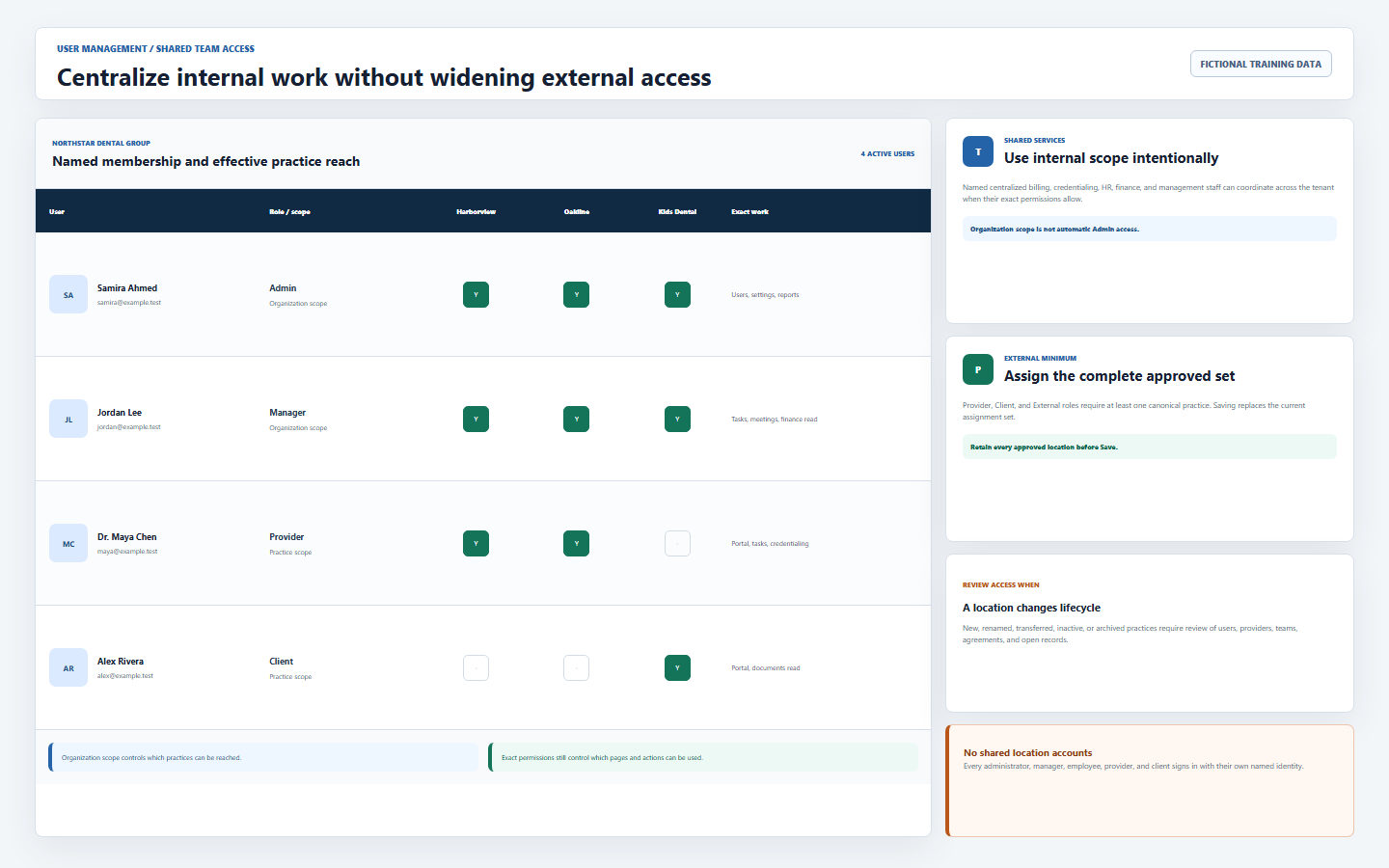
- Use one named account per person.Do not share a regional manager, front desk, billing, credentialing, or practice account.
- Choose role from job responsibility.Owner and Admin are high-impact; Manager and Employee remain organization scoped; external roles remain practice scoped.
- Grant exact pages and actions.Organization scope does not mean every module. Use Roles and per-user permissions for the minimum required work.
- Assign external practices as a complete set.User Management replaces the saved list, so retain every approved location and remove only authorized access.
- Keep team membership and practice access conceptually separate.A centralized team or department explains who coordinates work; it does not replace a record’s practice owner or an external membership assignment.
- Review access after location changes.New, renamed, archived, or transferred locations require a review of users, providers, tasks, files, agreements, and open cases.
Open User Management for membership scope and Teams for operational team structure.
7 / Record routing
Make the owning practice explicit before creating or transferring work
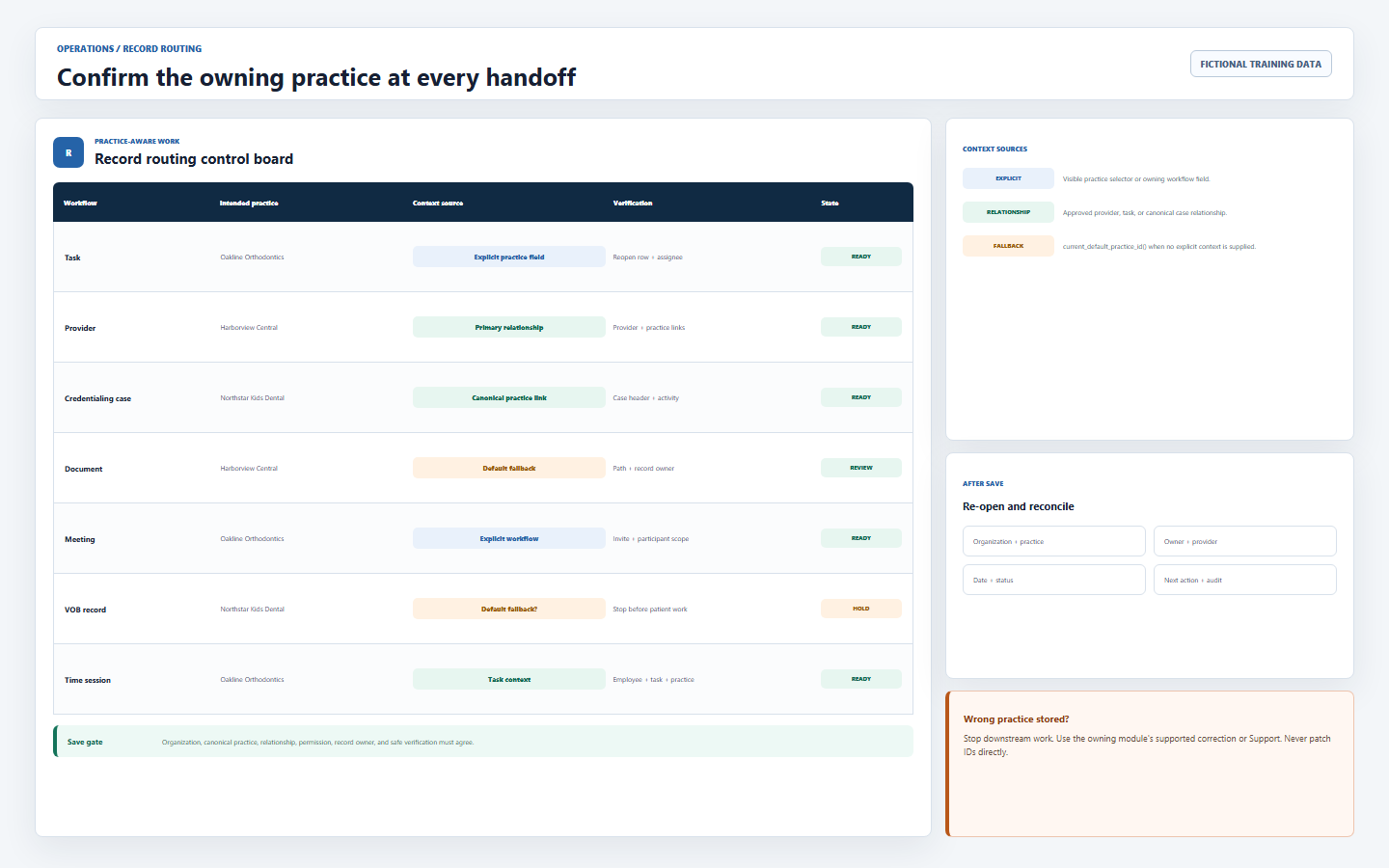
- Name the owning practice in the work request.Use canonical practice name and code, not only a provider name, client nickname, team, folder, or free-text note.
- Open the owning module and inspect its context controls.If the page exposes a practice selector or filter, choose and verify it. If not, apply the documented default-practice rule.
- Confirm canonical relationships first.Provider primary practice,
practice_providers, credentialing canonical practice, and membership assignments can influence what records are available; none should be inferred from matching text. - Save through the supported workflow.Backend and database checks require matching organization and practice keys plus the correct action permission.
- Re-open and reconcile.Confirm organization, practice, owner, provider, date, status, and next action. Use a sample or properly authorized record for testing.
- Transfer through an approved owner.When the wrong practice is stored, stop downstream work and use the owning module’s supported correction or DentalXpand Support. Do not patch IDs directly.
For daily work, open Tasks only after the practice owner is known.
8 / Practice comparison
Compare identical definitions and label every organization-wide total
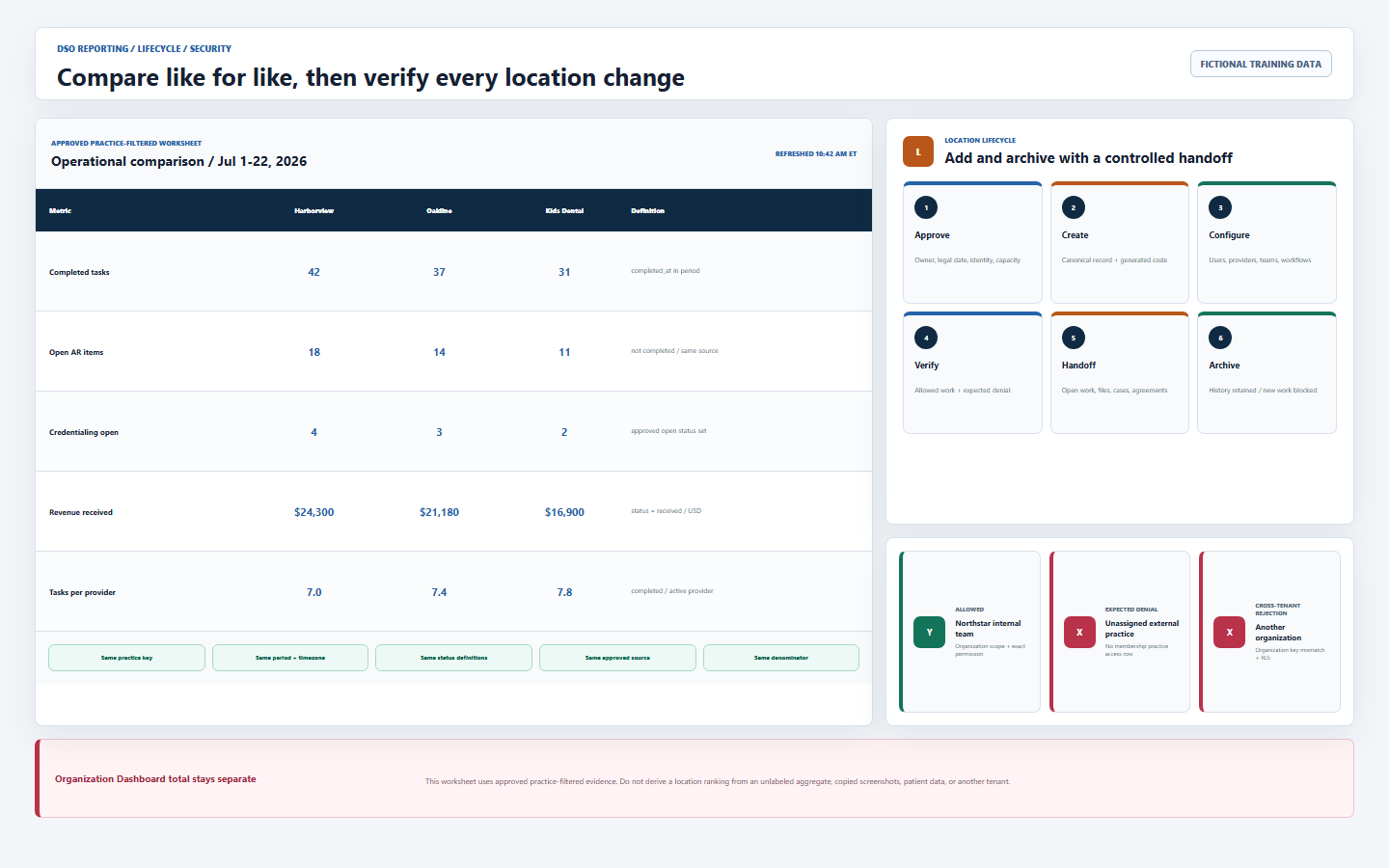
| Comparison control | Required method | Do not do |
|---|---|---|
| Scope | Use the exact canonical practice ID or a workflow filter that clearly names the location. | Compare one filtered practice to an unlabeled organization total. |
| Time | Use the same timezone, start, end, refresh time, and reporting period. | Mix today’s live count with a closed monthly export. |
| Status | Define pending, active, completed, denied, archived, paid, or received identically. | Assume labels mean the same thing across modules. |
| Source | Use one approved module, export, or reviewed report for all locations. | Merge screenshots, copied text, and manual estimates without lineage. |
| Denominator | Document visits, claims, tasks, providers, employees, working days, or another base. | Rank locations by raw totals when volume differs. |
| Privacy | Use minimum necessary operational totals and authorized recipients. | Include patient details, passwords, payer credentials, or another tenant. |
9 / Provider and client relationships
Keep directory, login, practice, and operational ownership aligned
| Relationship | Purpose | DSO verification |
|---|---|---|
| Provider directory record | Stores the provider’s operational and professional details. | Confirm same organization, named identity, active status, and approved metadata. |
| Provider primary practice | Provides a canonical main location and can align the provider’s tenant practice key. | Confirm the primary marker reflects the approved operating home. |
practice_providers |
Allows one provider to relate to multiple canonical locations. | Review every active relationship; do not rely on free-text Practice Name. |
| External membership practices | Controls which locations the provider or client login can receive. | Match the approved login need, which may be narrower than directory relationships. |
| Client agreements | Connect approved commercial and compliance documents to the intended client context. | Verify organization, client, practice, signatory, effective date, status, and file owner. |
| Practice-scoped work | Owns the actual task, file, meeting, case, VOB, message, or credentialing row. | Reconcile to the intended canonical practice after Save. |
Use Providers / Clients and the provider directory guide before changing relationships across locations.
10 / Location lifecycle
Add, change, and archive without breaking active work or historical links
- Approve the lifecycle event.Record business owner, legal effective date, location identity, subscription capacity, data owner, and required reviewers.
- Add only after duplicate and capacity checks.Create through Practices / Locations, use generated code, complete legal and contact fields, and verify the roster after refresh.
- Configure relationships and access separately.Review providers, external memberships, internal permissions, teams, agreements, and every workflow that will create practice-aware records.
- Run a controlled readiness test.Use sample data to create, reopen, filter, export, and deny access where appropriate. Confirm no unrelated tenant or product appears.
- Plan archive handoff.Complete or transfer open tasks, cases, claims, VOB, credentialing, files, messages, time tracking, agreements, provider links, and external access.
- Archive instead of deleting history.The archived location leaves normal tenant context but historical foreign-key relationships remain. Do not create a replacement duplicate to hide unfinished handoff.
- Review the default after archive.If the archived record was the default, confirm another active canonical location is intentionally used before new work begins.
- Verify expected results.Reload roster, access, reports, and affected modules; confirm archived location is unavailable for new normal work and authorized history remains controlled.
11 / Security and verification
Verify organization isolation, practice enforcement, and safe denial
| Control | Repository-backed behavior | Expected result |
|---|---|---|
| Tenant context | Returns the active organization, membership, role permissions, subscription, branding, and non-archived accessible practices. | User starts inside one expected tenant boundary. |
| Internal scope | can_access_organization authorizes tenant practices for active organization-scoped membership. |
Authorized internal work can coordinate across the DSO. |
| External scope | Practice access requires an active membership access row for the requested location. | External users receive only assigned locations. |
| Record keys | Practice-aware tables carry organization and tenant_practice_id with same-tenant foreign keys. |
An unrelated practice key cannot become a valid relationship. |
| Write checks | Practice access and exact table action permission must both pass. | Visible data does not imply create, update, export, or delete authority. |
| RLS | Protected tables use organization or practice predicates for authenticated reads and writes. | A typed route or direct client query does not widen scope. |
| Isolation tests | Repository tests verify assigned-practice visibility and cross-organization rejection. | Approved staging and deployment tests pass after policy changes. |
12 / Troubleshooting and completion
Resolve the failed context without changing tenant keys or widening a role
| What you see | Likely cause | Correct first response |
|---|---|---|
| No practice switch in navigation | The current release has no universal selector. | Identify whether the module is organization-wide, explicitly filtered, or default-practice based. |
| New record saved to the default practice | The workflow supplied no explicit practice context. | Stop downstream work, verify the default and owning module, then use an approved correction path. |
| External user sees only one location | Practice-scoped membership has one assignment. | Compare the complete approved set in User Management; do not change to an internal role. |
| Internal user sees all tenant locations | Organization scope is active and permissions allow the page. | Use module filters or minimum permissions; do not call the current page one selected practice. |
| Practice limit reached | Active non-archived count meets the plan or override. | Review roster and subscription with an authorized owner; never repurpose another location. |
| Archived practice missing | Normal context intentionally excludes archived records. | Review approved history or lifecycle evidence; reactivate only with authorization. |
| Practice totals do not reconcile | Scope, time, status, source, denominator, or refresh time differs. | Rebuild a like-for-like comparison and keep organization totals separate. |
| Wrong tenant, product, or Guardian data appears | Session, context, query, cache, deployment, integration, or policy isolation failure. | Stop immediately and report without reproducing exposed data. |
Completion checklist
- I can separate the DSO organization, canonical practices, organization scope, practice scope, provider relationships, and practice-aware records.
- I verify the organization, roster, active default, plan capacity, shared-team model, record owner, and comparison rules before production work.
- I read Dashboard cards as authorized organization totals and never label them as a native practice comparison.
- I maintain one canonical non-duplicate record per approved location and understand archive is not deletion.
- I know there is no universal practice switch and determine context from membership, the owning workflow, or the documented default.
- I use named organization-scoped internal users for shared services and minimum practice-scoped access for external users.
- I confirm the owning practice before Save, re-open the record afterward, and never edit tenant practice IDs directly.
- I compare locations only with the same scope, period, status, source, denominator, refresh time, and privacy controls.
- I align provider directory links, provider-practice relationships, login assignments, agreements, and operational record ownership separately.
- I complete handoff before archive and verify the new active default when the prior default changes.
- I verify allowed work and safe expected denial through tenant context, backend checks, same-tenant keys, permissions, and RLS.
- I stop immediately at cross-practice, cross-tenant, cross-product, or Guardian Connect exposure.
Open Dashboard, Practices / Locations, review the previous Provider & DSO lesson, continue to Create client BAA and service agreements, adjust approved organization settings through Settings, or return to all learning resources.
Need workflow support?
Bring the question and the exact step where you are blocked.
Explore how this guide connects to provider operations and recruitment.