
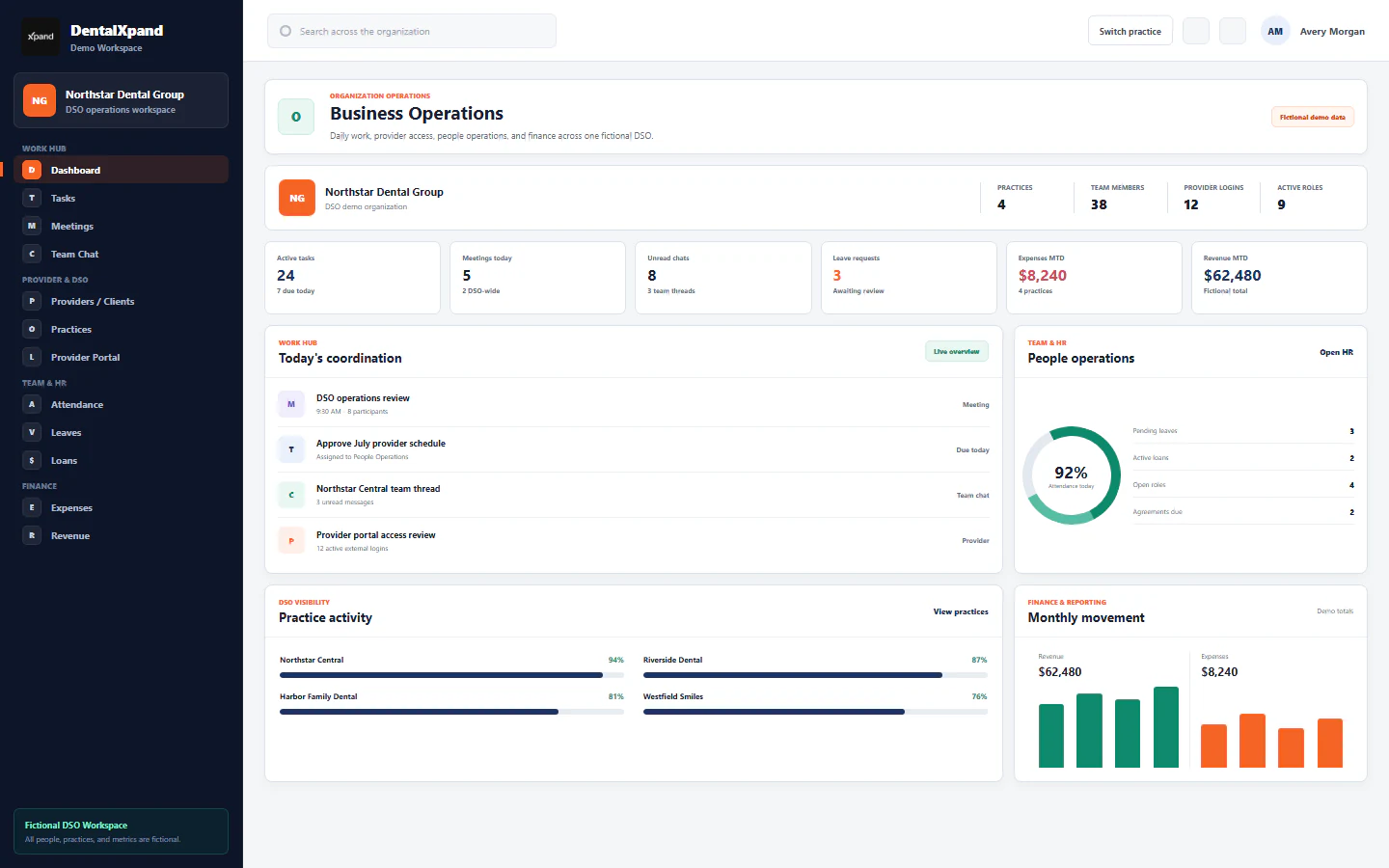
Manage practices, locations, and assignments
Create and maintain canonical practice or location records, understand plan limits and default-practice behavior, assign external users, preserve provider relationships, and troubleshoot practice scope without weakening tenant isolation.
The DentalXpand Practices page at /practices is the organization-owned directory for canonical clients, practices, and locations. An authorized organization administrator can review active locations against the subscription limit, create the first or an additional practice, maintain operational contact and identifiers, archive or reactivate a location, and then use User Management to assign external accounts to one or more approved practices. Practice records, provider directory text, provider relationships, user memberships, page permissions, and tenant row policies are separate controls and must remain separate.
1 / Operating model
Know which record or relationship you are changing
The tenant that owns its practices, users, providers, subscription, settings, and operational data. Every practice record carries this organization boundary.
The canonical organization-owned record with generated code, name, legal name, email, phone, group NPI, Tax ID, address, status, and default flag.
The external provider or client profile. Its Practice Name text is descriptive and does not create a canonical practice or grant access.
A same-organization link between one provider and one practice. A provider can have multiple links and one relationship can be marked primary.
The user’s role, status, access scope, onboarding state, and permissions inside one organization. Internal members normally use organization scope.
The approved rows that connect a practice-scoped external membership to one or more practices. These rows do not grant unrelated page permissions.
Manage locations on Practices, external directory profiles on Providers / Clients, and account assignments on User Management.
2 / Access and labels
Open the administrative route in the correct organization
| Layer | Current behavior | Operator meaning |
|---|---|---|
| Navigation | The Practices item is admin-only in the Client & RCM section. | A non-admin should not use a direct URL, API, or database query to bypass the hidden menu. |
| Route | /practices uses the admin route without a separate page-permission override. |
Use an approved administrator or super administrator account for this page. |
| Read | The backend requires an active organization, active membership, completed password change, required MFA, and accessible practice rows. | Being signed in does not automatically grant tenant or practice access. |
| Create and update | The tenant manager check accepts owner/admin management or approved settings/user administration permission, then row policy checks the same organization. | A visible control is not final authorization; backend and database policy must also allow the write. |
| Billing company label | Navigation and heading show Clients / Practices; the add command says Add client. | The underlying record is still the canonical practice/location model. |
| DSO label | Navigation and heading show Practices / Locations. | Use one record per approved operating location; do not combine unrelated locations for convenience. |
| Single practice label | Navigation and heading show Practice. | The same limit, lifecycle, assignment, and tenant rules still apply. |
Review roles and permissions and organization and practice context before changing administrative access.
3 / Directory and limits
Read the current locations and subscription capacity before adding another
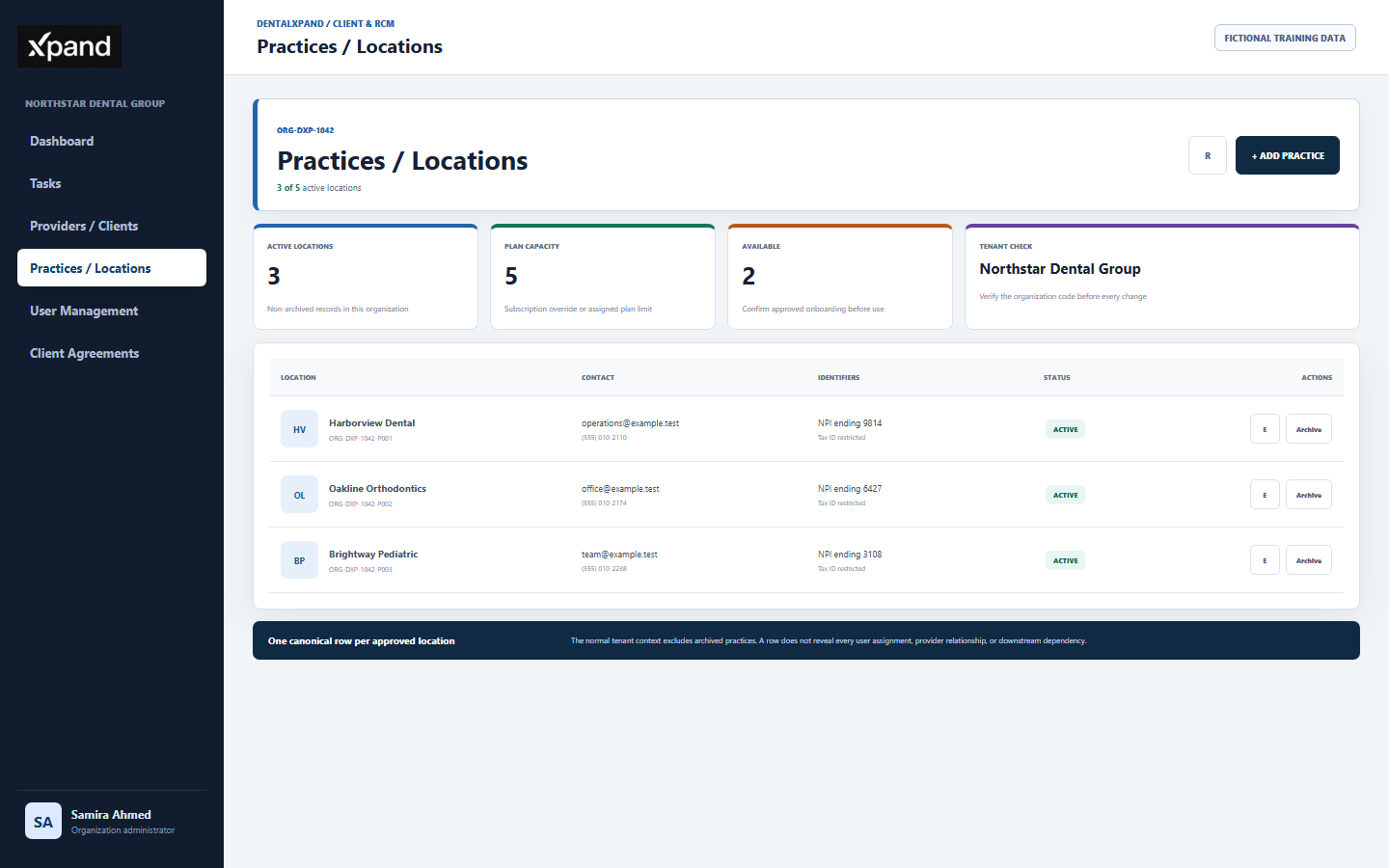
| Directory element | What it means | What to verify |
|---|---|---|
| Organization code | The code above the heading identifies the current tenant context. | Stop before searching or editing if the expected organization is not shown. |
| Active count | Counts returned practices whose status is not archived. | Archived locations are absent from the normal context and count. |
| Plan limit | Uses a subscription max_practices override when present, otherwise the assigned plan limit. No finite value means no displayed numeric cap. |
Confirm capacity before onboarding a new client or location. |
| Location row | Shows name, generated code, email, phone, group NPI, Tax ID, status, and actions. | The row does not show every downstream assignment or dependency. |
| Refresh | Reloads practices and refreshes tenant context. | Use once after a known change; repeated refresh does not widen access. |
| Add control | Creates an active organization-owned record when the plan and policies allow it. | A plan-limit conflict must be resolved administratively, never by altering IDs, status, or database policy. |
4 / Create
Create one canonical practice from verified source information
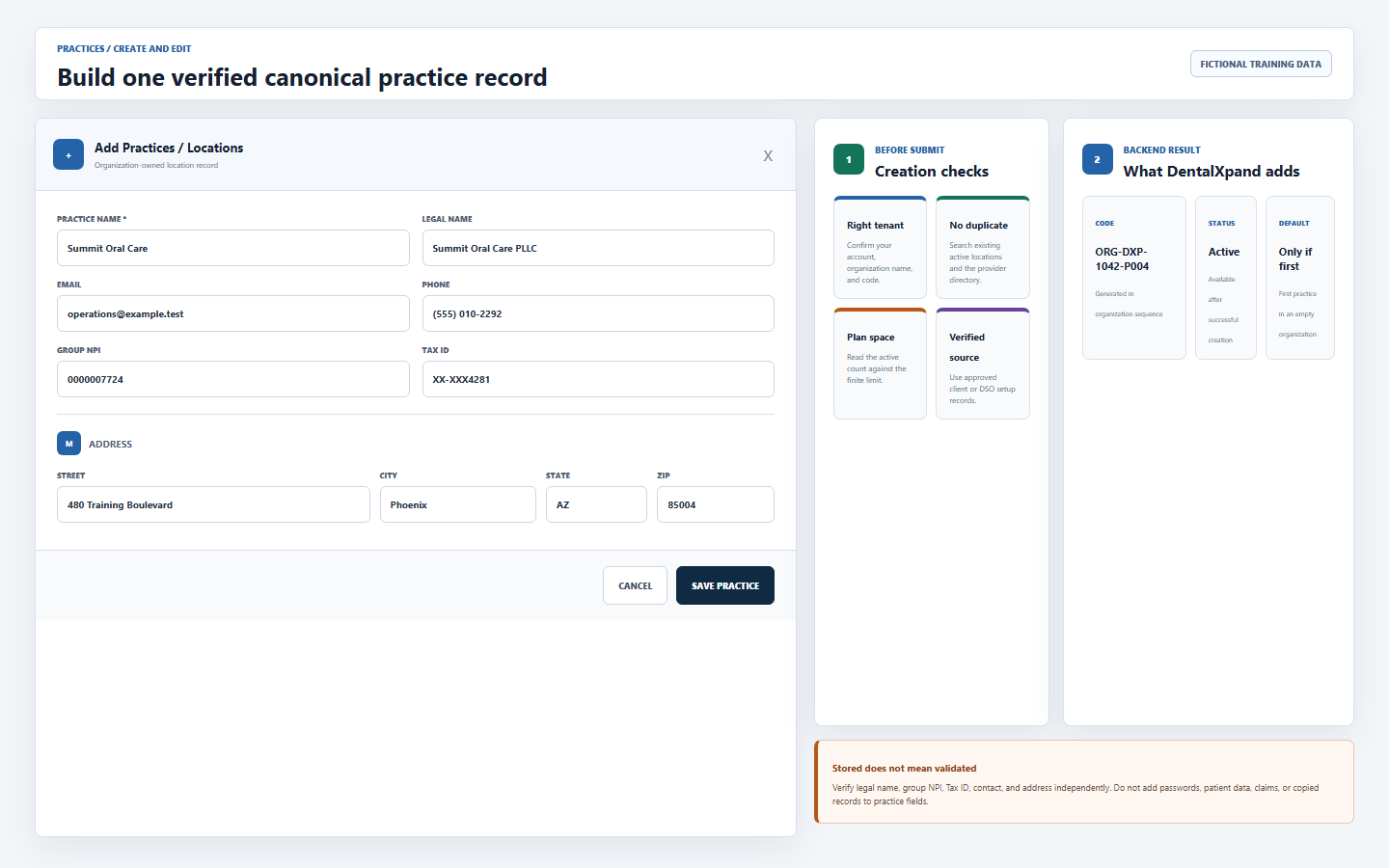
- Confirm the organization and approved source.Use the executed client setup, DSO location list, organization record, or other approved source. Search the current practice directory first to prevent duplicates.
- Confirm plan capacity.Read the active count and finite plan limit. When capacity is reached, follow the approved subscription or lifecycle process instead of changing data manually.
- Select Add client or Add practice.The button label follows organization type, but both commands create the same organization-owned practice record.
- Enter the required Practice name.Use the recognizable operating name. Do not create a placeholder location only to satisfy an external-account assignment.
- Add verified optional details.Complete legal name, operational email, phone, group NPI, Tax ID, and structured address only from approved sources.
- Submit once.The service generates a code such as an organization code plus a sequential practice suffix, assigns active status, and creates the first record as default.
- Confirm the returned row.Verify name, code, contact, identifiers, status, and active count before creating users, provider links, or downstream work.
5 / Fields and editing
Maintain canonical location details without treating stored text as validation
| Field | Current purpose | Safe maintenance rule |
|---|---|---|
| Practice name | Required display and operational location name. | Confirm rename authority and downstream recognition before changing it. |
| Legal name | Optional legal entity or registered practice name. | Use the approved legal source; do not assume it matches the public operating name. |
| Email and phone | Optional operational contact channels. | Use business contacts approved for this practice; exclude passwords or portal secrets. |
| Group NPI and Tax ID | Optional practice-level identifiers shown in the directory. | The form stores text and does not prove format, ownership, or validity. Verify independently and avoid exposing full values in support material. |
| Address | Structured street, city, state, and ZIP object. | Confirm each component; the form does not perform complete postal validation. |
| Generated code | Stable organization-specific identifier created by the backend. | The current form does not edit it. Never change or reuse codes through direct data access. |
| Default flag | Marks the preferred active practice for organization-wide default context. | The current page does not expose a default selector. Do not alter the flag through an ad hoc query. |
Select the edit icon, compare every field with the approved source, change only the intended values, save once, and confirm the refreshed row. Editing a practice does not automatically change provider Practice Name text, user role, page permission, or provider directory contact fields.
6 / Default and lifecycle
Archive and reactivate only after reviewing assignments and downstream work
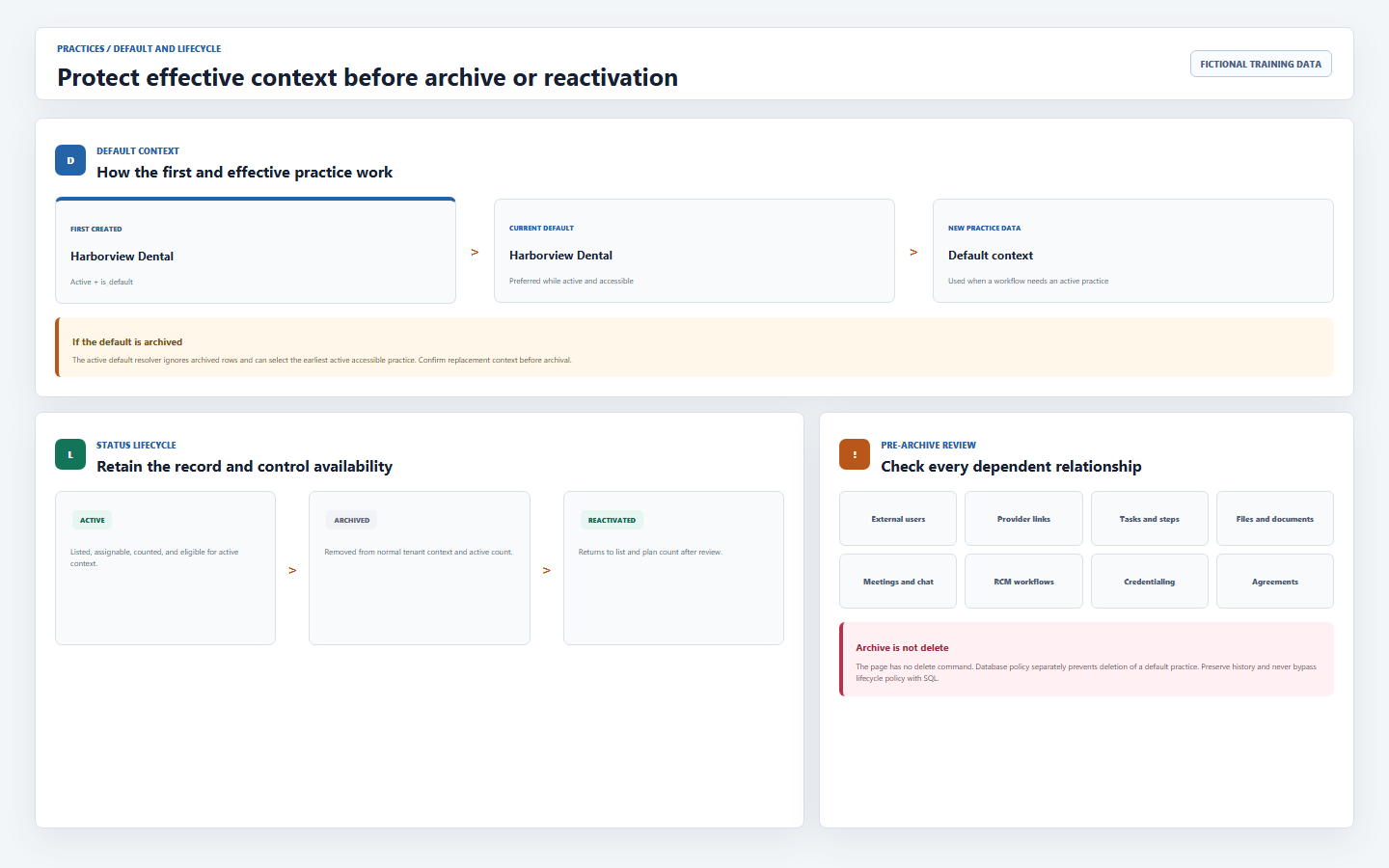
| State or action | Current effect | Required review |
|---|---|---|
| First practice | Created active and marked is_default when no non-archived practice exists. |
Verify this record carefully because new practice-scoped data can use the current default context. |
| Active | Listed in tenant context, available for assignments, counted toward the practice limit, and eligible for default selection. | Confirm the location is currently approved for operations. |
| Archive | Status changes to archived; the normal practice list and active count no longer include it. | Review assigned external users, provider relationships, tasks, files, meetings, RCM, credentialing, and retention obligations first. |
| Archived default | An archived practice is not selected as the active default; the next eligible active practice can become effective context. | Never archive the first/default location casually. Confirm replacement context and affected workflows. |
| Reactivate | Status returns to active and the row returns to the normal list and count. | Re-check plan capacity, identifiers, assignments, permissions, and operational readiness. |
| Delete | The current page has no delete command; database policy separately prevents deletion of a default practice. | Use archive for normal lifecycle management and preserve history. Do not bypass policy with SQL. |
7 / User assignments
Assign external accounts to the minimum practices they need
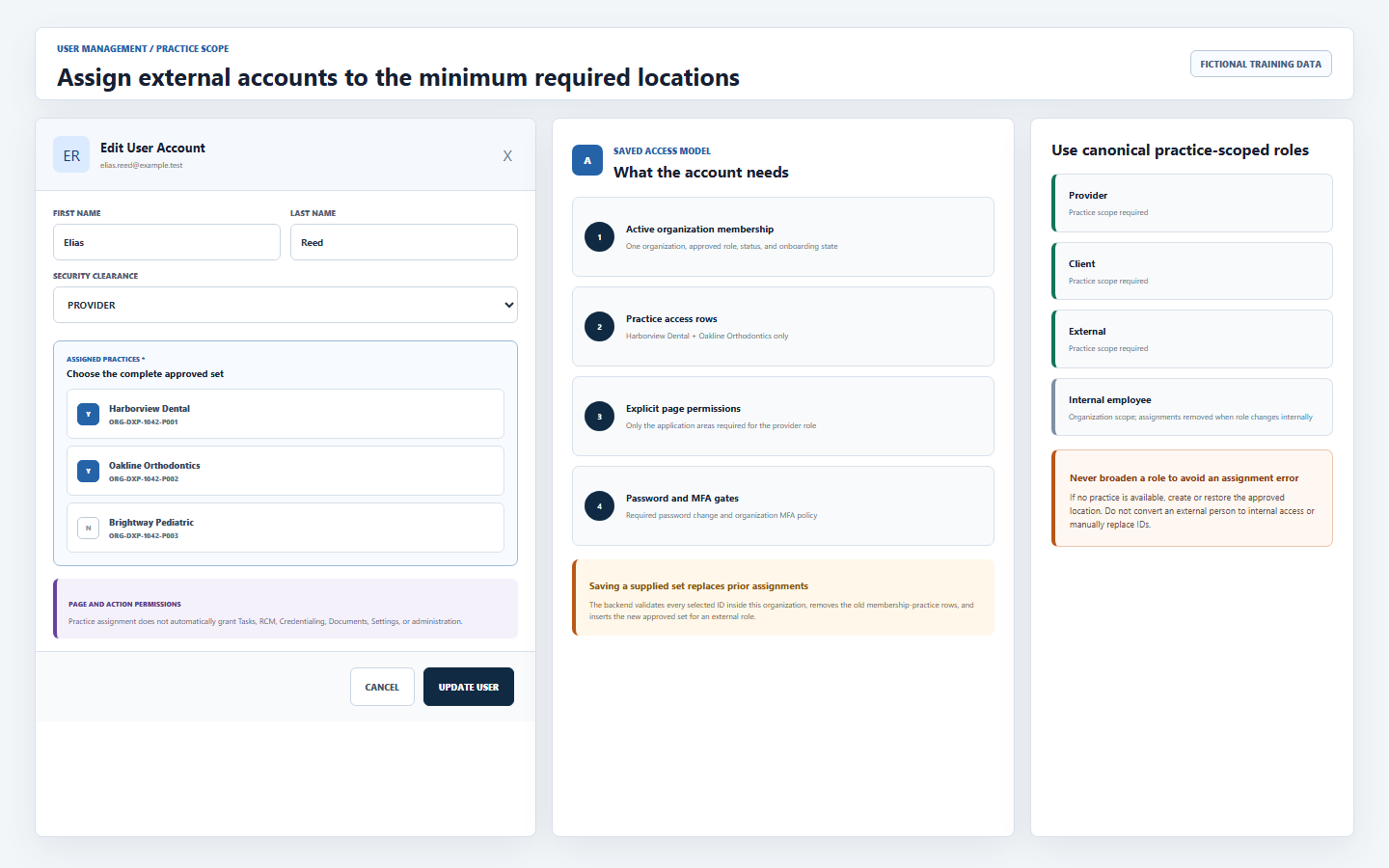
- Create practices first.If no practice exists, User Management tells the administrator to create one before adding an external account.
- Open User Management with approved user-admin permission.Creating, updating, or managing user permissions has its own authorization and does not come from practice access alone.
- Use a canonical external role.Provider, Client, or External are the backend’s practice-scoped role keys. The form also recognizes legacy client-oriented aliases when deciding whether to display assignment controls.
- Select the minimum practices.Choose every location the person legitimately needs and no others. The form rejects an external account with zero selected practices.
- Grant page and action permissions separately.Practice assignment decides eligible location context; it does not automatically grant Providers, Tasks, RCM, Credentialing, Documents, Settings, or administrative actions.
- Complete secure onboarding.Confirm email, membership state, temporary-password or invite flow, required password change, and MFA policy before normal access.
- Verify by editing the same user.The saved account reloads its
practice_ids. Confirm the intended checkboxes and role rather than assuming the create message proves complete access.
8 / Provider relationships
Keep provider links and user assignments aligned without confusing them
| Relationship | Current implementation | Operator rule |
|---|---|---|
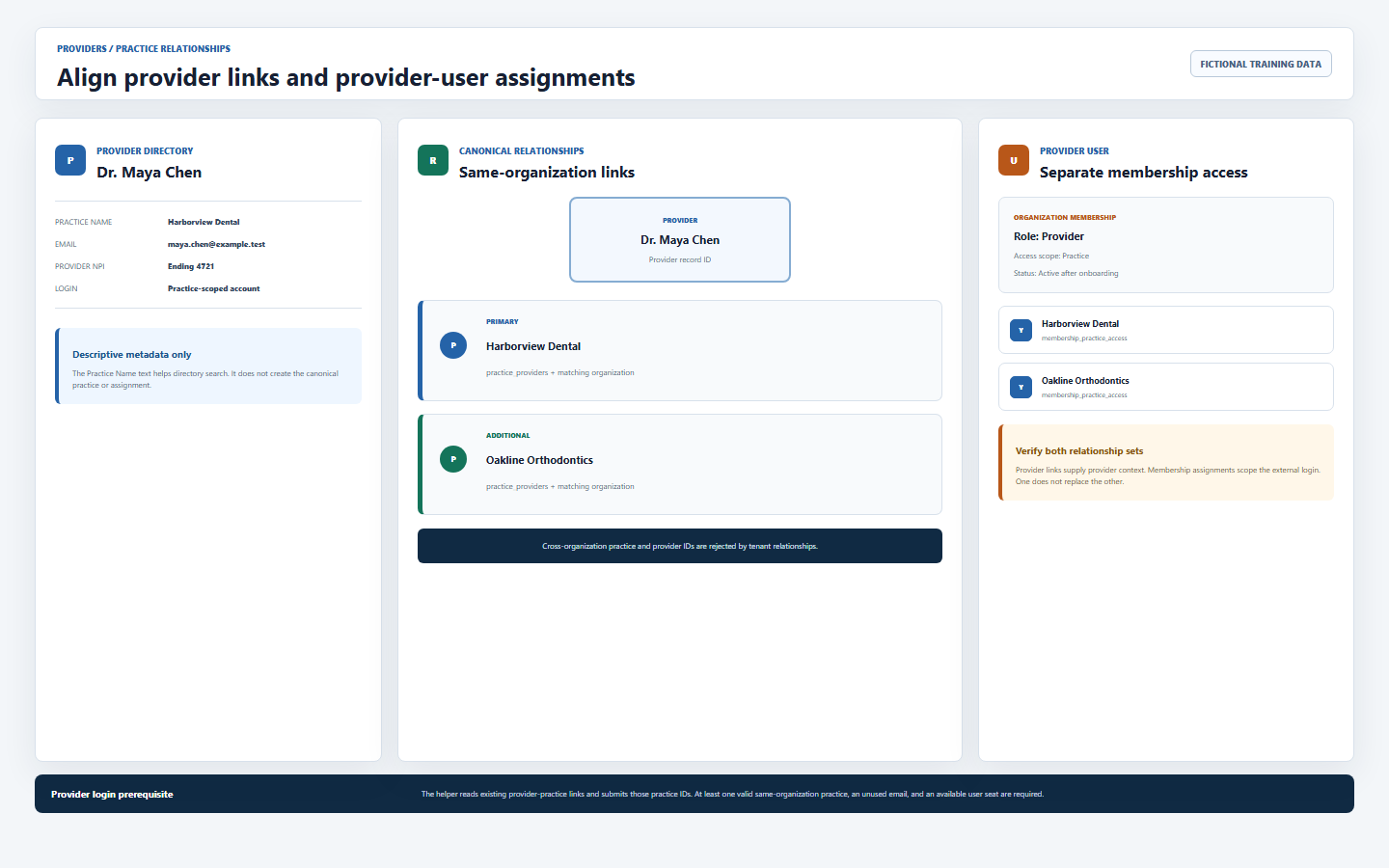
| Provider Practice Name | Free-text metadata on the provider directory record. | Use for recognizable directory context only; it creates no canonical relationship. |
| Provider primary practice | The provider’s primary and tenant practice fields align to an eligible default or assigned practice context. | Confirm the intended primary location through the approved provisioning process. |
| Provider-practice links | practice_providers can connect one provider to multiple same-organization practices and mark the first approved selection primary during linked account provisioning. |
Never create cross-tenant links or assume a matching name is enough. |
| Provider login helper | Reads existing provider-practice links and submits those practice IDs when creating the provider account. | Provider login creation must have at least one valid link and an approved user seat. |
| User membership assignments | Separate membership_practice_access rows scope the external account. |
Verify these rows through User Management even when provider relationships exist. |
| Tenant constraints | Composite foreign keys require practice, provider, membership, and organization identifiers to agree. | An invalid cross-organization relationship must fail; never disable or work around the constraint. |
Review the preceding Providers and Clients lesson before creating or changing provider logins.
9 / Tenant boundary
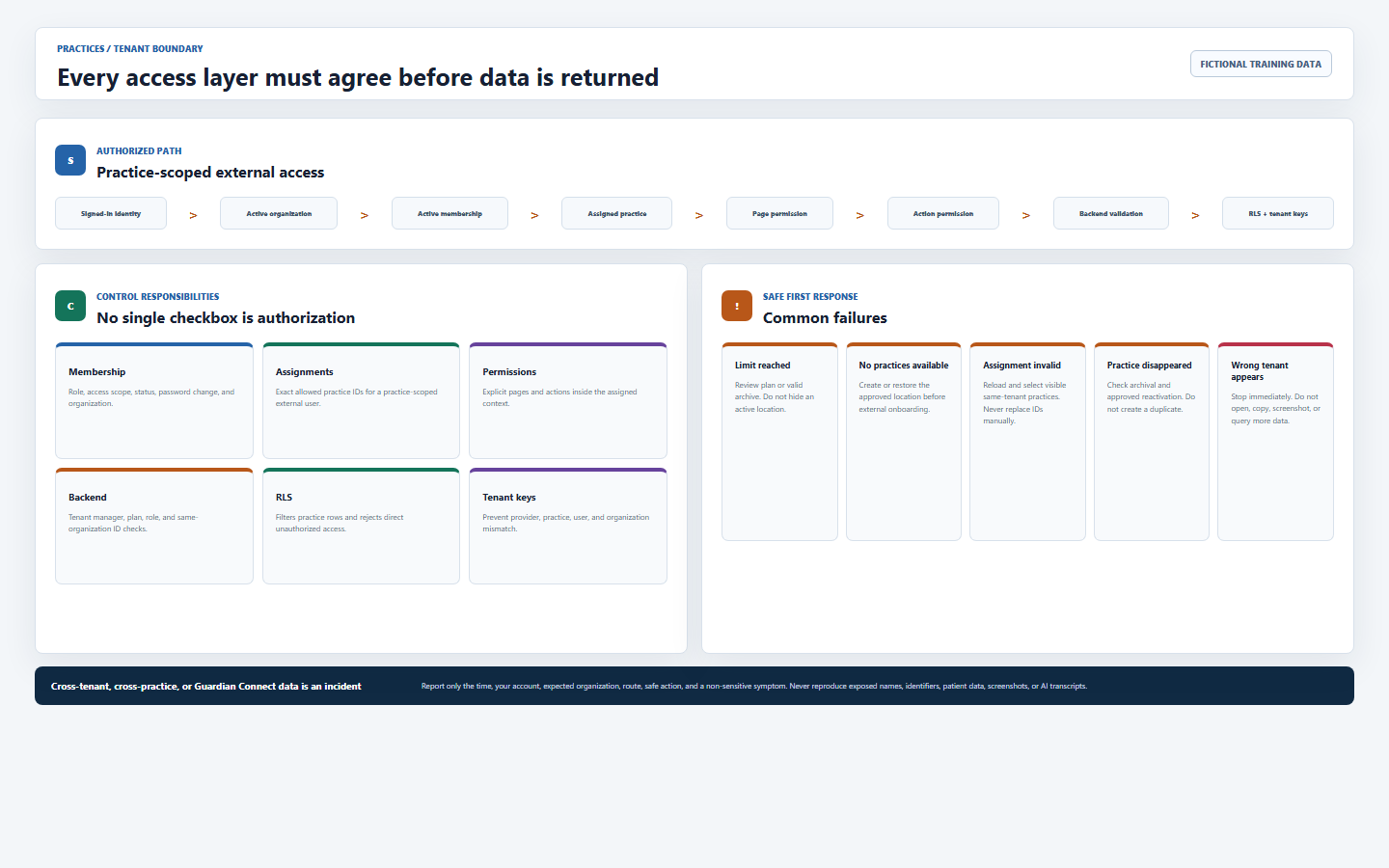
Require account, organization, membership, practice, permission, backend, and row-policy agreement
| Control | Purpose | Failure must do |
|---|---|---|
| Authentication | Identifies the signed-in person and satisfies password/MFA gates. | Reject anonymous, incomplete onboarding, or unmet MFA access. |
| Organization membership | Connects the user to one active organization with role, status, and access scope. | Reject missing, suspended, or wrong-tenant membership. |
| Practice assignment | Lists the practices available to a practice-scoped external member. | Hide and reject unassigned practice rows. |
| Page and action permission | Controls which screens and operations the account may use. | Redirect, hide controls, or deny the action; assignment alone is insufficient. |
| Backend validation | Checks organization, manager authority, role, plan limit, practice IDs, and required assignments. | Return a safe error without creating a cross-tenant or partial relationship. |
| Row-level security | Filters practice reads and permits management only inside the authorized tenant. | Reject guessed IDs and direct database requests. |
| Composite foreign keys | Require related practice, provider, user, and organization identities to match. | Reject invalid relationships instead of silently re-parenting data. |
10 / Safe operating workflow
Use the same controlled sequence for setup, assignment changes, and offboarding
- Verify identity and tenant.Confirm your own account, active organization code, administrative purpose, approved source, and requested location.
- Search before creating.Review current non-archived practices and the provider directory to prevent duplicate practice or provider records.
- Check limits and dependencies.Confirm practice capacity for creation or current assignments and downstream work before archival.
- Create or update the canonical practice.Use the Practices page, verified minimum-necessary fields, and one deliberate save.
- Maintain provider relationships through the approved process.Keep descriptive provider metadata, canonical links, and primary relationship consistent without editing IDs directly.
- Assign external users in User Management.Use canonical external roles, select minimum practices, then grant only required page and action permissions.
- Verify from the saved record.Reload the practice row and user assignment. For external access, verify the provider/client account sees only approved practices and only approved modules.
- Document only safe operational context.Exclude passwords, credentials, patient data, full identifiers, copied records, another tenant, and Guardian Connect content from notes or support requests.
11 / Troubleshooting
Resolve expected errors without weakening access controls
| What you see | Likely reason | Correct first response |
|---|---|---|
| Practices redirects or is missing | The account is not an approved administrator or tenant access is blocked. | Confirm your own account, membership, password/MFA state, and role. Do not alter the route or role data. |
| Unable to load practices | Session, backend, tenant context, migration, or connectivity failure. | Refresh once, preserve the safe error, and verify the service. Do not query tables directly with elevated credentials. |
| Practice limit reached | The active non-archived count equals the subscription override or plan limit. | Review valid archival or plan change with the owner/platform operator. Do not mislabel or hide an active location. |
| Practice name required | The required name is empty after trimming. | Use the verified operating name; do not create a placeholder. |
| Assigned Practices is empty | No non-archived practice is available in tenant context. | Create the approved practice first or investigate why the expected location is archived or inaccessible. |
| Assign at least one practice | An external account has no selected practice. | Select the minimum approved same-organization practice; do not convert the user to an internal role to avoid the rule. |
| One or more assignments invalid | A selected ID is missing, archived, stale, or outside the organization. | Reload User Management and select current visible practices. Never replace the ID manually. |
| Practice disappeared after archive | Archived rows are excluded from normal tenant context. | Use the approved reactivation process; do not recreate a duplicate location. |
| Provider login creation fails | No provider-practice link, duplicate email/user, exhausted seat, invalid assignment, or provisioning error. | Verify provider identity, same-organization links, membership assignments, seat, and safe backend error. |
| Wrong practice or tenant appears | Session, membership, query, cache, deployment, policy, or isolation failure. | Stop. Do not open, edit, search, copy, screenshot, message, or ask AI about more exposed records. |
12 / Completion
Verify that you can manage practices and assignments without widening access
- I can distinguish organization, canonical practice, provider metadata, provider-practice link, membership, and membership practice access.
- I use an approved administrator account and confirm the organization code before opening or changing practices.
- I understand the Billing Company, DSO, and Single Practice labels use the same canonical practice model.
- I read the non-archived active count and subscription override or plan limit before creation.
- I search for duplicates, use a verified source, enter the required name, and confirm the generated row after saving.
- I treat group NPI, Tax ID, legal name, address, email, and phone as sensitive source-verified data, not automatically validated values.
- I understand first-practice default behavior and review downstream work before archiving or reactivating any location.
- I use canonical Provider, Client, or External roles and assign the minimum same-organization practices required.
- I grant page and action permissions separately from practice assignments.
- I understand changing supplied assignments replaces the external member’s saved practice-access set.
- I keep provider directory Practice Name, provider-practice links, primary practice, and user membership assignments distinct.
- I verify provider relationships and external account assignments rather than assuming one creates the other.
- I never bypass plan limits, role checks, assignment validation, row-level security, or tenant foreign keys.
- I stop and report cross-tenant, cross-practice, cross-product, or Guardian Connect exposure without reproducing it.
Open Practices, review Providers and Clients, continue to the next Provider & DSO lesson, or return to all learning resources.
Need workflow support?
Bring the question and the exact step where you are blocked.
Explore how this guide connects to provider operations and recruitment.