
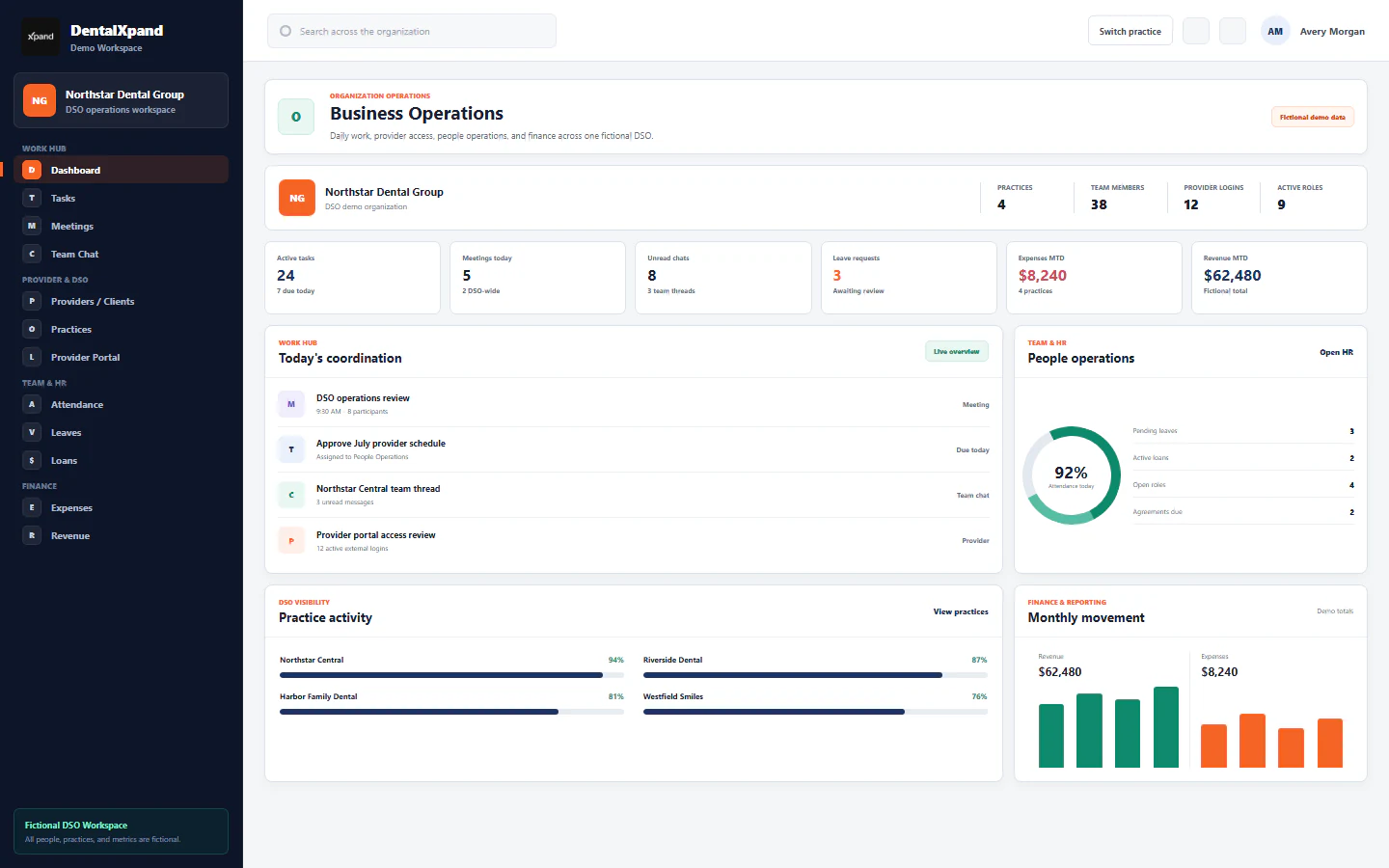
Use provider login and the client portal
Provision a practice-scoped provider or client account, complete temporary-password and MFA onboarding, use the focused portal dashboard, work assigned tasks and credentialing records, and troubleshoot access without weakening tenant isolation.
DentalXpand uses the same secure sign-in for internal teams and external providers or clients, then applies the account’s organization membership, practice assignments, role, page permissions, backend checks, and database row policies. Provider-like roles receive a focused portal rather than the full employee or administrator navigation. This lesson covers both sides of that workflow: authorized account provisioning and the external user’s first login, dashboard, tasks, credentialing, communication, support, and sign-out.
1 / Portal model
Know what turns a normal login into a focused external portal
The unique email and password identity used at /auth. A successful sign-in identifies the person but does not by itself authorize tenant data.
Connects the user to one organization with a role, status, onboarding state, permissions, and either organization or practice access scope.
Provider, Client, Customer, Practice, Client Provider, and External aliases use the focused portal navigation. New backend provisioning should use Provider, Client, or External.
External accounts require one or more approved same-organization practices. The account can receive only practice rows allowed by its membership access records.
Control which portal destinations and operations are available. A practice assignment never grants every page or every action.
A provider record, its shadow employee, provider-practice relationships, and the user’s membership are related but separate records that must be deliberately aligned.
Review Manage providers and clients, Manage practices, locations, and assignments, and roles and permissions before provisioning an external account.
2 / Account readiness
Complete every prerequisite before creating login access
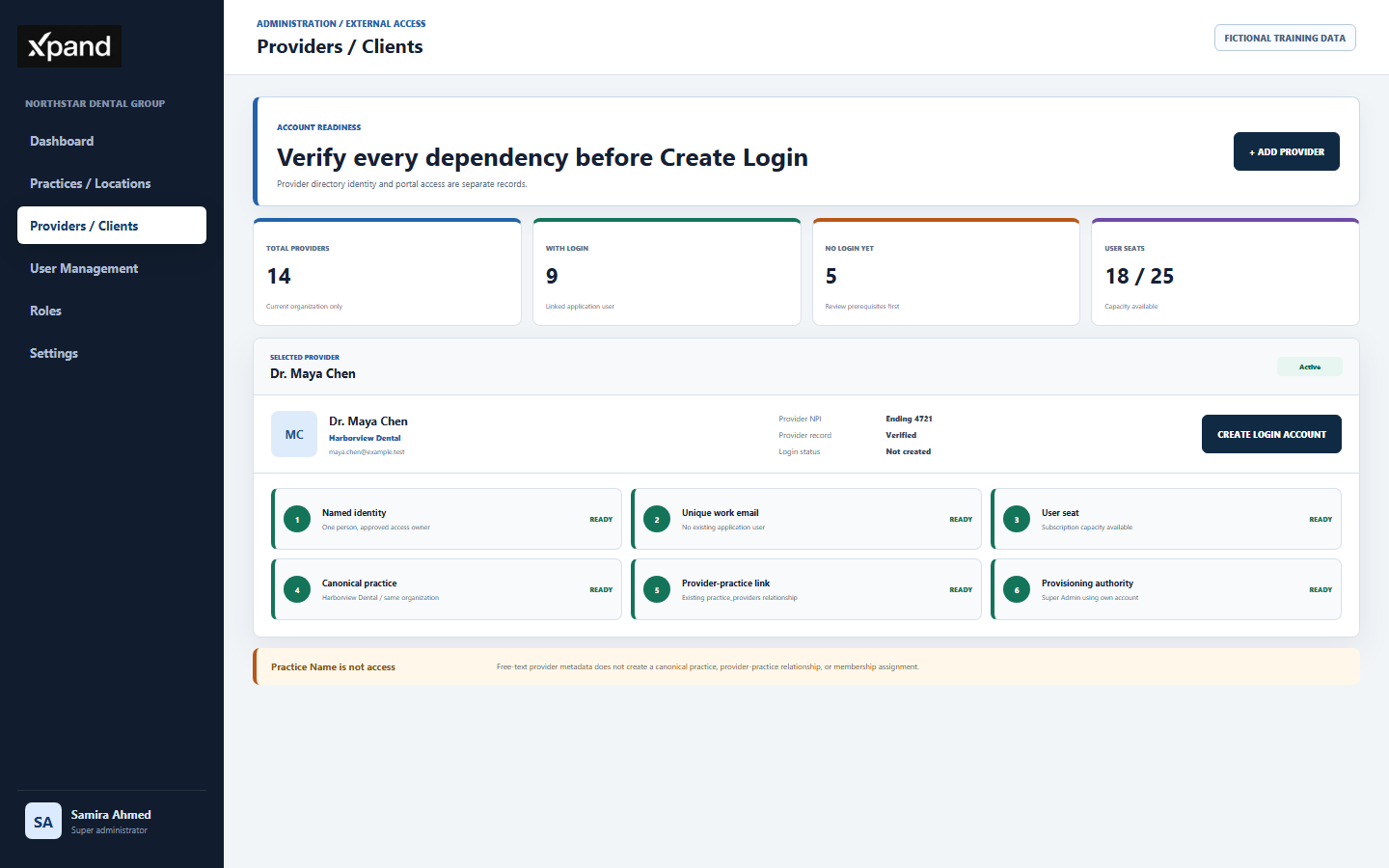
| Prerequisite | Current behavior | Administrator check |
|---|---|---|
| Named person | The external account belongs to one provider or client user. | Confirm the person’s identity, business purpose, and approved access owner. Never create a generic shared login. |
| Unique email | Provider Login requires an email, and the backend rejects an existing application user with the same normalized email. | Search Providers and User Management first. Correct the existing record instead of creating a duplicate. |
| User seat | The tenant user endpoint checks subscription capacity before creating the account. | Resolve a seat limit through the approved subscription or offboarding process. |
| Canonical practice | An external account must receive at least one valid practice ID from the active organization. | Create or reactivate the approved practice first; do not use free-text Practice Name as an assignment. |
| Provider relationship | The Providers page login helper reads existing practice_providers links and submits those practice IDs. |
Use the helper only when the provider already has a valid same-organization relationship. It does not create the relationship from Practice Name text. |
| Administrative authority | Only Super Admin can use the Providers page Create Login Account action. User Management separately requires approved user-creation permission. | Use your own approved administrator account. Never borrow a higher-privilege session. |
3 / Provisioning
Create one practice-scoped external account with minimum access
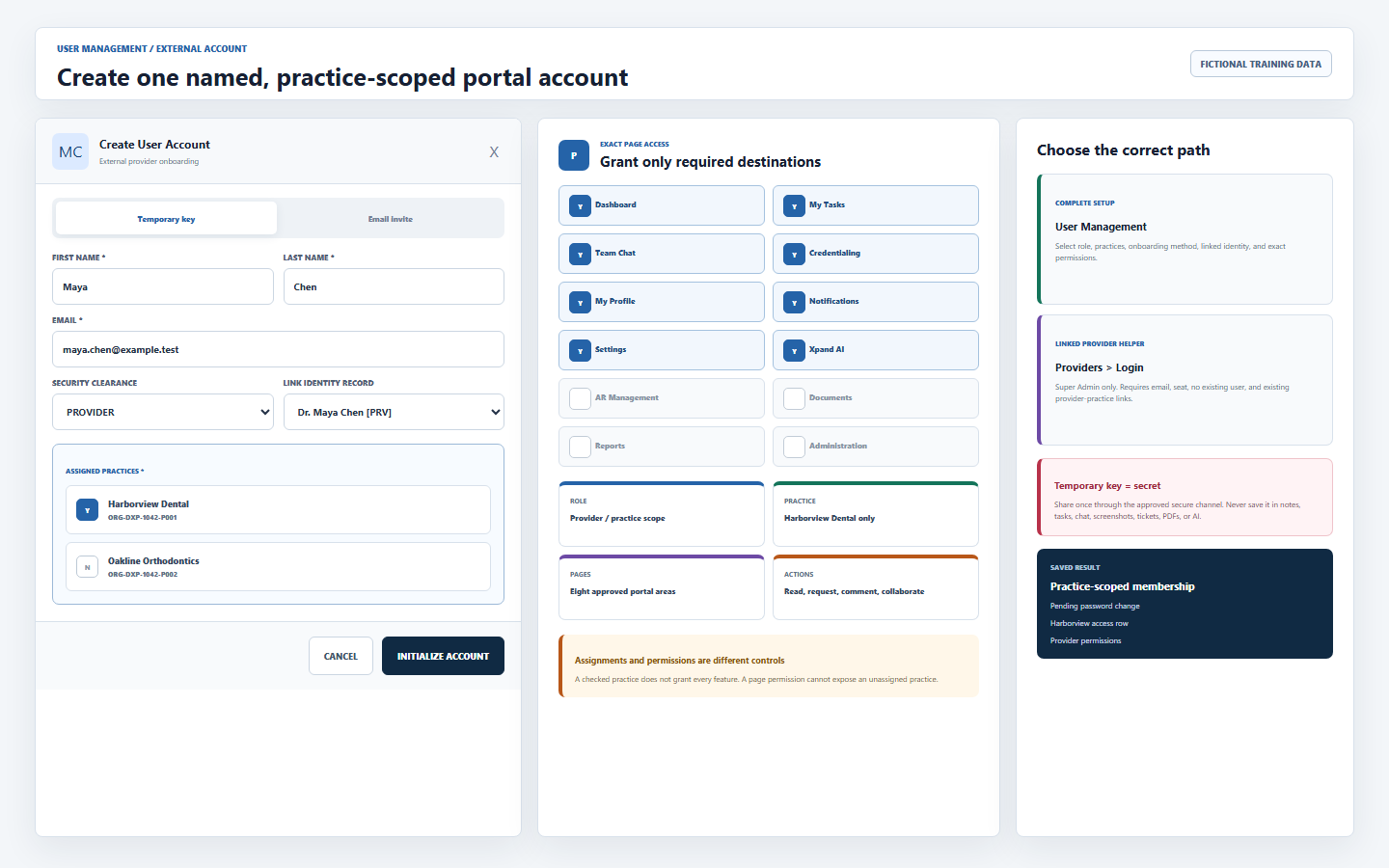
- Choose the correct provisioning path.Use User Management for a complete external account setup with explicit practice checkboxes and permissions. Use Providers > Login only for an existing provider record with email, valid provider-practice links, no existing user, an available seat, and Super Admin approval.
- Enter the verified identity and email.Use the named person’s work email. When a provider shadow employee exists, link the matching record rather than creating an unrelated identity.
- Select Provider, Client, or External.The backend treats these canonical roles as practice scoped. Do not grant an internal role to avoid an assignment error.
- Select the minimum practices.The form and backend require at least one practice for an external role and reject practice IDs that do not belong to the active organization.
- Grant only required pages and actions.Review Dashboard, Tasks, Messages, Credentialing, Notifications, Profile, Settings, Xpand AI, and any approved AR access independently. A visible page does not imply every write or export is permitted.
- Choose onboarding deliberately.User Management supports a temporary key or email invite. The Providers login helper always uses temporary-password onboarding.
- Save once and verify the returned account.Confirm role, membership status, practice assignments, linked provider or employee record, and effective permissions before sharing any onboarding instruction.
4 / First sign-in
Replace the temporary password before entering the workspace
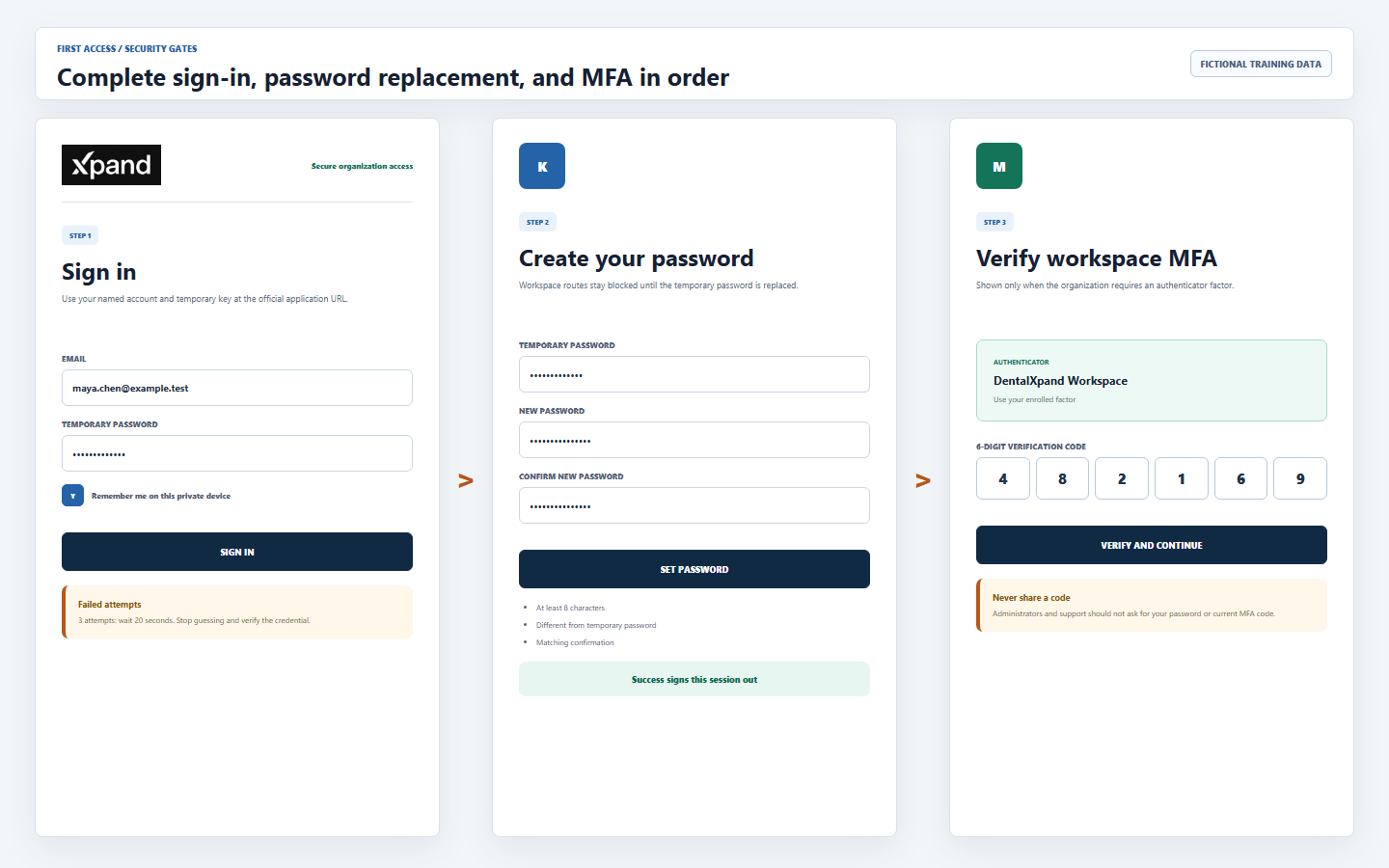
- Open the configured DentalXpand sign-in page.Use the official application URL, confirm the expected brand, and enter your own email and temporary password.
- Do not repeat a failed guess.Three local failed attempts trigger a 20-second wait. Nine cumulative failed attempts in the browser can block further attempts until administrator recovery. Confirm the exact email and key before trying again.
- Complete Create your password.Enter the temporary password, a different new password of at least eight characters, and the same new password again.
- Sign in again.After a successful password change, DentalXpand signs the session out. Use the new password; the temporary key is no longer the working credential.
- Complete MFA when required.If the organization requires MFA, enroll or use the authenticator factor and enter the current six-digit code before workspace access.
- Confirm the organization and portal menu.Stop if the organization, practice context, name, or available portal differs from the approved onboarding information.
See Sign in and account access and Password security and recovery for deeper authentication guidance.
5 / Portal dashboard
Use the focused navigation and task command center
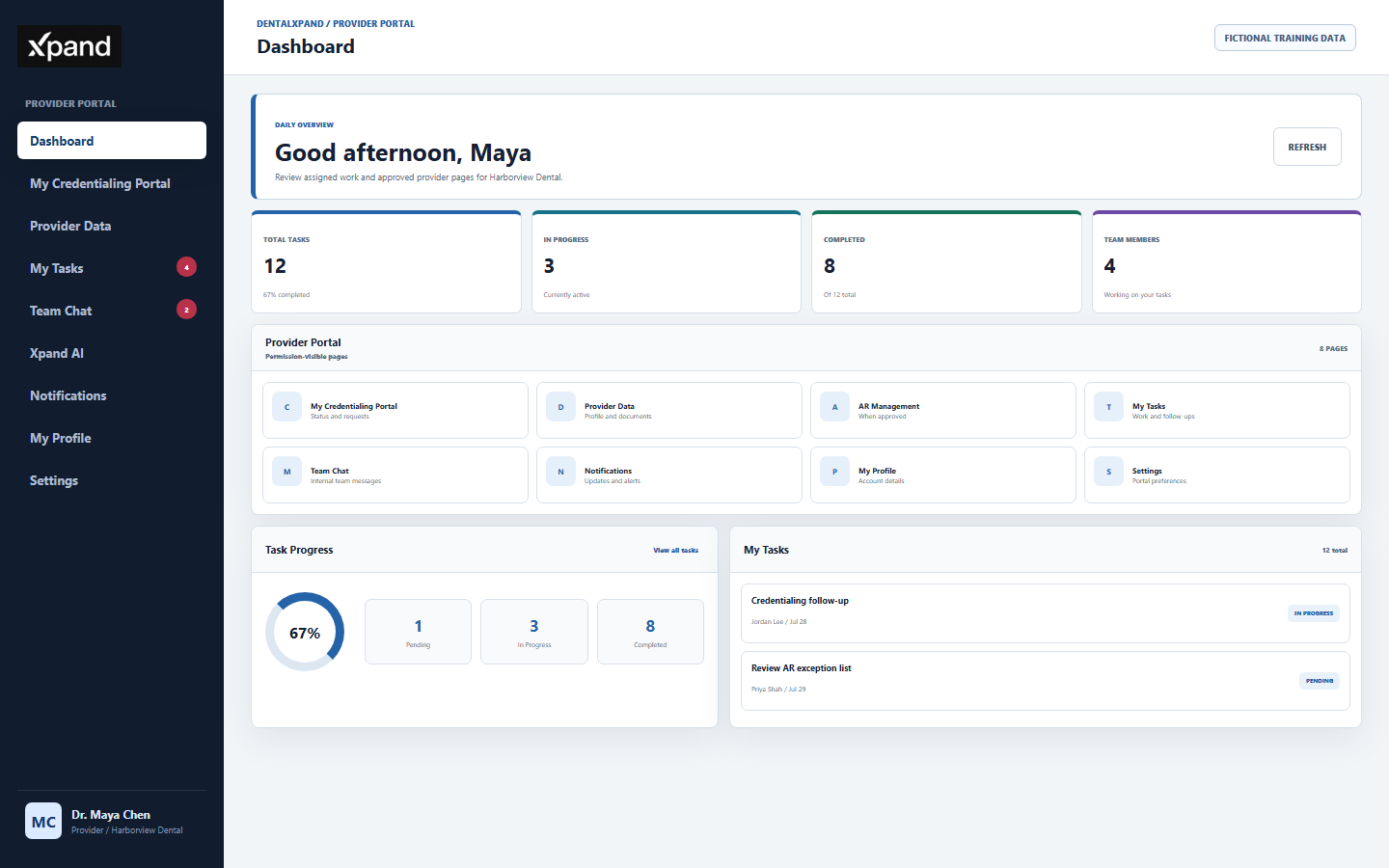
| Dashboard area | What it shows | How to use it |
|---|---|---|
| Total, In Progress, Completed | Metrics calculated from tasks available to the current portal identity. | Use as a queue summary, then open the task before acting. |
| Team Members | Unique internal employees attached to the available task assignments. | It is task context, not the full organization directory. |
| Provider Portal links | My Credentialing Portal, Provider Data, AR Management, My Tasks, Team Chat, Notifications, My Profile, and Settings when their permissions apply. | A missing link can be expected. Do not type a hidden route to bypass permission. |
| Task Progress | Pending, in-progress, completed, and overdue totals plus completion percentage. | Prioritize overdue and blocked work, but do not change internal status outside permitted controls. |
| My Tasks | Up to eight recent authorized tasks with team member, due date, and status. | Select View all tasks for the complete authorized list. |
| Your Team and Profile | Task-linked team contacts and the signed-in user’s account identity. | Use My Profile for your own permitted details; report a wrong identity immediately. |
Open Dashboard only after confirming the correct organization and assigned practice context.
6 / Tasks and collaboration
Review assigned work, submit requests, and comment without taking internal controls
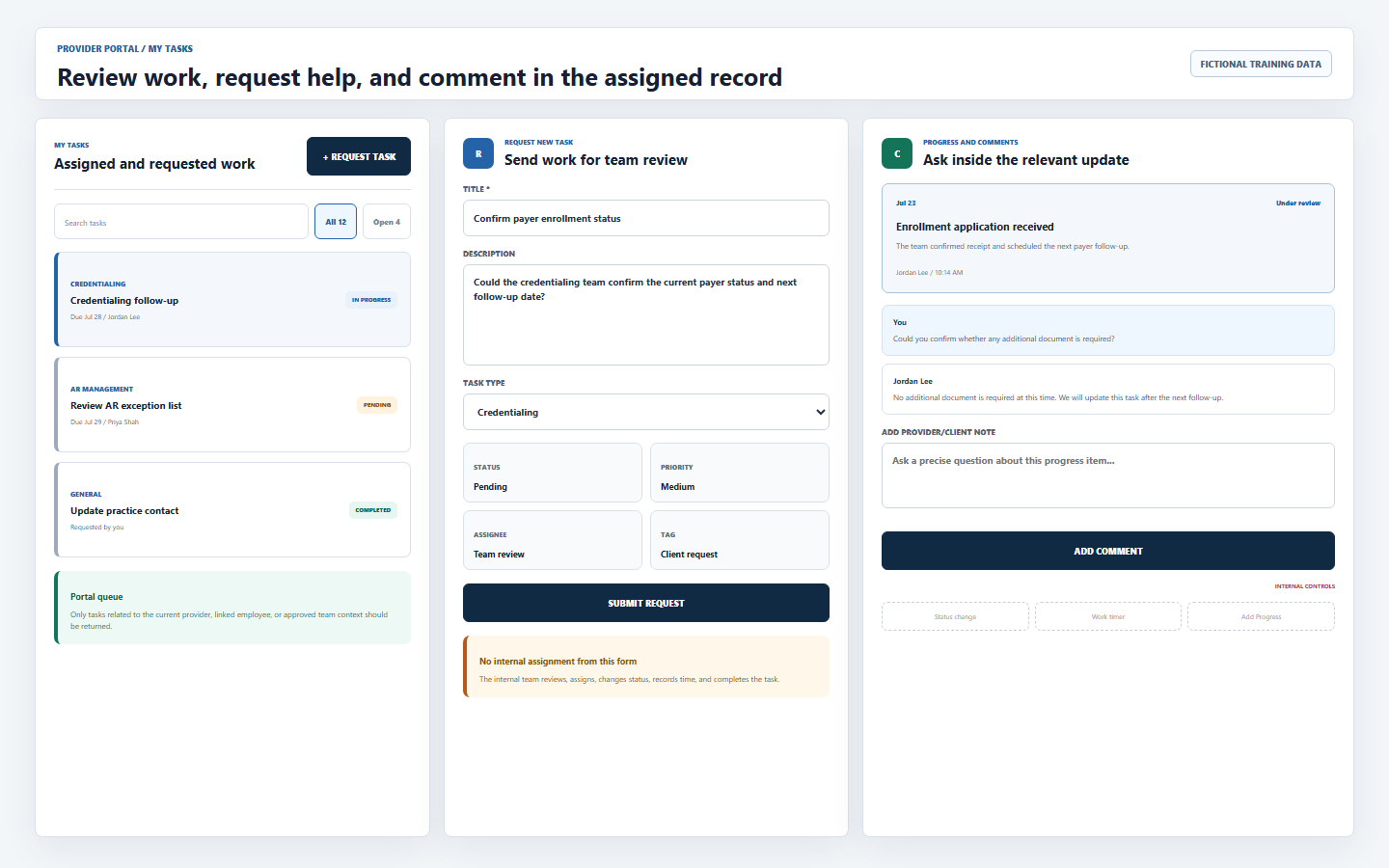
- Open My Tasks.The page and database policies return work related to the current external identity, linked employee, provider, or approved team context.
- Read the whole task.Confirm title, type, due date, status, assigned team member, description, progress, documents, and comments before responding.
- Use Request Task for new work.The provider form sends title, description, optional task type, pending status, medium priority, no internal assignee, and a client-request tag for team review.
- Add precise progress questions or notes.Provider comments omit the internal status selector and remain saved with author and time. Do not add patient details unless the approved workflow and secure field explicitly require them.
- Respect internal controls.Portal users cannot use the normal task status change, work timer, or Add Progress controls. The internal team reviews, assigns, updates, and completes the work.
- Recheck after updates.Use the dashboard or task list to confirm the current status rather than relying on an email, old screenshot, or copied note.
Open My Tasks and use sample or properly authorized records during training.
7 / Credentialing and Provider Data
Use the assigned credentialing case as the source of truth
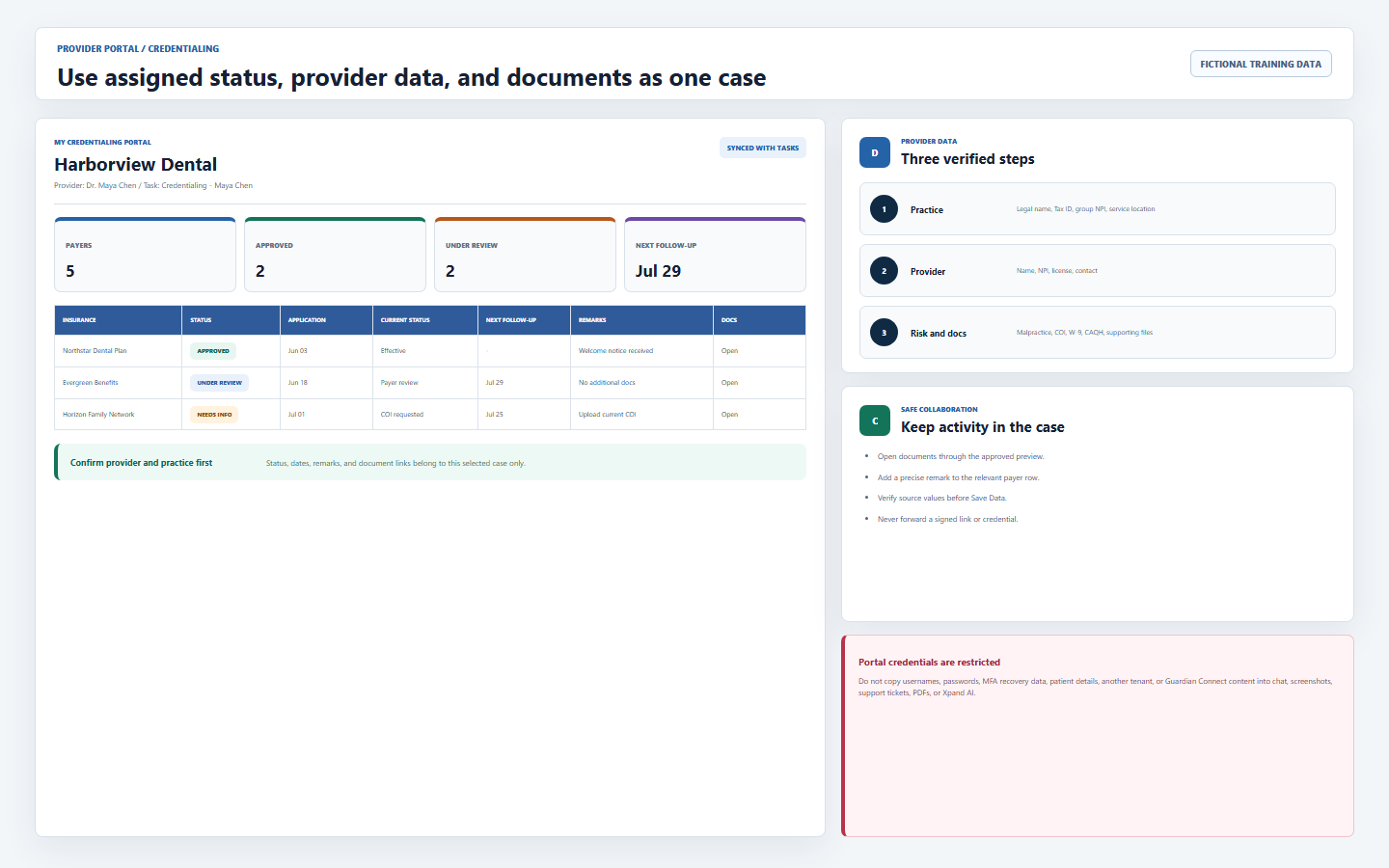
| Portal area | Current purpose | Safe operating rule |
|---|---|---|
| My Credentialing Portal | Shows the selected case, provider identity, task, insurance status, application and effective dates, next follow-up, remarks, and approved document links. | Confirm the provider and practice before opening a row or document. |
| Provider Data | Organizes provider profile, practice, license, malpractice or COI, and document details. | Use verified values and minimum-necessary uploads. A saved field is not independent verification. |
| Task Progress | Connects operational updates and comments to the credentialing task. | Ask a precise question on the relevant progress item; do not duplicate or rewrite internal history. |
| Client Login data | Can store payer or credentialing portal access needed by the approved workflow. | Treat every username, password, recovery method, and portal URL as restricted. Never include credentials in this guide, chat, screenshots, tickets, or AI. |
| Documents | Open through the app’s preview or signed storage delivery where implemented. | Do not forward signed links, download to unmanaged devices, or upload files for another practice. |
| Client remarks | Send a case-specific question or note to the internal team. | Keep it factual, scoped to the selected payer row, and free of unrelated patient or tenant information. |
Use My Credentialing Portal and Provider Data only when their page permission and case scope are approved.
8 / Other portal destinations
Use only the tools visible for the current account
| Destination | Expected use | Boundary |
|---|---|---|
| Team Chat | Messages with authorized internal participants and conversations. | Do not start or continue a conversation for an unrelated practice; keep credentials and unnecessary PHI out of chat. |
| Notifications | Personal task, meeting, message, reminder, and system alerts. | Open the linked source record and confirm current state before acting. |
| My Profile | Your own account, linked provider or employee identity, and permitted personal details. | Role, practice assignments, organization, and protected access fields require administrator action. |
| Settings | Available personal or portal preferences. | A visible setting is still subject to write permission and row policy. Do not alter organization-wide settings unless explicitly authorized. |
| AR Management | Claim actions, EOB links, worklists, reports, or exports when an AR page permission is granted. | Use only assigned organization and practice records; export only for an approved purpose and destination. |
| Xpand AI | Focused assistance when the page is available. | Confirm organization and source context. Do not paste passwords, credentials, unnecessary PHI, another tenant, Guardian Connect, or unapproved records into AI. |
Open Team Chat or My Profile from the focused sidebar rather than a copied direct URL.
9 / Access boundary
Require every layer to agree before trusting returned data
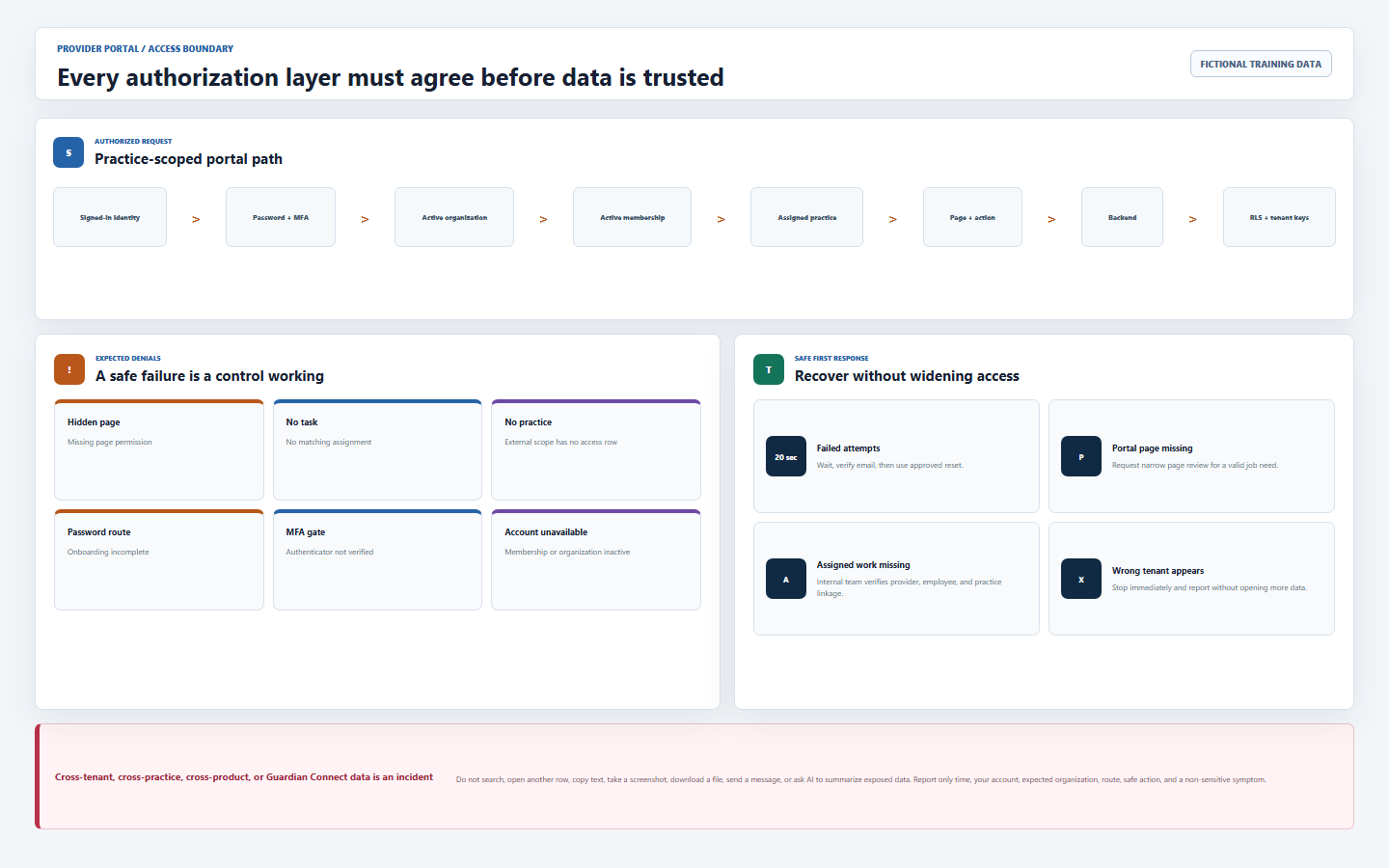
| Layer | What it controls | Required result |
|---|---|---|
| Authentication | The signed-in person and live session. | Anonymous, invalid, or expired sessions return to sign-in. |
| Password and MFA | Required password replacement and organization authenticator policy. | Workspace routes remain blocked until both gates are satisfied. |
| Organization membership | Organization, role, status, scope, permissions, and lifecycle. | Missing, suspended, wrong-tenant, or incomplete membership is denied. |
| Practice assignments | The same-organization practices available to a practice-scoped external user. | Unassigned practice rows must not be returned. |
| Page and action permissions | Available routes and operations. | A hidden page, typed URL, or visible button cannot override permission. |
| Backend, RLS, and tenant keys | Validate actor, IDs, tenant, row access, writes, storage paths, and relationships. | Guessed IDs, direct requests, stale links, and cross-organization relationships fail safely. |
10 / Daily workflow
Use one controlled sequence for every portal session
- Open the official app and sign in with your own account.Never use a saved credential that belongs to another person or practice.
- Complete password or MFA gates.Do not keep refreshing, open another browser profile, or bypass the required setup route.
- Confirm identity, organization, and practice context.Stop before opening records if any context is unexpected.
- Read Dashboard alerts and task totals.Open the source task or credentialing case before responding.
- Work only the assigned record.Use comments, task requests, approved documents, and portal status in the context where they belong.
- Use minimum necessary information.Keep passwords, portal secrets, unrelated patient details, other tenants, and Guardian Connect out of messages, screenshots, downloads, and AI.
- Verify the saved result.Reload the relevant task, case, message, or profile and confirm the current state.
- Sign out on shared or unattended devices.Close downloaded files and do not leave the portal open where another person can use the session.
11 / Troubleshooting
Recover access without changing roles, IDs, or policy
| What you see | Likely reason | Correct first response |
|---|---|---|
| Create Login is missing | The Providers action is Super Admin only. | Use the approved provisioning owner or User Management permission path. Do not borrow a Super Admin account. |
| Provider has no email | The provider directory record lacks a usable login email. | Verify and add the named person’s approved unique email before provisioning. |
| External accounts require a practice | No practice was selected, or the Providers helper found no provider-practice relationship. | Assign the approved canonical practice or establish the provider relationship through the authorized workflow. Do not use Practice Name text or direct SQL. |
| User already exists | The normalized email is already linked to an application account. | Search User Management and the provider record, then repair the existing same-tenant linkage instead of duplicating it. |
| Seat limit reached | The subscription has no available user seat. | Review approved offboarding or subscription capacity. |
| Too many failed attempts | Three failed attempts triggered a 20-second wait, or cumulative failures caused browser-local blocking. | Stop guessing, wait for the displayed timer, verify email, then ask an authorized administrator for password reset if needed. |
| Create your password repeats | The temporary-password change did not complete or membership still requires it. | Use the exact temporary password and a different matching new password; report the safe error if it persists. |
| MFA gate remains | The organization requires an authenticator factor and the session is not verified at AAL2. | Use the current six-digit code or approved MFA recovery. Do not ask anyone for their code. |
| Portal page is missing | The route is not in effective page permissions, or the feature is not approved. | Confirm the business requirement and request a narrow permission review. Do not type the hidden URL. |
| No tasks or credentialing case | No matching assignment exists, the provider or employee linkage is wrong, or row policy correctly filters the record. | Ask the internal team to verify assignment and linkage; do not request broader tenant access. |
| Wrong practice or tenant data | Session, membership, assignment, cache, deployment, query, or policy isolation failure. | Stop immediately and report without reproducing exposed data. |
For account recovery, contact DentalXpand Support without sending a password, MFA code, PHI, full identifier, copied record, or sensitive screenshot.
12 / Completion
Verify provider login and client portal readiness
- I understand authentication, membership, practice assignment, permission, provider linkage, backend validation, and row policy are separate controls.
- I create one named account per authorized person and never use a shared practice login.
- I verify the unique email, user seat, canonical practice, provider relationship, and administrative authority before provisioning.
- I use Provider, Client, or External for new practice-scoped accounts and assign only the minimum same-organization practices.
- I grant portal pages and actions separately from practice access.
- I treat temporary passwords, permanent passwords, MFA codes, recovery details, and stored portal credentials as restricted secrets.
- I can complete the temporary-password replacement, required sign-out, new sign-in, and MFA flow.
- I can read the focused Dashboard, task totals, permission-visible links, task progress, and task-linked team context.
- I can submit a task request and add a precise comment without using internal assignment, timer, status, or progress controls.
- I confirm provider and practice context before using Credentialing, Provider Data, documents, remarks, AR, chat, notifications, settings, or AI.
- I verify the current source record instead of trusting an old email, screenshot, export, or copied note.
- I sign out on shared or unattended devices.
- I recover failed access through approved waiting, password reset, MFA recovery, assignment review, or narrow permission review.
- I stop and report cross-tenant, cross-practice, cross-product, or Guardian Connect exposure without reproducing it.
Open DentalXpand sign-in, review the previous Provider & DSO lesson, continue to Control provider and practice access, or return to all learning resources.
Need workflow support?
Bring the question and the exact step where you are blocked.
Explore how this guide connects to provider operations and recruitment.