
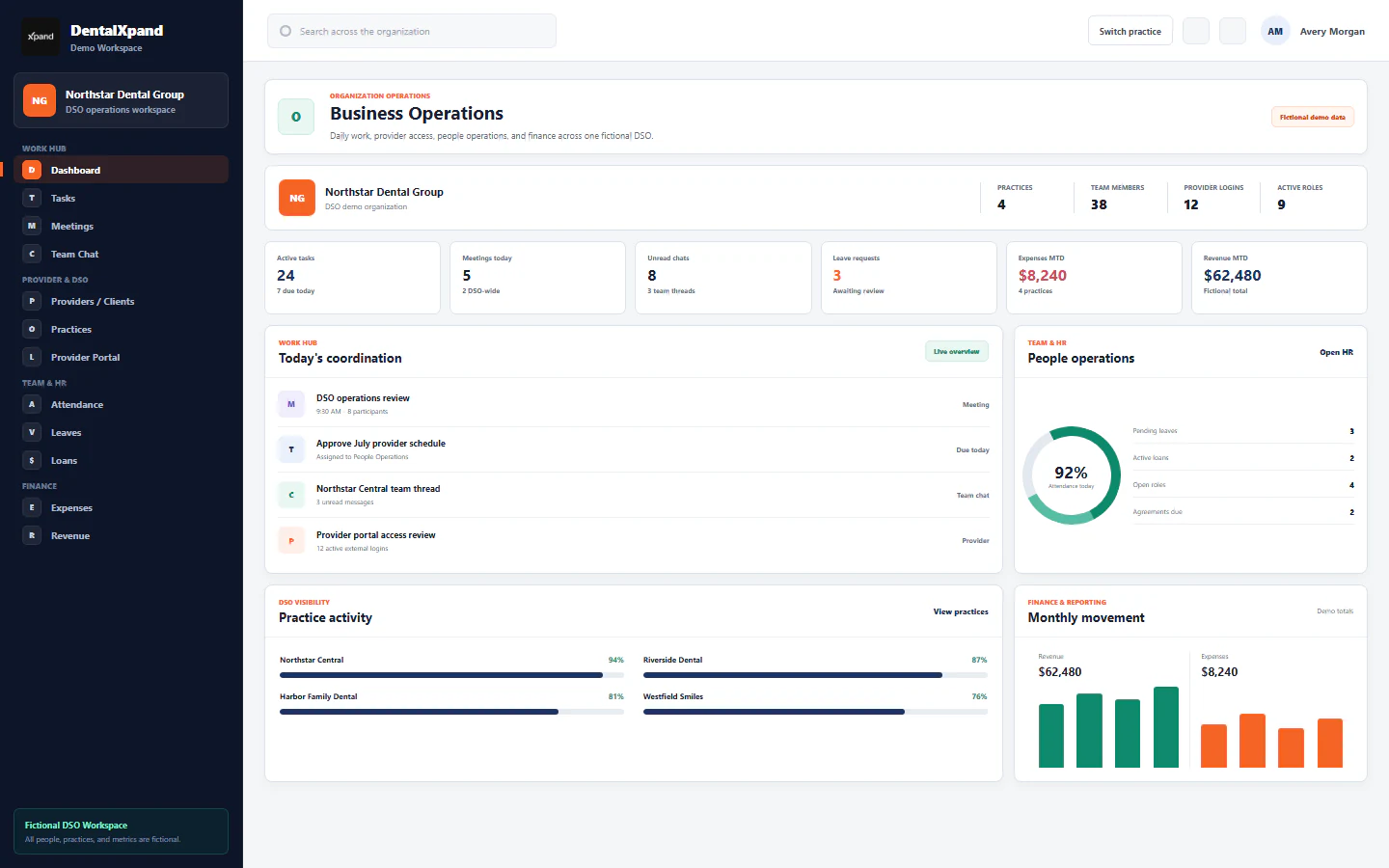
Control provider and practice access
Review an external account, select the correct practice-scoped role, replace its complete practice assignment set, align provider relationships, grant exact pages and actions, verify tenant isolation, and suspend access without deleting history.
Provider and practice access is an administrator-controlled boundary, not a profile preference. DentalXpand evaluates the named user, active organization membership, role-derived access scope, explicit practice assignments, exact page and action permissions, backend tenant checks, database row policies, and canonical provider-practice relationships. This lesson shows how to review, change, verify, and terminate that access without exposing another client workspace.
1 / Access model
Separate every record that participates in authorization
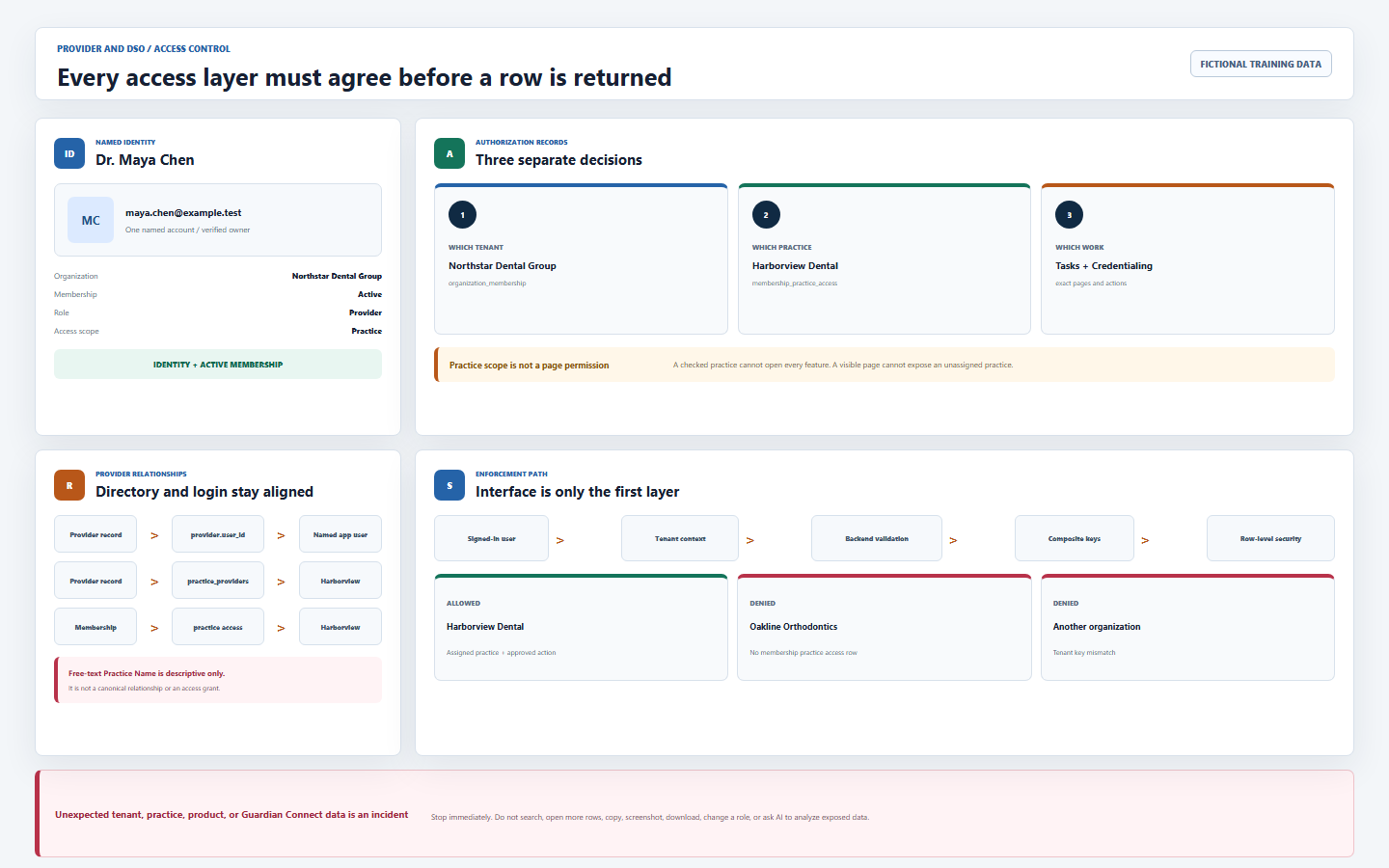
The named authenticated identity. One email should map to one intended person, not a shared practice login.
Connects that identity to one tenant with a status, role, access scope, onboarding state, and effective permissions.
Provider, Client, and External are practice scoped. Internal roles are organization scoped and can reach all practices when permissions allow.
The explicit set of same-organization practice IDs available to a practice-scoped membership.
Control destinations and operations. They do not create practice access and cannot authorize another tenant.
Connects a provider directory record to canonical practices. It is separate from the user’s membership assignments.
Complete Manage providers and clients, Manage practices, locations, and assignments, roles and permissions, and provider login and the client portal before changing production access.
2 / Change readiness
Translate the approved business need into a minimum-access target
| Confirm | Required evidence | Stop when |
|---|---|---|
| Named user | Verified work email, identity, manager or client owner, and current account record. | The request is for a shared login, unmatched email, or unknown person. |
| Business purpose | Specific work the user must perform and the minimum dates or duration. | The request says only “give full access” or cannot identify a valid workflow. |
| Organization | The exact active DentalXpand organization that owns the user and practices. | The request mixes DentalXpand, Guardian Connect, another Xpand product, or another client. |
| Practice set | Canonical active practice names or approved IDs, not free-text provider metadata. | A requested practice is missing, archived, duplicated, or owned by another organization. |
| Role and pages | Provider, Client, or External plus the exact destinations and actions needed. | An internal or Admin role is requested only to overcome a missing page or assignment. |
| Change owner | Administrator with User Management authority using their own account and an auditable request. | Approval, authority, or a second review for a high-impact expansion is absent. |
3 / Current-state review
Read the whole account before touching a checkbox
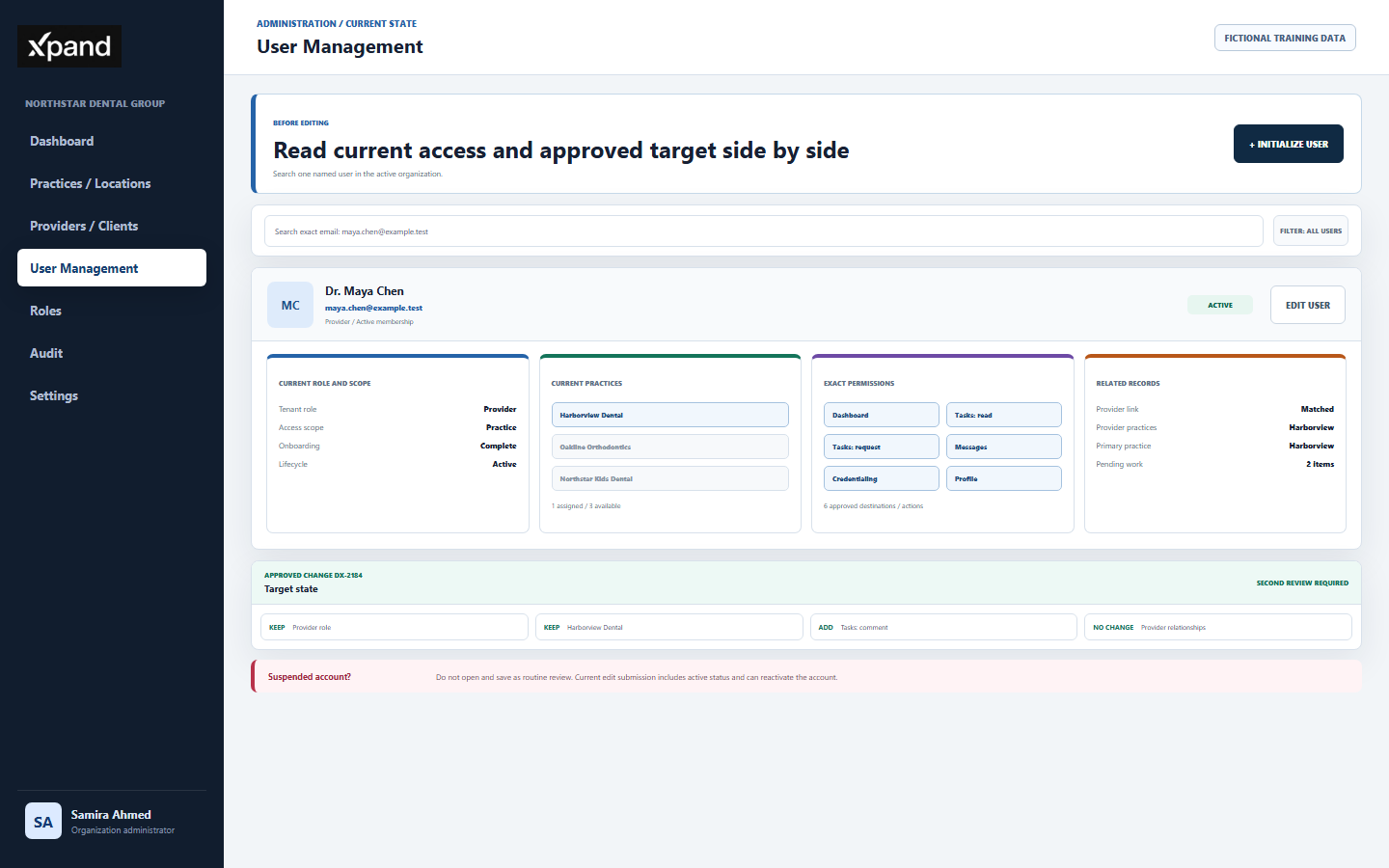
- Open User Management in the expected organization.Confirm the organization name before searching. Do not use a stale browser tab from another support or tenant context.
- Search the exact normalized email.Confirm first and last name, active state, tenant role, and linked employee or provider identity. Repair the existing intended account instead of creating a duplicate.
- Open Edit User only after recording the current state.Read every selected practice and every exact permission. Treat the approved request as the proposed target, not as permission to discard existing required access.
- Compare current and target state.Mark practices to add, practices to remove, role changes, page changes, action changes, and any provider-directory relationship that must be handled separately.
- Check lifecycle state.A suspended user is not a normal edit. The current edit submission sends the account active state, so saving a terminated account can reactivate it; require explicit reactivation approval first.
- Pause on anomalies.Stop when organization, identity, practice list, provider relationship, or permission set does not match the request. Investigate through approved administrators without browsing unrelated records.
4 / Role and scope
Choose a role for job behavior, never as an access workaround
| Role decision | Current backend behavior | Administrator rule |
|---|---|---|
| Provider | Canonical external role with practice scope. | Use for a provider user who needs only approved practice and portal workflows. |
| Client | Canonical external role with practice scope. | Use for an approved client-side user and select the minimum practices. |
| External | Canonical generic external role with practice scope. | Use only when Provider or Client is not the correct business identity. |
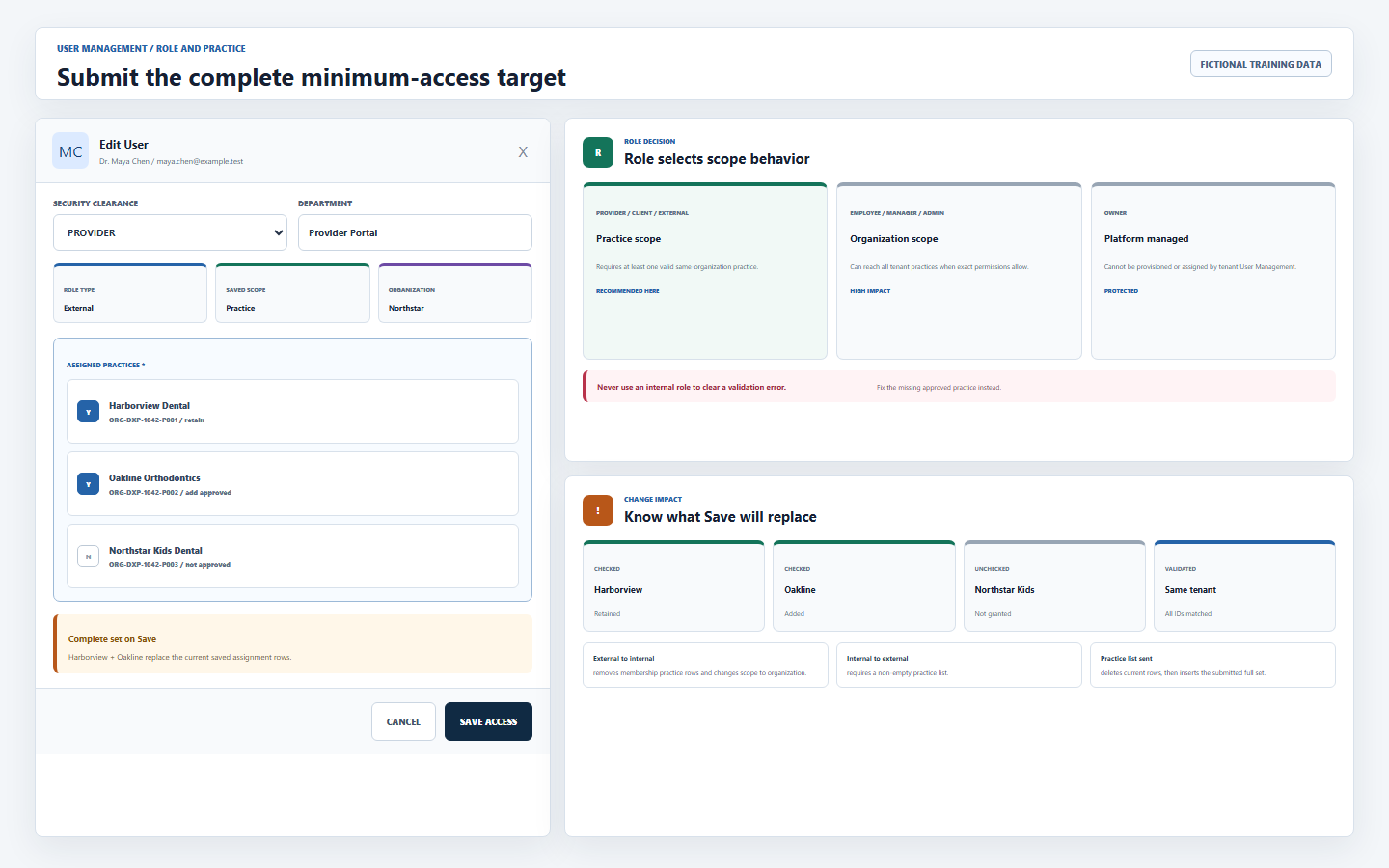
| Employee, Manager, Admin, or another internal role | Membership becomes organization scoped; practice access rows are removed when the role is saved. | Treat the conversion as a broad access change. Never use it to bypass “Assign at least one practice.” |
| Owner | Provisioning and assignment are platform managed. | Tenant User Management cannot create, assign, edit, or terminate the owner role. |
The role selector does not automatically overwrite the user’s checked page permissions. Use Roles only to review templates; the saved per-user permission list remains authoritative.
5 / Practice assignment
Submit the complete desired practice set, not only the new addition
- Confirm every practice in Practices / Locations.Use canonical active records from the current organization. Free-text Practice Name on a provider record does not grant access.
- Check every practice the user should retain.The edit form sends the complete selected list. The backend removes the existing membership practice rows and inserts the submitted set.
- Uncheck only approved removals.An unchecked existing practice is revoked after save. Do not assume only newly changed boxes are transmitted.
- Keep at least one practice for an external role.The form and backend reject an empty set for Provider, Client, or External.
- Use only same-organization practices.The backend validates every submitted ID against the current organization, and composite foreign keys reject cross-organization membership-practice combinations.
- Review practice retirement separately.Reassign required users and provider relationships before archiving a practice. Archived practices are omitted from normal tenant context.
6 / Provider relationship
Align the login membership with the provider directory intentionally
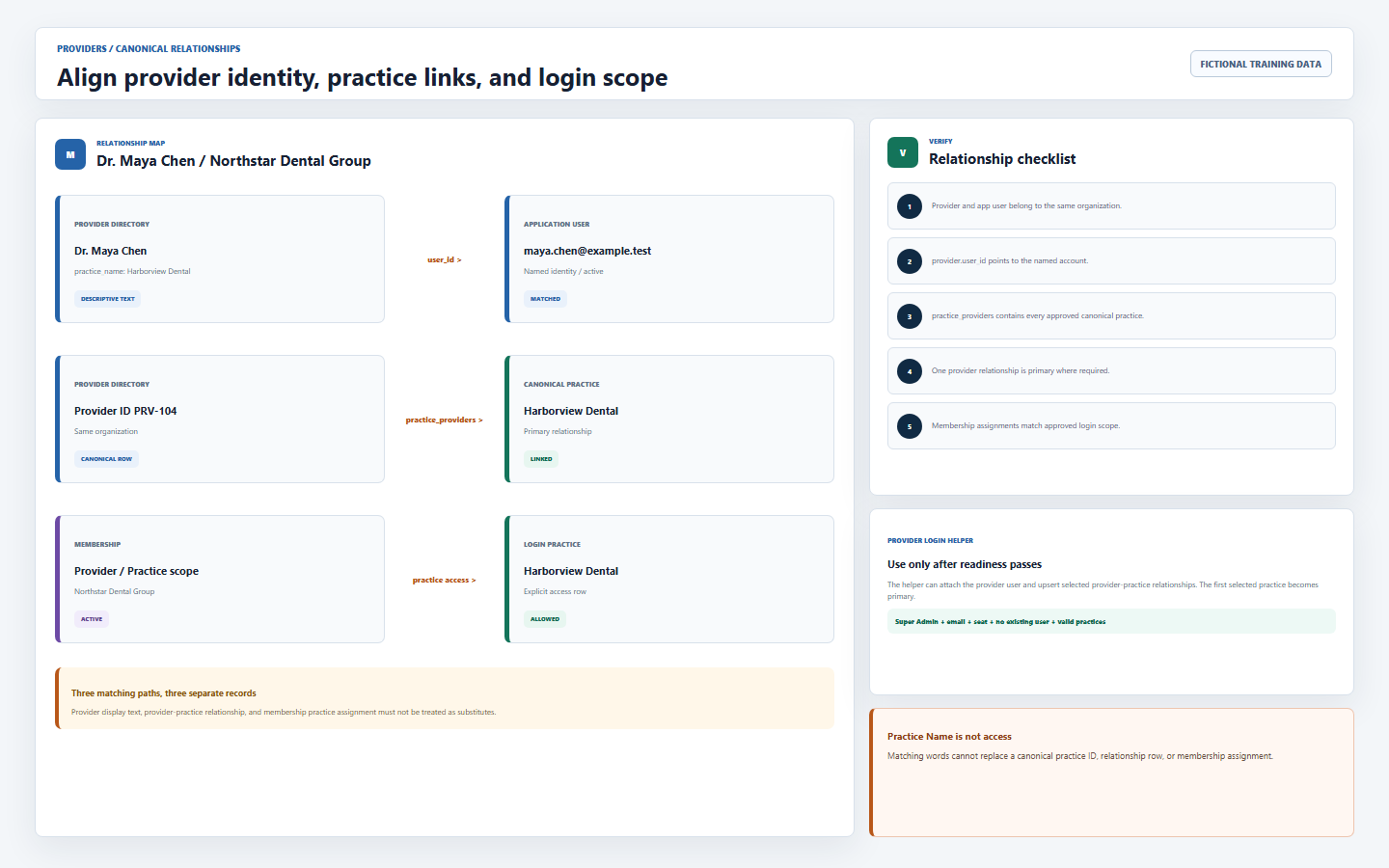
| Record | What it means | How to verify |
|---|---|---|
Provider practice_name |
Descriptive directory text. | Use for display or reference only; never treat it as an access control. |
Provider user_id |
Links the provider row to the application user. | Confirm the exact named account and same organization. |
practice_providers |
Canonical provider-to-practice relationships, including a primary marker. | Confirm every intended practice in the provider relationship workflow. |
membership_practice_access |
Controls which practices the external login can receive. | Review Assigned Practices in User Management and verify the resulting tenant context. |
| Provider login helper | For an approved linked provider, it can attach the user and upsert selected provider-practice relationships; the first selected practice is primary. | Use only when the provider identity, email, practices, and Super Admin authority are already correct. |
| Normal User Management edit | Updates membership role, practice access, identity fields, and permissions. | Do not assume it repairs every provider-directory relationship; verify Providers separately. |
Use Providers / Clients for provider identity and relationship review, then return to User Management for login scope.
7 / Exact permissions
Grant the page and action needed inside the assigned practices
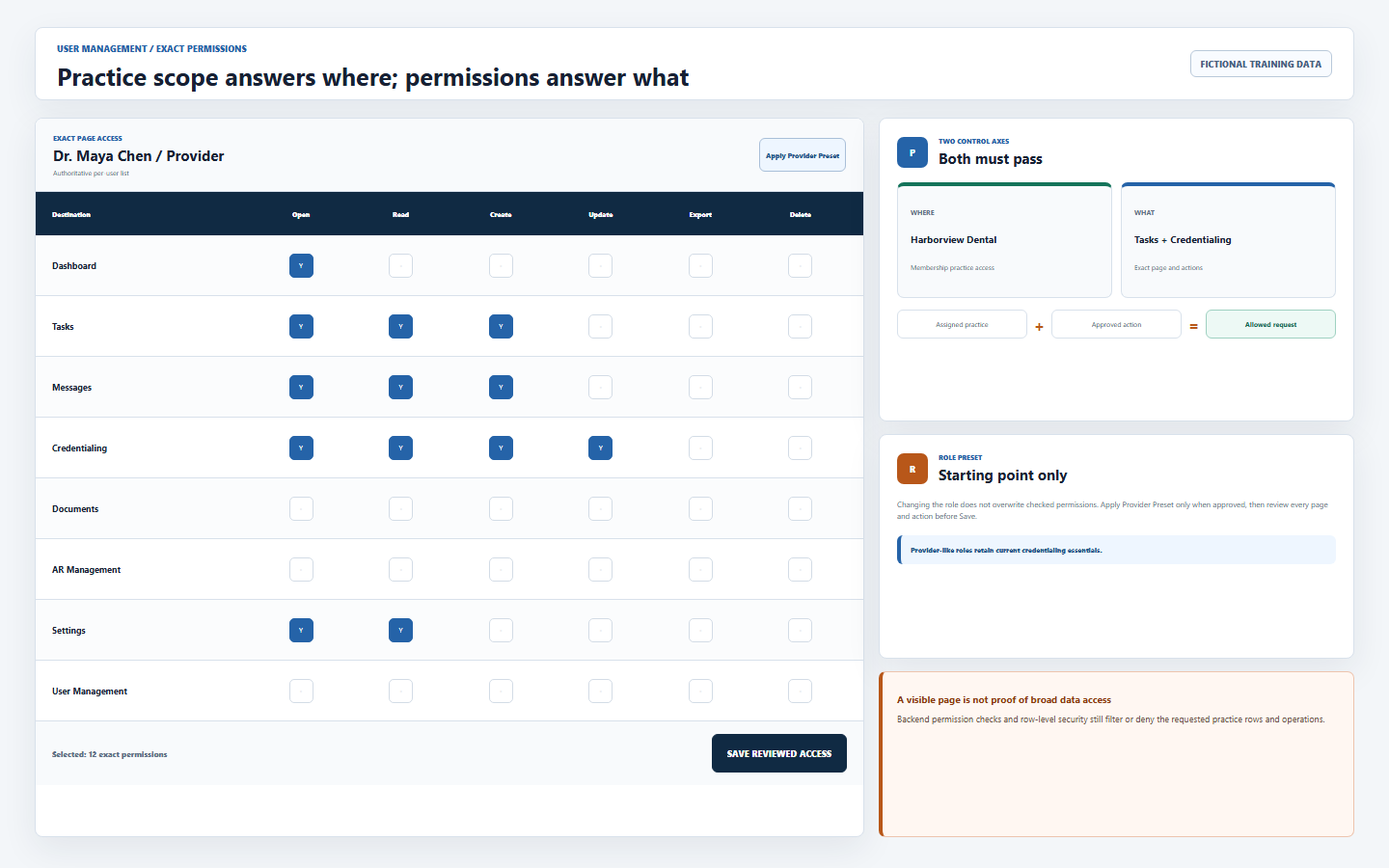
- Start from the user’s exact saved list.Modern accounts reopen with their saved page permissions without silently merging role defaults.
- Use Apply Role Preset only as a deliberate starting point.The preset can add a broad baseline. Review every resulting page and action before save; role selection alone does not apply it.
- Grant the minimum page.Dashboard, Tasks, Messages, Credentialing, Documents, AR, Reports, Settings, User Management, and Xpand AI are separate destinations.
- Grant the minimum action.Read, create, update, upload, send, manage, export, and delete controls remain distinct where implemented.
- Expect external credentialing essentials.Provider-like role aliases are normalized with the current credentialing read, create, update, and page permissions. Review this required baseline as part of external-role approval.
- Do not use page visibility as proof of data access.A page can be visible while RLS returns only assigned-practice rows or denies the operation.
8 / Controlled change
Save one reviewed target state and understand every side effect
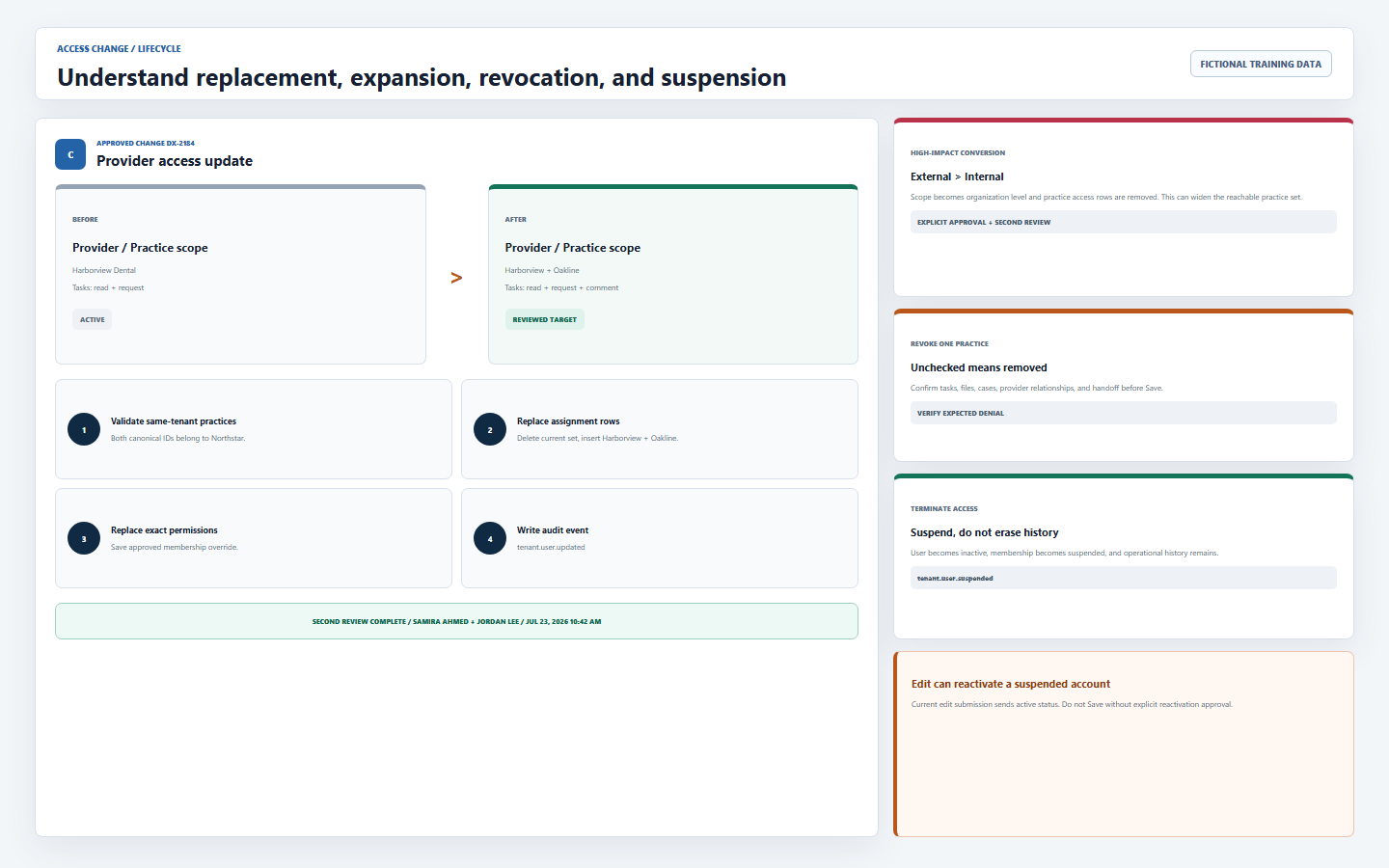
| Change | System effect | Required control |
|---|---|---|
| Add one practice | Final submitted set is saved after current access rows are removed. | Keep all approved existing practices checked and add only the approved new one. |
| Remove one practice | Unchecked practice is absent from the rebuilt assignment set. | Confirm open work, files, tasks, provider relationships, and handoff before revocation. |
| External to internal role | Scope becomes organization level and membership practice rows are removed. | Treat as high-impact expansion; require explicit approval and second review. |
| Internal to external role | Scope becomes practice level and at least one valid practice is required. | Select the complete minimum practice set before save. |
| Permission edit | Submitted exact permissions update both user data and membership override. | Compare old and new lists; do not rely only on the role label. |
| Edit suspended account | The current edit payload includes active status. | Do not save unless reactivation is explicitly approved and verified. |
| Successful update | Backend records a tenant.user.updated audit event. |
Preserve the business request and verify the effective result; an event is not a substitute for testing. |
9 / Effective-access verification
Verify allowed work and expected denials from both sides
- Administrator verification.Reload User Management and confirm role, membership status, exact practice checkboxes, and exact permissions. Reopen Providers when provider linkage changed.
- End stale sessions.Have the user sign out and sign in again, or refresh tenant context through the normal application flow. Do not trust an old sidebar or cached practice selection.
- Confirm identity and organization.The user verifies their own name, expected organization, and focused portal or internal navigation before opening work.
- Verify each approved practice.Use sample staging records or properly authorized production work to confirm the intended practice appears and its permitted page opens.
- Verify an expected denial safely.Use an approved non-sensitive test fixture or known unassigned practice in staging. Do not open a real unrelated client’s account merely to test isolation.
- Verify actions, not only pages.Confirm the exact approved read, request, comment, upload, update, export, or management action and the denial of unapproved actions.
- Record the result.Document tester, time, organization, approved practices, pages and actions tested, expected denials, and remediation without attaching secrets or exposed data.
Use the official sign-in route and Dashboard for the user-side check.
10 / Tenant boundary
Understand what enforces the assignment after the form is saved
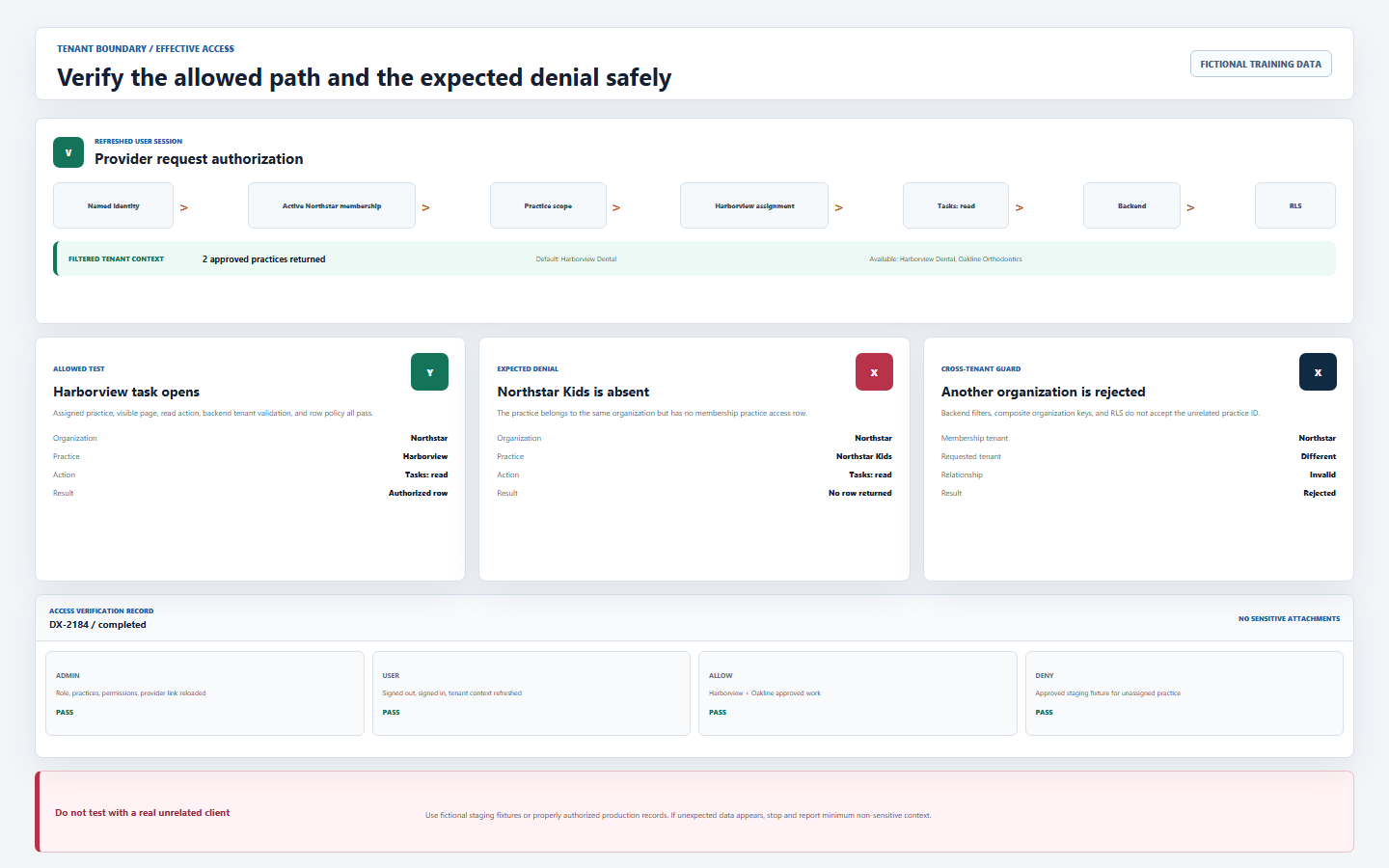
| Enforcement | Current behavior | Expected result |
|---|---|---|
| Tenant context | A practice-scoped membership loads access rows and filters the organization’s active practices to those IDs. | The default practice is selected only from the filtered returned list. |
| Backend validation | User changes are restricted to the current organization and validate every submitted practice ID. | Unknown or other-organization assignments are rejected. |
| Composite foreign keys | Membership and practice organization keys must match. | A cross-organization relationship cannot be stored as a valid assignment. |
| Practice helper | Organization-scoped members can reach practices in their organization; practice-scoped members require an explicit access row. | External users receive only assigned practice rows. |
| Row-level security | Practice and tenant tables use organization or practice predicates for reads and permission-aware checks for writes. | A typed route, guessed UUID, or direct client request does not widen access. |
| Isolation acceptance tests | Repository tests assert one assigned practice, no unassigned provider rows, no organization settings, and rejection of cross-organization practice keys for an external fixture. | Run the approved staging and deployment test suite after tenant-policy changes. |
11 / Suspension and offboarding
Terminate login access without deleting the operating history
- Confirm the offboarding owner and effective time.Coordinate active tasks, credentialing cases, messages, documents, exports, practice relationships, and any required handoff.
- Use Terminate access in User Management.The action requires delete or user-management authority, blocks self-deactivation, and does not allow tenant administrators to terminate the owner.
- Read the confirmation.The application sets the user inactive and membership suspended while preserving historical records and records
tenant.user.suspended. - Handle related records separately.Suspending login does not automatically archive the provider directory record or remove every provider-practice relationship. Review each record according to the business need.
- Protect external systems.Rotate or revoke payer portals, practice systems, shared mailboxes, recovery methods, API credentials, and downloaded data through their approved owners. Never ask the departing user for an MFA code.
- Verify denial.Confirm the suspended membership no longer receives normal tenant context. Do not reactivate by opening Edit and saving unless a documented reactivation is approved.
12 / Troubleshooting and completion
Resolve the specific failed layer without broadening access
| What you see | Likely layer | Correct first response |
|---|---|---|
| Assign at least one practice | External role has an empty submitted set. | Select the minimum approved canonical practice; do not choose an internal role. |
| One or more practice assignments are invalid | A submitted ID is missing from the current organization. | Return to Practices, confirm the organization and active record, then select it normally. |
| User or provider not found | The target is not in the current organization or the linkage is stale. | Verify organization and exact identity; do not recreate or query another tenant. |
| Page missing but practice visible | Page permission is absent. | Review the exact business need and grant only the required page or action. |
| Page visible but no records | Practice assignment, provider linkage, row policy, or record ownership does not match. | Verify the specific relationship and approved test fixture; do not grant Admin. |
| Previously selected practice disappeared | The last edit submitted a replacement set without it, or the practice was archived. | Review the approved target and audit history, then restore only when authorized. |
| Suspended user became active | An edit save submitted active state. | Suspend again if appropriate, preserve evidence, and require explicit approval before any future reactivation. |
| Wrong tenant, practice, or product appears | Session, context, assignment, query, cache, deployment, or policy isolation failure. | Stop immediately and contact DentalXpand Support with minimum non-sensitive context. |
Completion checklist
- I can separate application user, organization membership, role scope, membership practice access, exact permissions, and provider-practice relationships.
- I verify identity, organization, business purpose, canonical practice set, role, pages, actions, approval, and lifecycle state before editing.
- I use Provider, Client, or External for practice-scoped external access and never use an internal role to bypass assignment validation.
- I understand the submitted practice list replaces the current set, so I retain every approved existing practice and remove only approved access.
- I verify provider
user_id, canonical provider-practice relationships, and membership assignments as separate records. - I grant page and action permissions separately from practice access and review every role preset before save.
- I treat external-to-internal conversion and suspended-account editing as high-impact operations requiring explicit approval.
- I verify current admin state, refreshed user context, approved access, expected denial, and exact allowed actions.
- I understand tenant context, backend checks, composite keys, and RLS enforce the saved boundary beyond the interface.
- I terminate access through suspension, preserve history, handle related provider and external-system records separately, and verify denial.
- I never use real unrelated client data as an access test and stop immediately at cross-tenant, cross-practice, cross-product, or Guardian Connect exposure.
Open User Management, review the previous Provider & DSO lesson, continue to Operate a DSO or multi-practice workspace, or return to all learning resources.
Need workflow support?
Bring the question and the exact step where you are blocked.
Explore how this guide connects to provider operations and recruitment.