
One starting point for the batch
Upload the list and confirm its required details instead of starting each patient separately. When a fallback dentist is required, check that the selected provider is right for the batch.
Less repeat entry. More clarity before the visit.
Upload your patient list, start Verify All and follow the queue from payer responses to downloadable benefit reports. Keep the details and exceptions in view so your team knows what needs attention.
Patient list → payer response → benefits
Starting recordPatient list · Member details · Payer match · Date of service
Confirm identifiers, payer matching and the intended service date.
Start verification and separate returned results from missing details or exceptions.
Save the breakdown-of-benefits report and use returned details in the practice workflow.
Missing payer details remain visible for follow-up. Benefits depend on the payer response and plan terms; they are not a payment guarantee.
The workflow, explained
DentalXpand Auto Verify accepts a patient CSV and starts the verification queue with one action. It processes patients in sequence, organizes returned eligibility and benefit information, and initiates PDF downloads from processed responses. Coverage details and completion time depend on the payer response and configured connection.
How it works
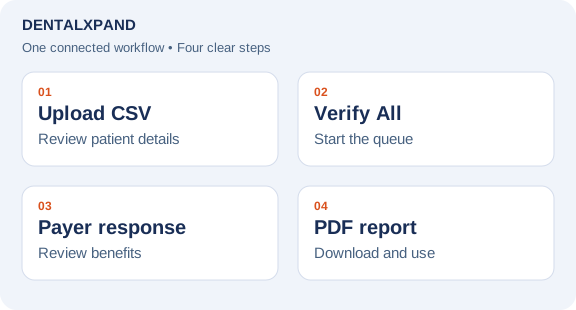
Import a patient CSV. Confirm patient, subscriber, payer and provider details before starting the queue.
Begin the list with one action. Follow progress as patients are processed in sequence and exceptions appear.
Review coverage status, deductibles, annual maximums and service details where supplied by the payer.
PDF downloads start from processed responses. Browser settings control the destination and any multiple-download prompt.
Made for the real handoffs
Upload the list and confirm its required details instead of starting each patient separately. When a fallback dentist is required, check that the selected provider is right for the batch.
Reports organize the information supplied by the payer, including coverage, deductibles, maximums and service-level benefit details. Frequency limits or missing details still need confirmation when they are not returned.
A missing field, incomplete payer response or no-coverage result should remain visible. Review the source response before using a benefit summary to support an estimate or patient conversation.
Auto AR provides a separate claims-status workflow for payer responses and follow-up. Keep an eligibility check, a claim-status check and a resolved claim distinct when reviewing team results.
Your team. Your process.
Use the pricing calculator to compare your verification and claims workload with monthly allowances, extra checks and the time your team still spends reviewing exceptions. It separates estimated time value from cash change. Bring a sample list and your current process to the demo so the comparison reflects how your practice actually works.
Take the next step
These blank planning worksheets are for your team’s process review. They are not application import templates; keep patient and confidential personnel information in your authorized systems.
Questions before you choose
After importing a CSV and confirming the required patient, subscriber, payer and provider details, Verify All starts the queue. You do not need to start each patient separately.
The report organizes payer-returned coverage status and available deductible, annual maximum, service-level, frequency and limitation information. It cannot supply a detail the payer did not return; missing information needs follow-up.
It generates PDFs from processed responses and initiates browser downloads. Your browser controls the download folder or save prompt and may ask you to allow multiple downloads.
Patients are processed sequentially. Completion time varies with the number of patients, payer response times, connectivity and exceptions. A fixed thousands-in-seconds claim would require a measured benchmark.
No. A PDF can contain a no-coverage or incomplete result. Review the returned status and benefit details before relying on the report.
No. Eligibility and benefit information support coverage review. Exclusions, plan changes, claim details and payer adjudication can affect the final payment.
The Pricing page lists verification and claims/AR allowances separately, together with extra-check rates. Confirm your selected plan and enabled payer connections before rollout.
No. Coverage depends on the configured services, payer participation, submitted details and response. Your team needs a process for unsupported payers, incomplete responses and exceptions.
See monthly pricing and allowances or discuss your setup with DentalXpand.
Insurance connections · Clearinghouse network
Use Xpand’s clearinghouse-connected eligibility and claim-status workflows to bring supported payer responses into your team’s worklist. Start with your patients, providers and payer IDs.
Dental-tagged payer records
Records listing eligibility
Records listing claim status
Start with your process
Tell us about your practices, your team and the next handoff you want to improve.