
Upload your patient list. Click Verify All. Let DentalXpand handle the repeat work.
Upload a patient CSV, start Verify All, and get detailed benefits PDFs from available payer responses. Track exceptions and coordinate dental AR follow-up.
One upload. One click to start. Benefits reports as your queue runs.
Give your team a simpler way to work through a patient list. Upload your CSV, confirm the patient and provider details, and click Verify All. DentalXpand Auto Verify works through the queue, turns available payer responses into detailed eligibility and breakdown-of-benefits reports, and automatically starts downloading each generated PDF to your computer.
You do not need to launch a separate verification manually for every row. Watch progress in one place, see which patients have coverage and which need attention, and keep the reports ready for your team’s review. Missing information, unsuccessful checks and no-coverage responses remain visible so the team can follow up.
Processing time depends on the number of patients, payer response times and your connection. Keep the Auto Verify page open while the queue runs and allow multiple file downloads if your browser asks. Verification requires configured payer services and is subject to your organization’s access and package allowances.
From patient list to detailed benefit reports
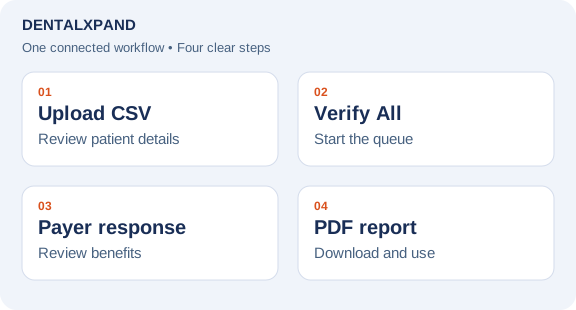
- Upload your patient CSV. Use Upload CSV to populate the verification queue. Review patient and subscriber information, payer details and provider selection. If the queue needs a fallback dentist, confirm the right provider before starting.
- Click Verify All. Start the queue with one action. Auto Verify processes patients in sequence and shows progress, coverage results and exceptions as it works. Stop ends the run after the current patient finishes.
- Review the breakdown of benefits. Reports organize coverage status, deductibles, annual maximums, service-level benefits and frequency or limitation details when the payer supplies them. Missing details still need confirmation.
- Keep the PDFs on your computer. Auto Verify generates PDFs from processed eligibility responses and initiates their download. Choose the available filename and orientation settings; your browser controls the download folder or save prompt. A PDF may report no coverage, so a downloaded file does not by itself mean coverage was confirmed.
The verification and breakdown of benefits should be reviewed against the payer response and the office’s own records. A payer response is not a guarantee of payment; limits, exclusions, plan changes and claim processing can affect the eventual outcome.
Turn an exception into owned work
A useful revenue-cycle record has a status, a next action, an owner and a due date. If a benefit response is incomplete, the team can flag what still needs confirmation. If a claim needs follow-up, record the payer response, the contact or portal step, and the next date to check. The action should remain attached to the relevant patient or claim context available to the authorized team. Avoid counting a claim as resolved just because a status check was performed.
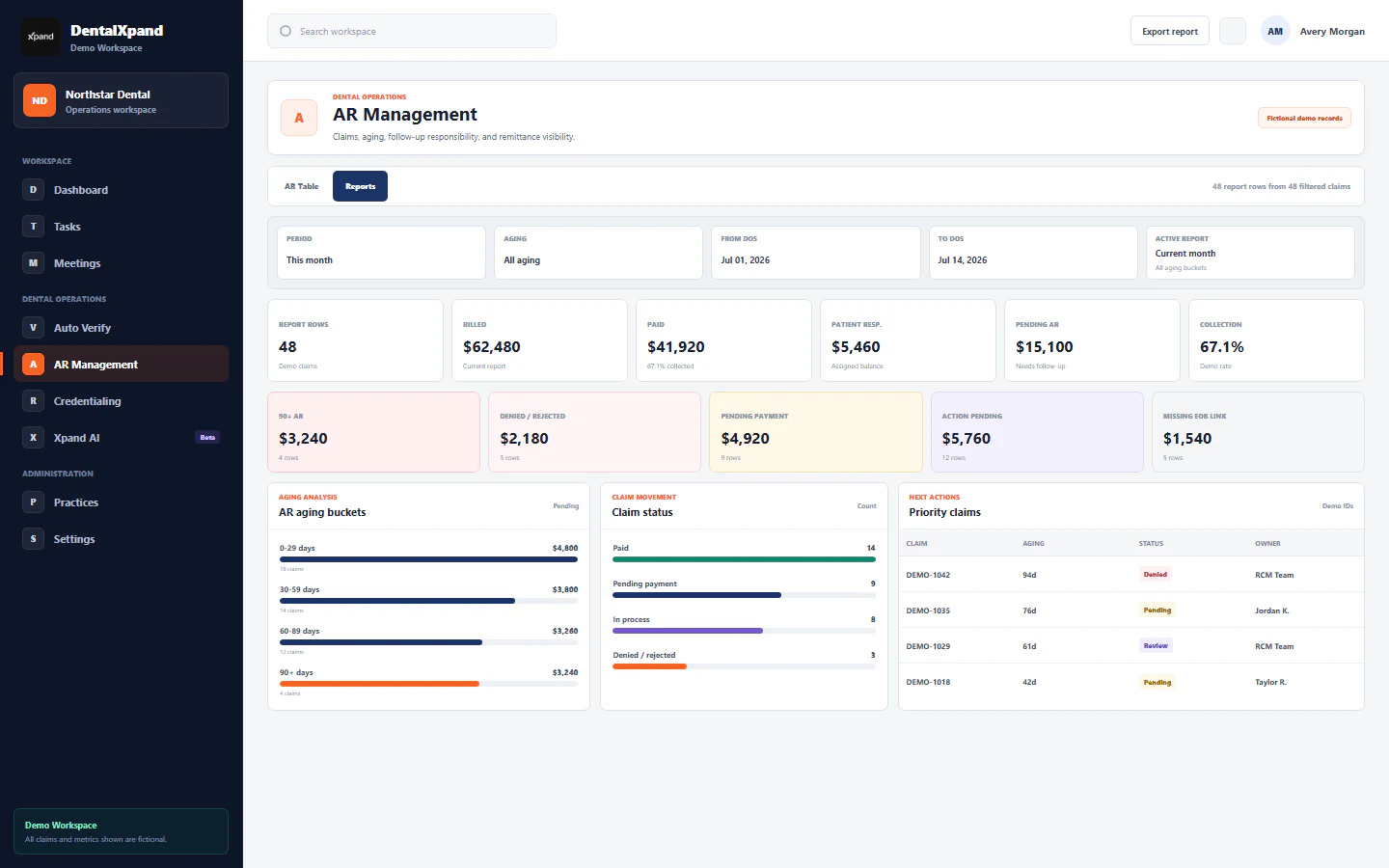
DentalXpand provides AR and claims follow-up views alongside task ownership and operational reporting. The team can review priorities and export records for management review. Organizations should confirm which payer services and account connections are active for them before promising automatic verification or claim-status coverage across every payer.
Review the queue by reason, not only age
AR aging helps prioritize work, but the oldest balance is not always the next actionable one. A weekly review should separate missing information, payer pending, denial or rejection, patient balance and completed follow-up where those states are recorded. For each open item, ask who owns the next action and whether the team has a real response or is still waiting. Record the response date and follow-up date separately.
For a new deployment, begin with a small set of real workflows using appropriately authorized data. Check the team’s status definitions and access, compare payer results with existing processes, then train staff on exceptions. Measure completed follow-ups and unresolved reasons before drawing conclusions about revenue or labor savings. No savings percentage or payment improvement is claimed here.
Explore DentalXpand revenue-cycle services, verification, claims and AR, or book a demo. The available integrations and monthly usage allowances depend on the organization’s setup and package.
Frequently asked questions
Can I verify a patient list with one click?
Once you have uploaded a CSV and confirmed the required patient, payer and provider details, Verify All starts processing the queue. You do not need to start each patient separately.
Does Auto Verify download reports to my computer?
It generates PDFs from processed eligibility responses and starts browser downloads automatically. Your browser’s download settings apply; allow multiple downloads if prompted.
Will an entire patient list finish within seconds?
There is no fixed completion time. Patients are processed in sequence, so total time depends on list size, payer response times and the connection. Progress and exceptions are shown as the queue runs.
Is insurance eligibility a guarantee that a claim will be paid?
No. Eligibility and benefit information help staff review coverage but do not guarantee adjudication or payment.
What belongs in a dental AR follow-up record?
The current status, payer response or source, next action, owner and due date should be clear enough for another authorized teammate to continue the work.
Does a claim-status check close the claim?
No. A status check may reveal a needed correction, a payer delay or another follow-up. Completion should reflect the actual resolution.
Does every payer work automatically?
Coverage depends on configured credentials, connected services and payer availability. Confirm the organization’s current integrations during onboarding.
How should a DSO review multiple practices?
Filter the work by practice, status, owner and follow-up date, then review exceptions and overdue next actions with the responsible team.
Put this workflow into practice. Explore Dental Insurance Verification & Benefits Software.
Need workflow support?
Bring the question and the exact step where you are blocked.
Explore how this guide connects to DentalXpand features.