
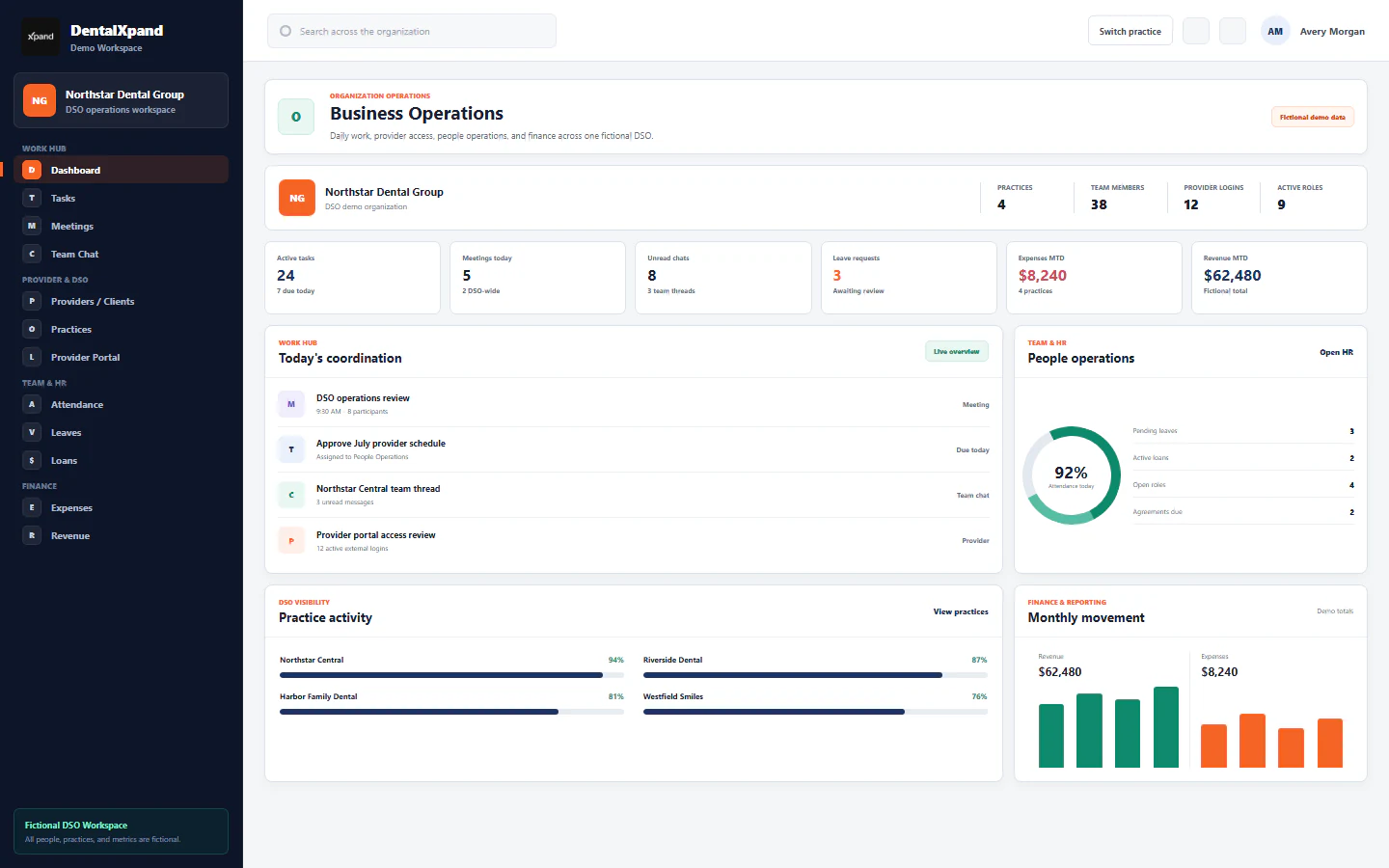
Manage providers and clients
Create, find, review, edit, archive, and prepare provider or client records for login while preserving linked employee records, practice assignments, sensitive identifiers, action permissions, and tenant boundaries.
The DentalXpand Providers / Clients directory at /providers is the controlled administrative record for external providers, dental practices, clients, and billing partners. Authorized operators can review returned provider counts, search and filter the directory, switch between table and card views, create or edit a detailed record, preserve a linked employee shadow record used by existing tasks and client instructions, manage lifecycle status, archive instead of deleting routine history, and prepare eligible providers for a practice-scoped login. The directory does not replace the organization-owned Practices, User Management, role, membership, or practice-access workflows.
1 / Record model
Know which record you are changing before you add, edit, or deactivate a provider
The main directory row stores provider identity, practice name, operational contact, address, provider and practice identifiers, license, specialty, default software, lifecycle status, notes, and optional user linkage.
A successful create also builds an External employee row with provider role. Existing tasks, client instructions, and other employee-linked workflows can continue using that stable employee ID.
An optional login record is created only through the protected account workflow. A provider record can exist without a login, and login readiness is shown independently in the directory.
An organization-owned location in the Practices system. It has its own name, legal name, group NPI, Tax ID, contact, address, status, limits, and assignments.
A relationship connects a provider row to one or more same-organization practices and identifies a primary link where applicable. This relationship is not created by typing the Practice Name field.
An external user’s organization membership is practice-scoped. The approved assigned-practice rows determine which practice context that user can enter.
Use the Providers / Clients directory for directory records, Practices for organization-owned locations, and User Management for account and practice assignment work.
2 / Access and permissions
Confirm the page route, requested action, and organization boundary separately
| Layer | Current behavior | Required interpretation |
|---|---|---|
| Route | Administrators and super administrators pass the admin route. A non-admin account requires pages:providers for the deployed route. |
A provider read permission alone does not guarantee the route when page permission is absent. Do not type or alter a direct link to bypass the redirect. |
| Read page | The page also recognizes administrator role, pages:providers, or providers:read when evaluating its own content. |
The outer route and inner page must both permit access. The stricter result wins. |
| Create | The Add Provider button follows providers:create; the service also requires an authorized admin or manager role. |
A visible button is not final authorization. Database tenant insert policy must accept the same organization and permission. |
| Edit | Edit follows providers:update; the service checks an authorized admin or manager before writing. |
Do not edit a record simply because it is visible. Confirm purpose, source, and expected linked effects. |
| Archive | Archive follows providers:delete, asks for confirmation, updates the provider status, and inactivates the linked employee. |
Delete permission includes a significant lifecycle action. Use it only under approved offboarding or cleanup policy. |
| Permanent delete and login | These controls are limited to the super admin application role; the related services repeat the super-admin checks. | Super admin is not a reason to skip verification, practice assignment, data retention, or secure credential handling. |
| Database rows | Provider rows carry an organization ID. Tenant RLS permits reads only for an accessible organization and writes only when organization and table-action permission agree. | Client-side filtering is convenience. Durable organization isolation must be enforced by the backend and row policy. |
Review roles and access boundaries and organization, practice, and tenant context before assigning broader provider administration.
3 / Directory overview
Read the summary cards and returned list as one authorized directory view
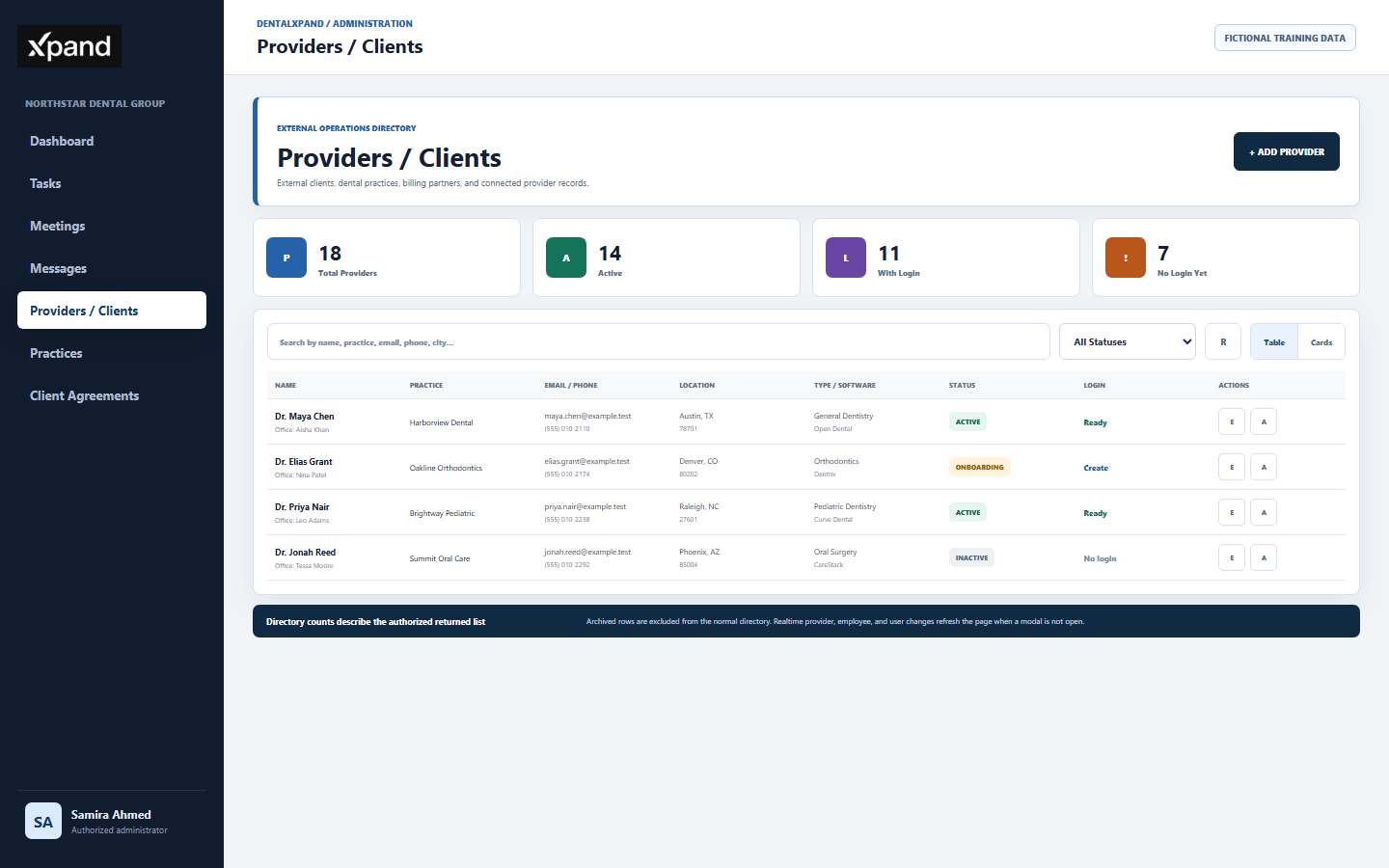
| Summary | How it is calculated | What it does not prove |
|---|---|---|
| Total Providers | All provider rows returned to this page after the normal archived-row exclusion. | It is not automatically every provider in the platform, another tenant, or the historical archived total. |
| Active | Returned rows whose provider status is exactly active. |
It does not prove that every linked user, employee, practice, agreement, or downstream workflow is active. |
| With Login | Returned rows with a linked provider user_id. |
It does not prove the membership is fully onboarded, the password was changed, or every intended practice is assigned. |
| No Login Yet | Returned rows without a linked user ID. | It does not mean the provider should receive a login. Confirm contract, role, email, seat, practice access, and onboarding approval first. |
Provider, linked employee, and linked user changes trigger a silent realtime refresh while the page is open and no provider modal is active. Always re-read the current row before editing after another administrator has changed it.
4 / Find and review
Search the least-sensitive field that identifies the required record
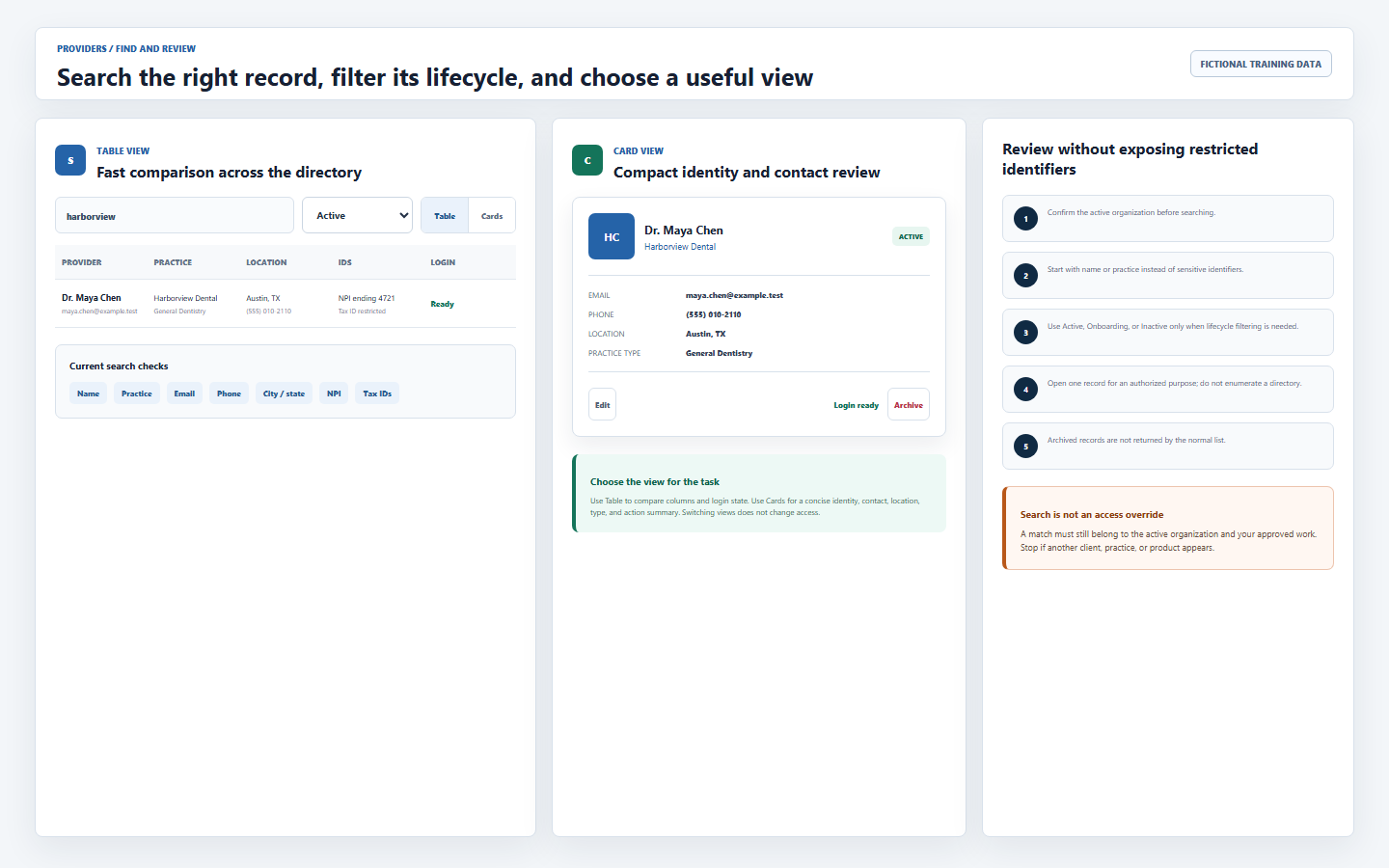
- Confirm organization first.Verify the signed-in account and active DentalXpand organization before entering a name, practice, email, phone, city, state, NPI, or Tax ID into search.
- Start with name or practice.The current search matches provider name, practice name, email, phone, city, state, provider NPI, practice NPI, provider Tax ID, and practice Tax ID. Use the least-sensitive field sufficient for the work.
- Filter the lifecycle only when needed.Choose All Statuses, Active, Onboarding, or Inactive. Archived records remain excluded from the normal source request and are not restored by clearing the filter.
- Use Table for comparison.Compare name, practice, contact, location, type, software, status, login state, and permitted row actions across returned records.
- Use Cards for concise review.Review one record’s identity, contact, location, practice type, status, login readiness, and allowed actions in a compact layout.
- Refresh once when needed.The refresh button reloads the normal directory. Repeated refreshes do not expand access and should not be used to probe missing records.
5 / Create a record
Build one verified provider or client record and let the service create its linked shadow
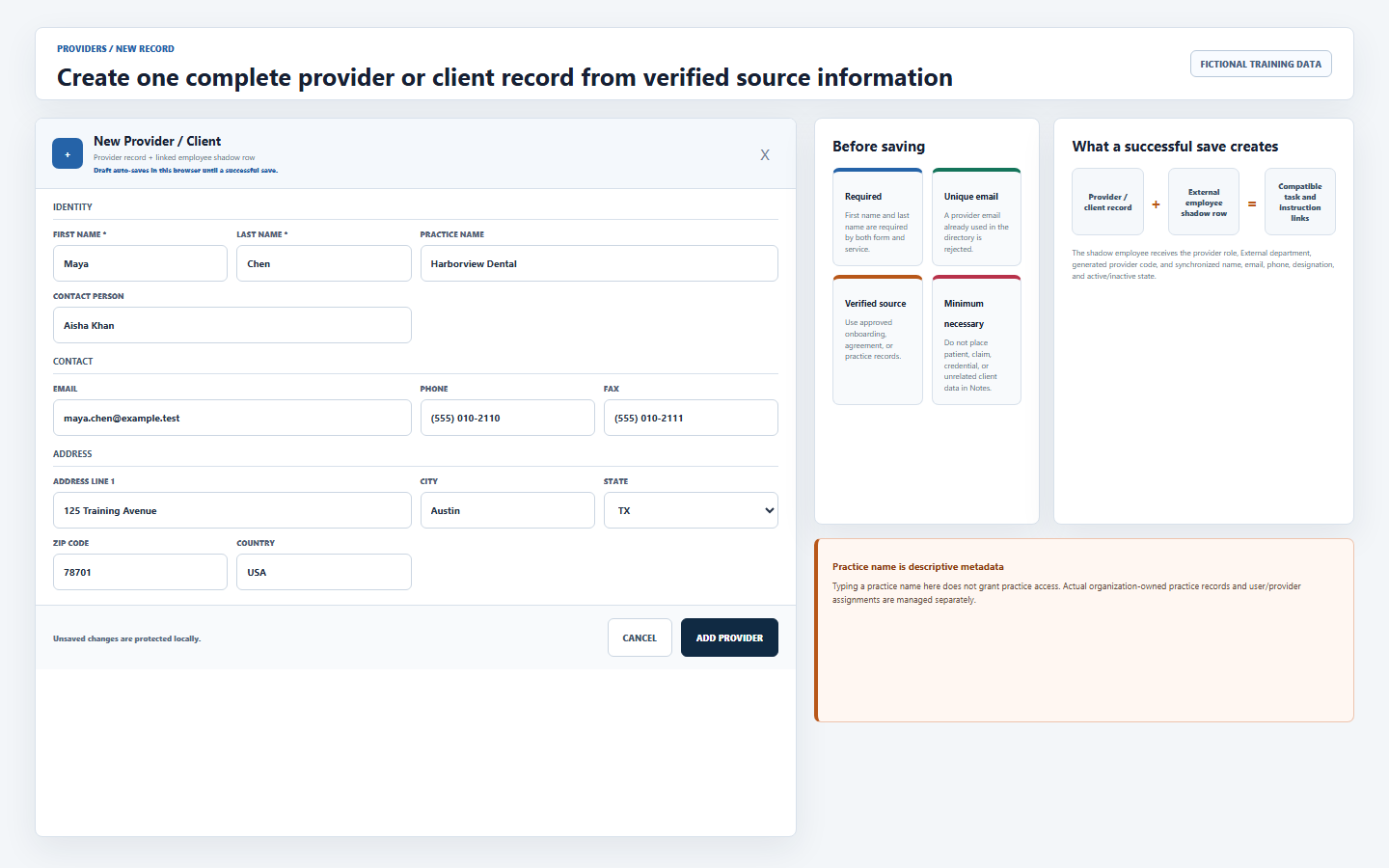
- Confirm authority and source.Use the approved onboarding, agreement, credentialing, or practice source. Confirm the record belongs to the active organization and is not already represented.
- Open Add Provider.The button is shown only with provider create permission. The form starts with blank optional fields, country USA, status Active, and a browser-local draft key for the new record.
- Enter both required names.First Name and Last Name are required. Do not use a practice name, email address, placeholder person, or shared account in place of an actual approved provider identity.
- Complete only verified optional data.Add practice metadata, operational contact, contact channels, address, identifiers, license, specialty, default software, status, and safe internal notes according to the approved source.
- Review the saved browser draft.Each form change is written to local browser storage. Closing or cancelling does not clear that draft; only a successful save clears it. Reopened fields must be reviewed before submission.
- Submit once.The service trims text, lowercases a supplied email, rejects a duplicate provider email, creates the linked employee, then creates the provider row and links the records.
- Confirm the new row.Wait for the success message and refreshed directory. If provider creation fails after the shadow is created, the service attempts to remove that incomplete shadow rather than leaving an intended partial record.
6 / Field guide
Distinguish identity, operational contact, protected identifiers, and access relationships
| Group | Current fields | How to complete safely |
|---|---|---|
| Identity | First name, last name, Practice Name, Contact Person | Use the verified provider identity. Practice Name is descriptive directory text; Contact Person is the approved operational contact. |
| Contact | Email, phone, fax | Use business contact channels approved for this provider. A supplied email is normalized to lowercase and must be unique in the provider directory. |
| Address | Address lines, city, state, ZIP code, country | Use the approved practice or provider address. Confirm state and ZIP instead of relying on free-text appearance. |
| Compliance and billing | Provider NPI, provider Tax ID, practice NPI, practice Tax ID, license number, license state | Verify each value against the approved source. The direct directory form stores trimmed text and does not prove format, ownership, or current validity. |
| Practice details | Practice type, specialty, default software, status | Select the closest supported practice type and software. Use specialty for useful operational detail and status for the correct lifecycle. |
| Notes | Internal free-text notes | Keep notes concise and operational. Never place passwords, portal credentials, patient information, full claim detail, copied records, or unrelated client content here. |
7 / Edit and linked sync
Review the provider record and linked employee effects before Save Changes
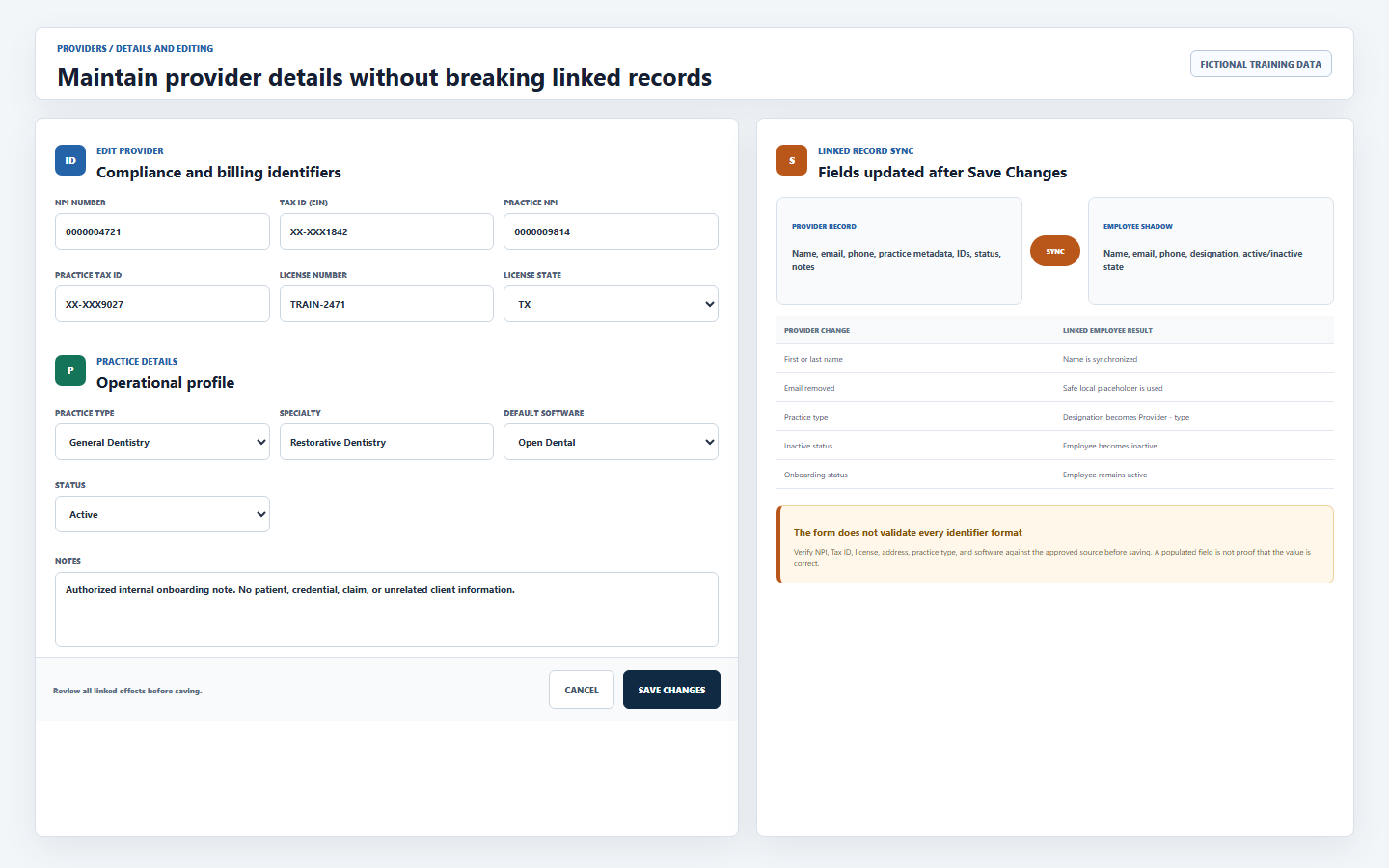
| Provider edit | Linked employee behavior | Operator check |
|---|---|---|
| First or last name | Updates the linked employee name. | Confirm spelling, identity, and downstream task or instruction references before saving. |
| Updates the linked employee email. If the provider email is cleared, the employee receives an internal provider-local placeholder. | A provider without a valid email cannot use Create Login. Never treat the internal placeholder as a real contact address. | |
| Phone | Updates the linked employee phone. | Use an approved business phone and confirm ownership. |
| Practice type | Updates the employee designation to Provider or Provider – selected type. | Do not use designation as a substitute for practice assignment or authorization. |
| Inactive status | Sets the linked employee inactive. | Check active tasks, client instructions, login, practice assignment, and offboarding obligations first. |
| Active or onboarding status | Keeps the linked employee active. | Onboarding means setup is in progress; it is not the same as inactive or archived. |
The edit form also uses a provider-specific browser draft. A stale draft can overwrite newer server values if submitted blindly. Re-read every field after opening Edit, especially when another operator or realtime update may have changed the record.
8 / Lifecycle
Retain history through status and archive before considering permanent deletion
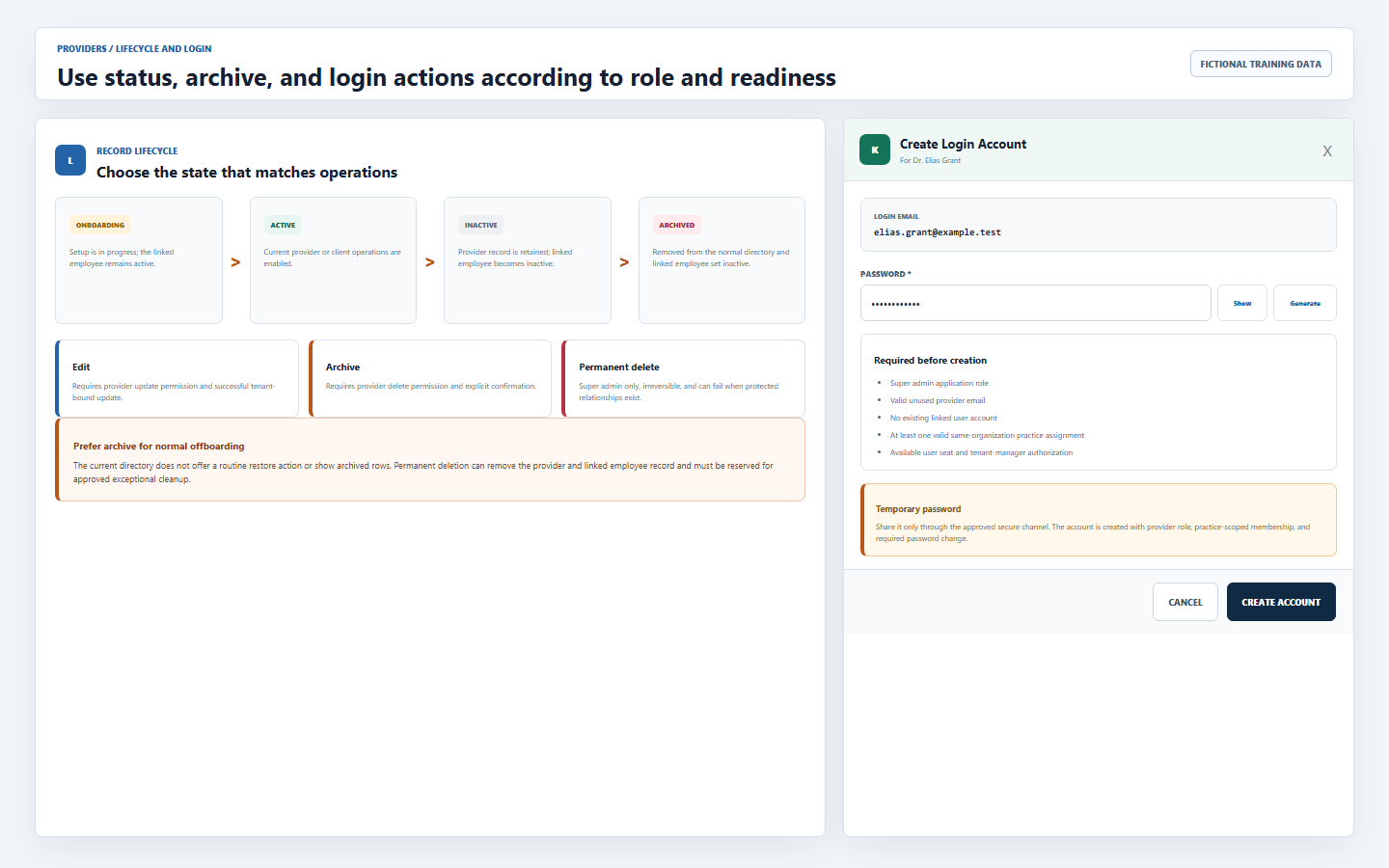
| State or action | Current effect | Required use |
|---|---|---|
| Onboarding | Provider remains in the normal directory and the linked employee remains active. | Use while approved setup is underway. It does not create a login or practice assignment. |
| Active | Provider is counted Active; linked employee remains active. | Use for current provider or client operations after required onboarding checks. |
| Inactive | Provider remains visible under Inactive filter; linked employee becomes inactive. | Use when the record must remain available but current provider activity is paused or ended according to policy. |
| Archive | Provider status becomes archived, normal listing excludes it, and linked employee becomes inactive. | Preferred for routine offboarding or historical retention. Confirm the named provider in the browser prompt. |
| Restore | The current directory does not show archived rows or provide a routine restore action. | Use the approved administrative recovery process. Do not update database status manually from an ad hoc query. |
| Permanent Delete | Super admin service deletes the provider and then attempts to delete the linked employee. Related constraints may reject unsafe deletion. | Irreversible exceptional cleanup only, after legal, retention, dependency, and tenant review. Prefer archive for normal operations. |
9 / Login readiness
Create an external login only after identity, email, seat, and practice access are ready
- Confirm super-admin role.The directory and provider service expose Create Login only to super admin. The backend user-provisioning route also requires authorized tenant-user management.
- Confirm a valid provider email.The provider must have an email, and no linked provider user may already exist. The backend also rejects an existing user with the same email.
- Confirm practice relationships first.The provider login helper loads provider-practice links and submits their practice IDs. External accounts require at least one valid practice inside the same organization.
- Confirm an available user seat.The tenant backend checks the plan and subscription seat limit before creating the app user, authentication user, and membership.
- Enter or generate a temporary password.The form requires at least eight characters. Treat displayed and generated passwords as secrets; never place them in Notes, email subject lines, support tools, screenshots, or training files.
- Create once and wait.The backend creates a provider-role user, authentication identity, practice-scoped organization membership, assigned-practice rows, provider link, and employee link. Temporary-password onboarding requires a password change.
- Share through the approved secure channel.Confirm recipient identity before transmission and never retain a reusable plaintext copy. Follow the password and account recovery guide.
- Verify the directory state.After success, the provider row shows a linked login. Then use the dedicated provider login and client portal lesson for external navigation and assigned-record behavior.
10 / Practice and tenant scope
Keep directory metadata, provider relationships, and user access as distinct controls
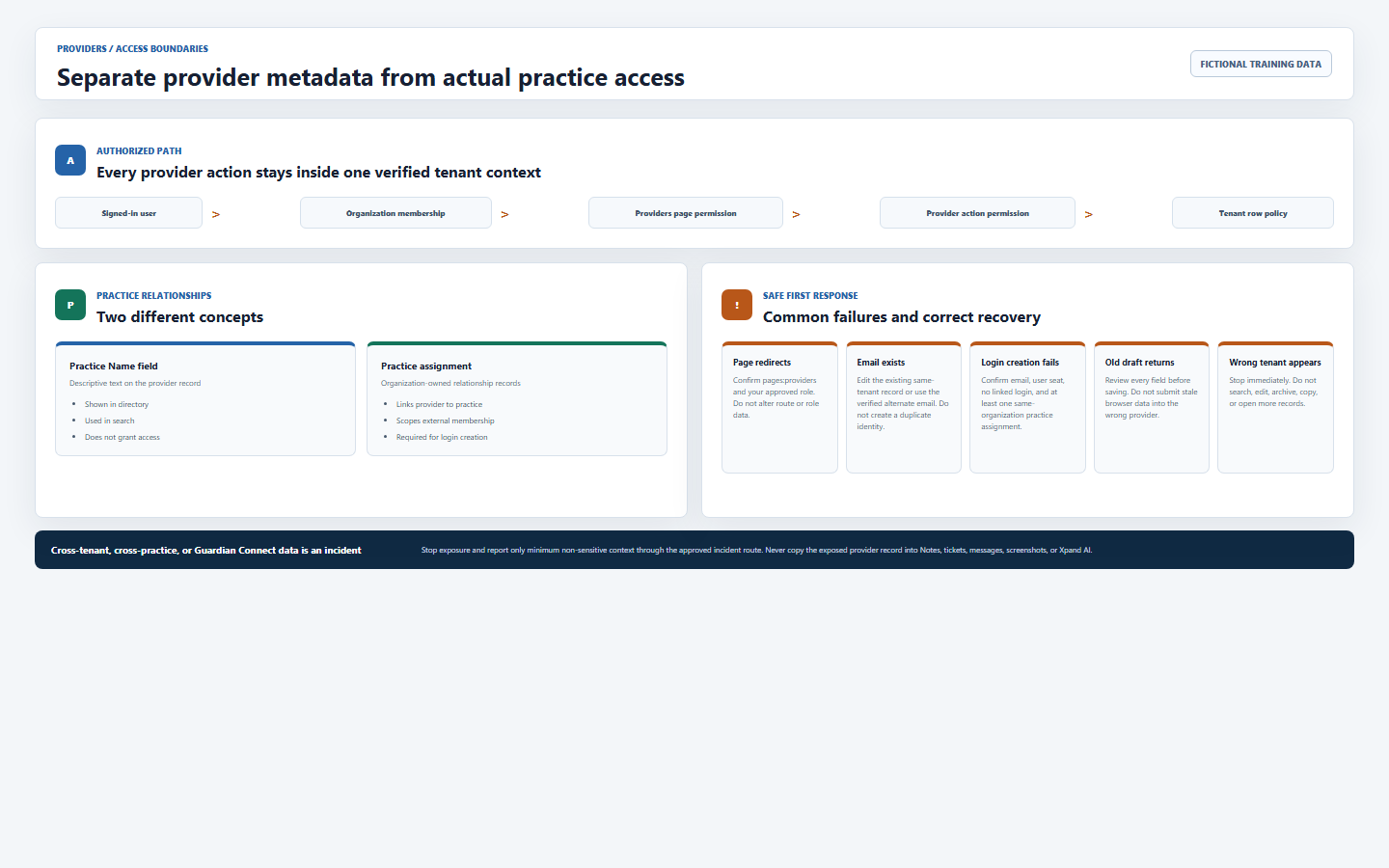
| Concept | Stored purpose | Access consequence |
|---|---|---|
| Provider Practice Name | Descriptive text displayed in the provider directory and included in search. | None by itself. It does not create a practice, provider-practice link, or user assignment. |
| Practice record | Canonical organization-owned practice or location with identifiers, contact, address, status, and plan limits. | Defines the valid practice IDs that can be linked or assigned inside that organization. |
| Provider-practice link | Connects a provider to a same-organization practice; one link can be primary. | Supplies provider practice relationships and login-practice inputs. |
| Membership practice access | Connects an external user’s organization membership to approved practices. | Supports practice-scoped external access; it does not grant unrelated page or action permissions. |
| Organization row policy | Filters provider rows by accessible organization and constrains writes by tenant plus action permission. | Prevents a client filter, guessed ID, or hidden button from becoming authorization. |
| Composite tenant relationship | Practice and provider relationship constraints require matching organization IDs. | Cross-organization links are rejected instead of silently connecting records from different tenants. |
Continue with Manage practices, locations, and assignments for the complete setup and assignment workflow.
11 / Privacy and troubleshooting
Recover expected failures without changing identities, IDs, permissions, or database policy
| What you see | Likely reason | Correct first response |
|---|---|---|
| Redirected from Providers | Signed out, wrong account, or missing pages:providers route permission. |
Confirm your own account, role, and expected permission. Do not alter the URL, route guard, role value, or browser state. |
| Add, Edit, or Archive missing | The related create, update, or delete action permission is absent. | Respect the read-only state and request an approved role review. Do not use direct API or database writes. |
| Provider email already exists | A provider row already uses that normalized email. | Search and edit the existing correct same-tenant record, or verify an approved alternate email. Never create a duplicate to avoid the conflict. |
| Old form data returns | The add or edit draft remains in this browser because closing or cancelling did not clear it. | Review every field against the intended record. A successful save clears that draft; escalate persistent stale state instead of submitting it blindly. |
| Create Login disabled | No email, existing login, or non-super-admin role. | Correct the verified prerequisite or use the authorized super admin. Do not borrow another provider or account. |
| Create Login fails | No valid practice link, duplicate user email, exhausted seat, invalid practice, tenant-manager failure, or provisioning problem. | Check email, existing user, plan seat, same-organization practice assignment, and safe server error. Do not remove the external-practice requirement. |
| Archived provider disappeared | The normal directory intentionally excludes archived status. | Use approved historical or recovery procedures. Do not recreate the provider as a duplicate or update status through an ad hoc query. |
| Permanent delete fails | Role check, tenant policy, or protected related records rejected deletion. | Prefer archive and review dependencies with the authorized data owner. Never disable constraints or RLS. |
| Page did not update | Modal is open, realtime service is unavailable, or connectivity is stale. | Close the modal if safe, refresh once, and compare the current record before editing. Do not repeatedly submit the same change. |
| Wrong tenant, practice, or product appears | Session, membership, query, RLS, cache, deployment, or isolation failure. | Stop immediately. Do not search, edit, archive, delete, screenshot, copy, message, or ask AI about more exposed records. |
12 / Completion
Verify that you can manage provider and client records without widening access
- I can distinguish the provider record, employee shadow, user account, practice record, provider-practice link, and membership practice access.
- I confirm my account, active organization, provider route permission, action permission, and approved purpose before opening or changing the directory.
- I understand that normal totals and rows exclude archived providers and describe only the authorized returned list.
- I search with the least-sensitive field, use status filters deliberately, and know Table and Cards change presentation only.
- I create one verified record, supply both required names, avoid duplicates, and review the browser-local draft before saving.
- I keep patient data, credentials, secrets, unrelated claims, another client, another tenant, and Guardian Connect content out of provider fields and Notes.
- I verify provider NPI, practice NPI, Tax IDs, license, address, type, specialty, software, and status against approved sources.
- I understand which provider edits synchronize to the linked employee shadow and verify downstream work before inactivation.
- I use Onboarding, Active, Inactive, and Archive according to lifecycle policy and reserve permanent deletion for approved exceptional cleanup.
- I create a login only as an authorized super admin after email, user seat, existing-account, and same-organization practice prerequisites pass.
- I handle temporary passwords as secrets and require the provider to complete the password-change onboarding flow.
- I know Practice Name is descriptive metadata and never treat it as a practice assignment or access grant.
- I never fix errors by changing IDs, creating duplicates, borrowing accounts, bypassing route guards, removing practice scope, disabling RLS, or deleting linked history.
- I stop and report cross-tenant, cross-practice, or cross-product exposure without opening or copying more data.
Open the Providers / Clients page, continue to the next Provider & DSO lesson, or return to all learning resources.
Need workflow support?
Bring the question and the exact step where you are blocked.
Explore how this guide connects to provider operations and recruitment.