
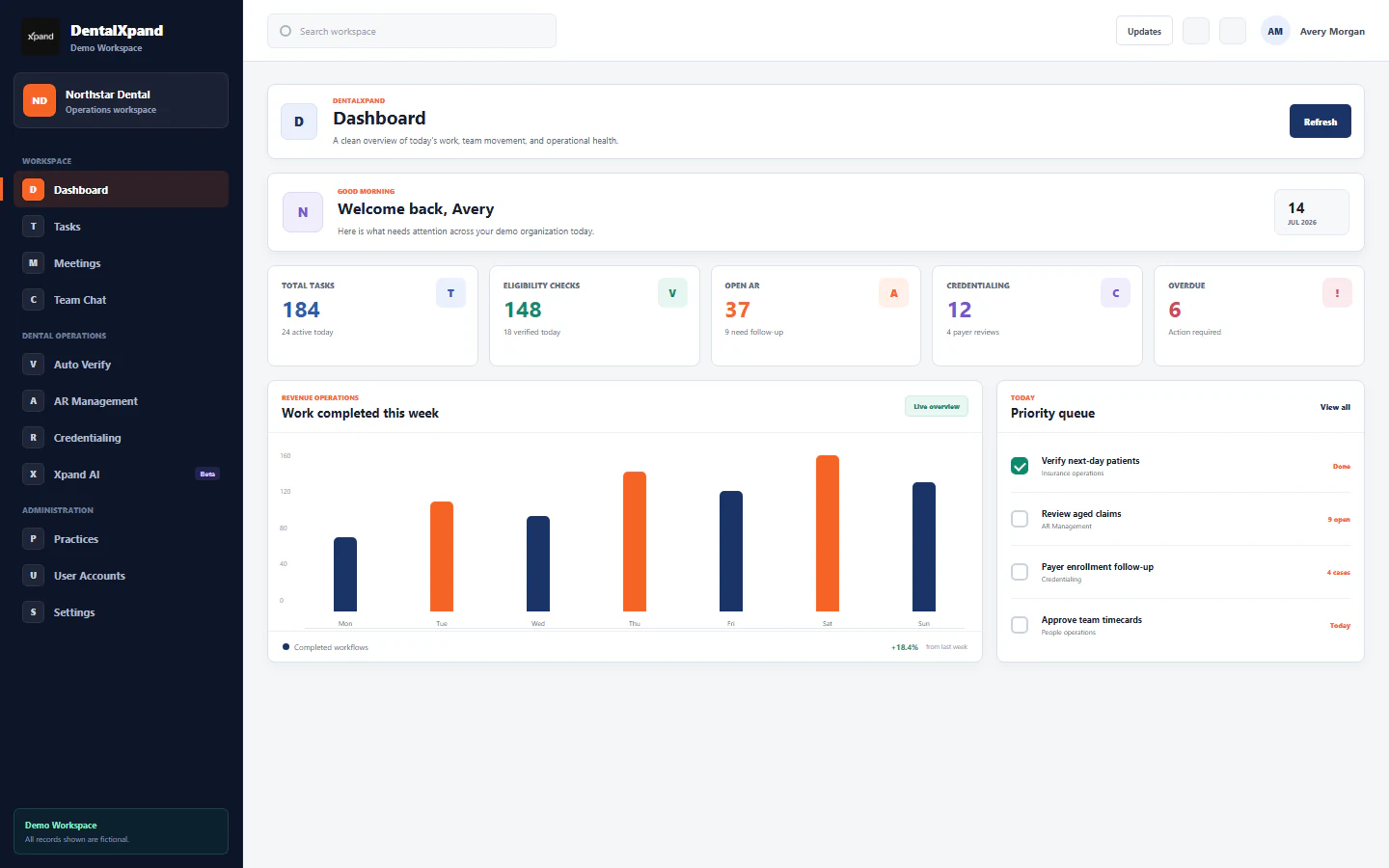
Manage client instructions, options, and versions
Create and maintain per-client instruction PDFs with source-accurate type and software options, current-version behavior, inline signed previews, task-linked access grants, archive discipline, and tenant-safe handling.
Client Instructions is DentalXpand’s per-client PDF reference workflow. The current screen loads non-archived instruction records, shows their client, type, optional software, uploader, last editor, current version number, and page actions. It can create a new current instruction, preview the current PDF, update metadata or replace the current PDF with a new version, link an instruction to a task, and archive the instruction record. Treat every action as an operational change, not simply a file action: confirm your own account, active organization and practice, client, task audience, current source, retention need, and approval before proceeding.
1 / Purpose
Understand current instruction records, PDFs, and versions before relying on a file
One record represents the current instruction for a client and instruction type. The baseline schema enforces a unique client_id and instruction_type pair, so create a new type only when it is genuinely distinct; update the existing record when it is the same client and type.
The instruction stores a pointer to its current file record. The page joins that file record, displays the current version, and opens the current PDF in its inline viewer. A displayed PDF is not automatically the current business approval unless its owner workflow says it is.
Each first upload creates version 1. Supplying a new PDF during an update creates a new file record, moves the current pointer, increments the number, and stores an entry in client_instruction_versions with uploader and change note.
A task link can create instruction-access rows for the instruction client and task recipients. It is a targeted operational link, not a blanket sharing mechanism or replacement for tenant, row-level, file, or Storage policy.
Open the authorized Client Instructions screen after signing in. Read roles, permissions, and access boundaries first if the route or sidebar entry is unavailable.
2 / Access and safe context
Confirm page, role, client, and tenant boundaries before viewing, linking, or changing a record
| Check | Confirm before action | Why it matters |
|---|---|---|
| Page access | Use your own approved DentalXpand account. The route is protected by Client Instructions or Clients page permission in the application router. | A copied route, browser history item, shared session, cached PDF, or another user’s screen is not permission to read or act on a record. |
| Current page controls | The current page renders New Instruction, Edit, and Archive controls only when its user role is admin or super_admin. View and Assign controls are rendered for visible records. |
Visible controls are not the final authorization boundary. The service, authenticated session, database policies, Storage policies, and current tenant context must authorize the durable result. |
| Service behavior | The create, update, and archive service methods independently call the app’s isAdminOrManager() check. |
Do not infer a broader operational role from that source helper. Use the documented and deployed role model; page UI and service checks must both be correct in production. |
| Client identity | Confirm the intended provider or client record, expected practice, and exact instruction type before save. The current page loads its client selector from the same provider source used by Tasks. | “Client” on this page is an operational record label. Do not treat a similar name, email, provider, or task assignee as evidence that another record is the correct target. |
| Source and retention | Confirm the current owner-approved workflow, task need, applicable period, replacement, related work, and retention obligation. | A client instruction can drive billing, VOB, BOB, intake, AR, or another workflow. Replacing, sharing, or hiding it can misdirect work without resolving prior versions, local copies, or obligations. |
Review organization and practice context before any client or task selection when the expected tenant is unclear.
3 / Instruction command center
Use the instruction command center to find a current record without turning it into data discovery
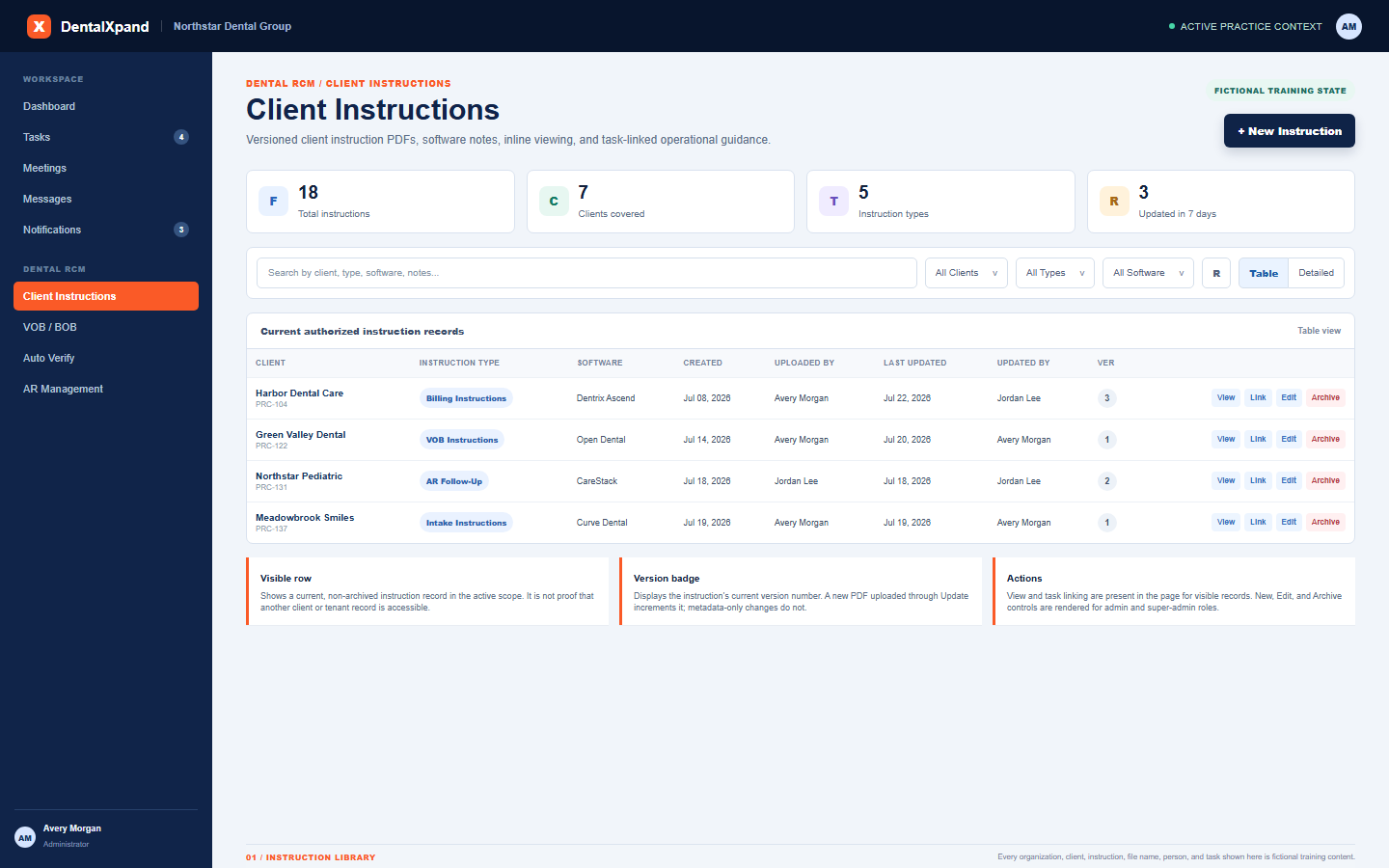
- Read the dashboard cards as current display summaries.The page calculates total instructions, clients covered, instruction types, and records updated within seven days from the loaded non-archived list. They are not a full audit or compliance inventory.
- Use text search for a known operational reference.Search currently checks visible client name, instruction type, software, and notes. Do not search with protected, cross-tenant, unrelated, or curiosity-driven terms.
- Filter by client, type, or software.Filters narrow the loaded list; they do not grant access, prove a record exists, prove it is current, or change any database or Storage policy.
- Choose Table or Detailed presentation.Table emphasizes client, type, software, dates, uploader, editor, and current version. Detailed cards expose notes and the same actions. The choice changes presentation only.
- Use the refresh action after material changes.The page also refreshes on focus and watches instruction, version, access, file, task, employee, and provider changes. Still verify consequential changes against the expected owner workflow.
4 / Types and software options
Use current instruction types and software options accurately
| Area | Current page behavior | Operational rule |
|---|---|---|
| Instruction type | The form uses the application’s TASK_TYPE_OPTIONS labels and provides an Add Manual choice that reveals a required custom text field. |
Select an approved type whenever possible. Use a custom value only when it is clearly distinct, approved, and will not create duplicate naming for the same client workflow. |
| Software | The current component uses a local list: Dentrix, Dentrix Ascend, Dentrix Enterprise, Eaglesoft, Open Dental, Curve Dental, Denticon, SoftDent, Practice-Web, DentalClick, CareStack, Other, and Add Manual. | Software identifies operational context; it is not an entitlement, validation of a PMS connection, or permission to access a client’s PMS or data. |
| Options API and table | The API and baseline migration include client_instruction_options plus get, add, and deactivate methods for instruction types and software. |
The reviewed Client Instructions page does not call those option methods or display an options-management UI. Do not promise that Settings changes will automatically drive the current form without verifying the deployed implementation. |
| Duplicate client/type | The baseline schema makes the client and instruction type pair unique. The page does not visibly pre-check for a duplicate before it submits. | When the same client and instruction type already exists, update the current record instead of creating a second one. Resolve any duplicate-error safely; do not create near-identical manual labels to evade the rule. |
| Edit target | The edit form disables the Client selector, and the update API does not accept a new client ID. | Do not use an existing instruction as a shortcut for another client. Create the correct authorized record for the intended client and type. |
5 / New instruction PDF
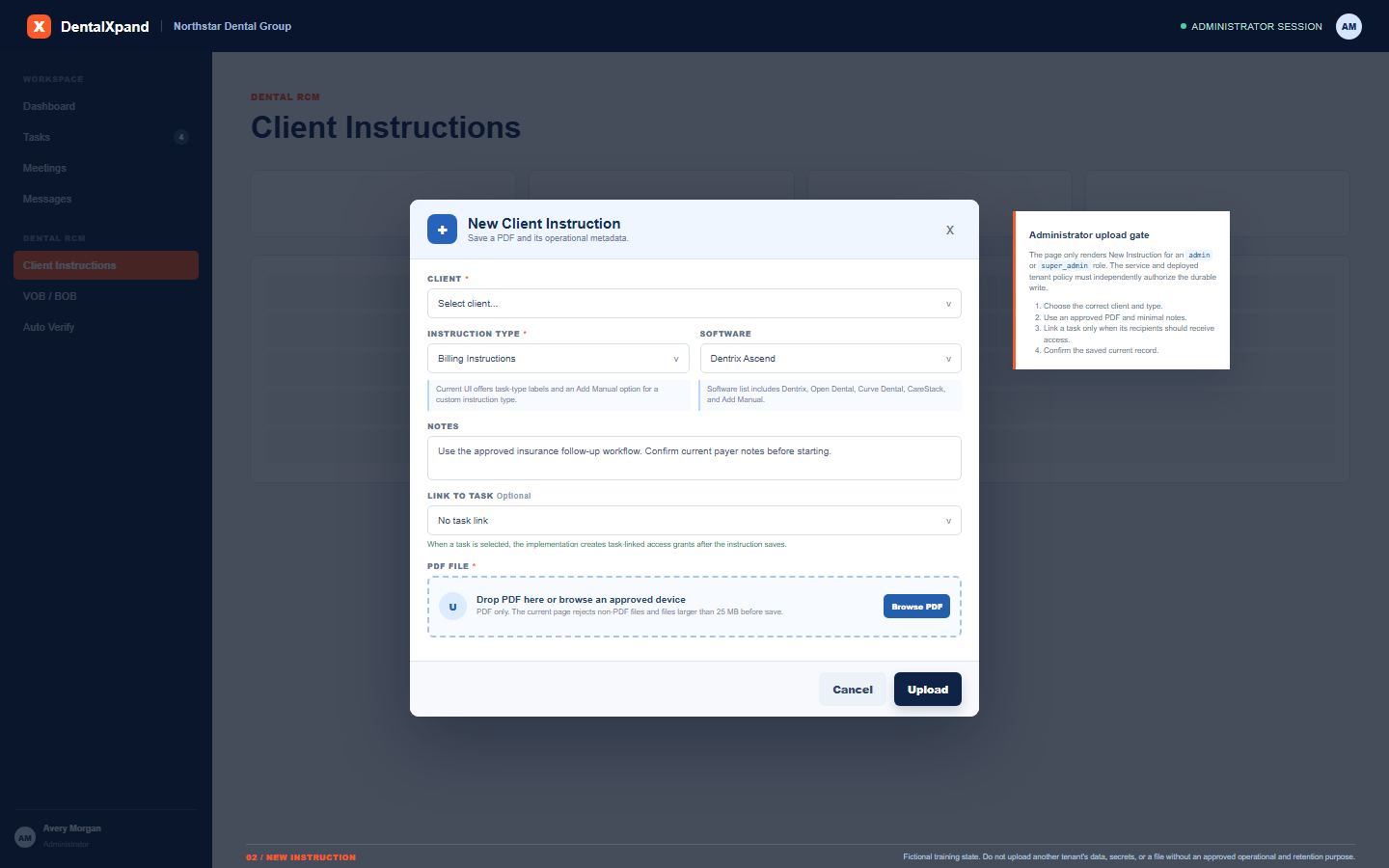
Create a new client instruction only after confirming its client, purpose, and approved source
| Step | Reviewed behavior | Required discipline |
|---|---|---|
| 1. Confirm authority | New Instruction is rendered only for the current page’s admin or super-admin user role. The create service also checks the app’s admin-or-manager helper. | Use your own authorized account. Do not borrow a user, bypass a blocked control, or rely on a browser-visible button as proof that a production write is allowed. |
| 2. Select client and type | The form requires a client and final instruction type. A manual type must contain non-empty text. | Confirm the exact client, expected practice, and approved workflow. A new record for the wrong client or near-duplicate type can create a misleading current instruction. |
| 3. Add software and notes | Software is optional. Notes are stored with the instruction record and are searched by the current page. | Use concise approved operational context. Do not use notes for credentials, tokens, sensitive patient details, unrelated data, or informal sharing instructions. |
| 4. Select the initial PDF | The browser form accepts a file when its MIME type is PDF or its name ends in .pdf, and rejects a file over 25 MB. A file is required for a new record. |
Browser validation is not a complete security control. Verify source approval, malware process, tenant scope, retention, and deployment policy before upload. |
| 5. Save and confirm | The API uploads to the files bucket through a tenant-aware path, saves the file record, creates the instruction at version 1, then inserts the first version row. |
Refresh and review the saved current row, version, client, type, source, and optional task relationship. Do not share raw storage references or signed URLs. |
6 / Task-linked access
Link an instruction to the right task audience and no broader
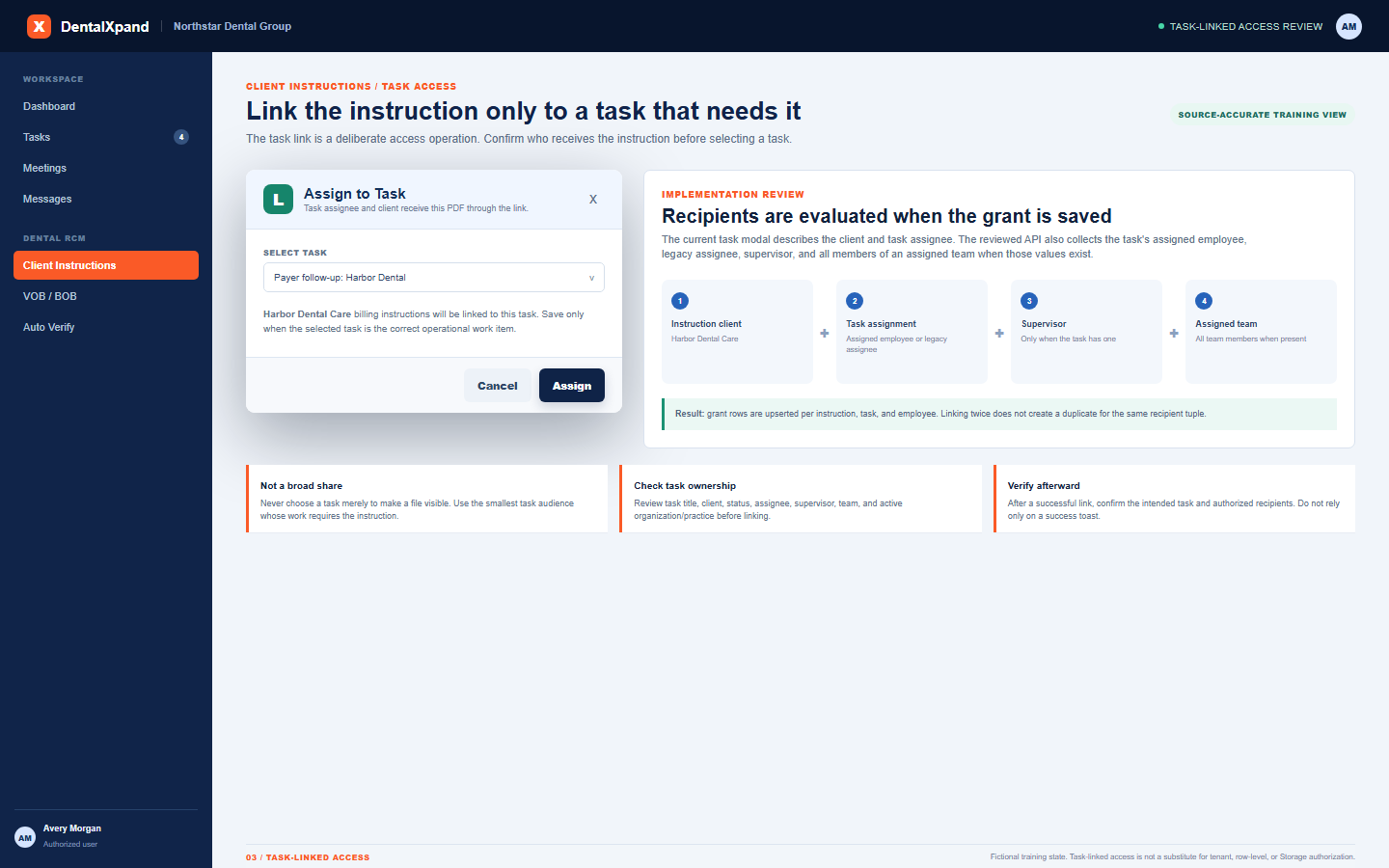
The New Instruction form offers an optional task selector. When a client is selected, its list contains tasks assigned to that client or unassigned tasks. A task link is attempted after the instruction save succeeds.
Each visible table and detailed card has Assign. Its modal loads the current task list, so the operator must deliberately select the correct task rather than assuming the list is client-scoped.
The API builds a de-duplicated recipient set from assigned_employee, assigned_to, supervisor_id, the instruction’s client, and all members of assigned_team_id when present.
Each row is upserted by instruction, task, and employee. A repeated link does not create a duplicate for the same tuple, but it can still be the wrong business or access decision if the task audience changed.
- Verify the instruction client, type, current version, and legitimate purpose.Do not link a file merely to make it easier to locate or share.
- Review the selected task’s title, status, assigned employee, legacy assignee, supervisor, team, organization, and practice.These fields determine who may be included by the current access-grant implementation.
- Link only the smallest audience whose assigned work requires the current instruction.A task is not a broad sharing list, documentation shortcut, or substitute for a proper client instruction workflow.
- Verify the result after success.Confirm the correct task and intended authorized audience. A toast that says a count was granted is not a full tenant, policy, or business approval audit.
Review tasks, assignments, steps, and timers before linking an instruction to operational work.
7 / Inline preview
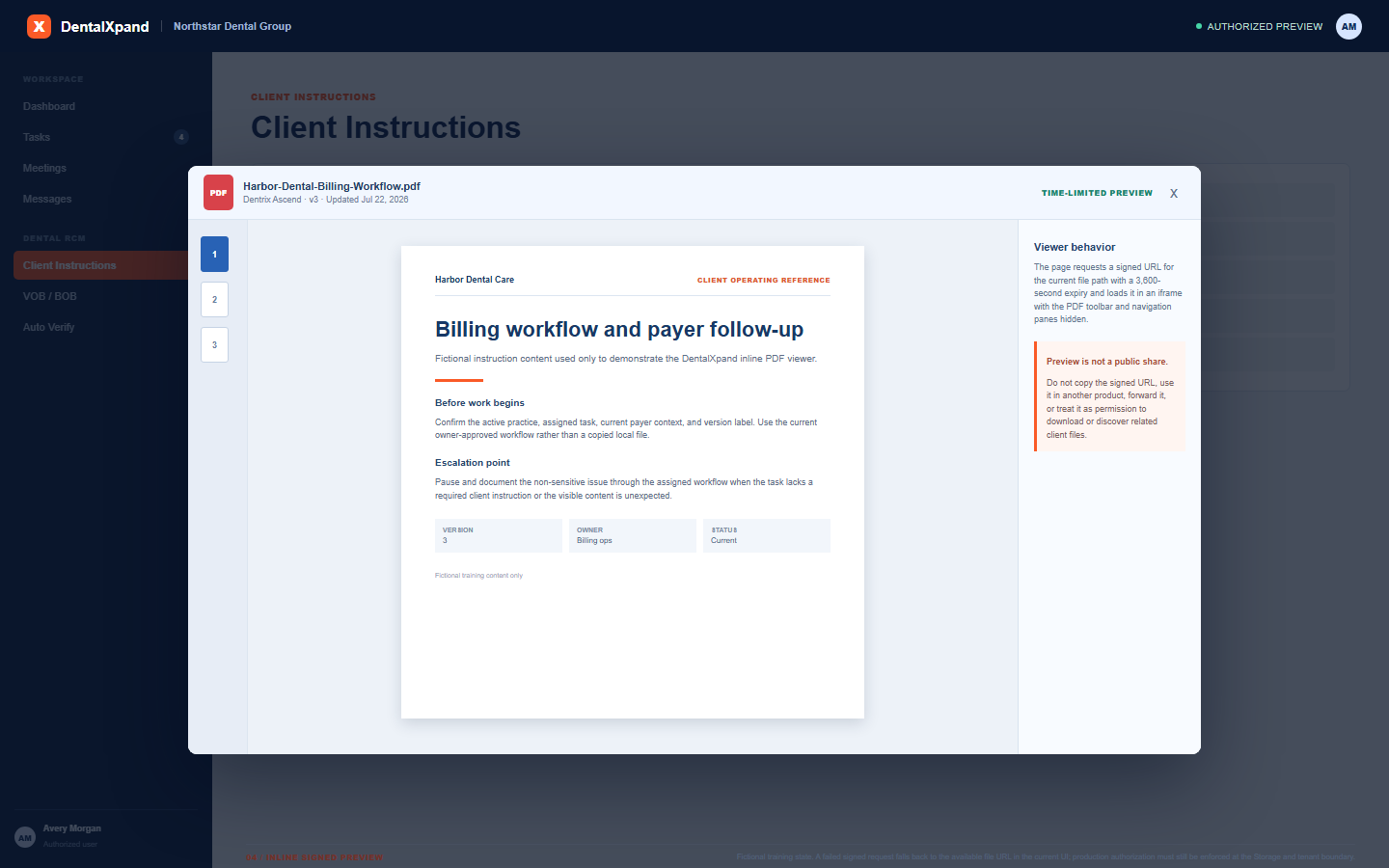
Preview the current authorized PDF without turning a signed link into a shareable asset
| Area | Reviewed behavior | Boundary |
|---|---|---|
| View | The page opens a modal for the selected instruction and reads its current file path. Every visible record has a View action in the current table and detailed-card UI. | Visible View does not authorize a user to use a copied URL, current browser cache, another user’s viewer, related instruction, or a different tenant’s file. |
| Signed URL | The viewer calls getSignedUrl(path, 3600), which requests a one-hour signed URL from the files bucket. If that request fails, the component falls back to the current file’s available URL field. |
A URL is sensitive operational access, not a public link, permanent identifier, attachment system, or permission to share with another client, product, person, or organization. |
| Iframe | The viewer loads the URL in an iframe with #toolbar=0&navpanes=0 and shows instruction type, client, software, current version, and updated time in its header. |
Browser, format, network, iframe policy, expired URL, file availability, and Storage authorization can affect rendering. Do not submit a signed URL to an external test site. |
| Download distinction | The Client Instructions PDF viewer does not render a download action in the reviewed component. | Preview is not permission to download, print, copy, screenshot, forward, or retain a local version outside approved handling rules. |
8 / Update and version behavior
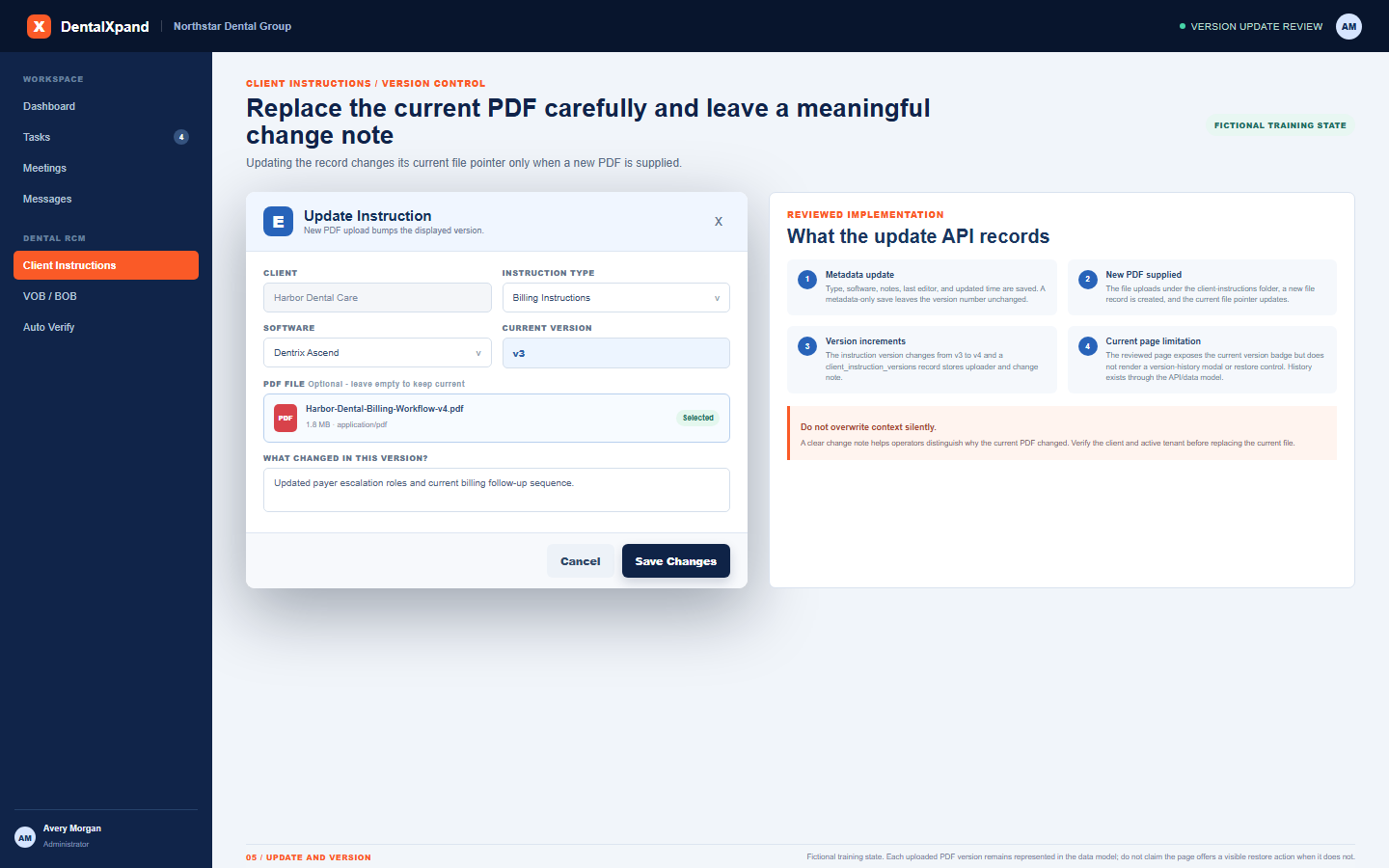
Replace the current PDF carefully and understand what is and is not visible in the page
| Update case | Current implementation | Required discipline |
|---|---|---|
| Client field | The edit form disables the existing Client selection. The update method loads the current record and does not change its client ID. | Do not repurpose a record for a different client. Create or correct the intended client record through an authorized workflow. |
| Metadata only | Instruction type, software, notes, last editor, and updated timestamp can be saved without a replacement PDF. | Metadata-only change leaves the current version number unchanged. Do not imply a file changed when it did not, and do not overwrite approved context without reason. |
| Replacement PDF | When a file name and file data are supplied, the API uploads a new object and file record, points the instruction to it, increments version, and inserts a version row. |
Confirm the replacement is owner-approved, scoped to the intended client and tenant, compatible with retention obligations, and accurately described. |
| Change note | The form reveals What changed in this version only during edit when a replacement file is selected. The API uses that note or a default version label. | Write a concise meaningful reason, such as a changed workflow or payer escalation role. Do not write sensitive content, credentials, or personal data into the note. |
| Version history UI | The API exposes getVersions() and the data model retains version entries, but the reviewed Client Instructions page does not call it or render history, restore, compare, or prior-file download controls. |
Do not promise users that they can browse or restore a prior PDF from this page. Use the approved administrative, reporting, or support process after verifying policy and retention needs. |
9 / Archive and retention
Archive only after checking current source, version, task relationships, retention, and scope
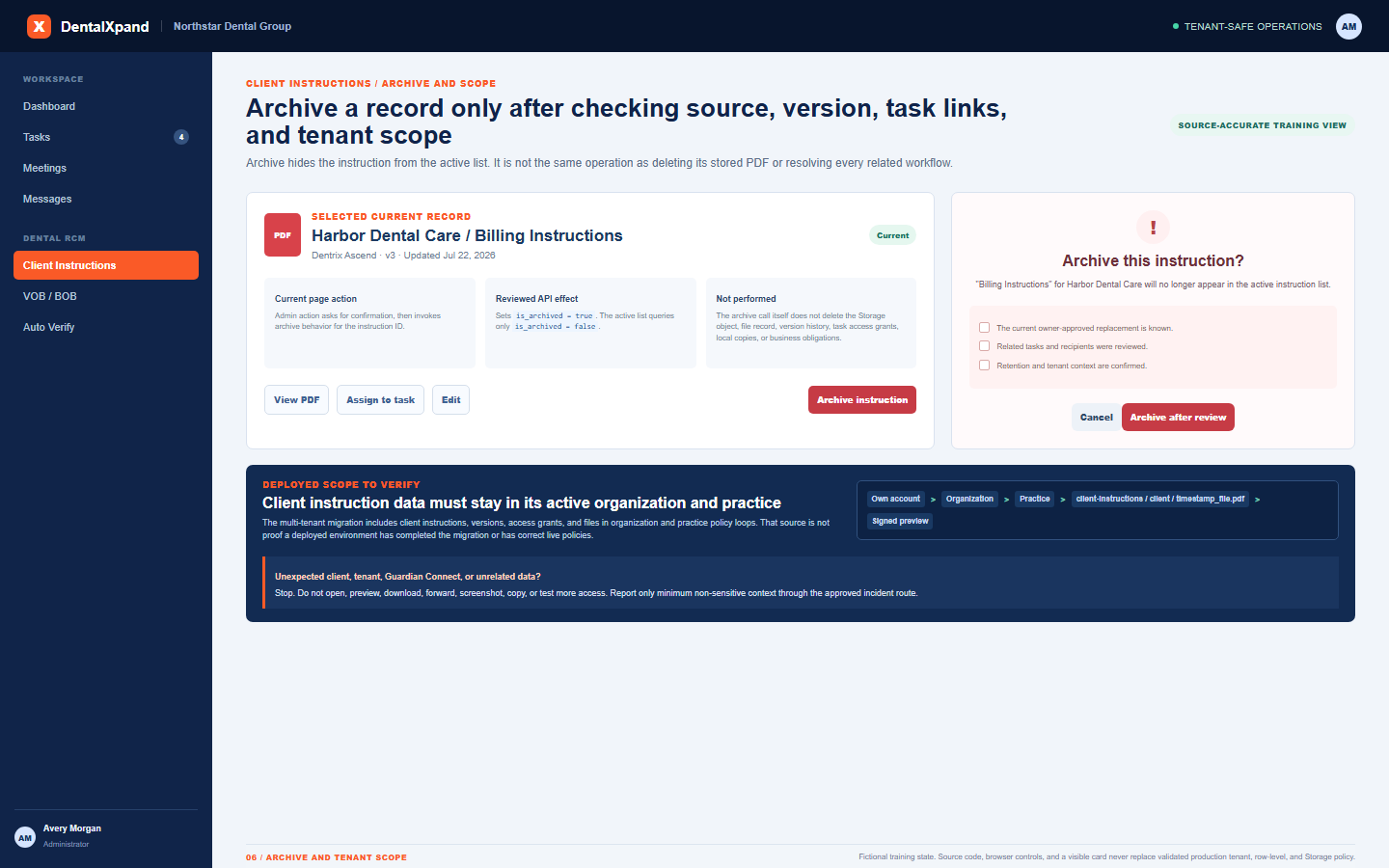
The current admin page asks the user to confirm archive for the instruction type and client before calling its delete service. Treat this as a decision point, not as evidence all consequences are resolved.
The service updates is_archived to true. The normal list query filters to false, so the record disappears from that active screen after refresh.
The archive method does not remove the Storage object, file record, version rows, task access rows, local downloads, screenshots, copies, task context, or legal and operational retention duties.
Refresh the active list, validate the expected replacement or policy state, and check the owning workflow. Do not assume visual disappearance means permanent deletion, loss of access, or resolution of every dependent process.
10 / Tenant, row, and Storage scope
Verify tenant, row, and Storage scope in production before treating a visible record as isolated
| Layer | Source implementation | Production requirement |
|---|---|---|
| Instruction data | The later multi-tenant migration includes client_instructions, client_instruction_versions, and client_instruction_access in organization and practice tenant policy loops. |
Verify that the migration completed in the deployed database and that every relevant record has the correct organization and tenant practice IDs. Source code does not prove live policy state. |
| Legacy baseline | The earlier Client Instructions migration creates broad baseline row policies as part of a legacy setup script. | Do not rely on the baseline script by itself for isolation. The later tenant and practice policy migrations must replace broad behavior with scoped authenticated policies, and the deployed result must be verified. |
| File path | Create and replacement uploads use a relative path like client-instructions/client_id/timestamp_filename through the tenant-storage helper. |
When organization and practice context are present, the helper prefixes and validates those tenant IDs. Do not construct, reuse, or infer another tenant’s path. |
| Storage delivery | The viewer requests signed URLs from the files bucket for the current file path. |
Keep the bucket non-public and enforce tenant-aware Storage policies. A signed URL must be time-limited, scoped, revocable through access control, and never forwarded as a share link. |
| Cross-product boundary | Client instructions are a DentalXpand workflow. The screen, record, file, URL, and cache can all be exposure surfaces. | Guardian Connect data must never appear in DentalXpand and DentalXpand client data must never appear in Guardian Connect. Treat any cross-product content as a security incident. |
See Documents, files, folders, and previews for shared file-handling and signed-link discipline.
11 / Troubleshooting
Troubleshoot without bypassing page, client, tenant, or file access
| What you see | Possible reason | Correct first response |
|---|---|---|
| Client Instructions is missing or route is denied | Current account, page permission, organization, practice, or session may not allow the route. | Respect the result. Confirm your own expected account and tenant, then use the authorized administrator or support path instead of a copied URL or another user’s session. |
| New, Edit, or Archive is not visible | The current page checks for admin or super-admin role before rendering those controls. | Do not bypass the UI. Confirm the documented role and operational approval, then ask an authorized administrator where appropriate. |
| Save reports a duplicate or fails | The client/type pair may already exist, or the file, tenant, session, row, Storage, network, or record-save step may be blocked. | Check whether the correct current record should be updated. Keep the PDF in approved storage and report a non-sensitive error; never create a near-duplicate manual label to work around a constraint. |
| PDF is rejected before save | The browser form rejects a file that is not PDF by type and extension checks, or exceeds 25 MB. | Use an approved PDF within the current UI limit. Do not alter the filename, MIME type, or browser behavior to evade validation; deployment policy may be stricter. |
| Preview fails or expires | Current file path, signed URL, storage authorization, format, iframe, browser, network, or file state may be unavailable. | Refresh the authorized record once and report safe symptoms. Do not paste the signed URL into an external tool or ask another person to open it. |
| Task link grants an unexpected audience | Task assignee, supervisor, or team membership may differ from the operator’s assumption. | Stop broad sharing, verify task ownership and membership through authorized controls, and report any unexpected access behavior without exposing the PDF further. |
| Wrong tenant, Guardian Connect, or unrelated client content appears | Potential session, cache, tenant mapping, row-policy, Storage-policy, URL, or deployment isolation failure. | Stop. Do not investigate through more access. Capture only page, time, expected organization/practice, role, and non-sensitive behavior, then report through approved incident handling. |
12 / Completion check
Verify that you can use Client Instructions safely
- I can distinguish a current instruction record, current file, version row, task access grant, signed URL, inline preview, local copy, and archive state.
- I confirm my own account, expected organization and practice, client, type, software context, source workflow, task audience, and retention need before acting.
- I use the current search, filters, Table or Detailed view, and refresh behavior without treating them as access, discovery, approval, audit, or source-of-truth controls.
- I know the current page uses local instruction type and software lists, supports Add Manual values, and does not visibly manage the separate options API/table.
- I create a new instruction only with a required initial PDF, a correct client/type pair, minimal necessary notes, and an approved source under 25 MB browser validation.
- I know a task link can include client, task assignee, supervisor, and team recipients, so I inspect the task audience before linking.
- I know View requests a signed URL for the current file and that the inline viewer is not permission to share, download, print, forward, or investigate other files.
- I know a replacement PDF increments the current version and records a version entry, while metadata-only updates do not increment it.
- I know the current page shows only a version badge, not a history, compare, or restore interface.
- I archive only with source, version, task, retention, and tenant discipline, and understand archive does not erase all related assets or obligations.
- I treat cross-client, cross-tenant, cross-practice, or Guardian Connect data in this workflow as an immediate stop-and-report event.
Need workflow support?
Bring the question and the exact step where you are blocked.
Explore how this guide connects to DentalXpand features.