
Create client BAA and service agreements
Prepare counsel-approved Business Associate Agreement and service agreement drafts, verify every party and commercial term, generate or save a PDF, send through connected Gmail, and retain the tenant-scoped record without overstating the current signature or status workflow.
DentalXpand’s Client Agreements page prepares two document types: a Business Associate Agreement (BAA) and a B2B Service Agreement. An authorized operator selects the correct client, verifies every legal and commercial field, reviews the live document preview, optionally captures signatures, and then prints, saves, or sends a generated PDF. The page is an operational document generator and record store; it is not legal advice, an electronic-signature platform, or proof that a recipient accepted the agreement.
1 / Operating model
Treat drafting, approval, generation, delivery, and acceptance as different controls
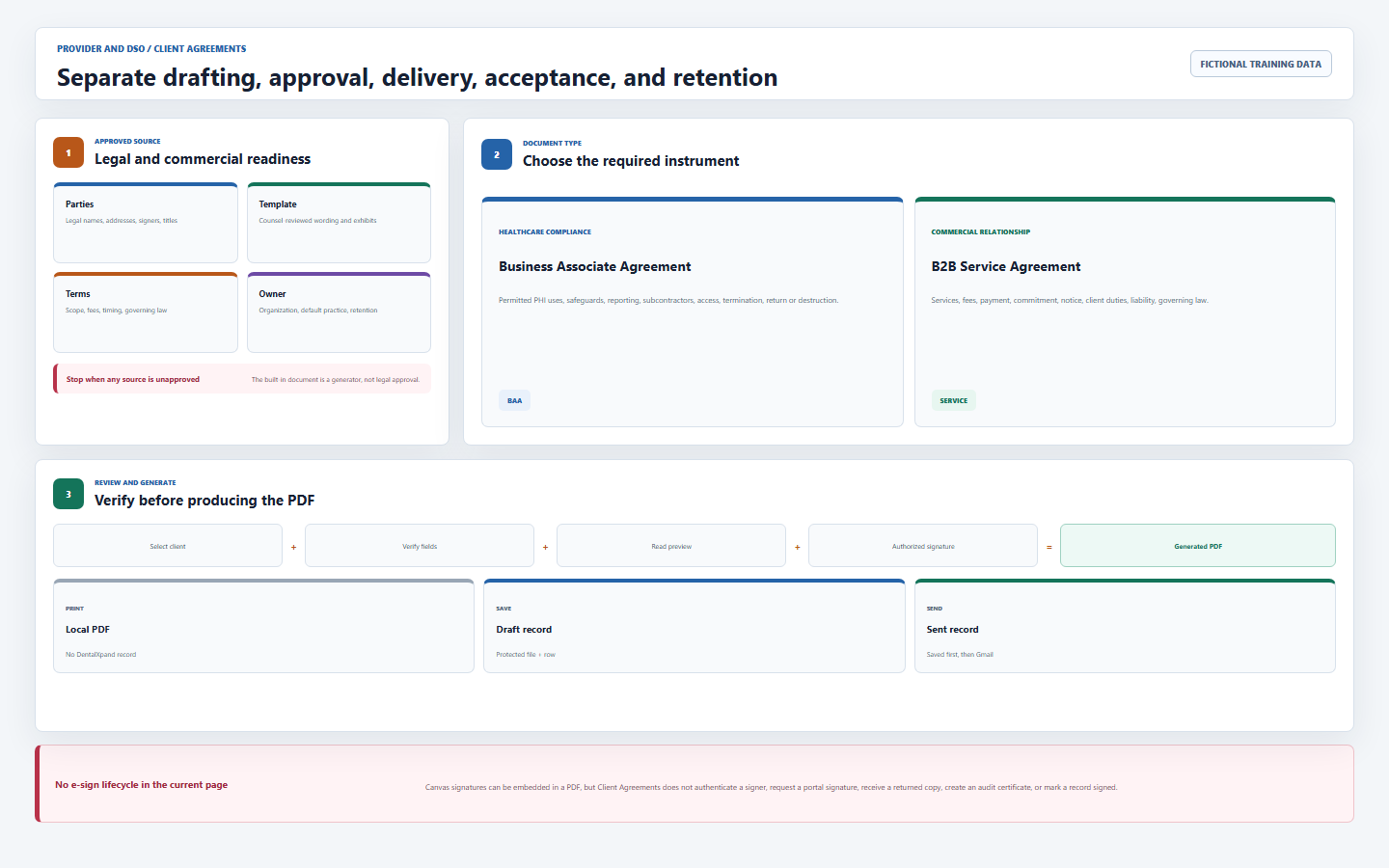
Documents permitted PHI uses, safeguards, reporting, subcontractors, access duties, termination, and return or destruction obligations.
Documents scope, fee model, payment terms, commitment, termination, responsibilities, confidentiality, liability, and governing law.
Renders the maintained template with current form values. It is a review surface, not an approval stamp.
Print can create a local PDF; Save and Send generate a PDF that is uploaded to tenant-practice storage.
The current page creates draft for Save and sent for Send. It does not create signed.
Executed signatures, recipient acceptance, delivery confirmation, and legal effective status must be governed outside the current page.
2 / Readiness
Approve the parties, template, owner, terms, and retention rule before drafting
| Confirm | Approved evidence | Stop when |
|---|---|---|
| Agreement need | Authorized onboarding, renewal, amendment, compliance, or service request naming the correct document type. | The request does not establish whether a BAA, service agreement, both, or a different instrument is required. |
| Legal parties | Exact legal names, entity types, addresses, authorized signatories, titles, and service-provider identity. | A nickname, outdated address, assumed signer, or unverified DentalXpand entity appears. |
| Approved template | Current counsel-reviewed BAA or service template and any approved amendments or exhibits. | The built-in wording has not been approved for this relationship, service, and governing law. |
| Commercial terms | Executed proposal or authorized order for scope, fee basis, amount, cycle, payment term, start date, commitment, and notice. | Fee value is blank, units are unclear, or a salesperson’s informal message conflicts with the approved offer. |
| Practice owner | Canonical organization and intended default practice that will own the protected row and file. | The current default practice is unknown or different from the intended owner. |
| Delivery and retention | Approved recipient, email channel, signing process, executed-copy owner, retention period, legal hold, and deletion authority. | No one owns delivery confirmation, returned signature, or final retention evidence. |
For BAAs, counsel should evaluate required provisions such as permitted and required uses, safeguards, incident reporting, subcontractor obligations, access and amendment support, records availability, return or destruction of PHI, and termination rights. Use HHS sample provisions as an authoritative reference, not a substitute for legal review.
3 / Access and preflight
Verify page access, action permissions, practice context, and Gmail before work
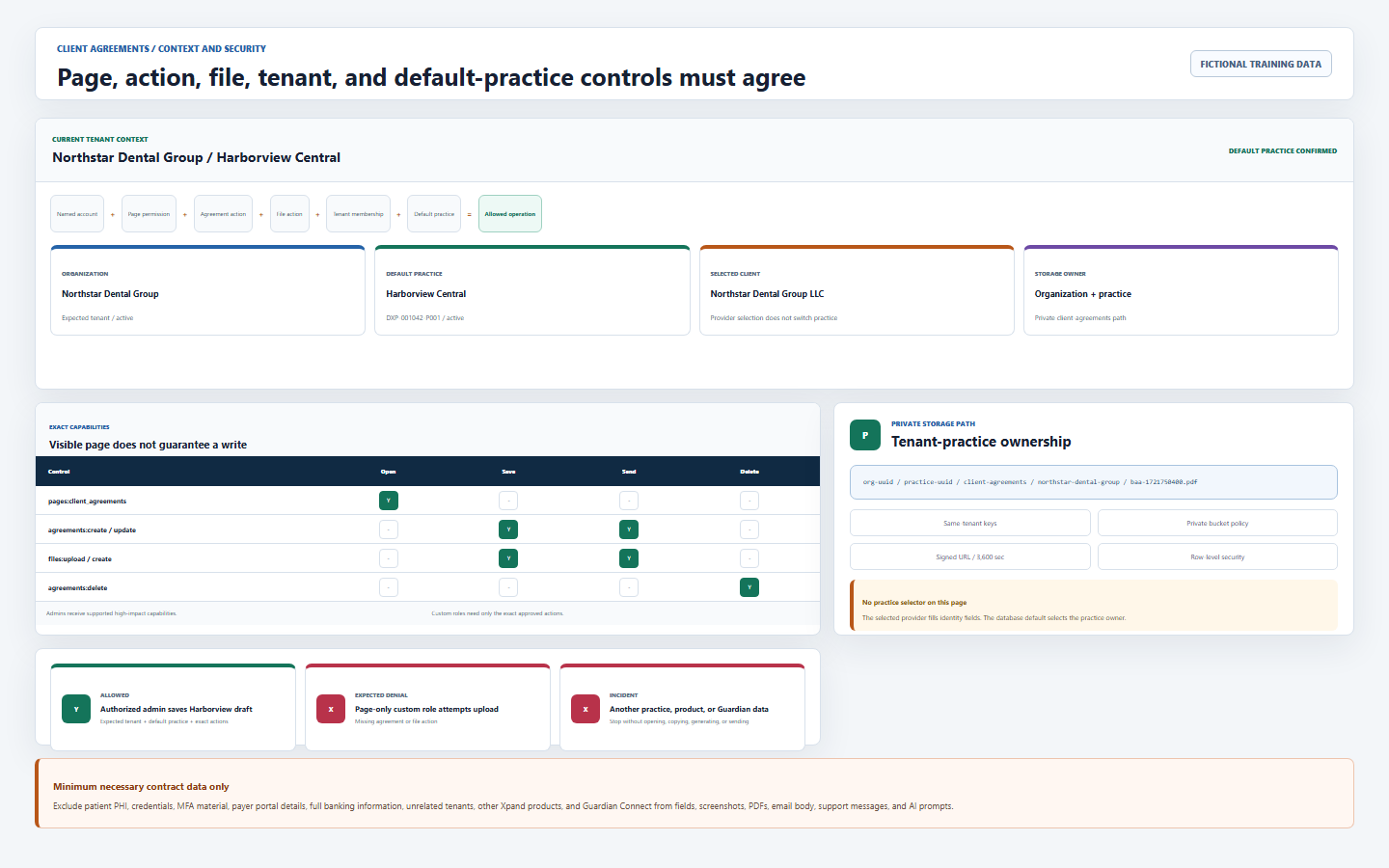
- Open Client Agreements using your named account.Admin and Super Admin roles pass the admin route. A non-admin needs the exact
pages:client_agreementspermission. - Confirm create or update authority.Page access does not guarantee writes. Saving and sending need the applicable
agreements:createoragreements:updateaction plus file upload or create authority. Deletion needsagreements:delete. - Check the intended organization and default practice.The page has no practice selector. The database row and storage path use the current default practice, not the provider selected in the form.
- Verify the recipient through an approved source.Send requires a valid client email. Do not rely on an old directory field when legal delivery instructions specify another address.
- Connect Email Outreach / Gmail before Send.The current Send action uses the connected Gmail account and backend email endpoint. Save or Print can still be used when email is intentionally not required.
- Use sample data for training.Never test a legal workflow with patient PHI, credentials, banking details, another tenant, another Xpand product, or Guardian Connect data.
| Control | What it grants | What it does not grant |
|---|---|---|
| Page permission | Ability to open the route and see the agreement workspace. | Create, upload, send, or delete authority. |
| Agreement action | Table create, update, or delete operation when policy also allows it. | File storage access or cross-practice access. |
| File action | Upload generated PDF to the protected files bucket. | Agreement table write or legal approval. |
| Gmail connection | Send the generated PDF through the connected account. | Recipient acceptance, executed signature, or durable delivery proof. |
Administrators can review users in User Management and permission presets in Roles. Do not widen someone to Admin only to bypass a denied agreement action.
4 / Client identity
Select a directory record, then verify every legal field manually
- Choose Business Associate Agreement or B2B Service Agreement.The selected tab controls the maintained document template and type-specific fields.
- Search the central client directory.Search results combine active dedicated providers and legacy provider employee rows, remove duplicate email or shadow identities, and show up to eight matches.
- Select the intended client record.The page fills display name, phone, and locality from city, state, and ZIP. Service agreements also receive email. BAA and service party fields are populated according to the selected type.
- Verify the full legal name and entity.A provider or practice display name may differ from the contracting legal entity. Replace only with authorized legal data.
- Enter the full legal address.Street address is not automatically supplied by the current selection flow. Confirm street, city, state, ZIP, and any required jurisdiction.
- Verify phone, website, email, signer, and title.Auto-fill is a convenience, not authoritative legal evidence. Legacy provider results can also have no canonical
provider_id. - Confirm provider selection did not change practice.It only links provider data and fills form fields; the protected record still uses the current default practice.
Use Providers / Clients to correct authorized directory data. Do not alter a legal identity only inside one agreement when the canonical source is wrong.
5 / Business Associate Agreement
Complete the party, timing, reporting, cure, and governing-law fields
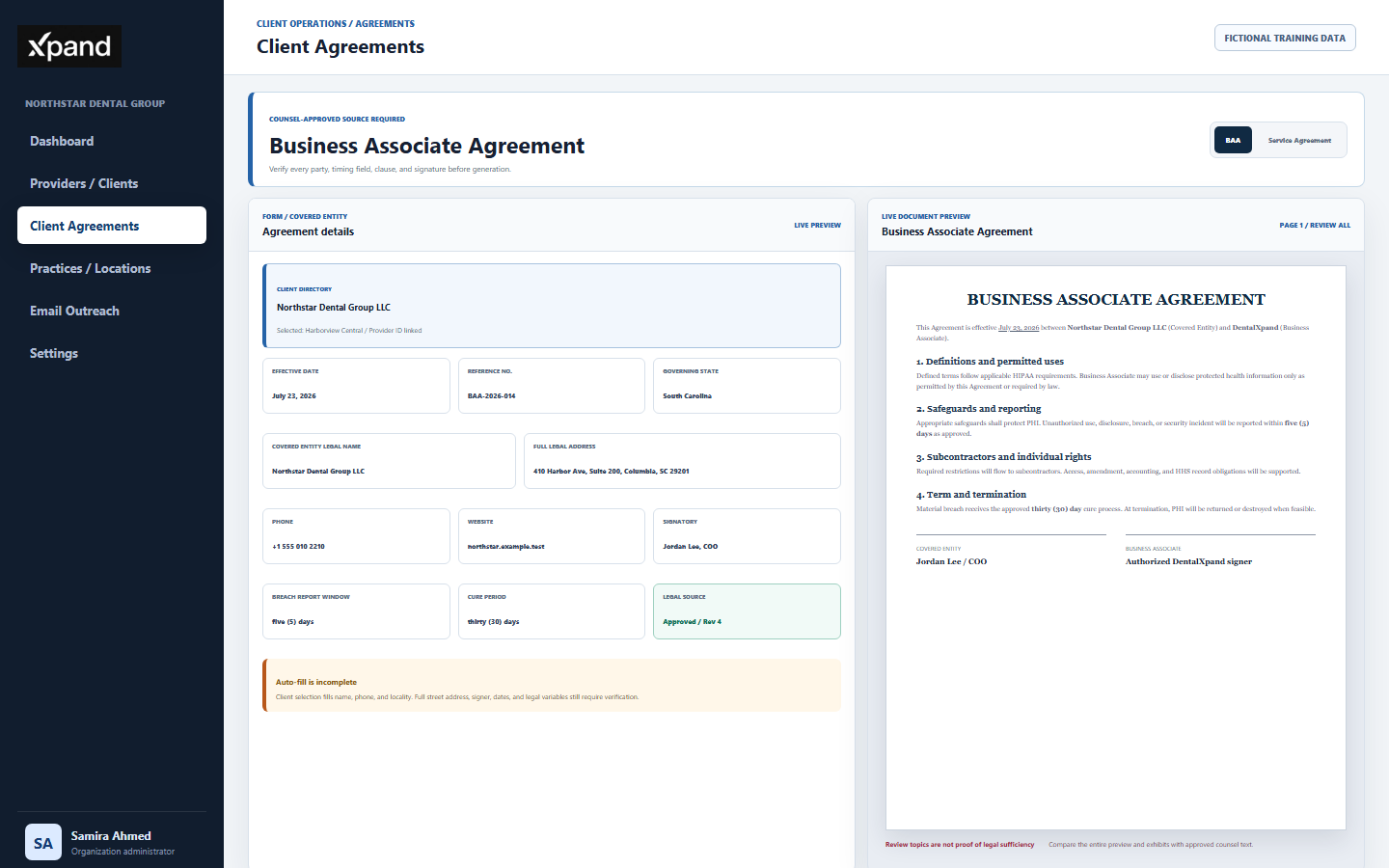
| Field or clause | Current default or behavior | Required verification |
|---|---|---|
| Effective date and reference | Effective date starts as today; reference is optional. | Use the approved effective date and a controlled reference convention when required. |
| Covered Entity | Name, address, phone, website, signatory, and title feed the preview. | Confirm exact legal entity, complete address, authorized signer, and title. |
| Breach reporting window | Defaults to five (5). | Confirm units, trigger, notification method, and contractual requirement with counsel. |
| Cure period | Defaults to thirty (30). | Confirm material-breach process, timing, termination rights, and applicable law. |
| Governing state | Defaults to South Carolina. | Replace only with the approved jurisdiction for the actual parties. |
| BAA obligations | Template covers definitions, safeguards, reporting, subcontractors, access, amendment, accounting, HHS records, permitted use, termination, and return or destruction. | Compare the entire preview to counsel-approved language and required exhibits; do not rely on topic presence alone. |
6 / Service Agreement
Translate the approved offer into complete, unambiguous commercial terms
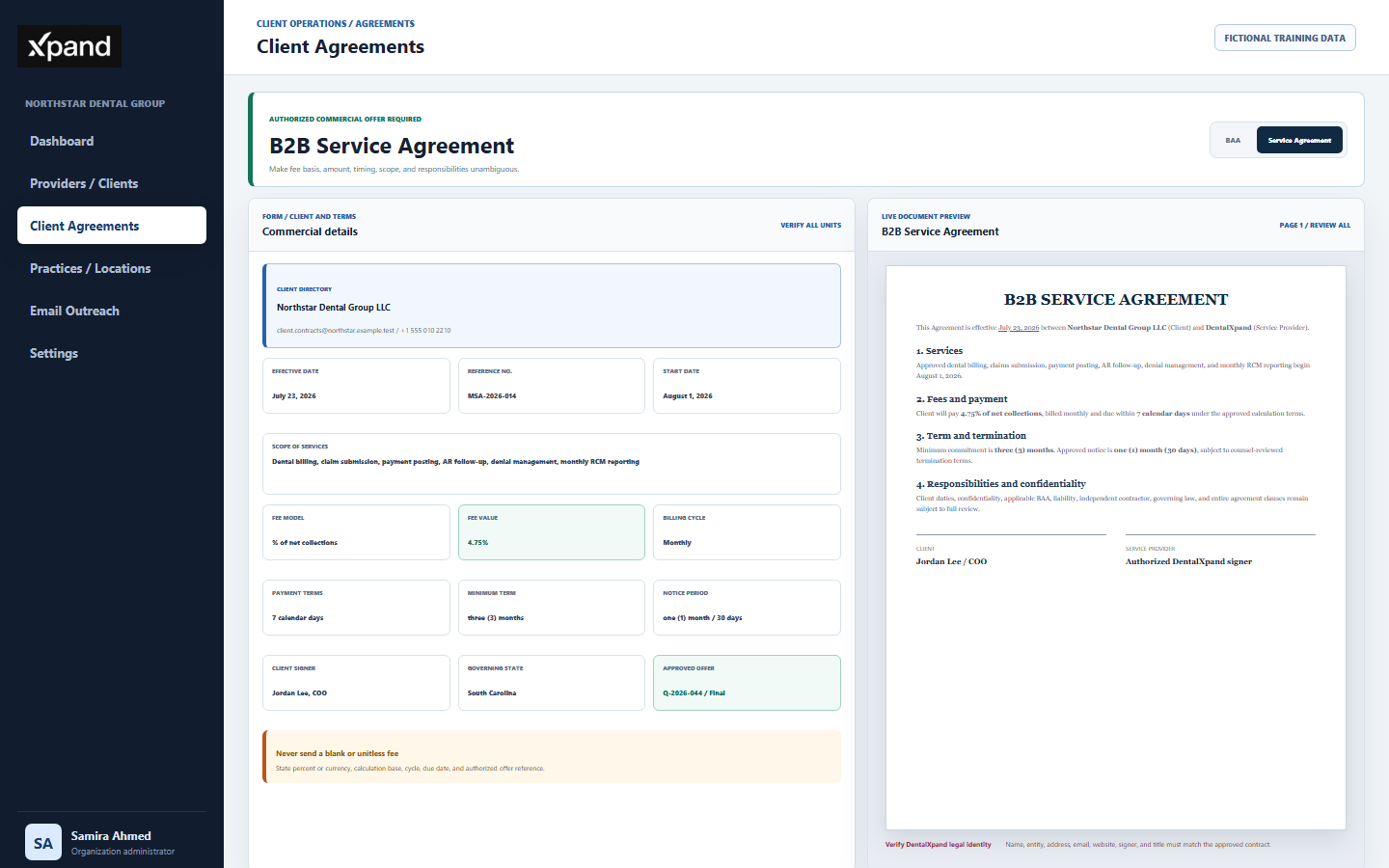
| Commercial field | Current default | Required verification |
|---|---|---|
| Scope of services | Dental billing, claims submission, posting, AR follow-up, denial management, and RCM. | State only contracted services, exclusions, dependencies, deliverables, and any approved exhibit. |
| Fee model and value | Percentage of net collections; fee value starts blank. | Enter exact value and basis. A blank fee, bare number, or unclear percent or currency must never be sent. |
| Billing and payment | Monthly billing and payment due in 7 days. | Confirm invoice trigger, cycle, due date, taxes, disputes, late terms, and remittance method. |
| Commitment and notice | Three (3) minimum term and one (1) month (30 days) notice. | Confirm time unit, renewal, early termination, insufficient notice, and effective termination date. |
| Service start date | Blank until entered. | Distinguish execution, effective, onboarding, and service commencement dates. |
| Governing state | South Carolina. | Confirm approved jurisdiction and any venue or dispute requirements. |
| Maintained clauses | Services, fees, term, termination, client duties, confidentiality and BAA, liability cap, independent contractor, governing law, and entire agreement. | Review the complete text, defined terms, exhibits, liability language, and interaction with the BAA. |
Do not use the service agreement to promise a feature, compliance certification, SLA, integration, payer outcome, or financial result that is absent from the approved offer and current product.
7 / Preview and signatures
Review the entire rendered document before drawing or generating anything
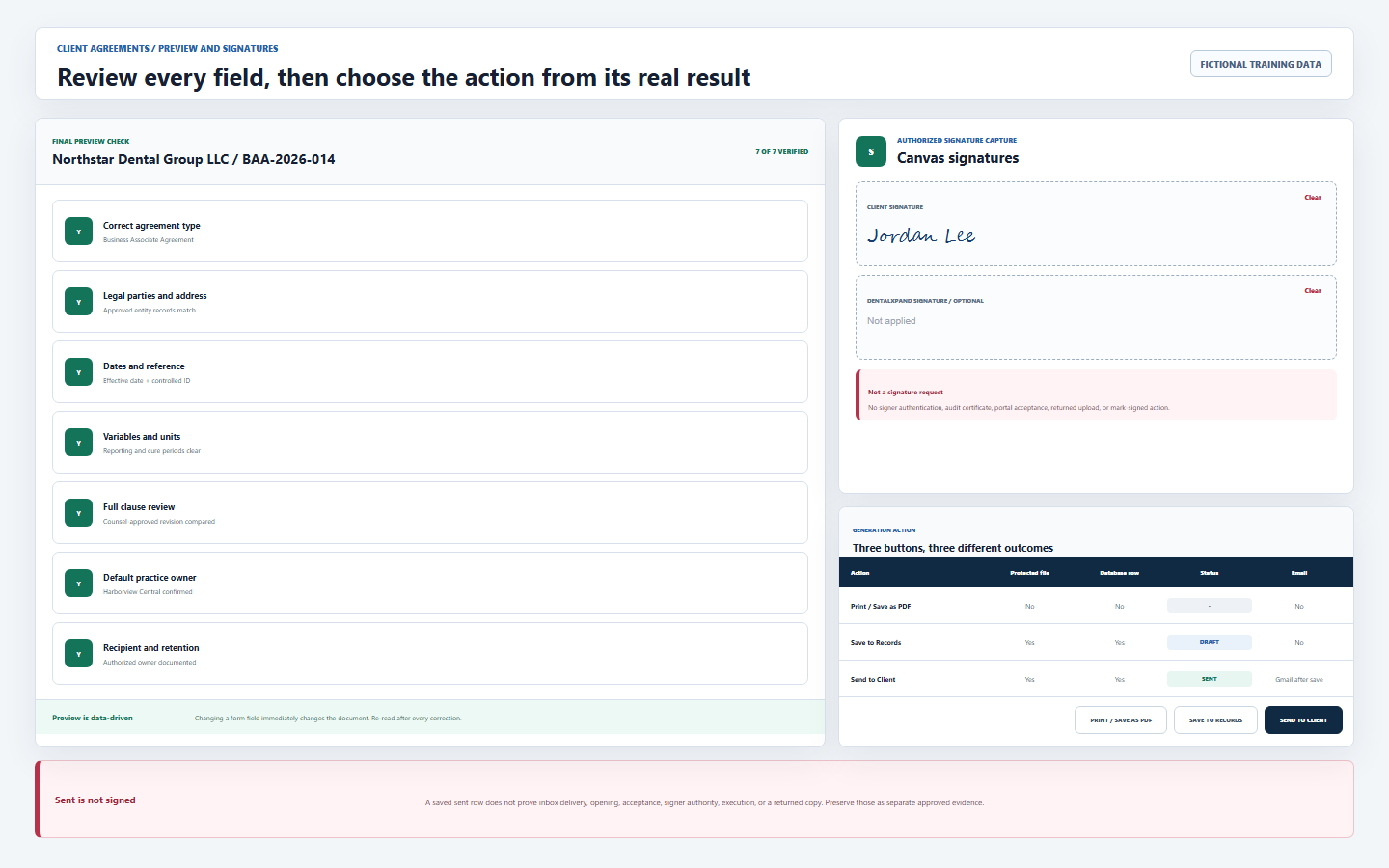
- Read from title through signature blocks.The preview updates immediately from form values. Check names, pronouns, defined terms, addresses, dates, reference, numbering, fees, units, jurisdiction, and every inserted variable.
- Compare against the approved source.Review clause wording and exhibits, not only visible fields. A complete-looking preview is not proof that the maintained template is current.
- Confirm the service-provider identity.Verify DentalXpand legal name, contact, website, signer, and title before either party signs.
- Capture only authorized signatures.Use the client signature pad only when the signer is present and the approved process permits canvas capture. DentalXpand signature is optional and must be applied only by its authorized signer.
- Use Clear when a mark is wrong.The signature is emitted as a PNG data URL and embedded in the generated PDF. Clear the canvas and redraw before generation; never reuse another person’s image.
- Do not call the result executed without evidence.Confirm signer authority, consent, counter-signature, delivery, acceptance, legal effective conditions, and the governed executed-copy process separately.
8 / Generate, save, or send
Choose the action from its actual result, not its button label alone
| Action | Requirements and result | What it does not do |
|---|---|---|
| Print / Save as PDF | Requires client or practice name, opens the browser print dialog through a hidden frame, and can save a local PDF. | Does not upload a file or create a client_agreements database row. |
| Save to Records | Requires name, generates an A4 PDF, uploads it to protected storage, and inserts a row with status draft. |
Does not email the client, request a signature, or mark the record signed. |
| Send to Client | Requires name and valid email, generates one PDF, saves the row and file with status sent, then sends a Gmail message with the attachment and signed download link. |
Does not guarantee Gmail delivery, opening, acceptance, signature, or executed status. |
- Use Print when an approved local handoff is required.Choose Save as PDF in the browser dialog, store it only in the approved repository, and remember the DentalXpand Records list will not contain it.
- Use Save for a controlled draft record.Wait for the success message, refresh the saved list, open the PDF, and verify client, type, date, file content, organization, and intended default-practice ownership.
- Use Send only after final recipient review.Confirm connected Gmail, recipient address, approval to send, and no sensitive information in the message beyond the required agreement.
- Do not click repeatedly while generation is running.Wait for completion or a clear error so duplicate files, records, or messages are not created.
9 / Delivery evidence
Separate saved-record success from email-send success
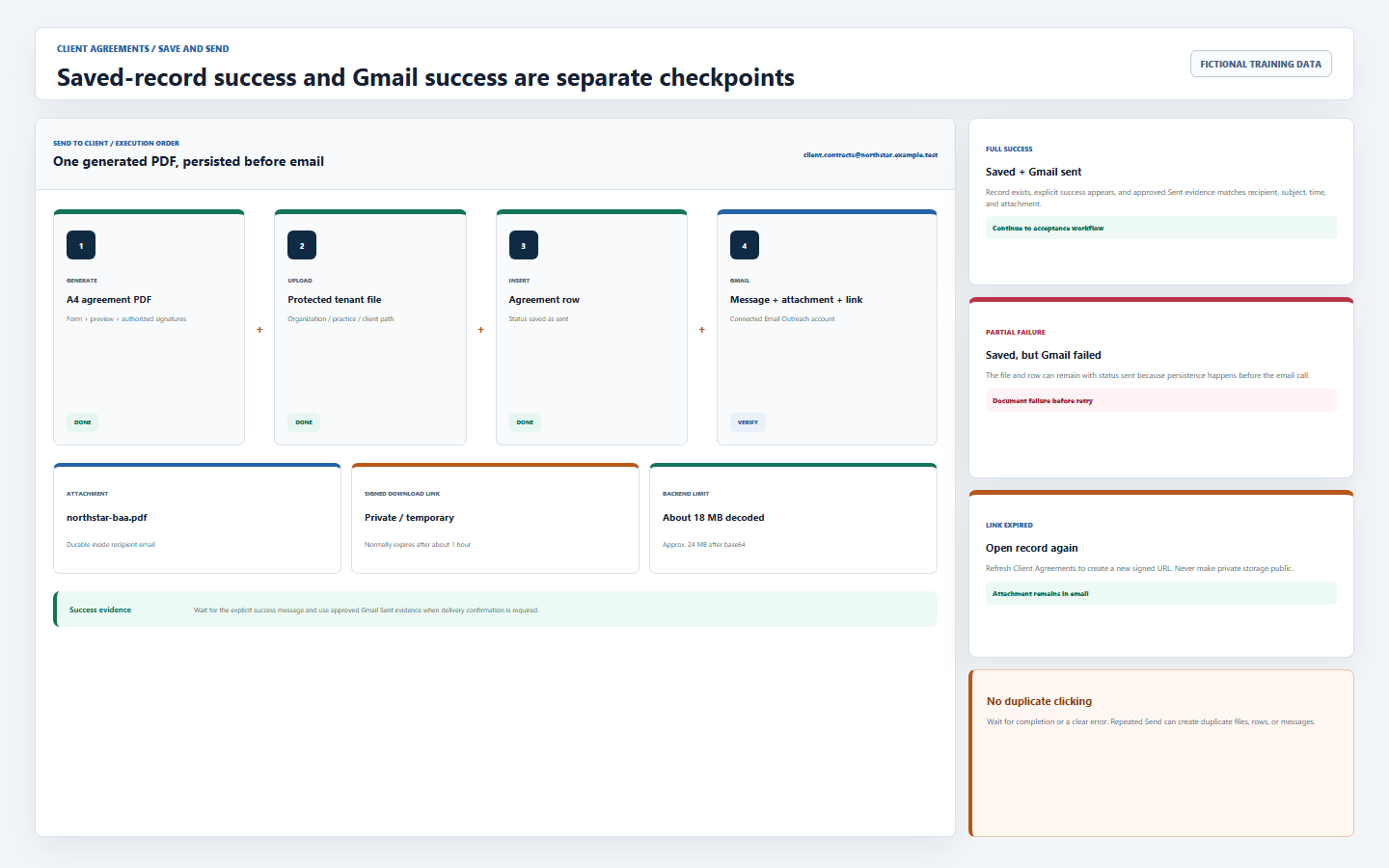
- Wait for the explicit send-success confirmation.The row is created before email is sent. If Gmail fails afterward, a protected file and
sentrow can remain even though delivery failed. - Verify the connected account’s Sent folder when required.Use recipient, subject, time, and attachment name as delivery evidence. Do not expose the document to unauthorized staff while checking.
- Understand the two recipient paths.The message includes a PDF attachment and a temporary signed download URL. The attachment remains with the email; the signed link normally expires after about one hour.
- Generate a new link by reopening the saved record.Refresh Client Agreements and use Open PDF to obtain a new signed URL. Do not make the storage bucket public to avoid expiry.
- Keep attachments within the backend limit.The Gmail endpoint rejects an attachment set above roughly 18 MB decoded, or about 24 MB after base64 expansion. Generated agreements should normally be much smaller.
- Record acceptance outside this page.Use the approved signing and executed-document process to capture return, consent, identity, date, counter-signature, and final storage.
10 / Records and retention
Reconcile the saved PDF, metadata, delivery evidence, and executed copy
| Record control | Current behavior | Operator rule |
|---|---|---|
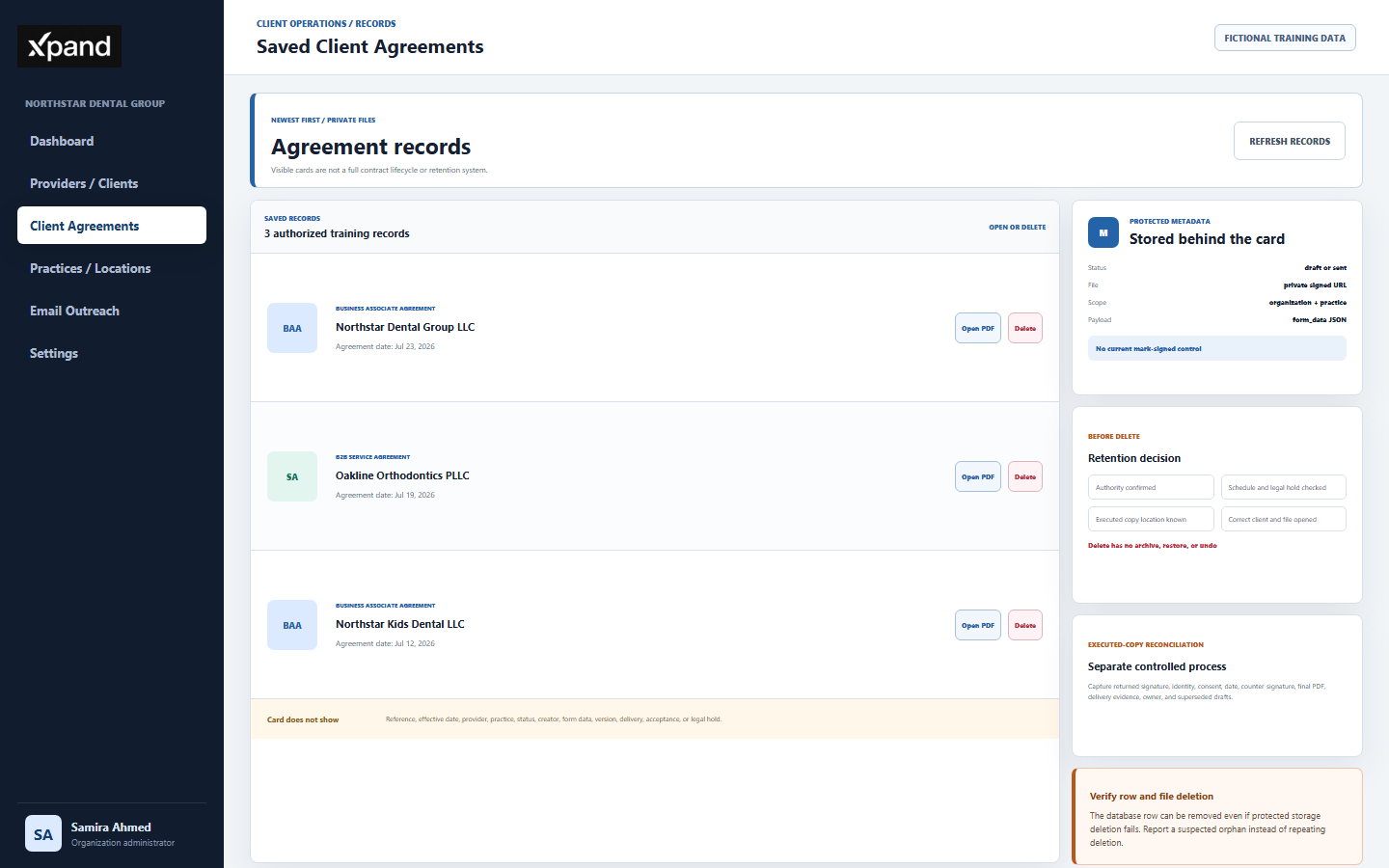
| Saved list | Newest records first; card shows client, type, agreement date, Open PDF, and Delete. | Do not assume hidden reference, effective date, practice, provider, status, or form data was reviewed. |
| Open PDF | Converts protected file_path to a signed URL, normally valid for 3,600 seconds. |
Open only for authorized work, verify the document, and refresh for a new link after expiry. |
| Status | Schema allows draft, sent, and signed; current page creates only draft and sent. |
Do not manually call a record signed or treat status as acceptance evidence. |
| Edit or replace | No edit, version, replace-file, or returned-copy upload control is provided. | Govern corrections, amendments, superseded drafts, and executed copies through the approved process. |
| Delete | Attempts storage deletion first, then deletes the database row. No archive, restore, or undo exists. | Confirm authority, retention schedule, legal hold, client, and executed-copy location before irreversible deletion. |
| Partial delete | Row deletion can continue even when storage deletion fails. | Verify both the list and protected file outcome; escalate a suspected orphan instead of repeatedly deleting. |
The record stores agreement type and date, effective date, optional reference, provider link, protected file URL and path, form data JSON, status, creator, timestamps, organization, and tenant practice. Apply the approved retention schedule and legal-hold process; never delete solely to make a list cleaner.
11 / Tenant, practice, and data protection
Verify the default-practice owner before Save or Send
| Control | Repository-backed behavior | Required verification |
|---|---|---|
| Organization | Agreement row receives the current organization and is protected by tenant-aware RLS. | Signed-in workspace is the intended client organization; no Guardian or other product data is present. |
| Practice | Agreement row and file path receive current_default_practice_id(); no practice selector exists on the page. |
Open Practices / Locations and confirm the active default is the intended agreement owner before Save or Send. |
| Selected provider | Sets optional provider_id and fills party fields. |
Never treat selection as a practice switch. Legacy results can save with no provider ID. |
| Storage path | <organization UUID>/<practice UUID>/client-agreements/<safe client>/<type-timestamp>.pdf |
Use application actions only; never move, rename, or expose the protected object manually. |
| Read and write | Tenant or practice policy plus exact action permission controls rows and private files. | Test allowed work and expected denial with approved sample accounts; direct URLs must not widen scope. |
| Minimum necessary | Form is for legal-party and contract terms. | Exclude PHI, passwords, MFA, payer credentials, full banking details, other tenants, other Xpand products, and Guardian Connect. |
12 / Troubleshooting and completion
Resolve the failed stage without widening access or inventing evidence
| What you see | Likely cause | Correct first response |
|---|---|---|
| Client search misses a record | Record is archived, outside merged provider sources, duplicated, or not available to the account. | Verify the canonical record in Providers / Clients; do not type an unapproved substitute. |
| Name validation error | Required client or practice name is blank. | Select and verify the client identity before generating. |
| Send requires email | Client email is blank or invalid. | Confirm the authorized delivery address and correct the source or form. |
| RLS or permission error | Page, agreement action, file action, tenant, practice, or membership check denied the operation. | Review exact role and default-practice context; never promote to Admin as a shortcut. |
| PDF generation fails | Browser library, network loading, invalid content, or local print behavior failed. | Preserve entered values safely, retry once after checking connection, then report the exact action and error. |
| Record saved but email failed | Send persists the file and row before Gmail completes. | Verify saved record and Gmail status, document partial failure, then use approved retry or alternate delivery. |
| Open PDF link expired | Signed URL passed its normal one-hour lifetime. | Refresh the saved list and open again; never make the bucket public. |
| No signed status or returned upload | The current page has no e-sign or executed-copy lifecycle. | Use the approved external signing and final-record process; do not mislabel sent. |
| Wrong practice owns the record | The page used an unintended current default practice. | Stop use and delivery, preserve audit evidence, and request an approved correction through the owning workflow or Support. |
| Wrong tenant, product, or Guardian data appears | Session, context, cache, integration, deployment, or policy isolation failure. | Stop immediately and report without reproducing exposed information. |
Completion checklist
- I know whether the relationship needs a BAA, Service Agreement, both, or another approved instrument.
- I use a counsel-reviewed, party-specific template and do not treat DentalXpand or HHS sample language as automatic legal sufficiency.
- I verify named account, exact page and action permissions, connected Gmail when sending, organization, and intended default practice.
- I select the correct client but manually verify legal name, full address, contacts, signatory, title, and provider link.
- I verify every BAA timing field, safeguard obligation, termination rule, governing law, and required exhibit.
- I verify service scope, fee basis and value, billing cycle, payment terms, commitment, notice, start date, and governing law.
- I read the entire preview and capture a signature only through an authorized process.
- I understand that Print creates no record, Save creates a draft record, and Send creates a sent record before Gmail completes.
- I verify explicit email success and do not treat a saved row, temporary link, or
sentstatus as acceptance or execution. - I reconcile the protected PDF, metadata, delivery evidence, returned executed copy, and retention owner.
- I delete only with retention and legal-hold approval and verify both database and protected file outcomes.
- I exclude PHI, credentials, banking details, unrelated tenants, other Xpand products, and Guardian Connect data.
- I stop at wrong-practice, cross-tenant, or legal-identity uncertainty and use the approved correction path.
Open Client Agreements, review Operate a DSO or multi-practice workspace, continue to Configure organization branding and client context, verify approved identity in Settings, or return to all learning resources.
Need workflow support?
Bring the question and the exact step where you are blocked.
Explore how this guide connects to provider operations and recruitment.