
START WITH COMPATIBILITY
Check your PMS, then the actions you need.
- Choose your system below. Live integration is a connection status, not a promise that every action is available.
- Bring the version and practice. Confirm schedule reads, benefit updates, payment writes, PDF attachments and notes separately.
- Agree the setup and reviewer. Record prerequisites, enabled actions and exception ownership before the rollout.
Choose my PMS ↓ · Check the maintained connection directory →
Version-specific testing dates are not established in this guide. The setup team must confirm your actual connection; vendor product information alone does not confirm Xpand action coverage.
START WITH THE SOFTWARE YOU KNOW
What the workflow looks like with your dental PMS
Use the PMS tools already working well for the practice. The examples below show where Xpand can help with task ownership, provider work or coordination between locations. They do not suggest that your PMS lacks those capabilities. Use the maintained matrix for current connection status. Operational coordination does not establish a live PMS connection.
Connection status & workflow scope
6 live connections. Confirm the actions you need.
A live connection does not mean every action is enabled. Confirm your version, required records and each PMS update before rollout.
| Practice system | Connection | Version and required actions | Setup and review owner |
|---|---|---|---|
| Open Dental | Live connection | Confirm version during setup Confirm required patient, appointment and claim records. Confirm benefit forms, notes, payment entries and attachments separately. |
Practice authorization and payor enrollment where required. Batch start or schedule, where enabled for the workflow. Exception review: Practice or billing lead. |
| Dentrix Core | Live connection | Confirm version during setup Confirm required patient, appointment and claim records. Confirm benefit forms, notes, payment entries and attachments separately. |
Practice authorization and payor enrollment where required. Batch start or schedule, where enabled for the workflow. Exception review: Practice or billing lead. |
| Dentrix Ascend | Live connection | Confirm version during setup Confirm required patient, appointment and claim records. Confirm benefit forms, notes, payment entries and attachments separately. |
Practice authorization and payor enrollment where required. Batch start or schedule, where enabled for the workflow. Exception review: Practice or billing lead. |
| Dentrix Enterprise | Live connection | Confirm version during setup Confirm required patient, appointment and claim records. Confirm benefit forms, notes, payment entries and attachments separately. |
Practice authorization and payor enrollment where required. Batch start or schedule, where enabled for the workflow. Exception review: Practice or billing lead. |
| Eaglesoft | Live connection | Confirm version during setup Confirm required patient, appointment and claim records. Confirm benefit forms, notes, payment entries and attachments separately. |
Practice authorization and payor enrollment where required. Batch start or schedule, where enabled for the workflow. Exception review: Practice or billing lead. |
| Dolphin | Live connection | Confirm version during setup Confirm required patient, appointment and claim records. Confirm benefit forms, notes, payment entries and attachments separately. |
Practice authorization and payor enrollment where required. Batch start or schedule, where enabled for the workflow. Exception review: Practice or billing lead. |
| Curve Hero | In development No rollout date is promised. |
Confirm version during setup Confirm required patient, appointment and claim records. Confirm benefit forms, notes, payment entries and attachments separately. |
Practice authorization and payor enrollment where required. Batch start or schedule, where enabled for the workflow. Exception review: Practice or billing lead. |
| Denticon | In development No rollout date is promised. |
Confirm version during setup Confirm required patient, appointment and claim records. Confirm benefit forms, notes, payment entries and attachments separately. |
Practice authorization and payor enrollment where required. Batch start or schedule, where enabled for the workflow. Exception review: Practice or billing lead. |
| Cloud 9 | In development No rollout date is promised. |
Confirm version during setup Confirm required patient, appointment and claim records. Confirm benefit forms, notes, payment entries and attachments separately. |
Practice authorization and payor enrollment where required. Batch start or schedule, where enabled for the workflow. Exception review: Practice or billing lead. |
| OrthoTrac | In development No rollout date is promised. |
Confirm version during setup Confirm required patient, appointment and claim records. Confirm benefit forms, notes, payment entries and attachments separately. |
Practice authorization and payor enrollment where required. Batch start or schedule, where enabled for the workflow. Exception review: Practice or billing lead. |
| PracticeWorks | In development No rollout date is promised. |
Confirm version during setup Confirm required patient, appointment and claim records. Confirm benefit forms, notes, payment entries and attachments separately. |
Practice authorization and payor enrollment where required. Batch start or schedule, where enabled for the workflow. Exception review: Practice or billing lead. |
For each workflow, record the PMS/version, permitted reads and writes, trigger, prerequisites and person who reviews incomplete responses or failed updates. Ask to see both a completed record and an exception during your demo.
Confirm my PMS workflow →Product sources and system-specific notes
- Open Dental: Keep charting and the ledger in the source PMS. Official Open Dental information ↗
- Dentrix Core: Specify Core separately from Ascend and Enterprise. Official Dentrix information ↗
- Dentrix Ascend: Keep each practice identity and authorized access distinct. Official Dentrix Ascend information ↗
- Dentrix Enterprise: Confirm the installed Enterprise environment and practice mapping. Official Dentrix Enterprise information ↗
- Eaglesoft: Limit remote team access to the authorized practice workflow. Official Eaglesoft resources ↗
- Curve Hero: Operational tasks may be coordinated without a live PMS connection. Official Curve Dental information ↗
- Denticon: Shared operations do not establish automatic source synchronization. Official Denticon information ↗
- Cloud 9: Orthodontic lifetime maximums, installments and treatment rules need plan-specific review. Official Cloud 9 information ↗
- Dolphin: Dolphin Imaging and Dolphin Management are different products; name the exact product. Official Dolphin Management overview (PDF) ↗
- OrthoTrac: Connection planning must identify the installed orthodontic environment. Official OrthoTrac information ↗
- PracticeWorks: Source updates remain in the approved manual process until a connection is enabled. Official PracticeWorks information ↗
Live status is owner-confirmed; the article does not establish tested version numbers or a per-PMS read/write benchmark. Ask for the enabled action, prerequisites and demonstration date for your exact connection. Vendor links identify their products and do not imply a partnership or endorsement.
The PMS holds the patient record. Outside that record, someone still needs to check benefits, follow up on an unanswered claim and prepare a provider’s onboarding. Each office needs to know who is handling that work.
A claim update may be in an inbox while the follow-up sits on a spreadsheet. DentalXpand helps staff organize those responsibilities alongside the dental software the practice already uses.
Keep scheduling, charting and the patient ledger in your PMS. Use Xpand for the supported insurance checks, revenue follow-up and provider work that need coordination between staff or practices.
ONE PRACTICE OR A WHOLE GROUP
Dental PMS workflows, from preparation to follow-up
Read the configured input
An enabled schedule can start supported verification checks after the required connection and workflow setup. For payment posting, confirm the remittance source, supported PMS actions and any required review or approval for your setup.
Run and match
Verification returns the benefit details available from the payer. Payment posting depends on the configured remittance source and PMS actions. Confirm any required review and approval, then check the recorded result and exceptions.
Record separate outcomes
Check the result of each supported benefit-field update, payment write, PDF attachment and note. Required actions already updated can be skipped. Where retries are supported, retry the affected outcome.
Review the exception
Missing benefits, an unmatched remittance or a failed update needs staff attention. A claim-status response is not a payment, and a status PDF is not an official ERA/EOB.
Manual alternative: select one patient or claim, upload an authorized list or supplied document, and start the available workflow. Without an enabled PMS action, staff download the output and update the source record through their approved process. Document conversion organizes supplied information; it does not obtain a new payer response.
The benefit is continuity: fewer repeated explanations, less time looking for the latest update and a more useful handoff between the people doing the work. Explore tasks and team coordination and claims and AR follow-up.
Different practices, different PMS systems, one operating routine
A DSO may have Open Dental in one region, Dentrix or Eaglesoft in another, and a cloud PMS at newly acquired offices. Start by standardizing the work around those systems: the practice names, the people allowed to act, what counts as an unresolved item and who owns the next step.
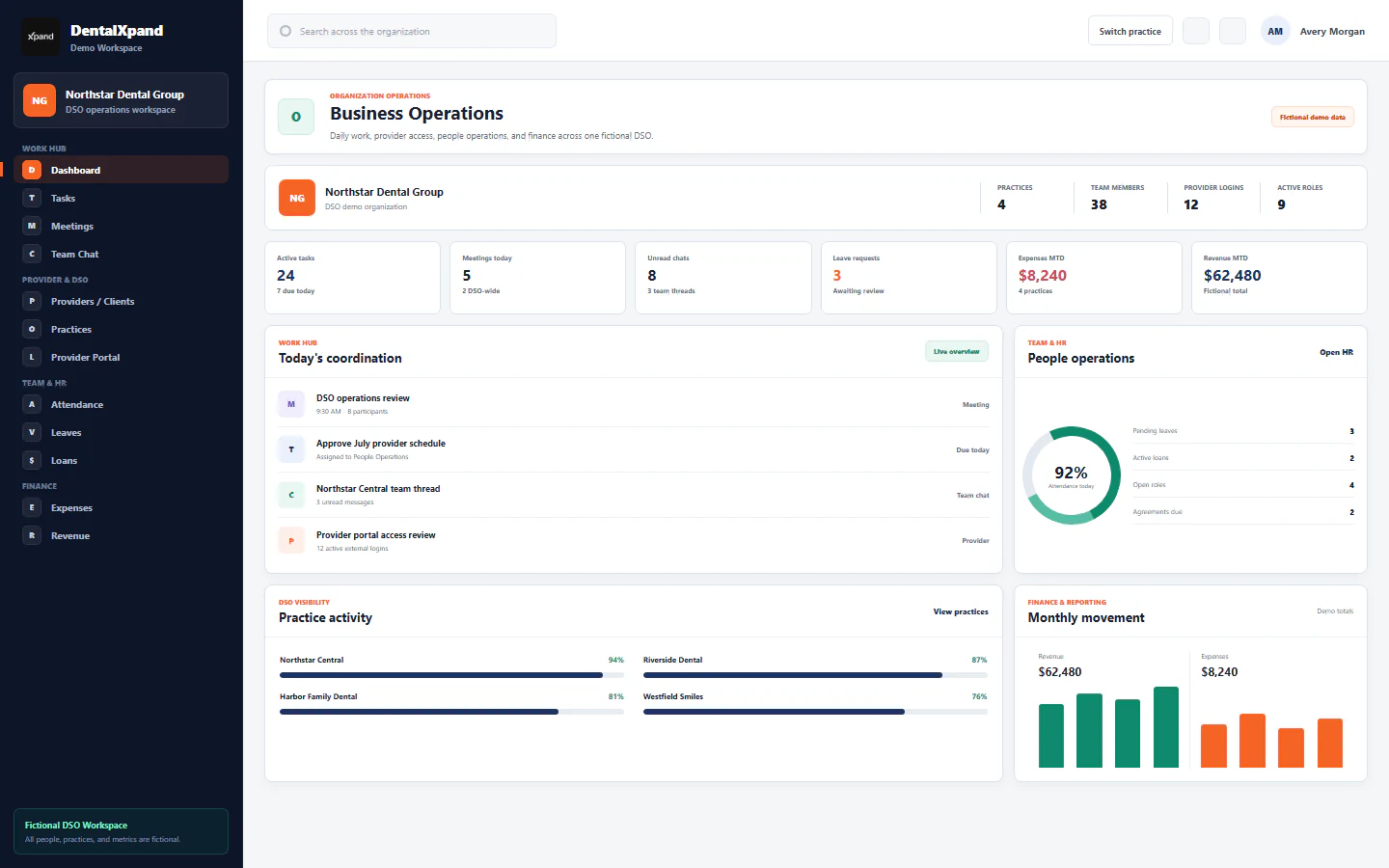
Xpand can give those teams a common place for tasks, provider operations and approved worklists. That does not imply a merged patient database or live synchronization across every product. Confirm each connection and its refresh behavior before depending on it. See practice access and provider operations.
Find the workflow for your team
For an independent dental practice, start with the handoff between the front desk, billing team and practice manager. For a DSO or multi-location group, define central responsibilities and local follow-up. For a dental billing company, keep each client practice’s instructions, authorized access and next actions clear.
FEWER ROUTINE CHECKS TO CHASE
How insurance work fits: Delta Dental, Aetna, Cigna and more
A familiar insurance logo is a starting point, not enough information to run a reliable check. Your team needs the actual plan, payer ID, member and provider details, service date and requested transaction. Eligibility, claim status and remittance can have different coverage and enrollment requirements. Use our dental insurance payer directory to search payer names and IDs and compare the listed transaction support before confirming your setup.
- Identify the right plan. Confirm the patient’s dental coverage and the applicable payer record, rather than selecting by brand name alone.
- Run the supported check. Use the configured Xpand verification or claim-status workflow for the authorized worklist.
- Review what came back. Distinguish returned details from missing information. A benefit response is not a promise that a claim will be paid.
- Assign the exception. Give an incomplete response, discrepancy or outstanding claim to an owner. Use a payer portal or call when the next step needs it.
- Reconcile and document. Confirm the remittance source, patient and claim match, supported PMS actions and any required review or approval for your setup. Check each result separately and assign unmatched records or failed actions for follow-up; a claim-status PDF is not an ERA/EOB.
Delta Dental
Confirm the relevant Delta Dental company, plan and payer ID. Keep the returned benefit details and unresolved questions with the practice’s follow-up.
Aetna
Confirm the dental plan and requested check, then give missing details or a claim-status exception a named owner instead of repeating the same lookup.
Cigna
Match the patient and plan to the correct payer record. Review returned information and keep any remaining office or payer follow-up visible.
UnitedHealthcare Dental
Identify the applicable dental plan and transaction. Coordinate exceptions in Xpand while confirming plan-specific requirements through the responsible source.
DentaQuest
Confirm the state or plan arrangement and the particular payer record. Support for one DentaQuest listing does not establish support for every plan or transaction.
Humana
Confirm that the requested information concerns the correct dental product. Keep response review and any next action together for the billing team.
Ameritas
Use the actual member, provider and payer details for the available workflow. Record unresolved items so another teammate can continue the follow-up.
Texas CHIP & state dental programs
Texas CHIP is a program, not one universal payer connection. Identify the child’s actual dental plan or administrator and confirm the supported check and enrollment. Other state programs, including Medi-Cal Dental, need their own confirmation.
Texas HHS dental-plan guidance ↗ · Medi-Cal Dental information ↗
These examples explain the workflow; they do not promise that every plan or transaction under a brand is enabled. Review payer coverage and enrollment and our insurance verification workflow with your actual payer mix.
CAPACITY, NOT MORE COORDINATION
Help a leaner team handle more work
As the workload grows, look for repeated lookups, copied responses and requests for status updates. Shared worklists and supported batch checks can reduce that repetition, leaving more time to resolve exceptions and support practices.
Measure time spent per completed task, including review and exceptions, before changing staffing or software seats.
This is an efficiency opportunity, not a promise that a specific number of employees can replace another. It does not mean reducing clinical staffing, skipping review or sharing user accounts. Every person still needs appropriate individual access, training and responsibility.
Measure a pilot against your own baseline: minutes spent per completed task, repeated touches, unresolved items, turnaround and accuracy. Use those results to plan capacity and software seats. Explore the savings calculator with your own assumptions; an estimate is not a measured customer outcome.
Start with one practice and one repeatable workflow
- Show us where the time goes. Bring your PMS name and version, practice list, payer mix and the work your team repeats most.
- Choose a small first workflow. For example, upcoming-patient verification, outstanding-claim follow-up or provider onboarding.
- Confirm access and scope. Agree which people, practices, records and outputs belong in the rollout. Complete the required connection and data arrangements before exchanging patient information.
- Run and review. Check a representative authorized sample, reconcile results and make sure exceptions have an owner.
- Expand from evidence. Add practices and workflows after the team understands the process and the pilot meets its agreed checks.
Provider work can grow alongside revenue operations: connect recruitment and onboarding, retention check-ins and credentialing responsibilities without turning the PMS into a general-purpose task list.
Questions dental teams ask
Does DentalXpand replace our dental PMS?
No. Keep clinical charting, scheduling and source financial records in your existing system. Xpand organizes the operational work, responsibilities and supported checks around it.
Are all the PMS logos active integrations?
No. The maintained compatibility matrix separates owner-confirmed live connections from integrations in development. A logo does not establish action coverage. Our team confirms the exact PMS version, connector and enabled actions for each client setup; the same action set is not universal across products. Confirm the remittance source, supported PMS actions and any required review or approval for your setup. For an enabled secondary-claim workflow, confirm the production route, required enrollment and returned submission result. Xpand does not submit primary claims.
Can we use verification without PMS onboarding?
Yes. Upload-based verification can work without PMS onboarding. After a meeting and full workflow demo, our team provisions your account and sends trial access. Required input data, payer-service configuration and any necessary enrollment still apply. Agree how staff will review results and update source records.
How do we receive trial access?
Request a workflow demo.
Will every insurance plan return the same benefits?
No. Payers return different information, and support varies by payer ID, plan, provider, enrollment and transaction. Missing details need follow-up; eligibility does not guarantee payment.
Can one team support practices that use different systems?
Yes, for the operational work and approved worklists assigned to that team in Xpand. Shared task ownership is separate from automatic data synchronization, which must be verified for each source system.
Do these workflows guarantee a particular staffing reduction?
No. The aim is more capacity with less repetitive administration. Staffing and savings depend on workload, coverage, data quality, configuration, oversight and the results of your own pilot.
Written by the DentalXpand Editorial Team. Editorial copy reviewed October 8, 2026. Connection status follows owner-confirmed scope; version-specific testing dates are not established here. Software and payer names belong to their respective owners and are used for identification; inclusion does not imply affiliation, certification, sponsorship or endorsement. The linked vendor sources describe their own products, not an endorsement of Xpand. For connected-service and data-handling details, see our Privacy Policy and Terms and Conditions.