
IT & SECURITY GUIDE · CHECKED 9 OCTOBER 2026
Check the individual access path before changing security settings.
For authorized IT and security owners evaluating individual Daybreak Blue access. Organization-level and separately approved Red access follow their own onboarding. DentalXpand is explaining OpenAI’s published guidance; this is not an OpenAI partnership, approval or account-specific eligibility assessment.
One physical key
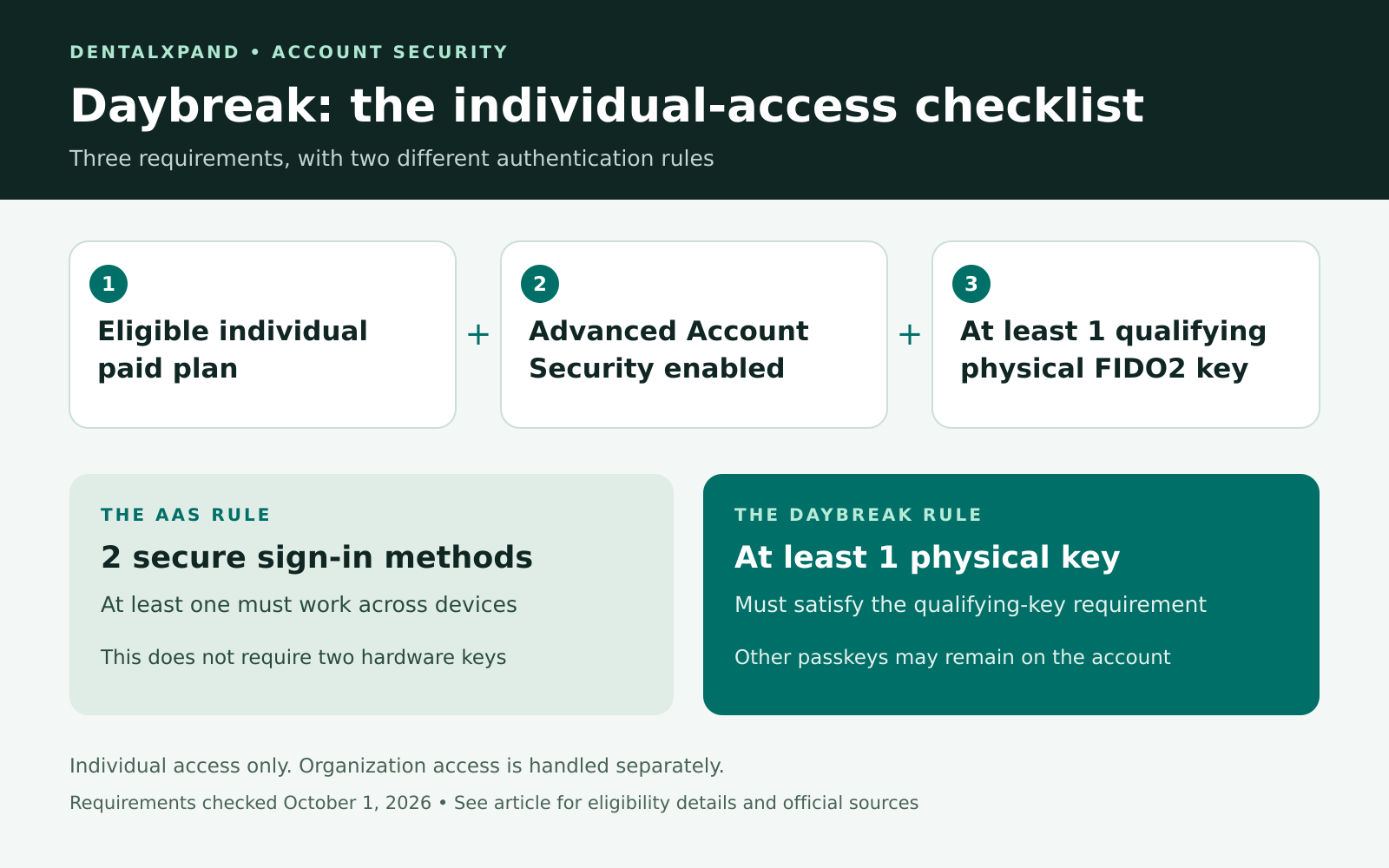
Individual access requires at least one compatible physical FIDO2 key. Advanced Account Security separately needs two secure sign-in methods, including one usable across devices.
Check compatibility
TrustKey T110/T120 remain ineligible for individual Daybreak. The account’s eligibility flow must recognize the chosen method.
Plan recovery
A valid recovery key starts a 48-hour wait. Standard email recovery is disabled while Advanced Account Security is enabled.
Deadline scope: the published deadline for existing individual users was 1 October 2026. The linked passages do not specify a cutoff time or timezone. Check your account’s notice and current eligibility.
Sources: Daybreak overview · Compatibility and troubleshooting · Advanced Account Security.
Review owner: DentalXpand Editorial Team. Recheck when these sources change; your authorized security owner confirms the account-specific access and recovery plan.
Table of Contents
For dental IT and security teams evaluating OpenAI Daybreak access for their organization. This checklist covers the individual hardware-key path; organization access follows separate approval and onboarding arrangements. Requirements checked on 1 October 2026. OpenAI can update eligibility rules; check your own account before changing its security settings.
OpenAI Daybreak hardware key requirements now include an eligible paid plan, Advanced Account Security and at least one compatible physical FIDO2 security key. OpenAI set 1 October 2026 as the deadline for existing individual users to meet these requirements. Check your account’s eligibility status for the next step. A synced passkey alone does not satisfy the hardware requirement, but other passkeys can remain on your account. See OpenAI’s current Daybreak overview.
The DentalXpand Editorial Team prepared this guide from a product-team perspective. Our team’s positive experience using hardware keys informs the planning suggestions; the requirements below come from official OpenAI sources. This is not a named expert review, a tested key-and-browser comparison or a certification of DentalXpand’s security or patient-data handling.
If you have seen advice telling you to delete every software passkey, pause before doing that. The practical priority is to check the account you actually use, register a qualifying key and make sure you have a workable backup. Removing a working sign-in method unnecessarily can make an already confusing change harder to manage.
Who needs to act on the October requirement?
OpenAI Daybreak is an approval-based program for authorized cybersecurity work. Individuals can apply for Daybreak Blue; organization-level access and separately approved Red access have different onboarding arrangements. This requirement concerns the individual application path, rather than a hardware-key mandate for everyone using ordinary ChatGPT. OpenAI’s program overview explains the distinction.
First, establish how you received access: through your own Daybreak application or through an organization. Check the approval message and the account open in your browser. If you use several workspaces, identify the one you need before changing settings; the subscription name alone may not settle that question.
OpenAI gives a date, not an exact cutoff time or timezone: 1 October 2026.
One physical key and two sign-in methods are different requirements
Advanced Account Security requires at least two secure sign-in methods, with at least one usable across devices. A compatible hardware key plus a passkey can qualify; two compatible hardware keys are another option. Enrollment is under ChatGPT Settings → Security → Advanced Account Security. Save the recovery keys during setup. Enrollment signs you out of existing sessions. These are the Advanced Account Security setup rules.
Will the backup still be reachable if the main device is lost? Two sign-in methods kept in the same bag, or dependent on the same inaccessible computer, can fail together. Plan where the backup will be stored and how you would retrieve it.
For example, a consultant who works from a laptop could keep a daily-use key with their work equipment and a separately registered backup in secure storage elsewhere. Someone who travels frequently should consider how they would reach that backup while away. Choose a plan you can actually maintain.
Which FIDO2 security keys count?
Check compatibility before buying. OpenAI currently excludes TrustKey T110 and T120 from individual Daybreak eligibility. Its troubleshooting guide says a second physical key is optional and that you do not need to remove other passkeys. Business or Team membership does not exempt someone with individual Blue access. See the Daybreak compatibility guidance.
A shopping checklist should cover more than a product name:
- Connection: match the key to the ports and supported connection methods on the devices you use.
- Everyday handling: consider whether a small always-attached key or a removable one better fits your routine.
- Backup storage: decide where a second key would live before ordering it.
- Registration: owning a key is only the beginning; confirm that the correct account recognizes the enrolled device.
- Support: use the manufacturer’s documentation for the exact model, rather than assuming all keys behave identically.
Do not make a rushed purchase solely because an article mentions a familiar brand. The account’s eligibility result and current compatibility guidance matter more than a logo on the packaging.
Passkeys and hardware keys explained without the jargon
A passkey is a cryptographic sign-in credential. It can be stored on a phone, computer or physical security key. Synced passkeys can be available across devices through a provider; device-bound credentials stay on their authenticator. FIDO authentication is designed to resist phishing using cryptographic credentials tied to the relevant service. The FIDO Alliance’s passkey guide explains these models.
When a sign-in dialog offers several choices, check which credential you are using. Choosing a password-manager passkey is different from registering the physical key plugged into the device. Afterward, confirm which method appears in the account.
A synced passkey can still be a strong authentication method. A service can also impose an additional requirement for a particular access program. Keep those two questions separate when explaining the change to colleagues: how a sign-in method works, and whether a particular program accepts it for a particular requirement.
What a hardware key cannot protect by itself
A stronger login does not remove every route into an account. The FBI has warned about stolen session cookies being used to bypass multifactor authentication. That is why protecting the device and its active sessions still matters after you register a security key.
Our practical recommendation: keep work devices updated, be selective about browser extensions and software, and investigate unexpected account activity. If you suspect a compromised computer, plugging a security key into it is not a complete response. Follow your incident procedure and get qualified help.
OpenAI Daybreak hardware key requirements: a practical checklist
The following is our recommended working sequence. It is meant to reduce avoidable mistakes, rather than replace the instructions shown in your account.
- Open the official account yourself. Navigate directly to the Daybreak eligibility page. Avoid treating a forwarded reminder or an unfamiliar login link as the starting point.
- Confirm the account identity. Check the signed-in email and intended workspace. Keep a short note of which account you are updating, especially if personal and business profiles share one browser.
- Prepare before starting. Have the chosen sign-in methods available and choose secure recovery-key storage. Set aside uninterrupted time rather than making the change during a client call.
- Follow the live enrollment prompts. Pay attention to the credential destination. If a browser offers to save a passkey automatically, verify that you are choosing the method you intended.
- Check the result. Confirm the registered method names and eligibility status. Registering sign-in methods is separate from the “Set up your Daybreak keys” checklist item: follow that step to select a qualifying registered physical hardware key. One compatible physical key is required; a second physical key is optional. A successful hardware interaction is useful evidence, but the account’s final status is the result you need.
- Test ordinary access. Once setup is complete, verify that your normal work device can sign in. If you registered a backup, test it deliberately before putting it away.
- Record the recovery plan. Document where authorized people can find the procedure, without putting recovery secrets into shared notes, screenshots or support tickets.
Plan for losing a key before it happens
With Advanced Account Security enabled, password sign-in and email/SMS sign-in codes are disabled. Standard email recovery is unavailable. A valid recovery key starts a 48-hour security wait before recovery can be completed. Support cannot bypass these safeguards to restore routine access. Losing every sign-in method and recovery key can mean permanent account loss. Read OpenAI’s recovery guidance before enrolling.
Run a simple tabletop exercise: your laptop and daily key are missing, and you have work due tomorrow. Where is your other sign-in method? Can you retrieve your recovery material without accessing the locked account? Who needs to know that work may be delayed?
Write down the answers while access is working. Keep recovery material separate from public documentation and ordinary task trackers. For a business, record responsibility for maintaining the procedure when someone changes roles. A continuity plan should survive an absence without casually sharing personal account credentials.
If OpenAI Daybreak still does not work
Use the message on your eligibility page to identify the failing step. If a compatible key is rejected, report the exact error, browser, device and approximate attempt time to Support, without secrets. Advanced Account Security is unavailable for enterprise-managed accounts and verified, claimed domains. Correcting a security issue after revocation does not automatically restore approval. Follow reapplication instructions, including identity verification when required; approval is not guaranteed. These distinctions are covered in OpenAI’s troubleshooting guide.
For Support, record what you expected, what happened and the last step that worked. Redact screenshots before sending them. Avoid changing unrelated settings while investigating, because that can hide the original problem.
What dental IT teams should record
Keep a short record of the account owner, approved use, registered backup method and recovery procedure. Do not store recovery keys in that inventory. If your practice uses DentalXpand, review DentalXpand’s admin security features separately; Daybreak enrollment does not assess DentalXpand’s security.
Keep broader protections in place. CISA’s ransomware guidance recommends phishing-resistant MFA alongside measures such as patching and protected backups. Strong authentication should sit within that wider security plan; it cannot establish that every device, integration or business workflow is safe.
Daybreak is for approved cybersecurity work, and OpenAI prohibits extending that access to customer-facing workflows. Approval also does not automatically provide Zero Data Retention. See the program’s limitations. Review patient-data handling separately with the people responsible for your practice’s privacy and compliance obligations.
Frequently asked questions
Do I need two physical keys for OpenAI Daybreak?
The physical-key minimum is one. Advanced Account Security still has its separate two-method requirement. A second physical key is a sensible backup option, rather than the stated OpenAI Daybreak minimum.
Should I delete my existing synced passkeys?
No. OpenAI’s current guidance permits them to remain. Check eligibility before removing any working sign-in method.
Can I finish recovery immediately with a recovery key?
No. The documented security waiting period is 48 hours after entering a valid recovery key.
Where should I check my own status?
Open chatgpt.com/cyber using the account associated with your application and follow the eligibility instructions shown there.
Your next step: check the account’s registered methods and confirm that both routine sign-in and the recovery plan will work for you.
Editorial maintenance: DentalXpand Editorial Team. The official OpenAI overview, troubleshooting and Advanced Account Security sources were rechecked on 9 October 2026; the original 1 October requirements-check date is retained above. Review this guide when those sources change. Your organization’s authorized IT or security owner should confirm the current access path, key eligibility and recovery responsibilities before acting.