Dental insurance payer directory & PMS lookup
Check payer support and PMS compatibility.
Search by payer name or ID, then check each transaction and enrollment requirement. A directory listing does not confirm an active practice connection.
Your practice. Your connections.
Payer and PMS lookup
Search a payer or practice system, then confirm the transaction your team needs.
Choose your PMS / EHRFind the software your team already uses
Select a system to check its connection status and the next step for your practice.
Explore payor access through Xpand’s clearinghouse network. This directory includes commercial, state and regional payor records across coverage types. For dental insurance, choose “Dental-tagged payors” below, then search the payor’s name or ID. Open a result to see the supported services and any enrollment requirements.
Network support and Xpand workflows are different. The dental claim-submission filter describes clearinghouse network capability. Xpand automatically submits secondary claims in enabled workflows and does not submit primary claims. Confirm the enabled production route, payer enrollment and returned submission outcome for your setup. A supported transaction still requires the correct plan, enrollment and practice connection.
Coverage & connection details
Payor listings show clearinghouse network capabilities. Your exact plan, transaction, provider enrollment and enabled Xpand connection determine availability. A listed payor does not mean every service is active for your practice. Additional clearinghouses will appear here when their directories are connected.
Bring your PMS and recurring checks. We will help map the right workflow for your team.
This snapshot contains 1,069 dental-tagged and 3,349 medical-tagged records. Tags can overlap; these are directory records, not enabled practice connections. Choose “Dental-tagged payors” to focus on dental eligibility use cases.
Read the status for each transaction. “Supported” describes the network service; “Enrollment required” means provider setup is needed before use. “Not supported” means that transaction is not listed as available through this route; “Confirm availability” means support is unknown. Claim status, an official ERA/EOB and receipt of funds are separate outputs.
Connection status & workflow scope
PMS connections and workflow scope
A live connection does not mean every action is enabled. Confirm your version, required records and each PMS update before rollout.
| Practice system | Connection | Version and required actions | Setup and review owner |
|---|---|---|---|
| Open Dental | Live connection | Confirm version during setup Confirm required patient, appointment and claim records. Confirm benefit forms, notes, payment entries and attachments separately. |
Practice authorization and payor enrollment where required. Batch start or schedule, where enabled for the workflow. Exception review: Practice or billing lead. |
| Dentrix Core | Live connection | Confirm version during setup Confirm required patient, appointment and claim records. Confirm benefit forms, notes, payment entries and attachments separately. |
Practice authorization and payor enrollment where required. Batch start or schedule, where enabled for the workflow. Exception review: Practice or billing lead. |
| Dentrix Ascend | Live connection | Confirm version during setup Confirm required patient, appointment and claim records. Confirm benefit forms, notes, payment entries and attachments separately. |
Practice authorization and payor enrollment where required. Batch start or schedule, where enabled for the workflow. Exception review: Practice or billing lead. |
| Dentrix Enterprise | Live connection | Confirm version during setup Confirm required patient, appointment and claim records. Confirm benefit forms, notes, payment entries and attachments separately. |
Practice authorization and payor enrollment where required. Batch start or schedule, where enabled for the workflow. Exception review: Practice or billing lead. |
| Eaglesoft | Live connection | Confirm version during setup Confirm required patient, appointment and claim records. Confirm benefit forms, notes, payment entries and attachments separately. |
Practice authorization and payor enrollment where required. Batch start or schedule, where enabled for the workflow. Exception review: Practice or billing lead. |
| Dolphin | Live connection | Confirm version during setup Confirm required patient, appointment and claim records. Confirm benefit forms, notes, payment entries and attachments separately. |
Practice authorization and payor enrollment where required. Batch start or schedule, where enabled for the workflow. Exception review: Practice or billing lead. |
| Curve Hero | In development No rollout date is promised. |
Confirm version during setup Confirm required patient, appointment and claim records. Confirm benefit forms, notes, payment entries and attachments separately. |
Practice authorization and payor enrollment where required. Batch start or schedule, where enabled for the workflow. Exception review: Practice or billing lead. |
| Denticon | In development No rollout date is promised. |
Confirm version during setup Confirm required patient, appointment and claim records. Confirm benefit forms, notes, payment entries and attachments separately. |
Practice authorization and payor enrollment where required. Batch start or schedule, where enabled for the workflow. Exception review: Practice or billing lead. |
| Cloud 9 | In development No rollout date is promised. |
Confirm version during setup Confirm required patient, appointment and claim records. Confirm benefit forms, notes, payment entries and attachments separately. |
Practice authorization and payor enrollment where required. Batch start or schedule, where enabled for the workflow. Exception review: Practice or billing lead. |
| OrthoTrac | In development No rollout date is promised. |
Confirm version during setup Confirm required patient, appointment and claim records. Confirm benefit forms, notes, payment entries and attachments separately. |
Practice authorization and payor enrollment where required. Batch start or schedule, where enabled for the workflow. Exception review: Practice or billing lead. |
| PracticeWorks | In development No rollout date is promised. |
Confirm version during setup Confirm required patient, appointment and claim records. Confirm benefit forms, notes, payment entries and attachments separately. |
Practice authorization and payor enrollment where required. Batch start or schedule, where enabled for the workflow. Exception review: Practice or billing lead. |
For each workflow, record the PMS/version, permitted reads and writes, trigger, prerequisites and person who reviews incomplete responses or failed updates. Ask to see both a completed record and an exception during your demo.
Confirm my PMS workflow →The payer directory is sourced from Stedi and scheduled to refresh daily; the lookup shows the available data date. PMS connection status is a separate product-owner record, confirmed October 4 and reviewed October 5, 2026. Those dates do not establish identical read/write support for every PMS version.
We handle setup. Data is ready within 24 hours after your PMS connection is established. During setup, we confirm the version, connector and actions available for your practice across verification, notes and forms, payment posting and patient-profile documents.
Potential time savings
Looking beyond connection setup? Read the potential savings guide.
On this page
Make the next step clearer.
Dental insurance payer directory: 5 checks before setup
Check transaction support and enrollment against the payor lookup above before choosing the workflow for your practice. For remittance work, explore dental payment posting and confirm the required ERA, EOB and PMS actions during setup.
- Find the exact plan. Search the payer name, primary ID or alias. Keep leading zeros and check the plan or regional administrator.
- Choose the transaction. Review eligibility, dental claim submission, claim status and ERA separately. Dental coverage tags describe eligibility use cases.
- Check enrollment. If the result says enrollment is required, confirm provider identifiers and complete setup before using that transaction.
- Match your PMS workflow. Check your software version, hosting and the specific reads, notes, forms, posting or attachments your team needs.
- Confirm the next action. Bring your payer mix and required workflow to a demo. Confirm the enabled connection and who reviews incomplete responses; eligibility is not a payment guarantee.
Prepare for patient visits
Use the eligibility filter to find listed checks before exploring benefits-verification workflows.
Explore insurance verification →Focus your claim follow-up
Check claim-status availability separately from ERA enrollment and remittance retrieval.
Explore claims & AR →Check your practice software
Find Open Dental, Dentrix, Eaglesoft and other systems. Review the connection status and confirm your required workflow.
Open PMS Lookup →Payer IDs, coverage and enrollment FAQs
If my insurance payor is listed here, does DentalXpand support it?
A listing shows the clearinghouse network’s support for each transaction. Xpand automatically submits secondary claims in enabled workflows and does not submit primary claims. Confirm the enabled production route, payer enrollment and returned submission outcome for your setup. To use a listed transaction through DentalXpand, confirm your exact plan, transaction, provider enrollment and enabled practice connection. “Enrollment required” means setup must be completed before that transaction can be used. Claim-status support alone does not include an official EOB, and eligibility is not a payment guarantee.
How do I find an insurance payor ID?
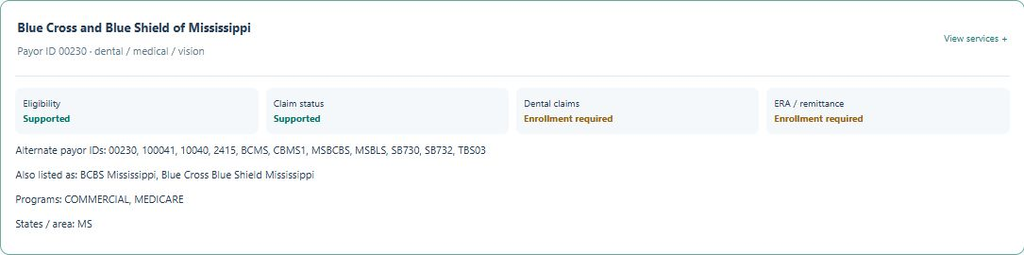
Search the insurance company name or an ID from your existing billing workflow. Keep leading zeros, such as 00230, and try an alternate ID or listed name if needed. Open a result to see its primary payor ID and aliases. Confirm the exact plan and transaction before using the ID; the same insurance brand can have multiple payor records.
Does the directory include only dental insurance?
You can search the full insurance directory, or choose “Dental-tagged payors” to focus on dental eligibility use cases. Coverage tags do not confirm dental claim submission or every transaction. Open the record to check each service and enrollment requirement. The clearinghouse’s payer coverage and enrollment guide explains these distinctions. Eligibility is not a payment guarantee.
Why can eligibility be supported while claim status is not?
Eligibility, claim status, dental claim submission and ERA/remittance are different transactions. Each payor record lists them separately. Select the service your team needs, then review any enrollment requirements.
What does “Enrollment required” mean?
Your provider or practice may need to register for that transaction through the clearinghouse before it can be used. Check the current payor record and confirm enrollment, provider identifiers and your enabled connection during setup.
Can I search Medicaid and regional insurance payors?
Yes. Search by payor name or ID and use the program filter for records classified as Medicaid. State and regional plans may use different records or administrators, so confirm the plan and service rather than relying on the insurance brand alone.
Does selecting a PMS confirm an active DentalXpand integration?
The selector distinguishes six live connections from systems in development. A live connection does not mean every version or action is supported. Confirm your required reads, benefit forms, notes, posting and attachments during setup. Selecting software does not connect your practice or transfer patient records.
How often is the payor directory updated?
Refresh is scheduled daily. The search displays the date of the available data. If a refresh cannot complete, the last saved directory remains available; ask the Xpand team to confirm current details before relying on a result.