
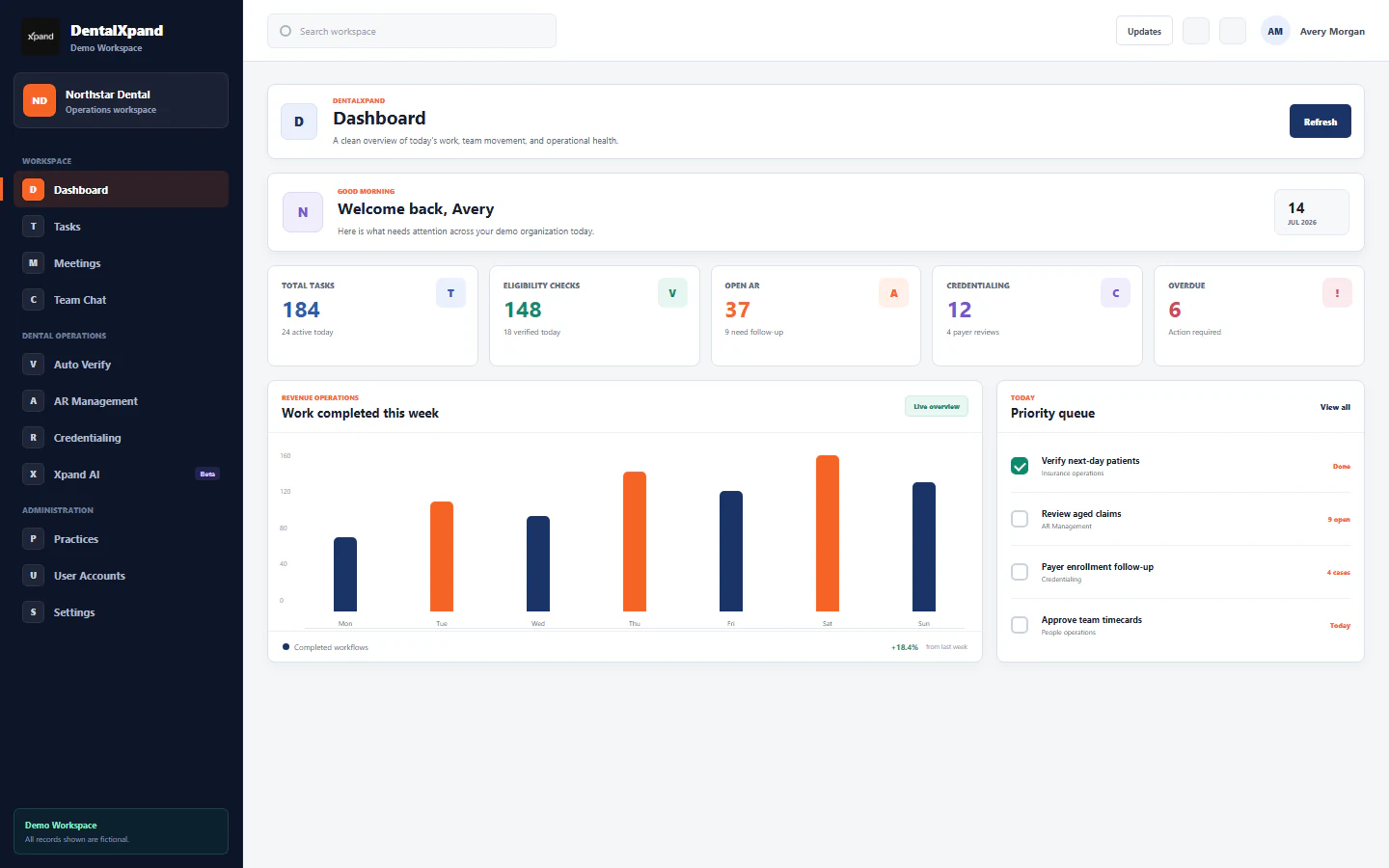
Maintain My Profile and personal details
Maintain permitted name, phone, avatar, and password details; understand protected employment fields, role-aware summaries, personal task and HR records, management controls, session behavior, and tenant-safe troubleshooting.
My Profile is DentalXpand’s personal account, employee summary, and self-service security surface. The reviewed page can display a linked employee identity, avatar, verification and achievement badges, employment or provider summaries, recent assigned tasks, career and legal records, employee notices, and password controls. Profile owners can edit first name, last name, and phone, upload an approved image under the current limit, and change their own password. Work email, role, department, designation, joining date, salary, verification, badges, agreements, recruitment results, shifts, notices, and source records remain controlled by their owning workflows and authorized administrators.
1 / Purpose and source records
Understand what My Profile displays, what it can change, and which workflow owns each value
DentalXpand stores the displayed first name, last name, combined name, and phone inside the signed-in user’s settings JSON. When available, those profile settings take precedence over fallback employee and session values.
The page finds the current employee by the signed-in user ID or matching email. It supplies employment details, avatar reference, verification status, badges, salary summary, joining date, and identifiers used by related modules.
Tasks, attendance, billing, agreements, recruitment, notices, leave, loans, and shift data come from their owning services. My Profile summarizes them; it is not the source editor for those records.
The Security tab sends a self-service password request to the backend. A successful change updates the configured authentication account, clears local authentication state, logs the user out, and returns to sign-in.
Open the authorized My Profile screen. Review roles and access boundaries before using management links or interpreting protected data.
2 / Access and identity
Confirm the signed-in account, active tenant, and linked employee before relying on profile data
| Check | Confirm | Why it matters |
|---|---|---|
| Signed-in account | The header identity, email, and expected role belong to you. Use your own current browser session. | A remembered browser, copied session, shared device, or another user’s tab is not authorization to read or update a profile. |
| Organization and practice | The active organization and practice are the ones in which you expect to work. | The profile service requests employee rows and relies on deployed row policies to return only authorized records. A client-side match is not a substitute for tenant isolation. |
| Linked employee | Name, work email, role, department, and employee context are internally consistent. | A missing or incorrect user-to-employee link can block avatar upload, display fallbacks, or associate summaries with the wrong source record. |
| Route permission | The My Profile route is available through the permitted sidebar, header menu, dashboard action, or authorized direct route. | Do not bypass a denied route. Page visibility, application permission, service checks, database policy, and Storage policy must all agree. |
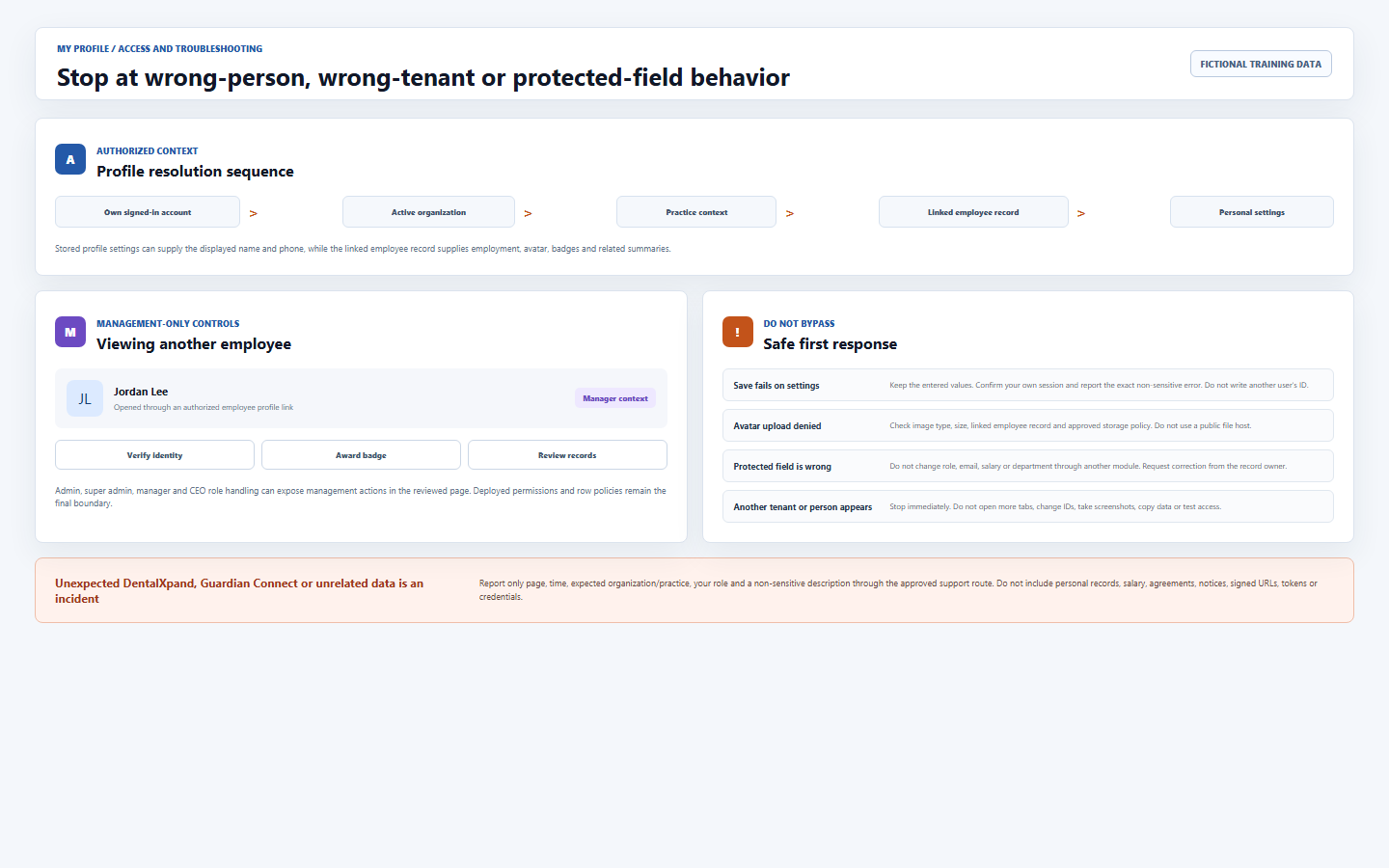
| Viewing another employee | A legitimate management workflow opened the target profile and your current role is authorized. | Do not add or alter an id query value to discover employee records. An authorized link and deployed policy are required. |
Read organization, practice, and tenant context before proceeding when the expected workspace is unclear.
3 / Profile overview
Use the identity summary and tabs as a controlled personal command center
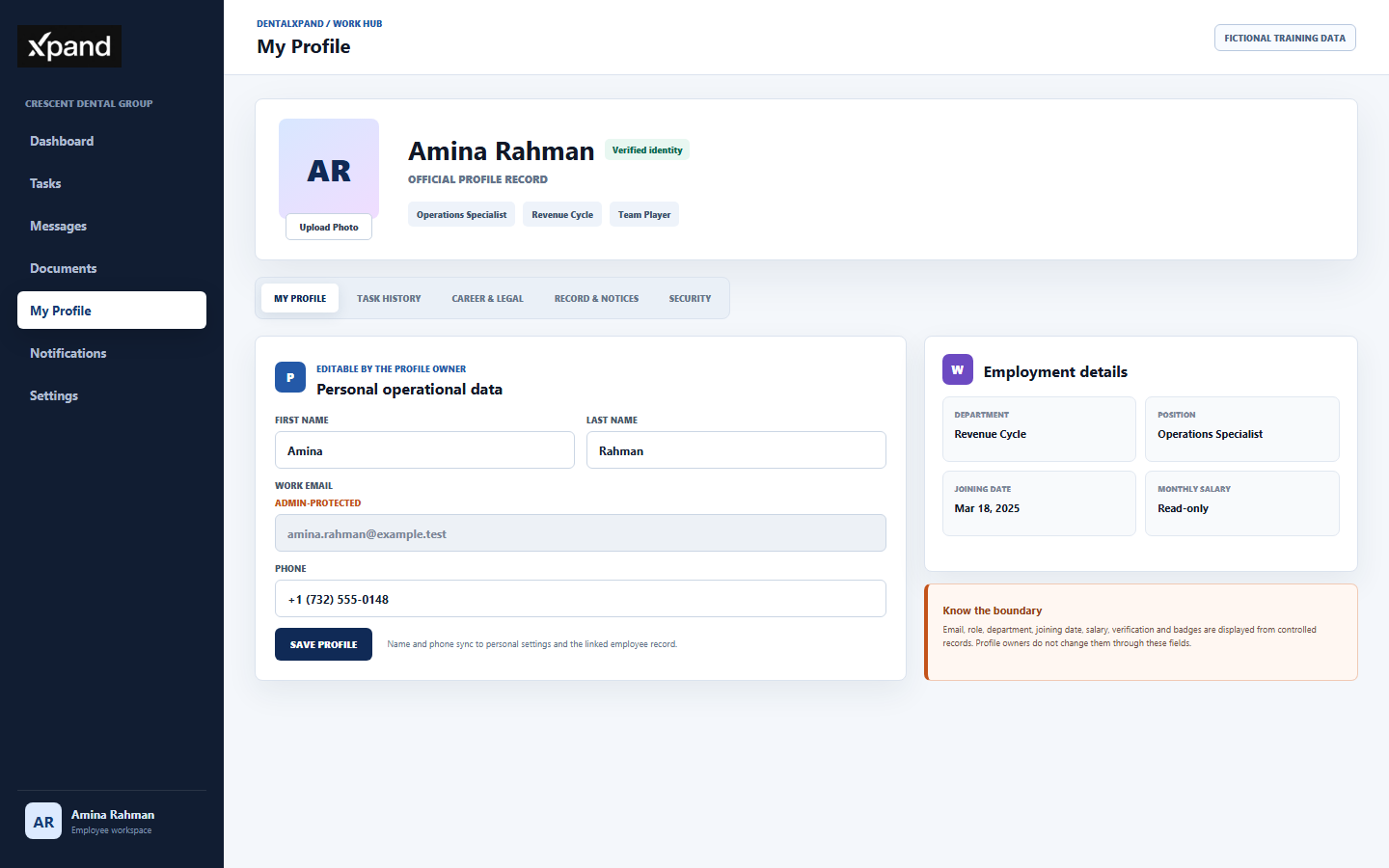
- Review the identity summary.Confirm avatar or initials, displayed name, verification indicator, role label, department, and achievement badges. A badge or verified marker is an administrative status, not proof of broader access.
- Use My Profile for permitted personal edits.The reviewed form edits first name, last name, and phone. Work email is disabled. Do not treat a disabled field as a request to change it elsewhere.
- Use Task History as a recent summary.The component loads up to ten assigned tasks. Work on status, steps, comments, assignments, or timers inside Tasks.
- Use Career & Legal for authorized reference.It can show recruitment results, agreements, shifts, employment terms, and probation progress when source data exists. Corrections belong to HR-owned workflows.
- Use Record & Notices for official employee records.Grid, List, and Board change presentation only. They do not change notice status, ownership, retention, or source content.
- Use Security only for your own password.The endpoint rejects attempts to change a different account and requires the current password.
4 / Editable personal details
Update first name, last name, and phone without changing protected account or employment fields
| Field or action | Reviewed behavior | Required discipline |
|---|---|---|
| First and last name | Editable text values are saved to the personal settings profile and, when linked, to the employee record. | Use the approved professional identity. Do not impersonate another person, enter credentials, or add role and department labels to the name. |
| Phone | The editable phone value is written to settings and the linked employee record. | Use an authorized contact number and approved format. Do not enter another person’s number without the owning process. |
| Work email | The current form renders work email as disabled and does not submit an email update. | Request a correction through an authorized account or user-management workflow. Do not change database IDs or email mappings manually. |
| Save Profile | The page first upserts settings JSON, then updates the linked employee, then updates the local session display. | Wait for completion, refresh once, and confirm persistence. A toast does not prove every source record saved if a later request failed. |
| No linked employee | The page can fall back to session name values, but avatar upload requires an employee ID and related summaries may be unavailable. | Do not create a duplicate employee as a shortcut. Ask an authorized administrator to repair the account-to-employee link. |
5 / Avatar and contact synchronization
Upload an approved image and verify the persisted personal profile
| Step | Current implementation | Safe practice |
|---|---|---|
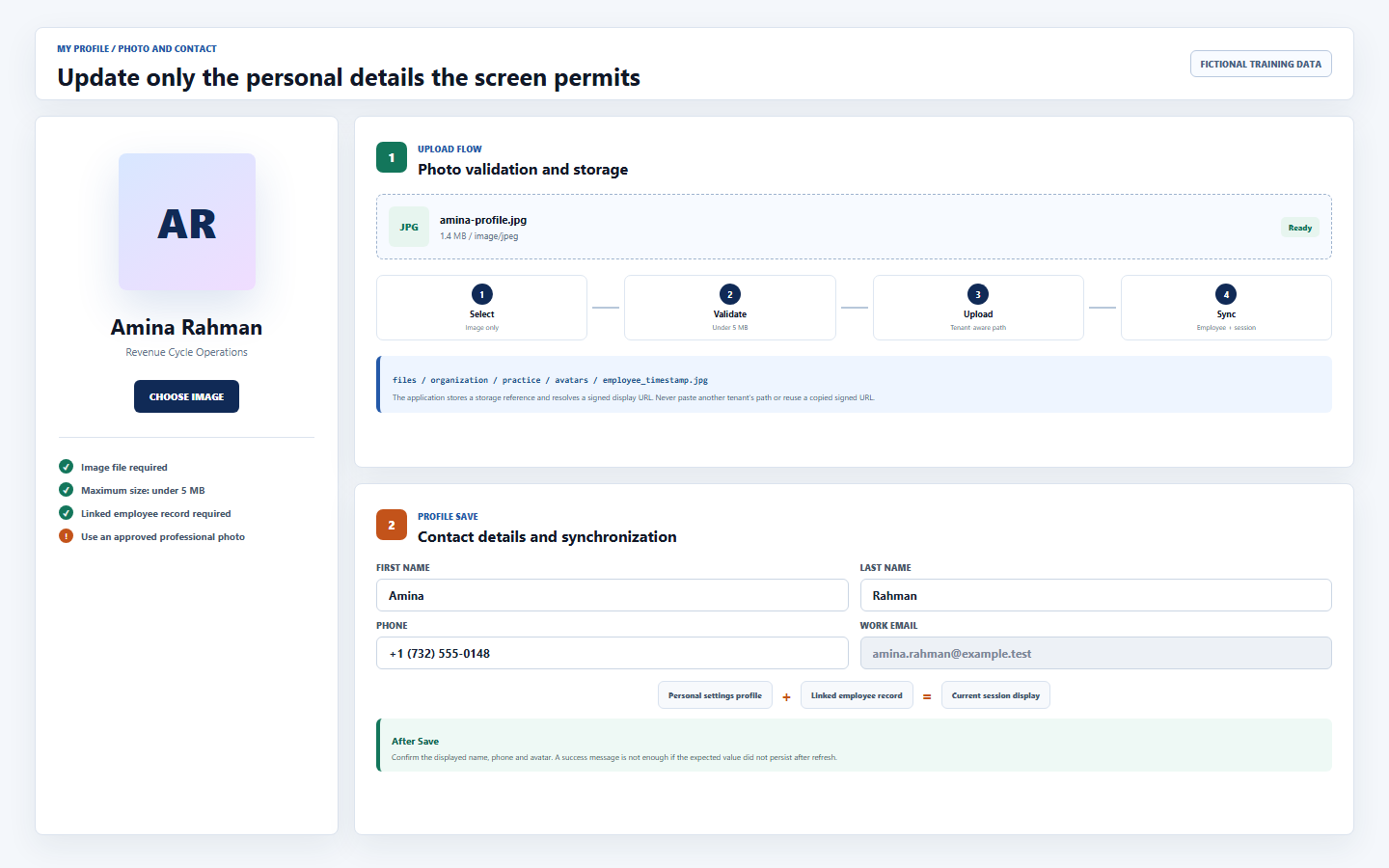
| 1. Choose image | The file must report an image MIME type. The current UI rejects a file larger than 5 MB. | Use an approved professional image without patient, client, badge, document, screen, or unrelated protected content. |
| 2. Confirm employee | Upload stops when no linked employee ID exists. | Resolve the account mapping through an administrator. Do not upload under another employee ID. |
| 3. Upload | The service uploads to the files bucket through a tenant-aware avatars/employee_timestamp.ext path. |
Do not construct another organization path, paste a storage reference, use a public host, or reuse a copied signed URL. |
| 4. Save reference | The employee record stores a normalized storage reference; the current session receives a resolved signed display URL. | A URL may expire. Persist the storage reference through the application and let the authorized service resolve display access. |
| 5. Verify | The page updates the displayed image and reports success. | Refresh once and confirm the intended image. If another image appears, stop and report rather than testing other paths. |
6 / Role-aware summaries
Interpret employee and provider profile summaries without treating them as source ledgers
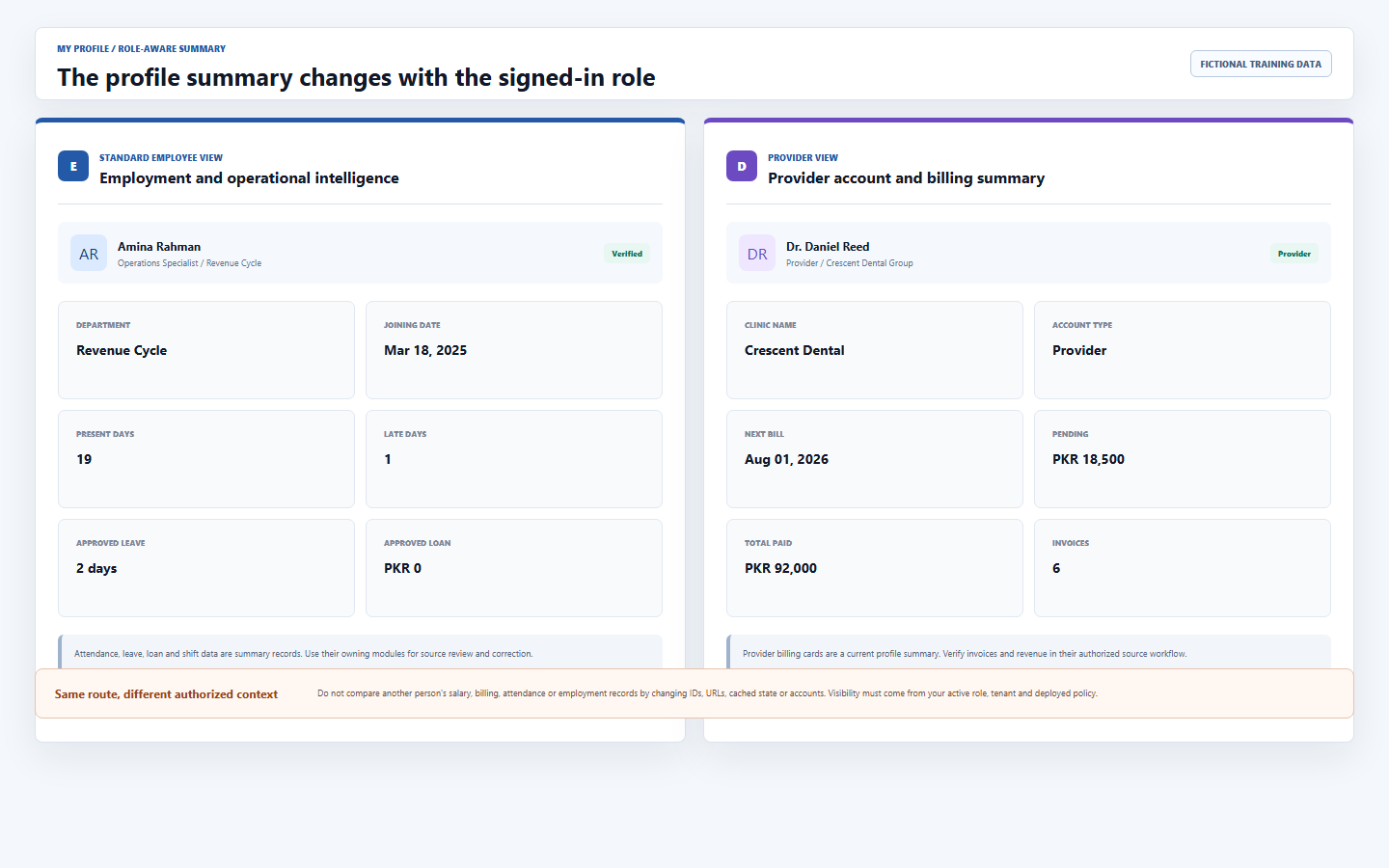
When available, employment cards show department, position, joining date, and salary. Operational intelligence can show present days, absent days, hours, late days, approved leave, and approved loan totals.
A provider role can show clinic or department, provider account type, next invoice date, pending amount, total received, and invoice count from monthly revenue statistics.
Related requests are wrapped so one unavailable summary does not always block the entire profile. Missing cards can mean no source data, denied access, or a failed request; they do not mean zero.
Use Attendance, Leaves, Loans, Revenue, Billing, HR, or the relevant owning module to review and correct source records. Do not infer a complete financial or employment history from profile cards.
7 / Personal records
Review task, career, legal, and notice summaries without editing source records from the profile
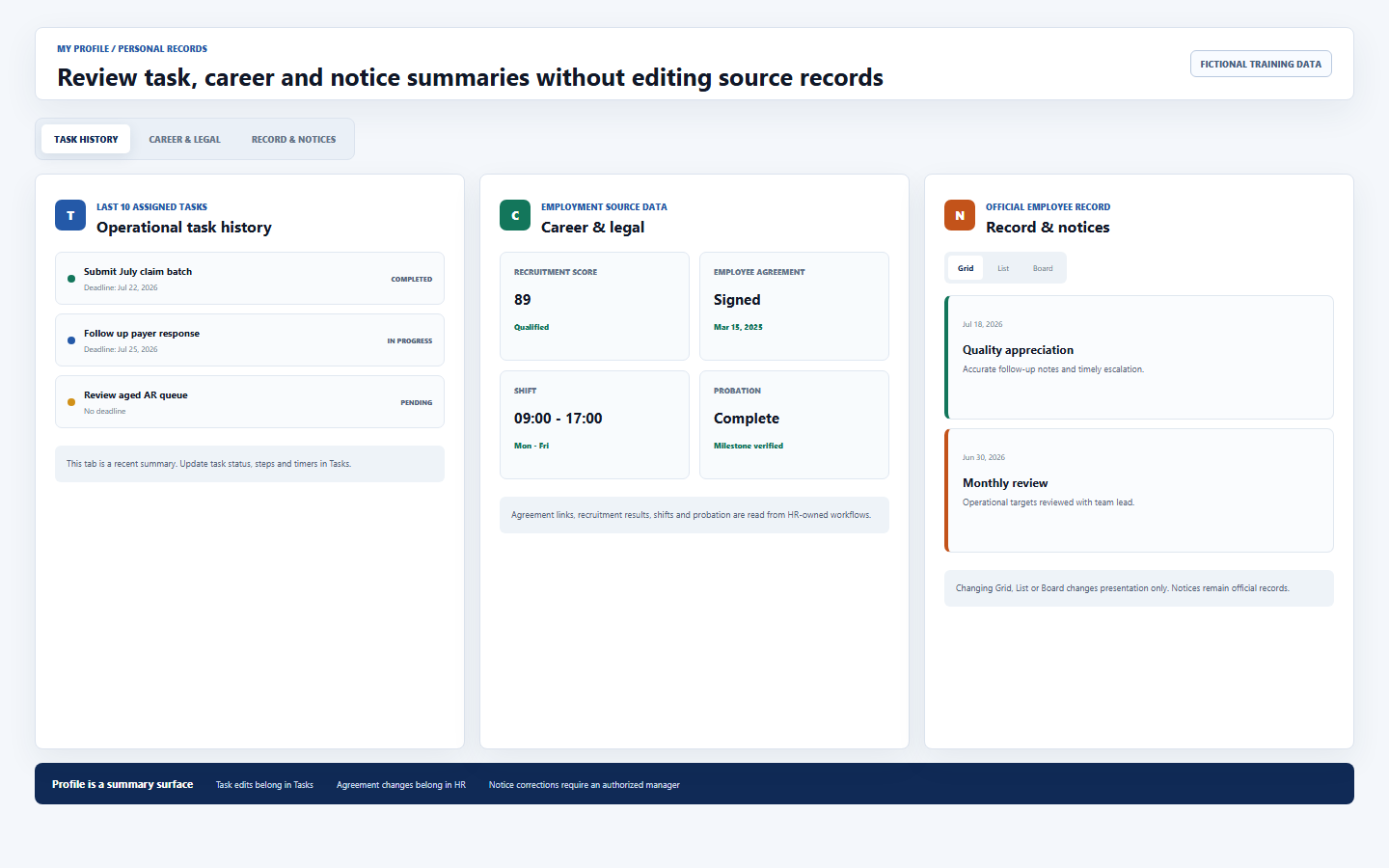
| Tab | What the reviewed page loads | Where work belongs |
|---|---|---|
| Task History | Up to ten tasks assigned to the linked employee, with title, due date, and status. | Use Tasks for assignments, steps, comments, timers, status, and full task context. |
| Career & Legal | Agreements, recruitment result, office or assigned shift, employment terms, and probation progress when source data exists. | Use approved HR, agreement, recruitment, and shift workflows. Do not edit signed files or employment terms outside their process. |
| Record & Notices | Employee notices such as performance audits, warnings, reviews, or appreciation records. Grid, List, and Board are display modes. | Use the authorized employee-notice workflow for corrections, acknowledgments, disputes, or retention actions. |
| Empty state | The page can show no history, no evaluation, no signed record, or no notices when no authorized result is returned. | Do not assume the record never existed. Confirm with the owning workflow and an authorized administrator when required. |
8 / Self-service security
Change only your own password, then complete a fresh sign-in
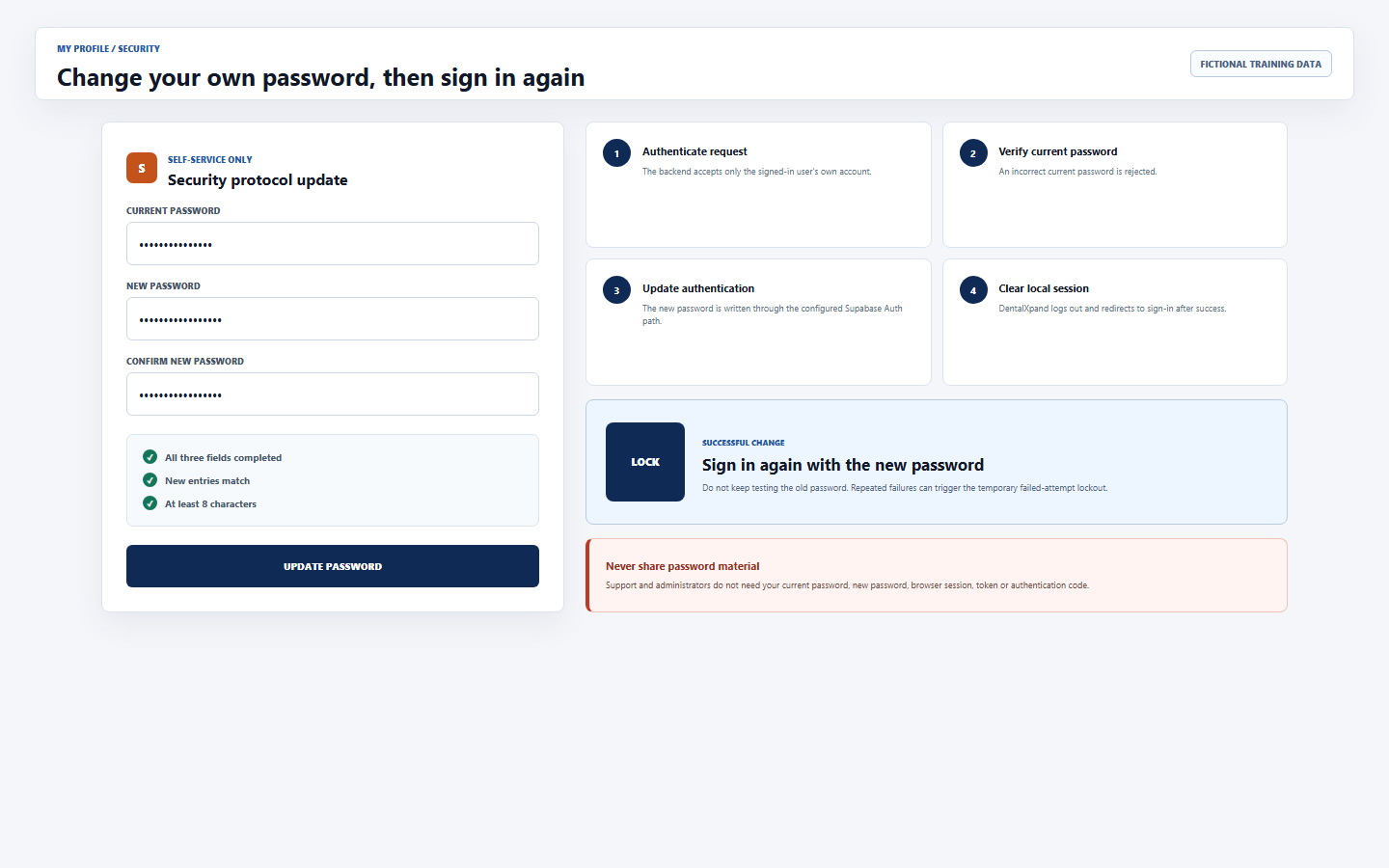
- Enter the current password.The backend verifies it against the current account. An incorrect value is rejected; administrators and support do not need to know it.
- Enter and confirm the new password.The current UI and backend require at least eight characters, and the two new entries must match. Follow any stronger organization policy that applies.
- Submit once.The authenticated request resolves the current app user, rejects a different user, rejects an inactive account, verifies the current password, and writes the new password through the configured Auth path.
- Complete the forced re-login.After success, local authentication storage is cleared, the app logs out, and the browser returns to
/auth. Sign in again with the new password. - Respect temporary failed-attempt protection.If sign-in reports too many failed attempts, stop retrying, wait for the shown interval, then make one careful attempt with the correct current credential or use the approved recovery path.
9 / Management-only controls
Use verification, badges, and target profiles only through an authorized management workflow
| Management action | Reviewed behavior | Boundary |
|---|---|---|
| Open target profile | The page can read an id query value and select that employee for admin, super admin, manager, or CEO role checks. |
Use an authorized employee workflow link. Never edit the query to browse records, and never rely on UI role checks instead of deployed row policy. |
| Verify identity | An eligible management user can toggle the employee verification value; verification can trigger an announcement. | Verify against the approved identity process. A visual tick is not proof of licensure, credentialing, clinical authority, or full system access. |
| Award or revoke badge | Management controls can add or remove predefined achievement badges and send an announcement. | Use documented criteria, approval, and correction procedures. Do not use badges to disclose private performance data or retaliate. |
| View sensitive tabs | Authorized target profiles can expose task, career, legal, notice, salary, attendance, leave, loan, shift, or billing summaries. | Open only the minimum data required for the approved purpose. Do not export, forward, or discuss it outside the authorized workflow. |
10 / Tenant, settings, and storage scope
Understand the enforcement layers that must protect profile data
| Layer | Reviewed implementation | Production requirement |
|---|---|---|
| Employee retrieval | The profile currently calls the employee list service and matches by target ID for approved management roles or by the signed-in user ID or email for self-service. | Deployed employee row-level security must return only rows authorized for the current account, organization, practice, and role. Client-side matching is not isolation. |
| Employee update | Non-management users can update only their own employee record and the service filters updates to a limited personal-field allowlist. | Database policy must enforce the same or stricter ownership. Never trust a hidden field, disabled input, or client allowlist alone. |
| Settings ownership | Settings requests resolve the current app-user ID and upsert a row keyed by user_id. |
The settings foreign key and row policy must map the authenticated identity to the correct app user. Do not insert a random UUID or another user’s ID to resolve an error. |
| Avatar storage | The service creates a tenant-aware path in the files bucket and stores a normalized reference. |
Storage upload and read policy must keep paths tenant-scoped. A signed display URL is temporary and sensitive, not a share link. |
| Password backend | The endpoint authenticates the request, limits self-service to the same user or email, verifies the current password, and updates the configured Supabase Auth identity. | Keep service-role credentials server-only, use HTTPS in production, protect rate limits, and never expose authentication secrets in browser variables or support messages. |
| Product boundary | My Profile combines personal, HR, operational, billing, and authentication surfaces inside DentalXpand. | Guardian Connect data must not appear in DentalXpand, and DentalXpand data must not appear in Guardian Connect. Cross-product data is an incident, not a profile correction. |
11 / Troubleshooting
Resolve expected failures without changing identity, tenant, or protected records
| What you see | Possible reason | Correct first response |
|---|---|---|
| Profile is empty or shows fallback initials | The employee link, avatar reference, signed URL, source record, or authorized query may be unavailable. | Confirm your own account and expected tenant, refresh once, then ask an authorized administrator to inspect the user-to-employee mapping. |
| Save reports row-level security or foreign-key failure | The authenticated identity may not map to the expected app user, the settings hotfix or migration may be missing, or live policy may deny the row. | Keep the exact non-sensitive error. Do not insert another ID or disable RLS. Ask the authorized deployment owner to verify the settings mapping, foreign key, migration, and policy. |
| Saved name or phone returns to the old value | Settings or employee update may have failed, a later source may override display, or the session did not refresh. | Refresh once, record which value persisted, and report the safe symptom. Do not repeatedly overwrite both systems. |
| Avatar is rejected | The file is not an image, is 5 MB or larger, the employee link is missing, or Storage policy denied the tenant-aware path. | Use an approved image inside the limit. Do not rename a non-image, use public storage, or upload under another employee. |
| Current password is rejected | The value is wrong, the account mapping is wrong, the account is inactive, or the session does not represent the expected identity. | Stop repeated attempts, verify the account email, wait through any lockout, then use the approved recovery route. |
| Management control is missing | Your current role, route, target context, or deployed permission does not authorize it. | Respect the missing control. Do not change the URL, role value, browser state, or database to make it appear. |
| Another person, tenant, or product appears | Session, mapping, cache, route, row policy, storage policy, or deployment isolation may be incorrect. | Stop immediately. Do not open more data or test the boundary. Contact support@xpand.dental through the approved incident process. |
12 / Completion verification
Confirm safe My Profile use before continuing
- I can distinguish personal settings, linked employee, authentication account, avatar storage, and related module summaries.
- I confirm my own signed-in identity, active organization, expected practice, linked employee, and route permission before using profile data.
- I update only first name, last name, phone, approved avatar, and my own password through the reviewed self-service controls.
- I know work email, role, department, designation, salary, joining date, verification, badges, agreements, recruitment, shifts, notices, attendance, leave, loans, and billing are protected or source-owned values.
- I use an image file under 5 MB, require the correct employee link, and never reuse another tenant’s path or copied signed URL.
- I treat employee and provider profile cards as summaries, not complete HR, attendance, loan, billing, revenue, or compliance ledgers.
- I use Tasks, HR, agreements, notices, shifts, attendance, leave, loans, revenue, and billing workflows for source changes.
- I change only my own password, use the current value, meet the minimum checks, then sign in again after the forced logout.
- I use management target profiles, verification, badges, and sensitive tabs only for an approved purpose and minimum necessary access.
- I never resolve RLS, foreign-key, avatar, password, or missing-control errors by disabling policy, changing IDs, borrowing an account, or using another product.
- I stop and report any wrong-person, cross-tenant, cross-practice, Guardian Connect, or unrelated data event without investigating further.
Need workflow support?
Bring the question and the exact step where you are blocked.
Explore how this guide connects to DentalXpand features.