
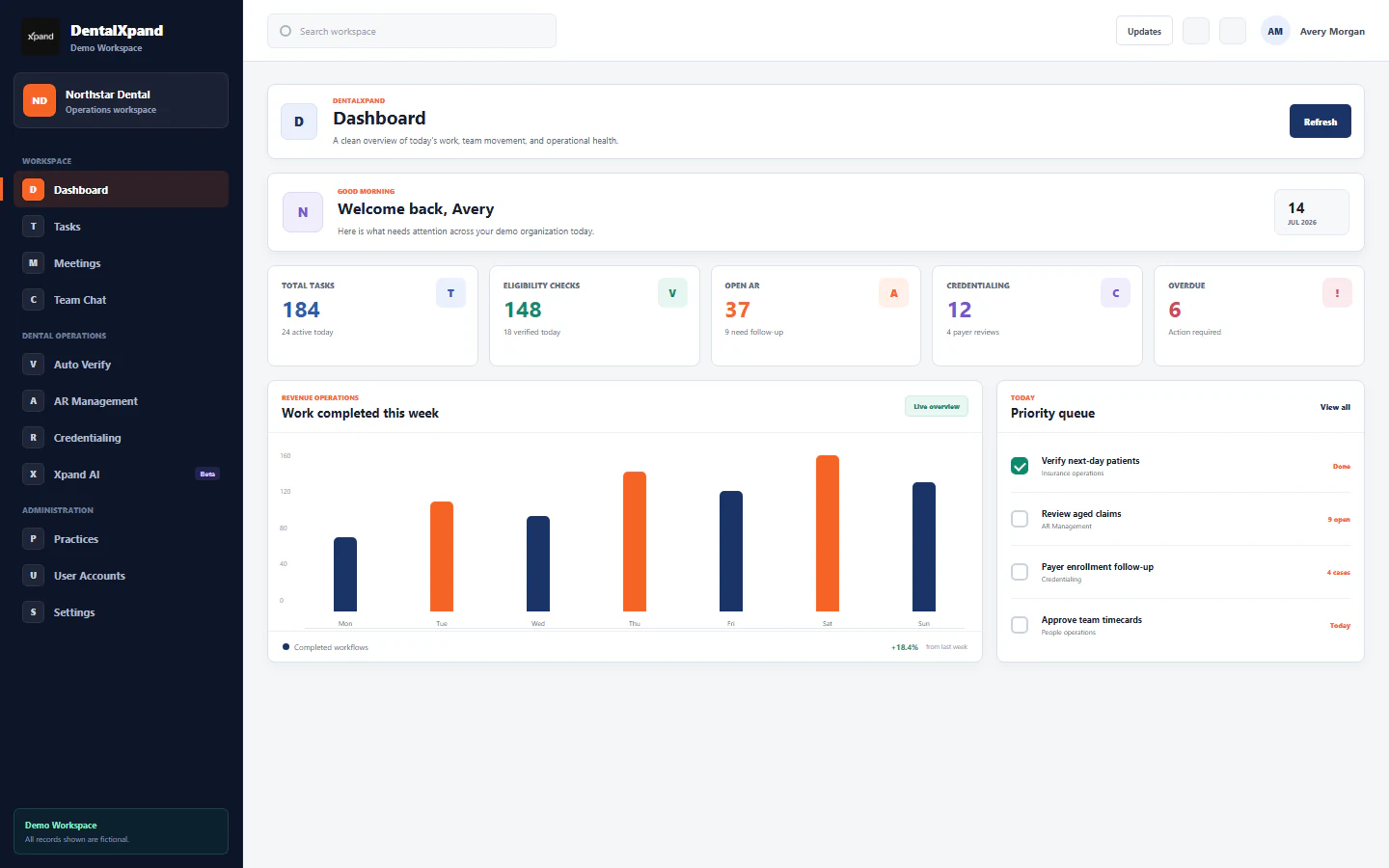
Use the Support Hub, complaints, and help tools
Use the persistent Quick Hub for focused messages, page-aware Xpand AI, safe screen snapshots, feedback and support requests; create and track full Support Hub tickets, understand anonymity, and resolve records within role and tenant boundaries.
DentalXpand provides two connected help surfaces. The persistent Quick Hub offers focused employee messaging, a compact Xpand AI assistant, screen-snapshot attachment, feedback, suggestions, support requests, and unread-notification access while a signed-in user works across standard application pages. The full Support Hub at /support provides a permission-gated ticket workspace with complaint, suggestion, and support channels; category, priority, subject, description, and optional anonymous submission; searchable and filterable records; realtime refresh; status and resolution history; and manager or administrator response controls.
1 / Purpose and surfaces
Use the smallest approved help surface that fits the work
A draggable desktop pill and compact mobile control mounted in the standard signed-in application shell. It opens Messages, Ask Xpand AI, Feedback, and an unread-notification shortcut without leaving the current page.
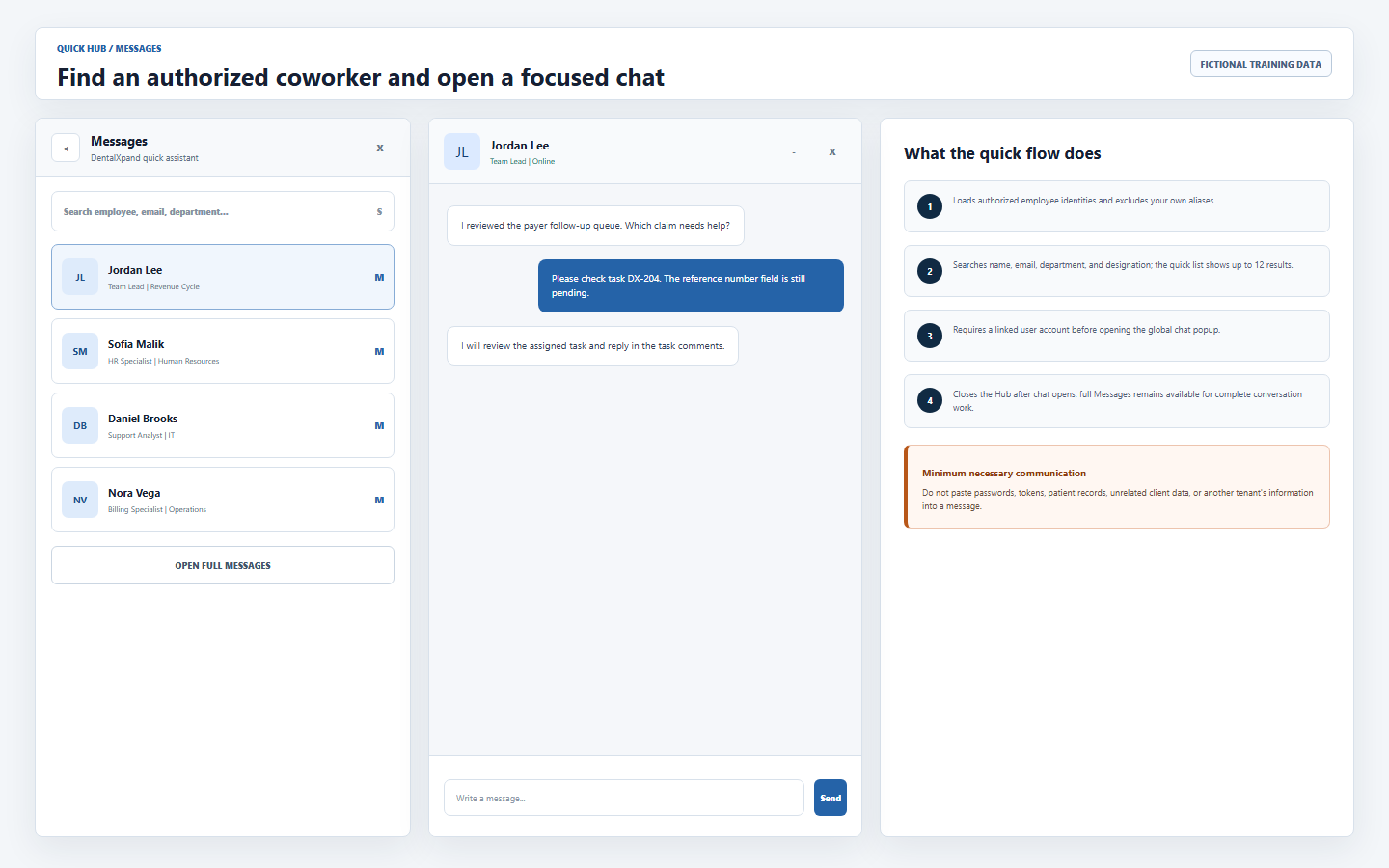
Searches authorized employee identities, excludes the current user’s aliases, and opens a global chat popup for a selected employee with a linked user account. Full Messages remains available for complete conversation work.
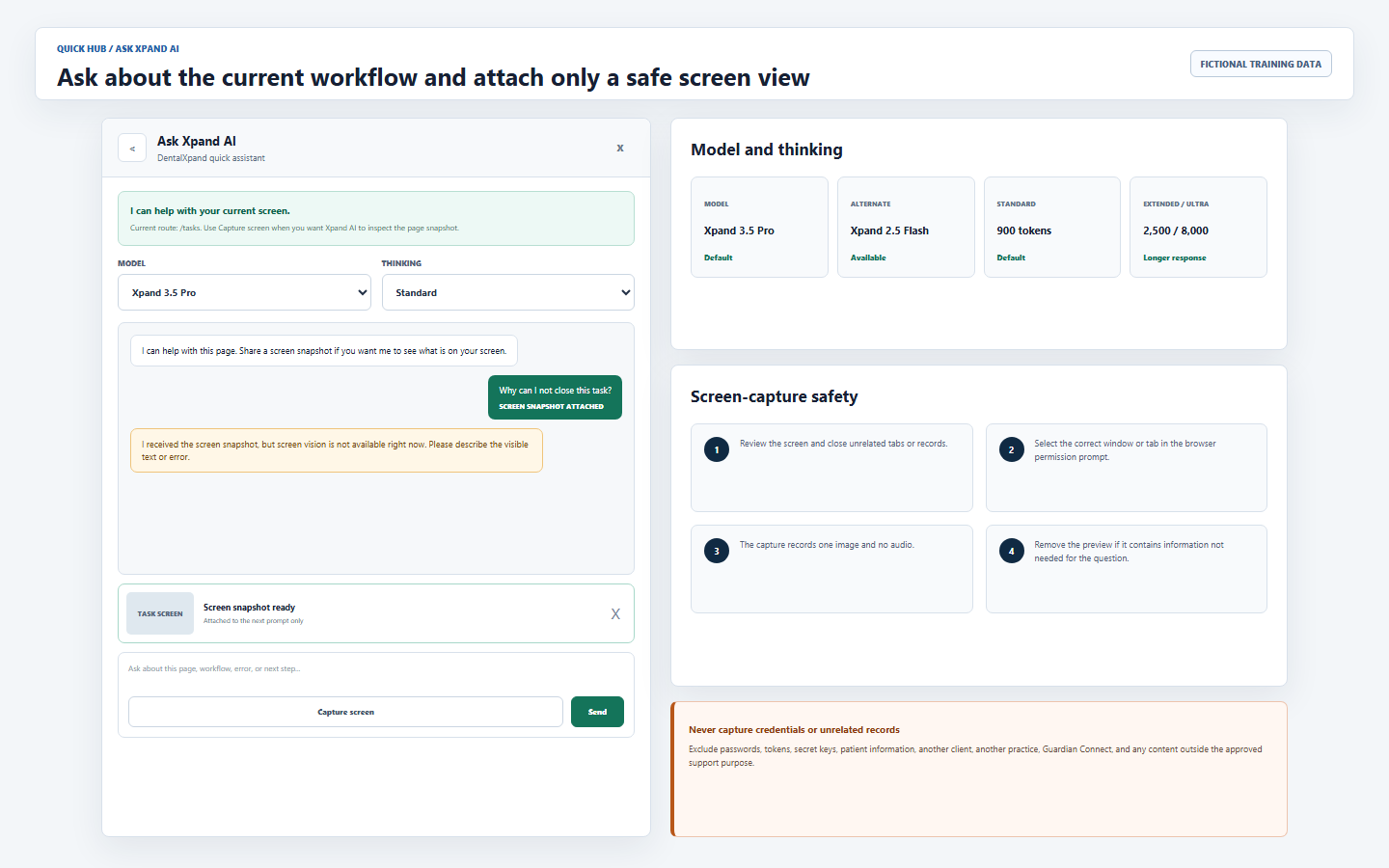
Provides model and thinking controls, a current-route label, conversation input, optional one-image screen snapshot, and a clear fallback when screenshot extraction or vision is unavailable.
Creates a suggestion, support request, or issue from the floating panel. Subject and description are required; category, priority, and optional anonymous submission are available.
A permission-gated route for new complaints, suggestions, and support requests; summary cards; search and type filters; ticket expansion; resolution review; and authorized manager or administrator actions.
Messages remain conversation records, AI requests remain assistant interactions, notifications remain alert records, and complaints remain support tickets. The Hub links these workflows without merging their ownership or access rules.
Open the authorized Support Hub. Use the full Messages page, full Xpand AI page, or Notifications when the quick panel is not the right working surface.
2 / Access and scope
Confirm identity and tenant context before sending or reading support content
| Check | Confirm | Why it matters |
|---|---|---|
| Signed-in account | The displayed name, email, role, and current browser session belong to you. | The Quick Hub is hidden for signed-out users. A remembered or shared browser session is not authorization. |
| Workspace shell | You are using the standard DentalXpand workspace, not a platform-only administration shell. | The current layout does not mount the Quick Hub in platform-only mode. Do not alter the page or account to force it to appear. |
| Organization and practice | The active organization and practice match the work you intend to discuss. | A ticket, message, AI prompt, or snapshot must not become a route for cross-tenant or cross-practice disclosure. |
| Support page permission | The sidebar or authorized route permits pages.support. |
The full Support page is gated independently. Seeing the global launcher does not grant the full route or every service action. |
| Related service access | Messages, Notifications, Xpand AI, employee lookup, support rows, and storage policies permit the requested action. | Each workflow keeps its own route, service, database, and tenant enforcement. The Quick Hub is not an access override. |
Review roles and access boundaries and organization, practice, and tenant context when the expected scope is unclear.
3 / Persistent Quick Hub
Open, close, move, and recover the Quick Hub without losing page context
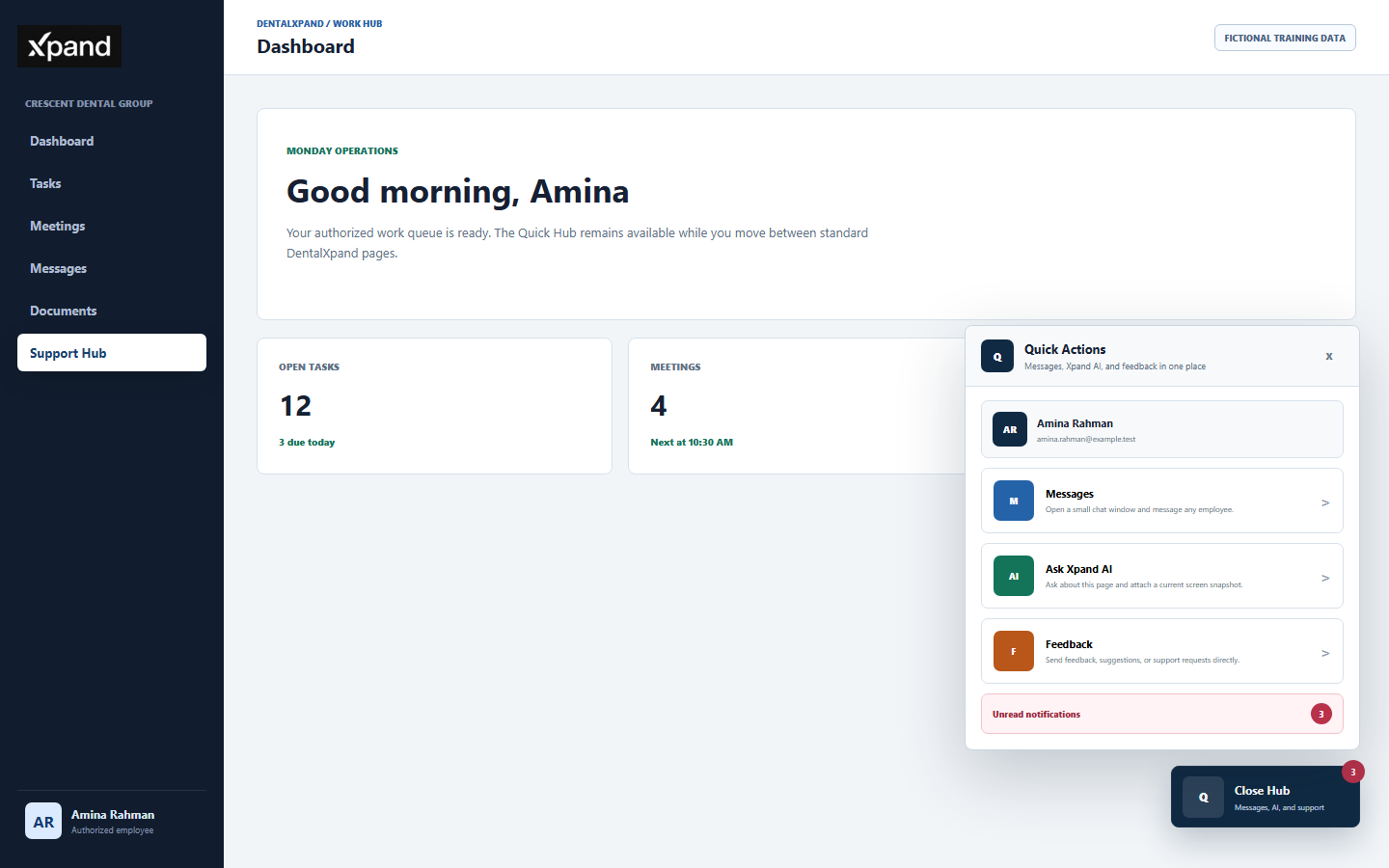
- Click to open or close.The launcher toggles the Quick Actions panel. Opening it resets the visible panel to the main menu; changing application route closes it and returns it to the menu.
- Drag deliberately.Press and drag the launcher to a convenient visible position. The app distinguishes movement from a click and stores the corrected position in browser local storage.
- Keep it inside the viewport.Saved coordinates are clamped on load, resize, and drag. The current layout keeps a screen margin and a larger bottom safe area so the control stays above the browser or taskbar edge.
- Use the appropriate action.Messages opens employee search, Ask Xpand AI opens the compact assistant, Feedback opens the submission form, and unread notifications appear only when the current unread count is greater than zero.
- Respect automatic closing.Clicking outside the open panel closes it. Selecting an employee or opening the full Support or Notifications route also closes the panel.
4 / Quick Messages
Find an authorized coworker and move the conversation into the correct message surface
| Step | Reviewed behavior | Required discipline |
|---|---|---|
| 1. Open Messages | The panel loads available employee identities and the current user’s account aliases. | Only identities returned through the authorized message service may be used. Do not infer that a missing person should be manually added. |
| 2. Search | Name, email, department, and designation are matched; up to 12 results are shown. | Search only for a legitimate work purpose. Do not enumerate people, departments, or emails outside the current assignment. |
| 3. Select employee | A linked user_id is required. The app dispatches a global-chat request and closes the Hub. |
If the employee has no linked user account, request an authorized account-mapping review. Do not borrow another identity or alter IDs. |
| 4. Use chat popup | The global popup opens or restores the conversation. Desktop can retain a small set of recent popups; mobile shows the most recent one. | Keep quick conversation focused. Move complete history, attachments, voice notes, search, and group work to full Messages. |
| 5. Open full Messages | The button navigates to /messages and closes the Quick Hub. |
Use the documented team messages guide for attachments, mentions, unread state, and conversation management. |
5 / Xpand AI and screen capture
Ask for workflow help and attach only the minimum safe screen image
| Control | Current implementation | Safe use |
|---|---|---|
| Current route | The panel displays the current application route so the operator can frame a page-specific question. | State the exact button, field, status, safe identifier, and non-sensitive error. Do not assume the displayed route grants access to page data. |
| Model | Xpand 3.5 Pro is the default; Xpand 2.5 Flash is available as an alternate. | Choose the model needed for the work. A model selection does not change organization, practice, role, or data authorization. |
| Thinking | Standard, Extended, and Ultra currently request approximately 900, 2,500, and 8,000 maximum response tokens. | Use longer modes for genuinely complex guidance. They do not justify adding more sensitive context. |
| Prompt | Enter sends; Shift+Enter creates a new line. A prompt or a snapshot is required. | Ask for explanation or next steps. Do not ask the assistant to bypass permissions, reveal another tenant, or perform unsupported database changes. |
| Capture screen | The browser requests a display source, captures one PNG image, includes no audio, and shows a removable preview for the next message. | Close unrelated tabs and records first. Select only the intended window or tab. Remove the preview if it contains information not required for the question. |
| Vision unavailable | When the backend reports image-extraction or vision warnings, the assistant confirms receipt and asks for visible text or a clearer description. | Do not keep attaching broader screenshots. Type the exact non-sensitive text or use the approved incident route for sensitive exposure. |
6 / Submission design
Choose the correct channel, category, priority, and identity mode before writing
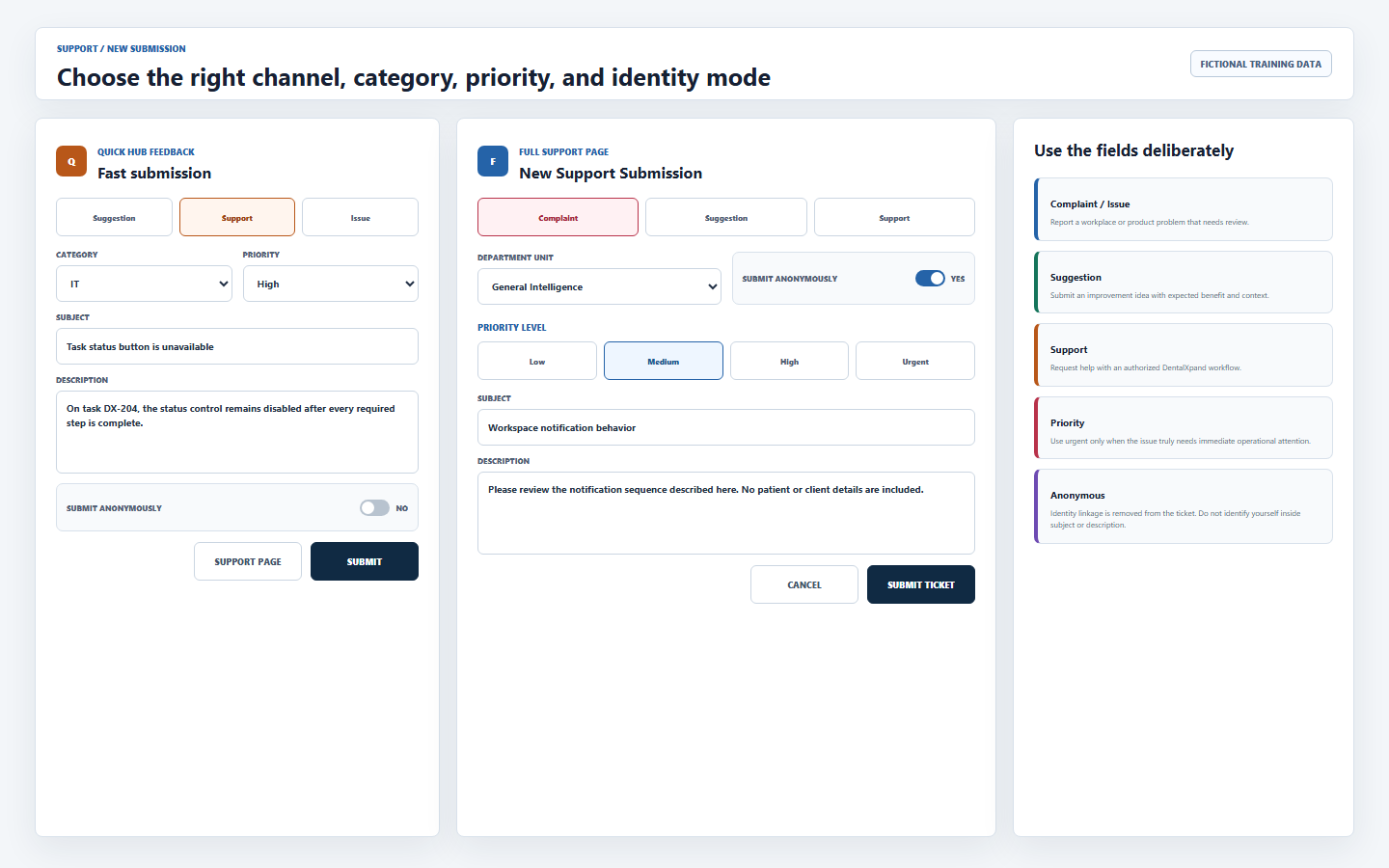
| Field | Quick Feedback | Full Support Hub | How to choose |
|---|---|---|---|
| Default channel | Suggestion | Complaint | Use Complaint or Issue for a problem, Suggestion for an improvement idea, and Support for help with an authorized workflow. |
| Category | General, IT, HR, Billing, Operations | General, HR, IT, Facility, Finance | Choose the closest owning unit. Describe the workflow rather than exposing unrelated records. |
| Priority | Low, Medium, High, Urgent; default Medium | Low, Medium, High, Urgent; default Medium | Use Urgent only for truly immediate operational impact. Priority is not a substitute for the emergency or incident procedure. |
| Subject | Required short summary. | Name the affected page or workflow and safe symptom. Do not put personal, patient, credential, or cross-tenant content in the subject. | |
| Description | Required detailed explanation. | Include page, time, expected result, actual result, safe task or ticket ID, steps already tried, and exact non-sensitive error. | |
| Anonymous | Checkbox | Toggle | When enabled, the current create flow stores no employee ID. Do not identify yourself inside the subject or description when anonymity matters. |
7 / Create a full ticket
Submit one complete, actionable record and confirm the expected queue behavior
- Open New Submission.Use the authorized button on the Support Hub. The form starts with Complaint, General, Medium, blank subject and description, and anonymity off.
- Select the channel and owning unit.Choose Complaint, Suggestion, or Support, then select General, HR, IT, Facility, or Finance according to the full-page options.
- Set an honest priority.Choose Low, Medium, High, or Urgent based on business impact and required response. Do not mark routine requests urgent to accelerate normal work.
- Write a safe subject and description.Explain expected versus actual behavior, safe record identifiers, time, page, and steps already attempted. Remove credentials, protected records, and unrelated client context.
- Choose identity mode before submission.Anonymous mode saves a null employee link. A named submission resolves the current employee ID and can appear in that employee’s personal ticket query.
- Submit once.The complaints service creates the record with status
pending. Wait for the success message and refreshed queue before attempting a duplicate. - Understand anonymous follow-up.Because non-management ticket retrieval filters by the current employee ID, a ticket created without an employee link may not appear in the submitter’s personal list. Use the approved anonymous follow-up process rather than revealing identity or creating duplicates.
8 / Track and review
Use summary cards, search, type filters, expansion, and realtime refresh correctly
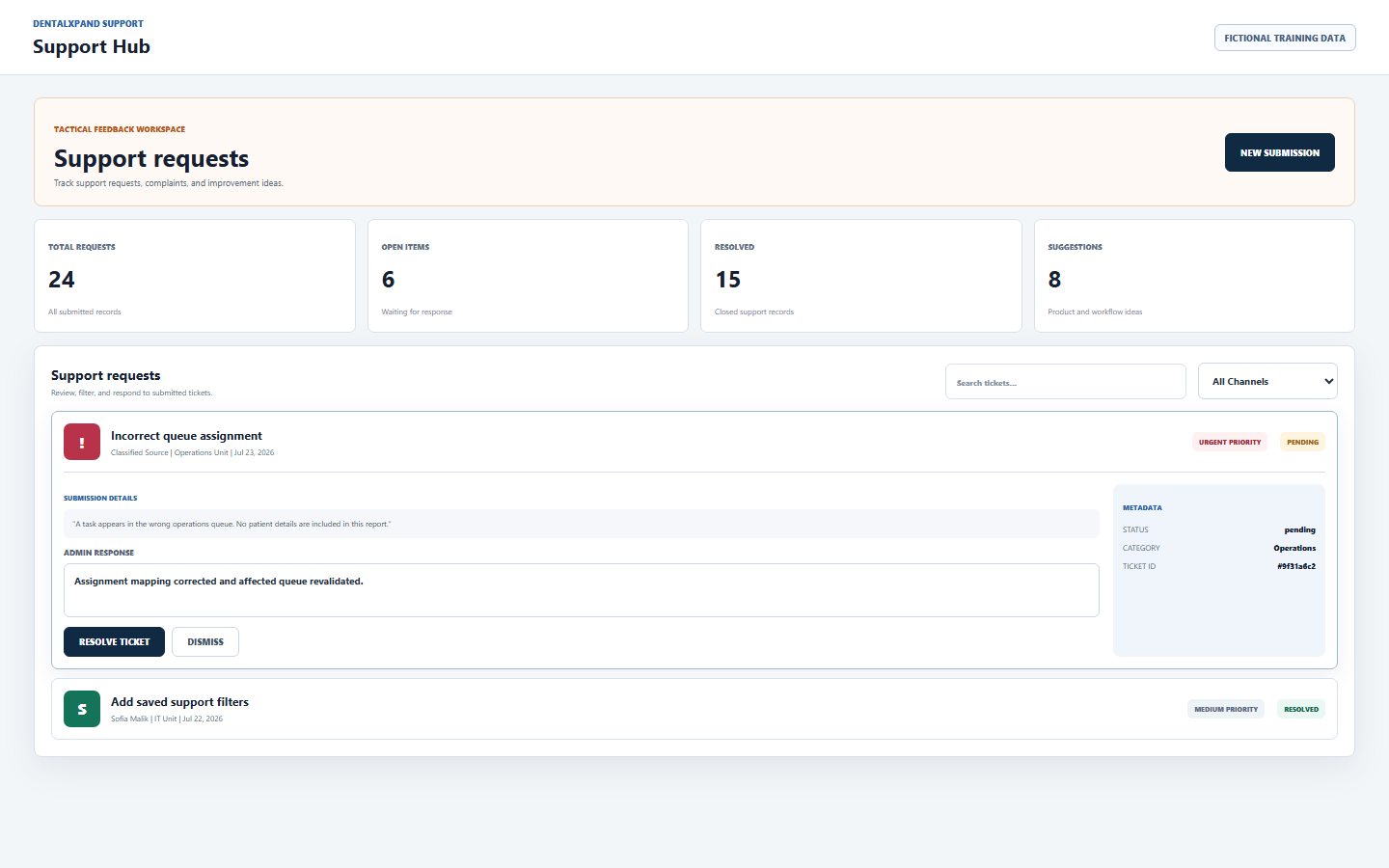
| Control | What the reviewed page does | Interpretation |
|---|---|---|
| Total Requests | Counts the tickets returned to the current page. | It is not automatically an organization-wide count for every role; it reflects the authorized query result. |
| Open Items | Counts records whose status equals pending. |
The expanded card also treats under_review as actionable, but the current summary count does not include that status. |
| Resolved | Counts records with status resolved. |
Dismissed records are not included in the resolved card. |
| Suggestions | Counts records whose type equals suggestion. |
It includes suggestions across returned statuses. |
| Search | Matches subject, description, and linked employee name in the currently loaded rows. | Search only for a legitimate purpose. An anonymous record displays Classified Source and has no linked employee name. |
| Channel filter | Shows All Channels, Complaints, Suggestions, or Support. | The filter changes the visible list, not the stored ticket type. |
| Expand ticket | Shows description, official resolution when present, status, category, and shortened ticket ID. | Expand only records required for current work. Do not browse tickets to discover identities, complaints, or private workplace details. |
| Realtime refresh | The page listens for complaint and employee-table changes and reloads silently. | A ticket can change while open. Re-read status and resolution before responding or duplicating work. |
9 / Authorized resolution
Resolve or dismiss pending work with a complete, non-sensitive response
| Step | Reviewed behavior | Required control |
|---|---|---|
| Confirm role | The response textarea and Resolve or Dismiss buttons appear for admin, super admin, or manager application roles when status is pending or under review. | A visible control is not final authorization. Route permission, service checks, database policy, tenant mapping, and management purpose must agree. |
| Review minimum context | The expanded ticket shows the submitted description and metadata. | Open only the ticket required for the assignment. An anonymous source must remain anonymous; do not attempt to correlate identity. |
| Write resolution | A non-empty response is required before either action is enabled. | State the verified action, outcome, owner, and safe next step. Do not paste private investigation notes, credentials, patient data, or unrelated employee information. |
| Resolve | Sets status to resolved, stores the response, current resolver employee ID, resolved time, and updated time. | Use only when the request has a verified disposition or completed action. |
| Dismiss | Sets status to dismissed with the entered response and the same resolution metadata. | Use only under the approved dismissal policy, with a clear reason and alternate route where applicable. |
| Confirm refresh | The page reloads tickets and can also receive realtime updates. | Verify status and official resolution. Do not repeatedly submit the same action when the first request is still processing. |
10 / Privacy and enforcement
Keep every message, prompt, snapshot, and ticket inside minimum-necessary boundaries
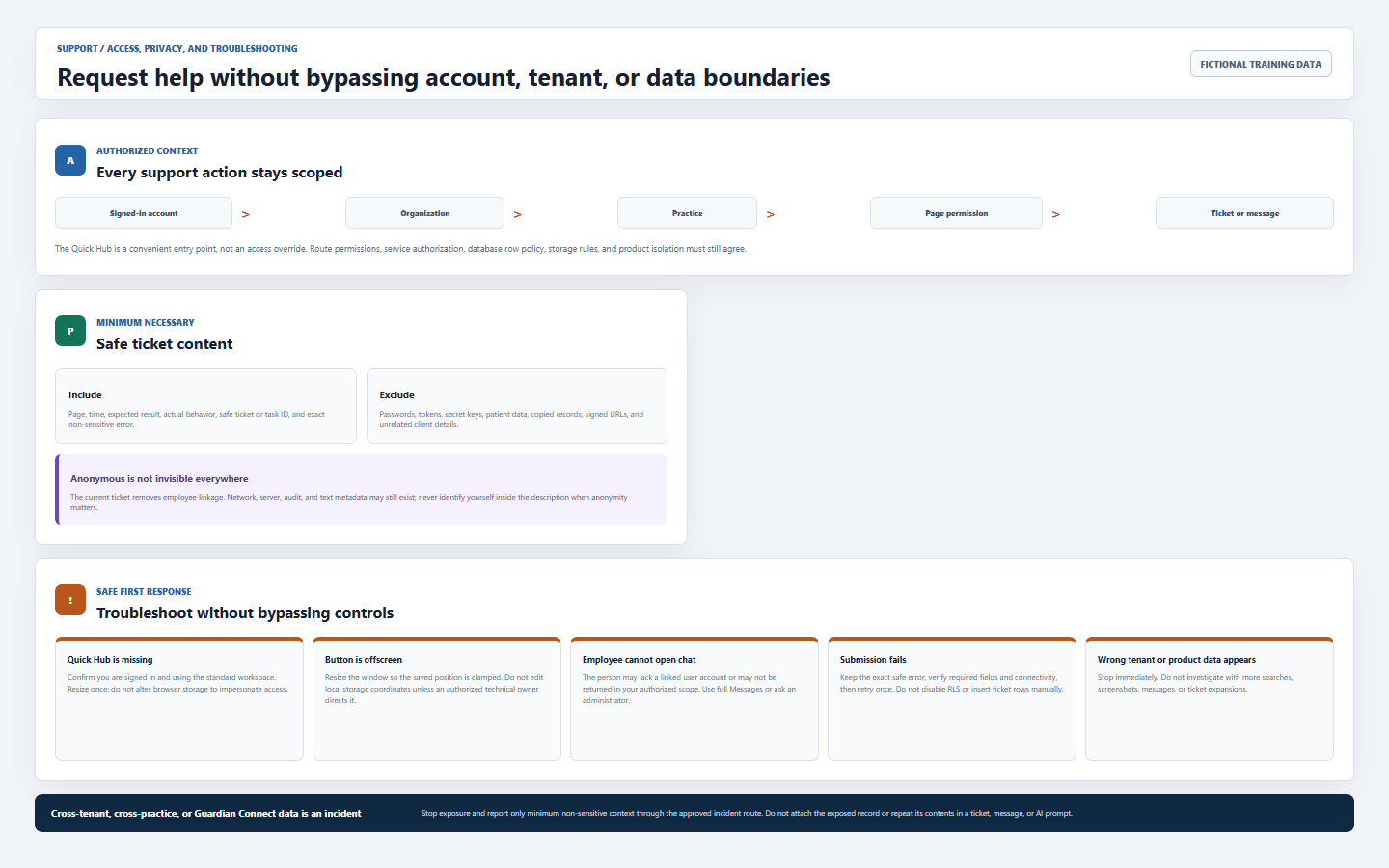
| Layer | Reviewed implementation | Production boundary |
|---|---|---|
| Quick Hub visibility | Rendered for signed-in users in the standard workspace and hidden in platform-only mode. | Visibility is not permission to every linked route, user, record, AI source, or ticket action. |
| Employee search | The message service returns user identities; the panel excludes current aliases and requires a linked user ID. | The service and database must return only authorized identities for the active organization, practice, and role. |
| Ticket retrieval | Non-management application users add an employee-ID filter; admin and manager roles request the broader result. | Database row policy must enforce equal or stricter tenant and role scope. Client-side filtering cannot secure an overbroad response. |
| Ticket creation | Named tickets resolve the current employee; anonymous tickets store no employee ID; all new records receive pending status. | The database must bind inserts to the authenticated tenant and accepted fields. Do not manually insert or alter ticket rows. |
| Resolution | The UI limits response actions by role and the service writes resolver and timestamps. | Backend and row policy must enforce management authorization. Hidden buttons and client role checks are not sufficient alone. |
| AI image | A screen PNG can be sent with the next compact AI request. | Capture only the minimum safe view. Never assume model selection, route label, or a warning protects content from an incorrect attachment. |
| Product isolation | These tools are part of the DentalXpand workspace. | Guardian Connect data must not appear in DentalXpand support, messages, AI, or screenshots, and DentalXpand data must not cross into Guardian Connect. |
11 / Troubleshooting
Resolve expected failures without changing IDs, sessions, policies, or tenant data
| What you see | Possible reason | Correct first response |
|---|---|---|
| Quick Hub is missing | You are signed out, using platform-only mode, or the global layout is not mounted correctly. | Confirm your own signed-in account and standard workspace, then refresh once. Do not alter auth state, role data, or page code. |
| Launcher is too low or offscreen | Old saved coordinates or a viewport change placed it near an edge. | Resize the window once so supported clamping runs. If still missing, report the viewport and safe symptom; do not impersonate access through browser storage. |
| Employees do not load | Message service, current aliases, employee mapping, tenant policy, or connectivity failed. | Use full Messages if authorized, refresh once, and report the safe error. Do not query employee tables or IDs directly. |
| Selected employee cannot open chat | The employee lacks a linked user account or is not authorized in your current scope. | Request an authorized user-to-employee mapping review. Do not select another account as a workaround. |
| Screen capture fails | The browser lacks display capture, permission was denied, or the selected source closed. | Use a supported browser, select the correct window or tab, or describe the safe visible text. Never disable browser protection or capture a broader desktop. |
| Xpand AI cannot inspect image | Backend screenshot extraction or vision is unavailable. | Type the exact non-sensitive text or error. Do not attach repeated screenshots containing more data. |
| Ticket submission fails | Required fields, connectivity, current employee mapping, tenant policy, database schema, or row security may have rejected the write. | Keep the exact non-sensitive error, verify required fields, and retry once. Do not disable RLS or insert a ticket manually. |
| Anonymous ticket is absent from personal list | The create flow removed employee linkage and the regular list query filters by current employee ID. | Use the approved anonymous follow-up route. Do not reveal identity, submit duplicates, or ask someone to search by timing. |
| Resolve or Dismiss is missing | Your role, status, route permission, or deployed policy does not authorize the action. | Respect the missing control and escalate to the assigned manager. Do not change role values, status, URL, or database rows. |
| Wrong person, tenant, practice, or product appears | Session, mapping, query, row policy, storage, cache, deployment, or product isolation may be incorrect. | Stop immediately. Do not search, expand, message, screenshot, copy, or test more records. Contact support@xpand.dental with minimum non-sensitive context. |
12 / Completion verification
Confirm safe Support Hub use before continuing
- I can distinguish the Quick Hub launcher, Quick Messages, Ask Xpand AI, Quick Feedback, full Support Hub, Notifications, and their owning records.
- I confirm my own account, standard workspace, organization, practice, route permission, and related service access before sending or reading support content.
- I know how to open, close, drag, and recover the Quick Hub without changing browser identity, role, route, or local-storage values to force access.
- I search only authorized coworkers, require a linked user account, use focused popup chat, and move complete work to full Messages.
- I choose the appropriate Xpand model and thinking level, frame a page-specific question, and attach only one reviewed minimum-necessary screen image.
- I can choose Complaint or Issue, Suggestion, or Support; select the closest category; assign an honest priority; and write an actionable subject and description.
- I understand anonymous submission removes the employee link in the current ticket flow but does not guarantee absence of network, server, audit, timing, or text metadata.
- I know an anonymous ticket may not appear in a regular user’s employee-filtered list and I use the approved anonymous follow-up process.
- I use summary counts, search, type filter, expansion, status, resolution, and realtime refresh only for a legitimate support purpose.
- I resolve or dismiss pending or under-review tickets only with authorized management access and a complete non-sensitive response.
- I never include passwords, tokens, secret keys, patient records, unrelated client data, signed URLs, another tenant, or Guardian Connect content in messages, AI prompts, snapshots, or tickets.
- I never fix support errors by changing IDs, borrowing accounts, editing role or status values, disabling RLS, inserting rows manually, or investigating exposed data.
- I stop and report any wrong-person, cross-tenant, cross-practice, or cross-product data event without opening or copying more information.
Need workflow support?
Bring the question and the exact step where you are blocked.
Explore how this guide connects to DentalXpand features.