Payment outcome
Matched payments in the client’s PMS.
Match retrieved remittance data to the patient, claim and service lines, then apply supported payment entries. Check the payment result separately from document or note completion.
Dental billing company software
Verification, claims follow-up and payment posting software for teams serving multiple practices.
Your billers own the client work. DentalXpand handles eligible routine steps, keeping instructions, benefits reports and claim follow-up together. Check which updates are available through each practice’s existing practice-management system (PMS).
We guide setup and training. Tell us how many practices you serve, their PMS versions and your monthly workload. Patient records are not needed.

Client handoff example — fictional practices. This illustrates the context to review, not a live practice switcher or a product screenshot.
Insurance verification
Once Autopilot is set up, eligible scheduled appointments start insurance checks in the background. Billers can also choose an appointment date and run a batch.
Turn payer responses into structured benefits summaries and branded downloadable verification PDFs.
Automatically write supported provider notes and upload benefits PDFs to your existing PMS through the client-confirmed connection.
Review completion notices and exceptions before the appointment.
Claims & accounts receivable (AR)
Keep the client, payer and outstanding claim together.
Check payer claim status individually or in background batches, with matched responses and review exceptions.
Automate daily status follow-up for eligible payer-accepted claims using practice-specific schedules.
Keep payment evidence, review exceptions, owners and next actions together.
Automatic remittance & payment posting
With the source connection configured, DentalXpand automatically retrieves available electronic remittance advice (ERA) or explanation of benefits (EOB) documents from connected insurance sources. Confirm which remittance sources and document types are enabled for each client.
Match the retrieved remittance to the corresponding patient and claim. Keep unmatched items for review.
Automatically post supported payments, upload available ERA/EOB PDFs and add supported notes or comments through that client’s configured PMS connection. Confirm supported actions and any required review or approval for each client.
Check unmatched records or incomplete PMS actions with the biller responsible for the client. Payment, PDF and note completion are separate outcomes.
Before enabling a client workflow, check its payer, PMS version and connection. Those determine which records DentalXpand can read, update or upload.
Checks per background verification batch*
No extra posting fee in Standard plans. Custom terms follow the agreement; compare other applicable costs in your proposal.
Estimate verification time with the calculator below. Include incomplete responses, retries and the review work your team retains.
*Background batch capacity is separate from completion speed and plan allowances.
Bulk dental insurance verification
Connected verification. Once set up, Autopilot checks eligible appointments in the background; a biller can also run a batch. Review coverage, service limits and missing information before the appointment.
Uploaded documents. Upload an existing verification of benefits (VOB) PDF to fill a benefits form and prepare the report. This route uses the uploaded document, whereas connected verification requests information from a payer.
Explore payer support and PMS optionsLet scheduled appointments trigger eligible checks on Autopilot, or choose a date and start a batch yourself.
Turn payer responses into structured benefits summaries and downloadable verification PDFs.
Automatically write supported provider notes, update available benefits fields and upload the verification PDF through the client-confirmed PMS connection.
Follow batch progress and completion notifications. Give unresolved checks an owner and next action.
Returned information varies by payer. Review benefits and service limitations before relying on a response.
Connected insurance sources & client PMS actions
Downloading a remittance is only one step. DentalXpand retrieves available ERA/EOBs from connected insurance sources, matches them to patient and claim records, and carries out the payment, PDF and note actions enabled for that client. A biller handles unmatched records and incomplete actions. Confirm the remittance source and any required review or approval during setup.
Payment outcome
Match retrieved remittance data to the patient, claim and service lines, then apply supported payment entries. Check the payment result separately from document or note completion.
Document & note outcomes
Through the client’s connection, DentalXpand can upload available ERA/EOB PDFs and add enabled notes or comments. A PDF in the PMS does not prove the payment completed; check that entry separately.
Explore the payment-posting workflow →Follow through
Use Autopilot for eligible claim-status follow-up and keep payer updates, AR ownership and next actions together. DentalXpand automatically submits secondary claims through supported, configured connections; primary claim submission remains in your existing workflow. Confirm the enabled route, payer enrollment and returned submission outcome for each client.
Explore dental claims and AR follow-upRetrieval depends on the connected insurance source and available remittances. Payment, PDF and note actions depend on the client’s PMS version, permissions and enabled connection. For a practical review reference, see the ADA guide to reading EOB statements.
For teams serving multiple client practices
Two client practices can use different PMS versions and follow different procedures. Keep their instructions and assigned biller with the work, so a handoff does not lose the client context.
Keep practice-specific instructions beside the patient or claim worklist. A teammate can continue the follow-up with the client context in view.
Explore team workflows →Each client’s PMS version, permissions and connection determine which payment, PDF and note actions can run. Practice-specific schedules keep eligible follow-up tied to that client’s work.
Check PMS action scope →Keep unmatched records, missing information and the next action with the client’s work. Assign the follow-up to a biller with the appropriate practice access.
Explore access and administration →Confirm each practice before rollout
Record the PMS name and version, payer enrollment, permitted actions and exception owner for each client. Different practices can have different payment, document, note and benefits-field support.
Setup boundary: live reads and writebacks depend on the PMS version, supported action, permissions and configured connection. Primary claims stay in your existing workflow; supported secondary claims can submit automatically after setup. Confirm the enabled route, required enrollment and submission outcome.
Put your own workload into the picture
Enter your monthly patient volume and the minutes each verification takes. Include the review work that would remain in the proposed workflow.
This is a planning estimate, not measured performance or a savings promise. Compare it with subscription, connection and usage costs.
Onboarding and plans
Plan scope: Standard plans include unlimited payment posting with no extra posting fee. Custom arrangements follow the written agreement. Compare subscription and applicable connection or usage costs; trial allowances and any setup fees must be confirmed in your proposal.
Workflow previews to discuss in your demo
Open these sample views at full size before your demo. Inspect the benefits detail, outstanding claims and team priorities, and bring your questions to the walkthrough.
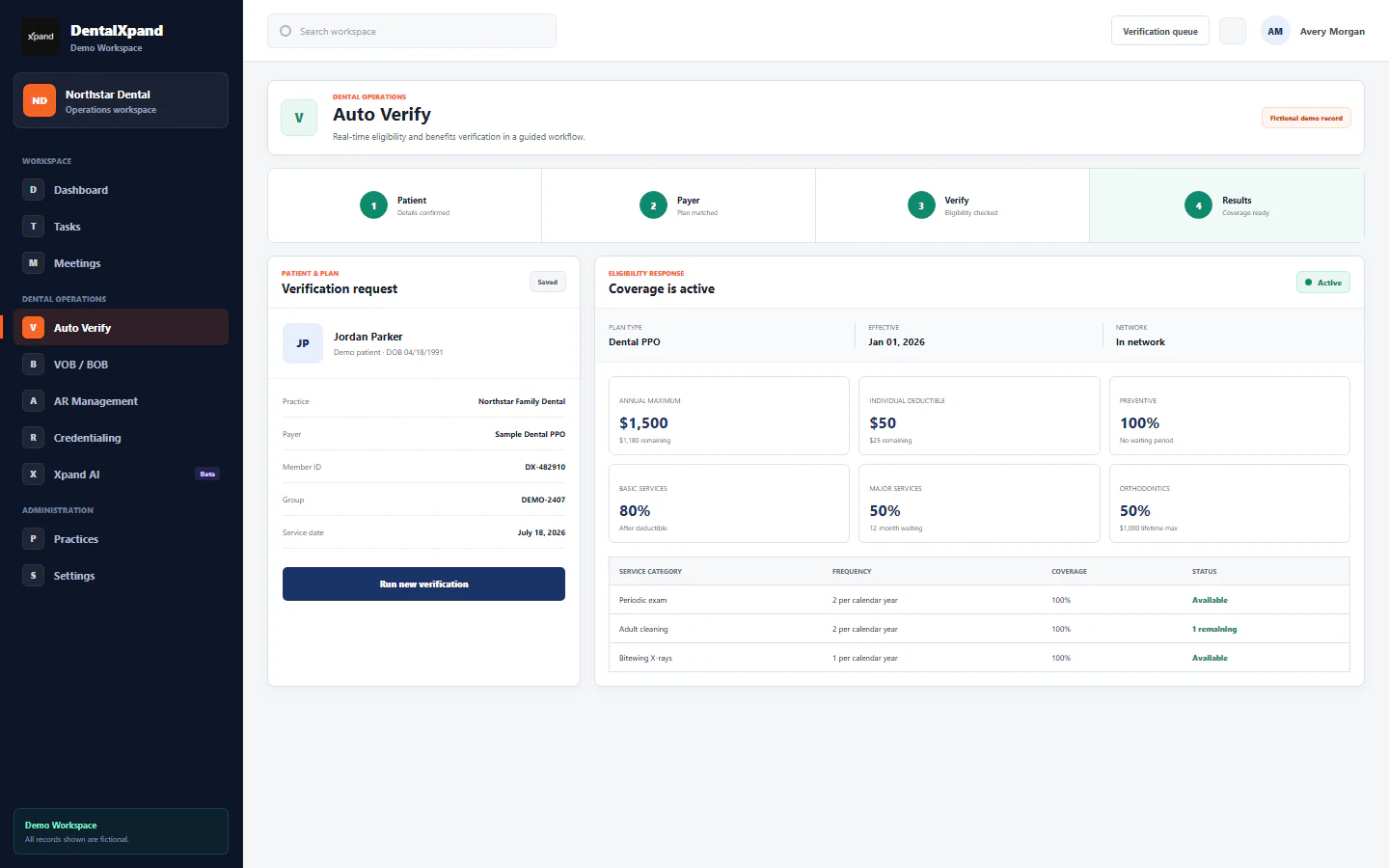 Open full-size preview (opens in a new tab)
See coverage and returned service details in a consistent working view. Identify the questions your billing specialist should resolve before the appointment.
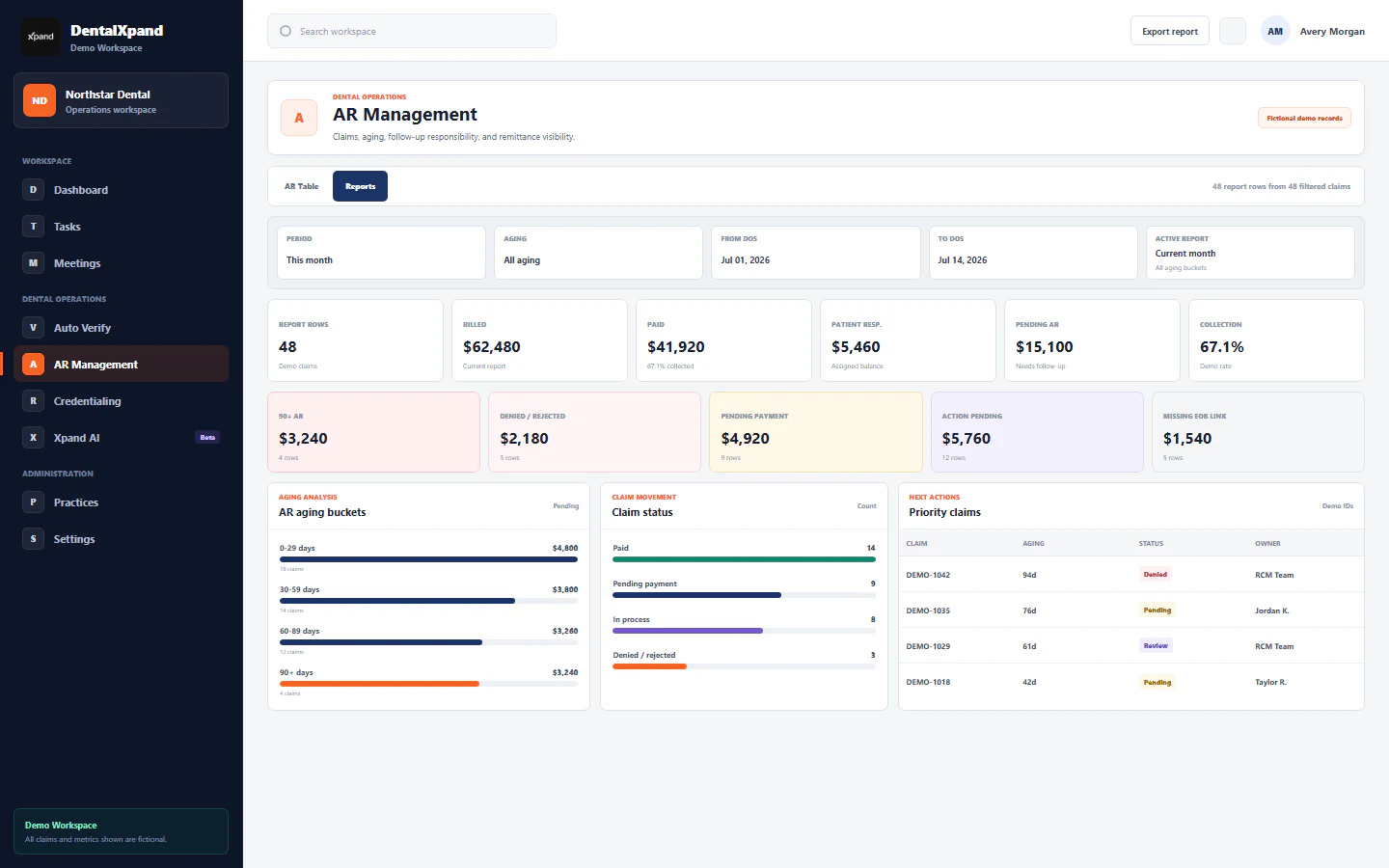 Open full-size preview (opens in a new tab)
Review claim status and aging in one worklist. Give unresolved claims an owner and keep the client’s instructions close at hand.
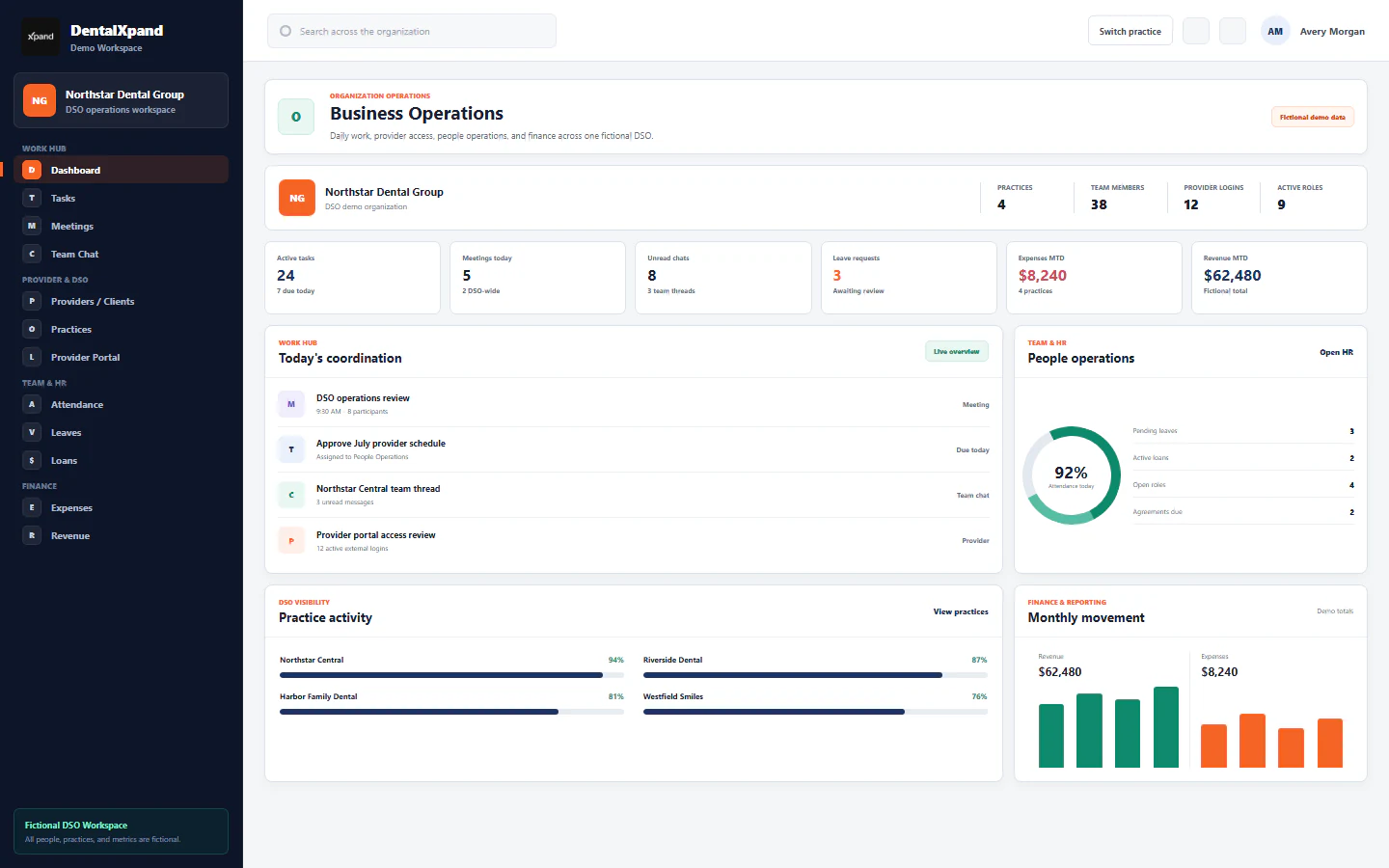 Open full-size preview (opens in a new tab)
Connect team priorities with daily practice work. Help leaders spot where support is needed without asking every person for another update.
Illustrative previews use fictional records. Available views and actions depend on your plan, permissions and configured connections.
Optional calling, email and team tools
Billing work also brings calls, email and internal follow-up. Staff can use the wider workspace for those tasks, meetings and team coordination. Hiring and retention tools are optional; candidate sourcing remains in development.
Calling
Bring supported Twilio or Vonage calling into the workspace so staff can make and receive work calls without a separate number for every person. Size concurrent calling capacity around your actual team.
Company email
Connect your company domain and assign supported email accounts to your users. Keep client communication close to the work, and review which separate email services your team still needs.
Meetings & chat
Use built-in meetings and team chat to coordinate remote and onsite staff. Assign the follow-up as a task so decisions have an owner.
Practice access
Give authorized teammates access to the clients and workflows they need through the configured practice connection. Each person uses their own account, with access set for their responsibilities.
Confirm calling channels and usage, email/domain setup, plan limits and client PMS licensing. Connected services can carry separate charges.
Before you add another client
Before adding another client, decide which work the software will handle, what each practice’s connection allows and what the written proposal will cost.
Compare plans for your teamMeasure the time spent on routine verification, status checks and remittances, including the billers’ exception review. Use that workload to estimate capacity. Automation does not guarantee fewer hires or a particular number of completed cases.
Once the client workflow is set up, Autopilot checks eligible appointments and follows up claim status in the background. DentalXpand also retrieves available ERA/EOBs and completes matching and enabled PMS payment, PDF and note actions. Secondary claims submit automatically where the client connection supports them. Billers resolve exceptions and make client decisions. Confirm remittance access, enabled actions, any required review or approval, and the secondary-submission route for each client.
DentalXpand is a SaaS platform with guided setup and training. Your billing team continues to own client work, review exceptions and make billing decisions. The software automates supported steps; it does not supply an outsourced billing team.
Yes. Check each practice’s PMS name, version, permissions and connection before enabling automation. Payments, documents, notes and benefits fields may have different requirements. Billers still need direct access to practice systems for work the connection does not cover.
DentalXpand automatically submits secondary claims through supported, configured connections. Primary claim submission stays in your existing workflow. Confirm secondary-claim support, the enabled production route, required enrollment and returned submission outcomes for each client’s connection during setup.
Unlimited payment posting is included in the standard plan, with no extra posting charge. Read the written proposal for the subscription and any setup, connection or usage costs that apply, including verification and claim-status services. Then compare that total, along with the time your staff will still spend reviewing work, against the cost of additional remote billers.
Start with one client workflow that slows your team down. Send the PMS name and version, practice count and approximate monthly workload with your demo request. Our team handles setup and training. Data is ready within 24 hours after the client’s PMS is connected. Use synthetic records in the walkthrough; no patient records are needed to start.
Choose the operating model
Compare the options by the work they cover and who handles follow-up. DentalXpand publishes this guide; it is not an independent vendor ranking.
Start here when one practice system already handles the required task. Confirm included features, staff effort and whether your multi-location reporting needs are covered.
Consider these when access to a specific payor transaction is the main gap. Confirm enrollment, returned fields, document handling and what still needs manual PMS entry.
Consider DentalXpand when your team retains billing ownership and wants Autopilot verification, claim follow-up, automatic secondary claims and supported payment posting connected across client practices. Confirm the PMS notes, uploads and payment actions available for each client connection. Confirm any required review or approval and the secondary-submission route during setup.
Consider a service team when you need people to own billing work, calls or follow-through. Clarify contractual responsibilities, review quality, fees and how results enter the PMS.
When Xpand may not be the right fit: your required PMS action is unavailable, your team needs a staffed billing service rather than software, or your current tools already meet the need at a lower total cost.
Compare the subscription, any applicable setup, connection or usage charges, and staff review time together. Ask for a matched pilot using your real workflow before deciding.
Follow one routine result and one exception across client practices.
Ask for a private walkthrough with synthetic records for two client practices using different workflows. Follow a routine result and an exception, checking who owns the work. No patient records are needed.
PMS/version names, practice count and approximate workload are enough for the initial request. No patient records needed.
Help us improve DentalXpand. May we use Google Analytics to understand visits and useful pages? We do not send form answers or patient records. Privacy details