
For independent and multi-location dental practices
DentalXpand is dental practice operations software that works alongside your clinical PMS. Once Autopilot is enabled, it checks patients on the connected schedule for eligible verification work. Confirm remittance sources, supported PMS actions and any required review or approval during setup; check payment, PDF and note results separately. Staff review missing benefits and unmatched payments, while daily tasks remain with the person responsible.
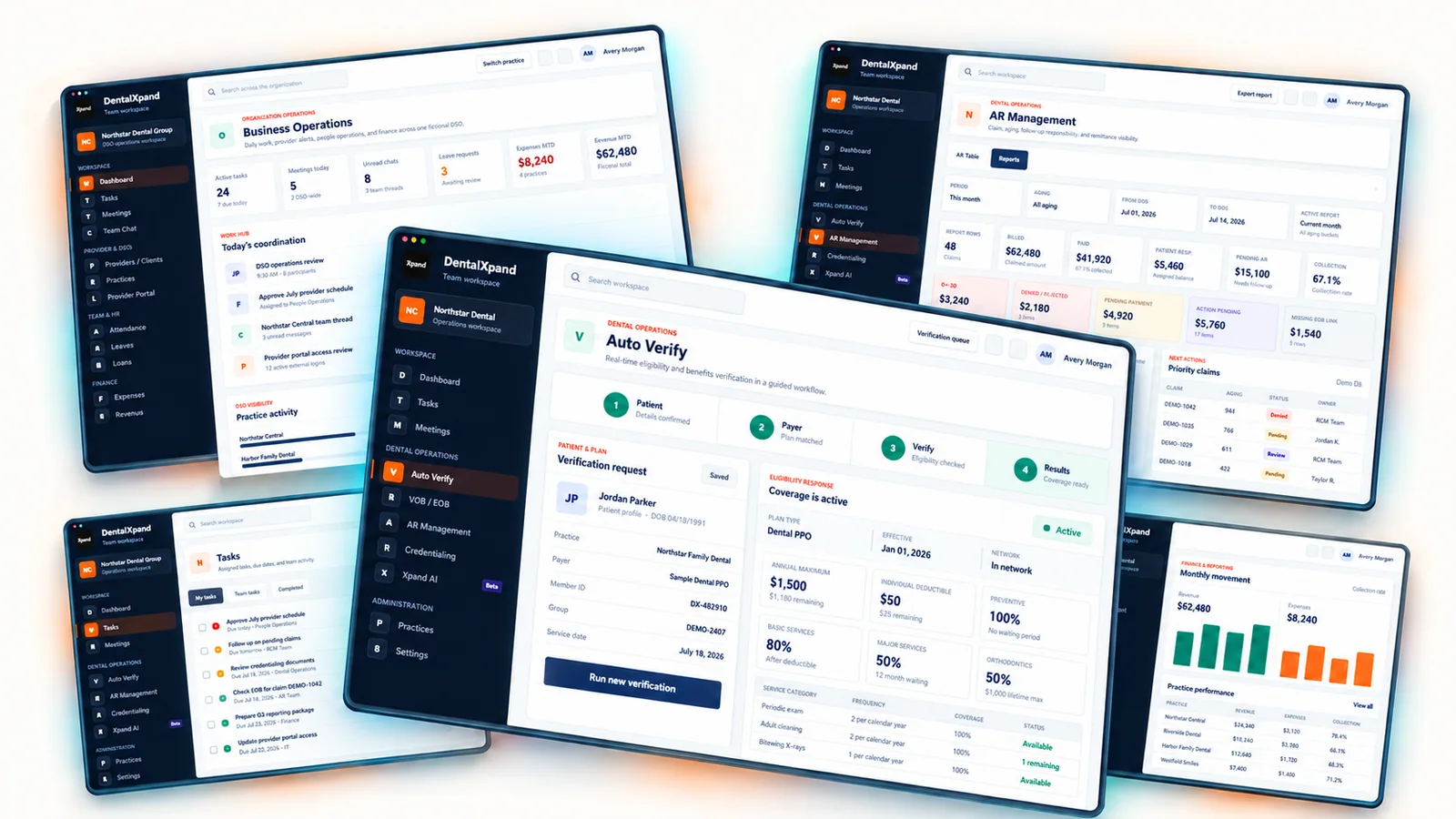
Verification before the visit and payment review afterwards
When tomorrow’s patient appears on the connected schedule, Autopilot can run the verification set up for your practice. Available benefits are recorded through the supported PMS fields, PDF or note actions. Front desk or billing staff review any missing or unclear details.
Prepare before the next appointment
Staff do not need to start every scheduled verification check. They can also select one patient or upload a list. The details returned depend on the payer, and eligibility never guarantees payment.
Continue after the payer responds
Xpand retrieves available ERA/EOBs from connected insurance sources and matches the patient and claim. Confirm the payment, PDF and note actions enabled for your setup, including any required review or approval, and check each recorded result separately. A claim-status response alone does not show that payment or posting happened.
Help the next teammate continue
If a remittance cannot be matched or a write fails, the result stays available to the reviewer. Retry the affected action where that option is supported, and keep unresolved tasks visible to the person handling the next decision.
Choose verification, payment posting or an unfinished task for your demo
What we’ll show in a private demo:
- A scheduled patient, the returned benefits and the supported PMS field, PDF or note outcome.
- A connected-source ERA/EOB, the matched record and the separate payment, PDF and note outcomes.
- A missing benefit or unmatched payment, what is flagged and what staff review or retry remains.
Tell us your PMS name and version and the workflow you want to see. Use approved sample data in the demonstration; keep patient information out of the public inquiry.
You can start upload-based verification before PMS onboarding is complete. We still need to provision your account and set up the relevant payer workflow. This lets you begin with the upload route while discussing the connected setup.
Agree on the setup before connecting data
- 1. Show the work
Bring your PMS version and one frequent task. Keep patient information out of the public inquiry.
- 2. Confirm the available actions
Review connections, payer requirements, permissions and the setup and training arrangements for your practice.
- 3. Review the first results
Learn where staff review missing details or failed actions before extending the workflow.
Check the connection and actions for your PMS
A live connection does not mean every action is enabled. Confirm your version, required records and each PMS update before rollout.
| Practice system | Connection | Version and required actions | Setup and review owner |
|---|---|---|---|
| Open Dental | Live connection | Confirm version during setup Confirm required patient, appointment and claim records. Confirm benefit forms, notes, payment entries and attachments separately. |
Practice authorization and payor enrollment where required. Batch start or schedule, where enabled for the workflow. Exception review: Practice or billing lead. |
| Dentrix Core | Live connection | Confirm version during setup Confirm required patient, appointment and claim records. Confirm benefit forms, notes, payment entries and attachments separately. |
Practice authorization and payor enrollment where required. Batch start or schedule, where enabled for the workflow. Exception review: Practice or billing lead. |
| Dentrix Ascend | Live connection | Confirm version during setup Confirm required patient, appointment and claim records. Confirm benefit forms, notes, payment entries and attachments separately. |
Practice authorization and payor enrollment where required. Batch start or schedule, where enabled for the workflow. Exception review: Practice or billing lead. |
| Dentrix Enterprise | Live connection | Confirm version during setup Confirm required patient, appointment and claim records. Confirm benefit forms, notes, payment entries and attachments separately. |
Practice authorization and payor enrollment where required. Batch start or schedule, where enabled for the workflow. Exception review: Practice or billing lead. |
| Eaglesoft | Live connection | Confirm version during setup Confirm required patient, appointment and claim records. Confirm benefit forms, notes, payment entries and attachments separately. |
Practice authorization and payor enrollment where required. Batch start or schedule, where enabled for the workflow. Exception review: Practice or billing lead. |
| Dolphin | Live connection | Confirm version during setup Confirm required patient, appointment and claim records. Confirm benefit forms, notes, payment entries and attachments separately. |
Practice authorization and payor enrollment where required. Batch start or schedule, where enabled for the workflow. Exception review: Practice or billing lead. |
| Curve Hero | In development No rollout date is promised. |
Confirm version during setup Confirm required patient, appointment and claim records. Confirm benefit forms, notes, payment entries and attachments separately. |
Practice authorization and payor enrollment where required. Batch start or schedule, where enabled for the workflow. Exception review: Practice or billing lead. |
| Denticon | In development No rollout date is promised. |
Confirm version during setup Confirm required patient, appointment and claim records. Confirm benefit forms, notes, payment entries and attachments separately. |
Practice authorization and payor enrollment where required. Batch start or schedule, where enabled for the workflow. Exception review: Practice or billing lead. |
| Cloud 9 | In development No rollout date is promised. |
Confirm version during setup Confirm required patient, appointment and claim records. Confirm benefit forms, notes, payment entries and attachments separately. |
Practice authorization and payor enrollment where required. Batch start or schedule, where enabled for the workflow. Exception review: Practice or billing lead. |
| OrthoTrac | In development No rollout date is promised. |
Confirm version during setup Confirm required patient, appointment and claim records. Confirm benefit forms, notes, payment entries and attachments separately. |
Practice authorization and payor enrollment where required. Batch start or schedule, where enabled for the workflow. Exception review: Practice or billing lead. |
| PracticeWorks | In development No rollout date is promised. |
Confirm version during setup Confirm required patient, appointment and claim records. Confirm benefit forms, notes, payment entries and attachments separately. |
Practice authorization and payor enrollment where required. Batch start or schedule, where enabled for the workflow. Exception review: Practice or billing lead. |
For each workflow, record the PMS/version, permitted reads and writes, trigger, prerequisites and person who reviews incomplete responses or failed updates. Ask to see both a completed record and an exception during your demo.
Confirm my PMS workflow →Continue using your PMS for established clinical charting, scheduling and source financial records. Use the maintained connection table to review status and the actions that still need confirmation for your version and practice.
Our team handles setup. Once the PMS is connected, data is ready within 24 hours. Available schedule reads, benefit fields, payment writes, patient-profile documents and notes depend on the PMS product, version, permissions and connection configuration. Xpand does not submit primary claims; confirm the production route and payer enrollment for automatic secondary submission in your setup. Other PMS integrations remain in development.
Review the Trust Center with your practice's authorized reviewer before connecting data.
Review the plan against your actual workload
Trial start, eligibility, included usage and any setup charges are confirmed in your written quote before access is provisioned.
Use your provider count, user needs and expected monthly verification and claim-status volumes to compare plans. Check the capacity and the separate allowances against the work you expect to do.
Questions from practice teams
Can I create an account immediately?
Our team provisions access after the workflow discussion and agreed setup. Trial start, eligibility, included usage and any setup charges are confirmed in your written quote before access is provisioned.
Do I have to finish PMS onboarding before trying verification?
Upload-based verification can work without PMS onboarding. Account setup, required input data and the relevant payer-service configuration still apply.
Will every benefit detail be available?
Returned information varies by payer, plan and supported transaction. Staff should review the response and follow up on missing or unclear details. Eligibility is not a guarantee of payment.
What access and usage should we confirm before activation?
Trial start, eligibility, included usage and any setup charges are confirmed in your written quote before access is provisioned. Confirm which features and connections are enabled, rather than assuming unlimited checks or every PMS action.
Is this only for large dental groups?
DentalXpand supports practice teams as well as group and billing-company workflows. Review the capacity, users and transaction allowances that fit your team.
Do we need to replace our clinical software?
DentalXpand works alongside your clinical PMS. Keep clinical charting and source financial records there; see the connection scope above for supported updates.
What should we check if we have more than one location?
Review each office's PMS, enabled workflow and responsible team. During the demo, ask to see how an authorized teammate finds the correct practice context and continues an unresolved task. For centrally managed group operations, explore DSO operations software.
What should we include when comparing the total cost?
Use the current plan prices and allowances for your provider, user and location needs. Standard plans include unlimited payment posting, with no extra posting charge. Custom-plan terms are agreed in your quote. Supported sources, enrollment, enabled PMS actions and any external costs still apply. Verification and claim-status allowances are separate. Confirm any separately quoted setup or connection costs with our team. Include retained staff review in your cost comparison.
See the full workflow before you start
Choose the part of your practice’s day you want to examine. We will walk through the workflow and explain the setup and access terms. Please keep patient information out of the public contact form.
Explore insurance verification, claims and AR follow-up and payment posting. For the wider product inventory, see DentalXpand features, including provider recruiting and provider retention.